- Prerequisite
- Enable or disable AI summaries with Copilot
- Form Sales / Purchasing & Customers / Suppliers
- Summary of Product details
- Collection Coordinator Summary
- Workflow History
- Summary in WMA Apps
- Additional Informations
In this post we will talk about the Copilot summaries. What is their usefulness? How to use them? And what is the impact on the information that will be presented in these summaries? This is a first brief overview of what exists.
Copilot contextual summaries are AI-generated summaries with information about the specific data present in D365FO depending on the form you open. In version 10.0.41, the contextual summaries of Copilot are enabled by default, which means that users will find these features when working with D365FO.

For example, when you open a Sale order, you will find this summary at the top of the form:

The format of the Copilot summaries may differ depending on the forms in which the summaries are available.
Prerequisite
Before you can use AI summaries with Copilot, your system must meet the following requirements:
- You must run one of the following versions of Supply Chain Management:
- Version 10.0.39 with proactive update to QS3 (PQU-3) or later
- Version 10.0.40 with PQU-1 or later
- Any version of version 10.0.41 or later
- Power Platform integration must be enabled for your environment. Typically, all components required to use Copilot summaries are automatically deployed when the Power Platform integration is enabled. However, if they do not work as expected Enable Copilot features in Finance and Operations applications.
- Use Workload Insights with Copilot in the Warehouse Management mobile application, you must run version 2.3.2.0 or later of the Warehouse Management mobile application.
Enable or disable AI summaries with Copilot
Administrators can control the AI summaries displayed in your system by searching for the following features in the feature management:
- Workload insights with Copilot in the Warehouse Management mobile app – Context-aware worker summary screen in WMA
- Product hover summaries – Product summary when hovering on item.
- Released product details summary – Product details summary.
- Purchase order summary – Purchase order summary.
- Sales order summary – Sales order summary.
- Vendor summary – Vendor summary
All these features are enabled by default, but you can disable some or all of them if you do not want to see them.
Form Sales / Purchasing & Customers / Suppliers
Form Sales Order
The Sales Order Details page includes a FastTab Summary by Copilot that displays an overview of the status of the selected Sales order. For example, it indicates the number of order lines partially or fully confirmed, received, and invoiced. The FastTab also displays other selected information, such as a summary of late or near late command lines.
For Sales orders that are not cancelled or invoiced, the Status section of the Summary by Copilot FastTab for Sales orders provides status details that apply across all order lines.
In this form, the copilot’s context summary is divided into “Status” and “Insights”:
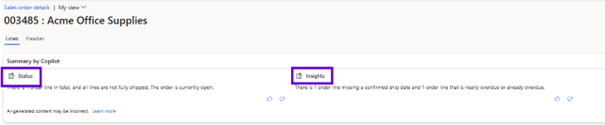
The status provides information about the current status or status of various elements based on the specific form you have opened.

The Insights also provides in-depth analyses and recommendations based on available data, such as patterns or highlights that require the attention of the user working with the form to make quick decisions if follow-up is required:

In addition to this, when using the copilot summary in the order form, you will also find in some cases a hyperlink based on the status or Insights given.

Clicking on this hyperlink will create the filter in the command line based on the filter you are using. If you use this filter, in the summary you can also clear this filter value.

These filtering hyperlinks are available only in purchase order forms.
Form Purchase order
The Details page of all purchase orders includes a FastTab Summary by Copilot that displays an overview of the status of the selected purchase order. For example, it indicates the number of lines partially or fully confirmed, received, and invoiced. The FastTab also displays other selected information, such as a summary of late or near late command lines.
For purchase orders that are not cancelled, invoiced, or finalized, the Status section of the Summary by Copilot FastTab for purchase orders provides status details that apply to all order lines. Depending on the case, the Status section provides buttons that allow you to filter command lines according to their status. Use filters to quickly find the relevant command lines so you can take appropriate action. Each filter is only displayed when at least one command line has the specified status.

Form Customers

Form Vendors
The All-vendors Details page includes a Summary by Copilot FastTab that displays status information and insights about the selected vendors. Information provided may include vendors currency, accounting currency, vendors blocking status, number of purchase orders, recorded supplier invoices, payment status, etc. They may also include the number of overdue vendors invoices, active purchase agreements and rebates agreements.

Summary of Product details
When opening information about a released product, the summary of product details is displayed. This context summary is divided into product, purchase, and sales information:

The About this product information displays common product information, while the Purchase information and Sales information display specific summaries for these processes.
For article information, another summary is also available: the product summary when hovering on item. This summary is displayed when you are in a form where the items are linked, and you hover over the items number. For example, in the Sales Order form when working with Sales Order Lines:

Sometimes it takes a while for the form to open when I hover over the item number. If I hover over the article number too quickly, the summary Copilot does not open.
Collection Coordinator Summary
The summary of the collection coordinator provided informs about the payment status of the customer. To view this summary, you must open the Collections Coordinator workspace and then click on one of the client names presented:
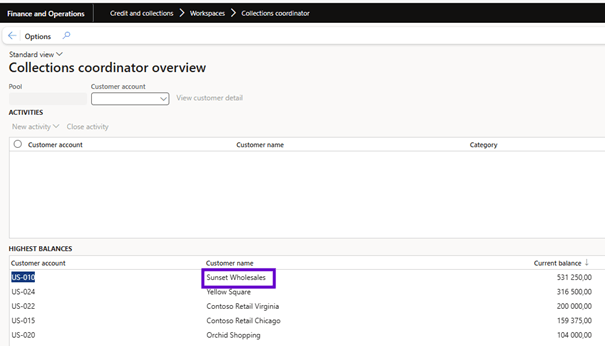
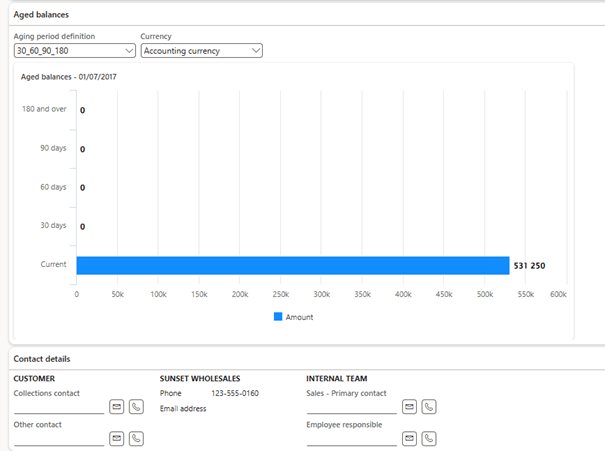
Now, the details of the collection coordinator will be open for this specific client and in this form, the context summary of the Copilot is available:

This summary is filled with information on the customer’s payment behavior, including specific information on overdue balances.
You can also perform a task: Create reminder email. Send to the customer an email regarding overdue balances:

This email will only be created and not sent. As a user, you always have the option to delete, modify or send the email.
Workflow History
When the workflow history is opened on one of the instances of the workflow, the copilot summary will be generated. The workflow status:

This workflow status will quickly explain the steps you have taken in the workflow and, if necessary, the error message that explains why a workflow is in a Stopped (error) state to help you quickly resolve it.
Summary in WMA Apps
In the Warehouse Management (WMA) application, a Copilot summary is available:
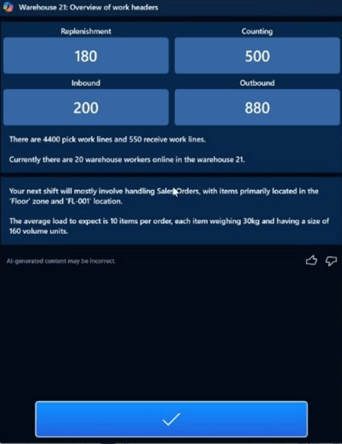
The Warehouse Management mobile app provides a workload page that displays work summaries and AI-generated insights to help warehouse employees better plan their work. Information may include the following:
- The number of work headers or picking and receiving work lines.
- The number of active warehouse mobile app sessions in the warehouse.
- Insights into available work types.
- The current workload. This information can be displayed as work headers or work lines.
- Details of available work by type of work.
- More information about the available work. Microsoft Copilot generates this information in natural language.
In the application settings, you have the option to activate the display of the copilot.

Additional Informations
For each summary created by Copilot, you have the thumbs buttons to like or dislike the summary:
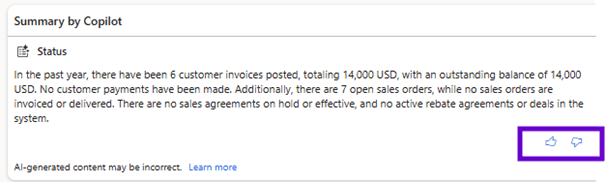
When you click on one of the thumb buttons, it will turn blue:

With these options, you can give feedback on the quality of the summary.
 D365FOAdviceTips
Leave a comment