Overview

AI Builder is a component of Microsoft Power Platform that empowers users to build AI models without the need for extensive coding or data science expertise. In the context of Dynamics 365 for Finance and Operations (D365FO), AI Builder can be leveraged to enhance various processes, including:
Process Automation: AI Builder can automate repetitive tasks and workflows within D365FO by recognizing patterns in data and triggering predefined actions or notifications based on predefined rules and conditions.
Image Recognition: Leveraging image recognition capabilities, AI Builder can automatically classify, and process images uploaded into D365FO, streamlining tasks such as inventory management, quality control, and asset tracking.
AI Builder Setup
Login to the PowerApps: https://make.powerapps.com/
Select the AI models and choose the “Extract custom information from documents” option.

Select the Invoices and click on the “Next” button:

Add the mandatory fields in the AI model required for creating sales orders in D365F&O.
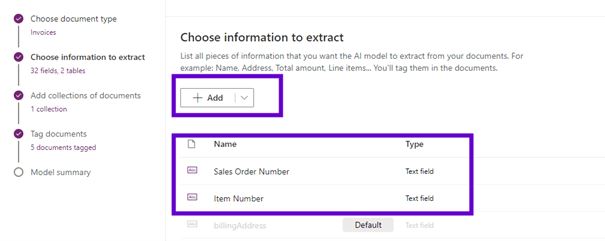
Take the sample document format that needs to be mapped in the AI Builder for each field.
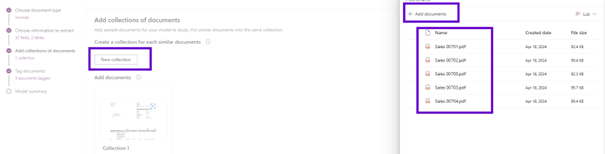
Map the fields from the PDF document to the corresponding fields in the AI Builder.
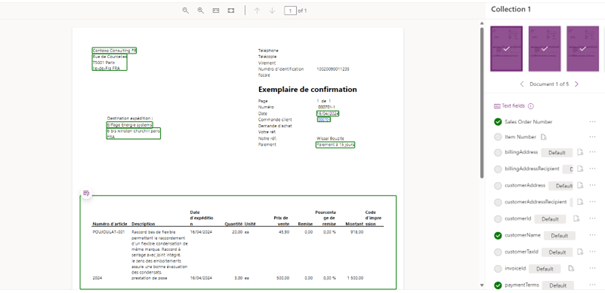
The AI model is training, and it is ready to use.

Add the end, your model is trained, and you have the accuracy score: Ai Builder applies your AI Model to the testing dataset to calculate the accuracy. Then you need to Publish your model.
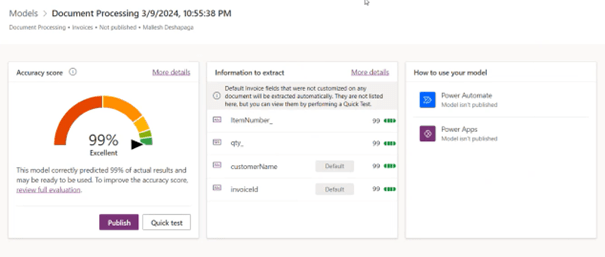
Power Automate
In the Power automate, the objective when a new mail arrives is to extract the data needed from the document using the AI builder model and after creating in D365FO the Sale order.
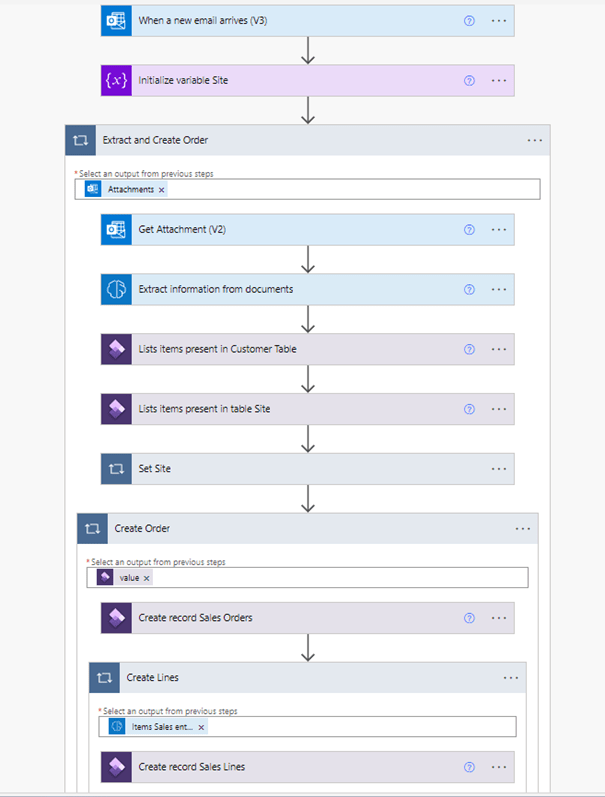
Login to the https://make.powerautomate.com/
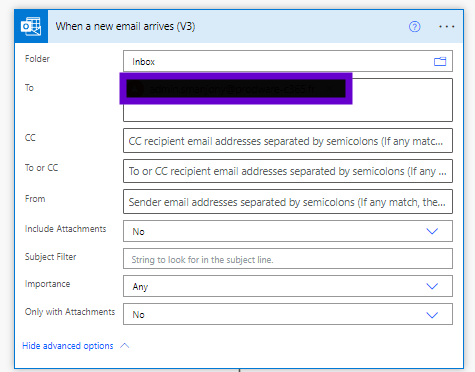
Select the “When new email arrives” automated flow and fill in the field To:
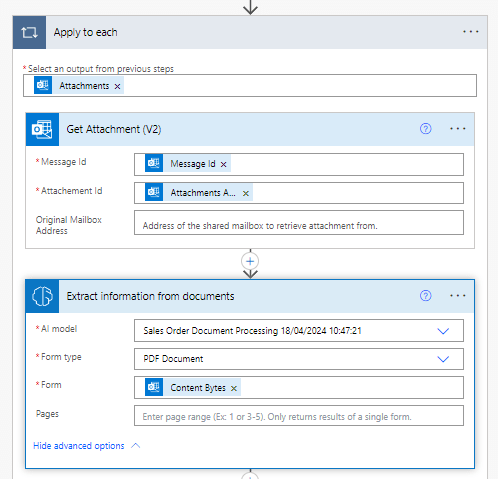
Please add the following setups to extract Attachment:
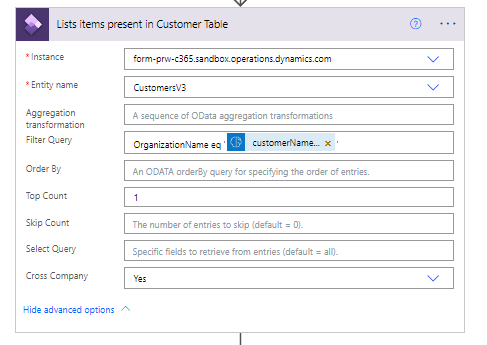
Provide the D365FO instance and AI Builder fields for the sales order header and sales order lines in Power Automate.
I will create a Sale Order Header with the different elements:
- Finding Account of the Customer with the Customer Name
- Finding SiteId
- Use dates from scanned documents.
- Use Customer Name from scanned document.

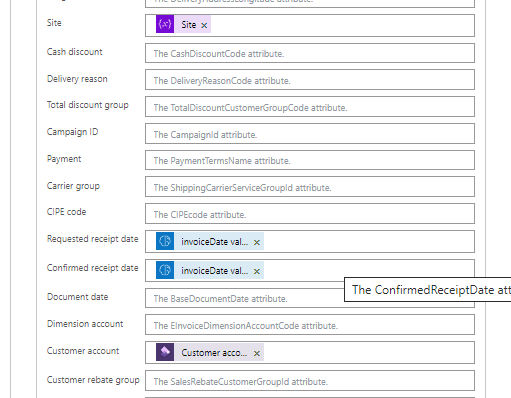
I will create a Sale Order Lines with the different elements:
- Use Item Code from scanned documents.
- Use Discount from scanned document.
- Use Unit from scanned document.
- Use Qty from scanned documents.
- Use Qty from scanned documents.
- Use Price from scanned document.
- Use Qty from scanned documents.
- Use Amount from scanned document.
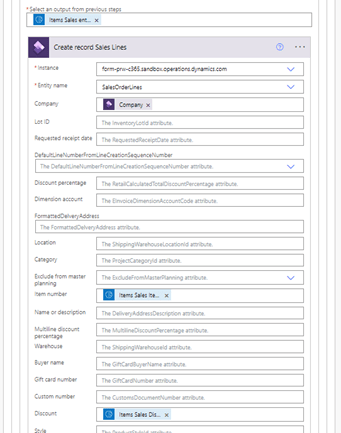
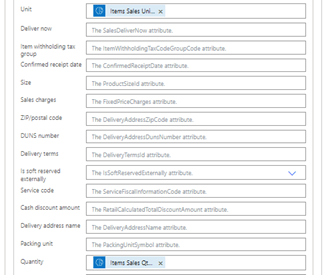
Complete the structure in Power Automate & Its ready for testing.
Let us evaluate the flow by creating a sales order
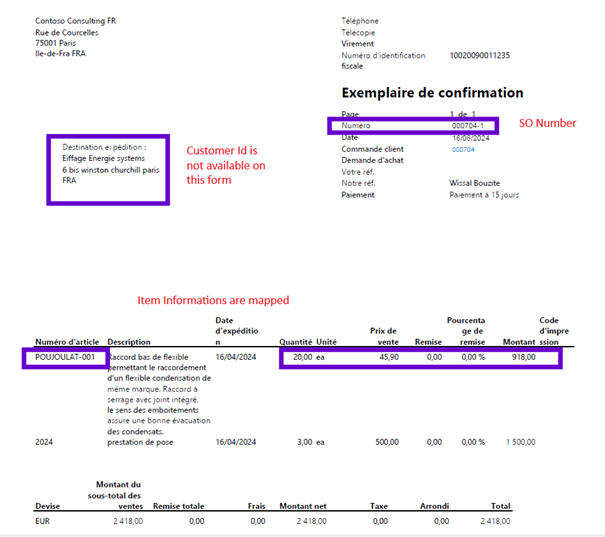
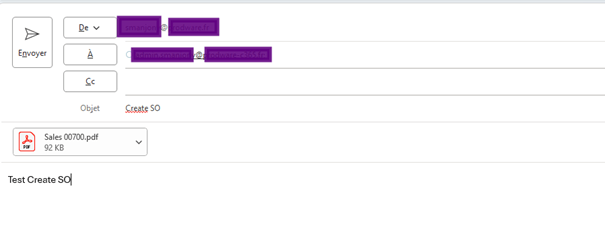
Composing the email: Customers send the email with the necessary details to acquire the required items.
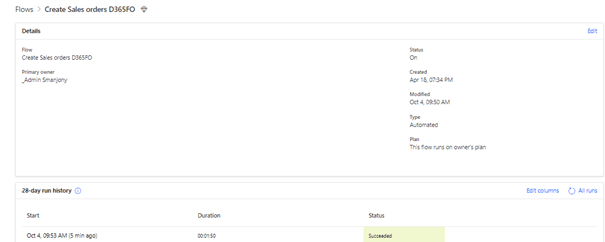
Power Automate executed successfully.
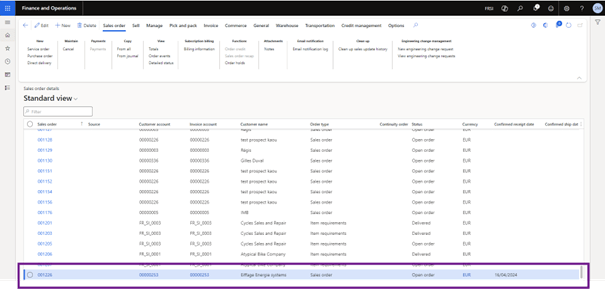
Sales Order in D365FO created successfully.
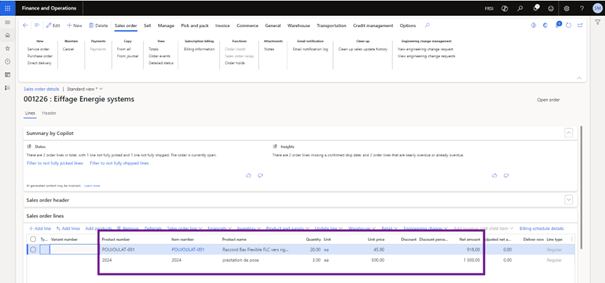
Open the sales order to validate the item and quantity.
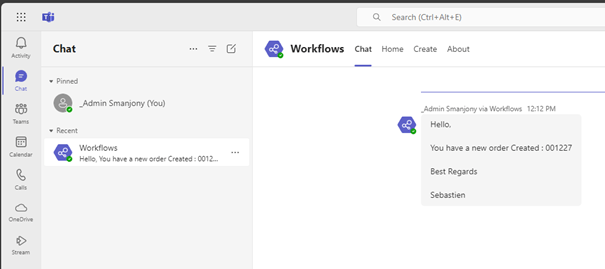
I have customized the Power Automate flow by adding the ability to have for the person who is responsible at the sales level to have the information in Teams:

 D365FOAdviceTips
Leave a comment