Overview

AI Builder is a component of Microsoft Power Platform that empowers users to build AI models without the need for extensive coding or data science expertise. In the context of Dynamics 365 for Finance and Operations (D365FO), AI Builder can be leveraged to enhance various processes, including:
Process Automation: AI Builder can automate repetitive tasks and workflows within D365FO by recognizing patterns in data and triggering predefined actions or notifications based on predefined rules and conditions.
Image Recognition: Leveraging image recognition capabilities, AI Builder can automatically classify, and process images uploaded into D365FO, streamlining tasks such as inventory management, quality control, and asset tracking.
In today’s highly competitive supply chain, companies are constantly looking for ways to improve their operational efficiency. Traditionally, processing returns in Dynamics 365 Finance & Operations can be tedious, require manual data entry, time-consuming checks and often result in errors that slow down the process.
The management of return orders often involves several steps:
- Manual extraction of data from return forms or emails.
- Enter the return order details in D365FO, such as customer information, product IDs, quantities, and reasons for the return.
- Verify the accuracy of this information, which is subject to human error.
The complexity, volume and frequency of return orders can overwhelm teams, resulting in delays and impacting on customer satisfaction.
This is where Power Automate and AI Builder come in. These Microsoft technologies can be integrated to automate the return of orders, reducing time spent on manual tasks and improving overall efficiency.
Let us take a real-life scenario in which a company integrates Power Automate and AI Builder with D365FO to manage return orders.
- The company receives several return requests per email daily.
- AI Builder extracts data such as return order number, customer details, product information and reason for return from these emails.
- Power Automate automatically generates return orders in D365FO, applies the correct processing status and updates inventory.
- Notifications are sent to the customer service and warehouse teams, ensuring that all parties are informed of the pending return and can act accordingly.
AI Builder Setup
When a return order is received (for example via email or portal), the first step is to extract the relevant information from the document. With AI Builder, you can train templates to automatically recognize and extract key data from documents such as:
- Customer contact information (name, contact details, etc.)
- Return order number.
- Product references and quantities.
- Reason for return.
These AI templates can read structured documents (forms) or unstructured documents (emails, PDFs) and convert the information into a structured format that Power Automate can use.
Login to the PowerApps: https://make.powerapps.com/
Select the AI models and choose the “Extract custom information from documents” option.

Select the Invoices and click on the “Next” button:

Add the mandatory fields in the AI model required for creating sales orders in D365FO.

Take the sample document format that needs to be mapped in the AI Builder for each field.

Map the fields from the PDF document to the corresponding fields in the AI Builder.
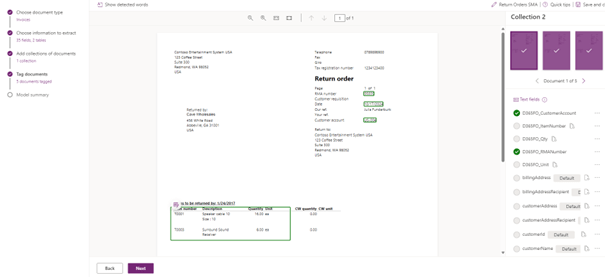
The AI model is training, and it is ready to use.

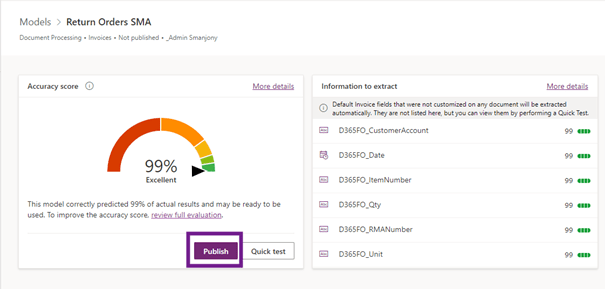
Add the end, your model is trained, and you have the accuracy score: Ai Builder applies your AI Model to the testing dataset to calculate the accuracy. The you need to Publish your model.
Power Automate
In the Power automatic, the objective when a new mail arrives is to extract the data needed from the document using the AI builder model and after creating in D365FO the Return order.
The process can be summarized as follows:
Extract PDF Attachment: Power Automate automatically detects and extracts the PDF return form from the incoming email.
Validate the Document: If no PDF document is attached, the flow exits and sends a notification to the relevant team, alerting them about the missing document.
Extract Data Using AI Builder: Once the document is validated, AI Builder extracts key information such as:
- Customer details (name, contact, etc.).
- Return order number.
- Product SKUs and quantities.
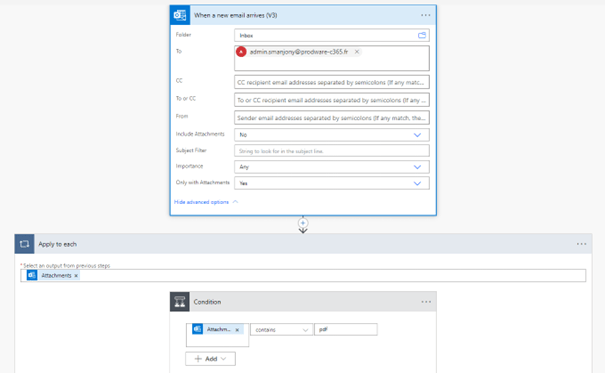
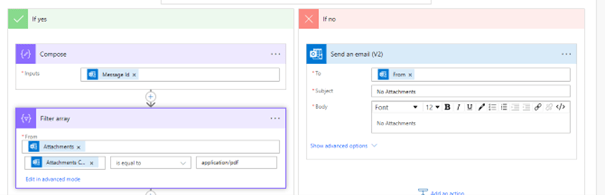
Power Automate then triggers the Data Import Process in D365F&O by calling the DMF APIs to insert the return order data into the system.
- Return Order Header: The return order header is imported into the D365F&O environment.
- Return Order Lines: Similarly, the return order lines are imported.
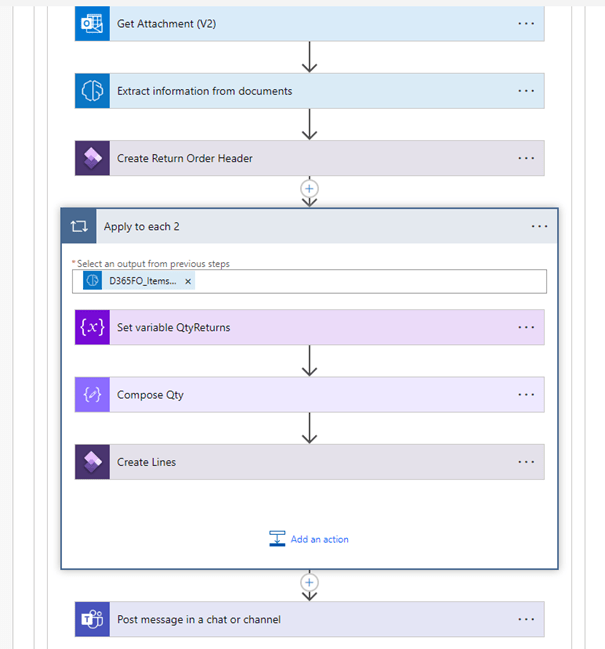
Please add the following setups to extract Attachment:

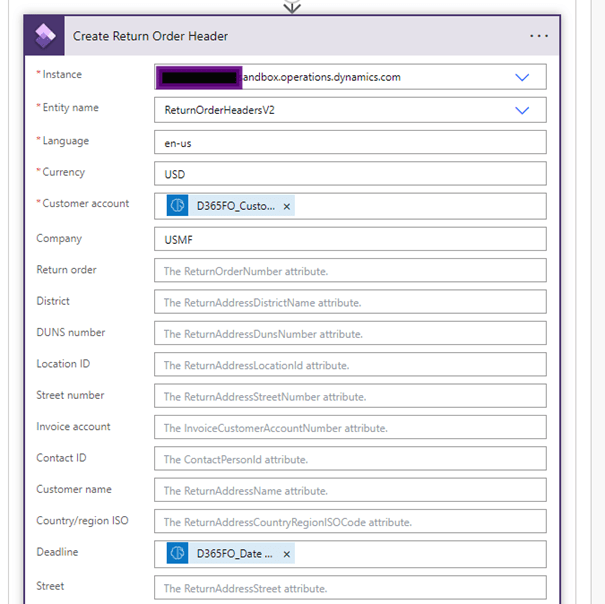
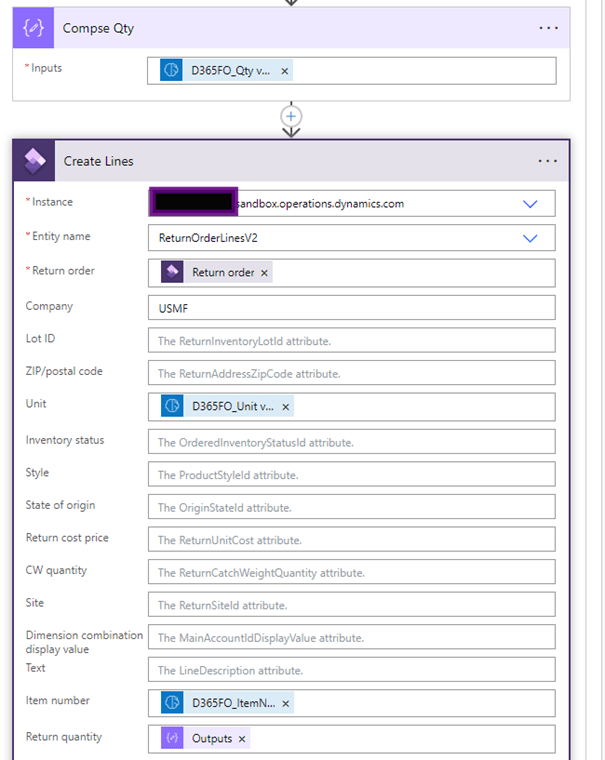
Provide the D365FO instance and AI Builder fields for the return order header and return order lines in Power Automate.
I will create a return Order Header with the different elements:
I will create a Return Order Lines with the different elements:

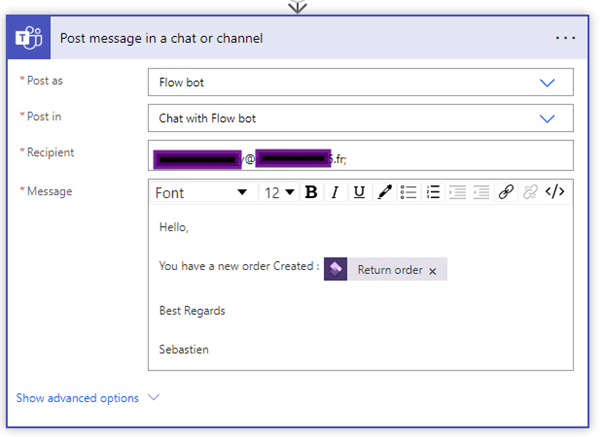
I have customized the Power Automate flow by adding the ability to have the information in Teams:
Complete the structure in Power Automate & Its ready for testing.
Let us evaluate the flow by creating a return order
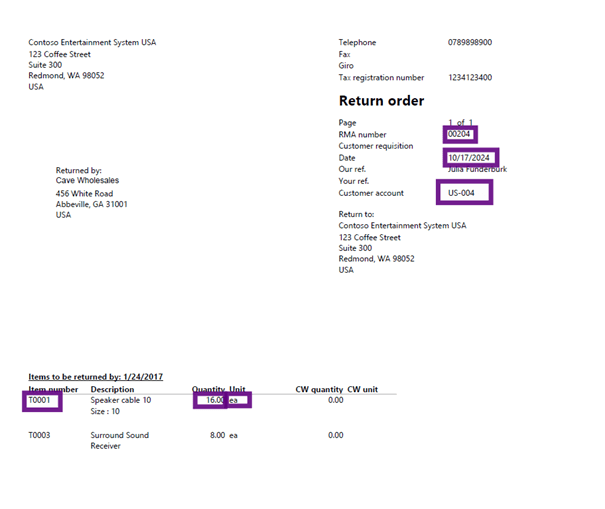
Composing the email: send the email with the necessary details to acquire the required items.

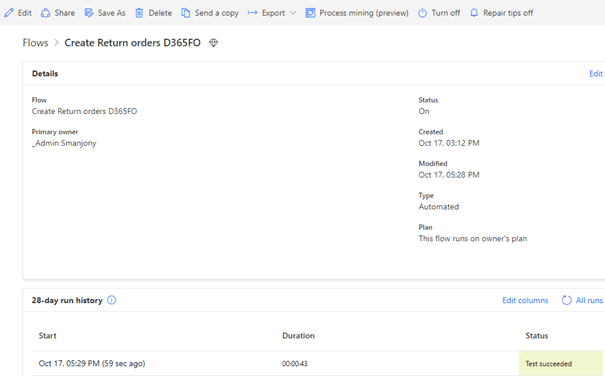
Power Automate executed successfully.
Return Order in D365FO created successfully.

And If I open It:

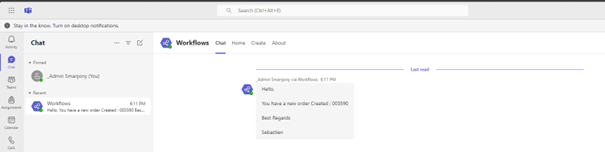
And I have a notification in Teams:
 D365FOAdviceTips
Leave a comment