
- Privileges required
- Preparing the environment
- Set up D365FO to archive data
- Schedule an archive job
- Show progress of archive jobs
- Display information in the archive workspace
This post describes how to configure and manage archive data in Microsoft Dynamics 365 Finance and operations applications.
Privileges required
The following privileges are required:
- In Power Platform:
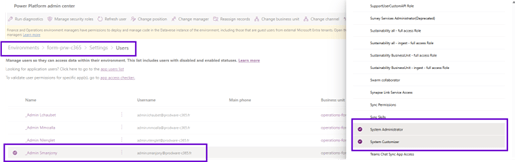
- The system administrator and system customizer roles in the Power Platform admin center.
To confirm that you have these privileges, follow these steps.
- In the Power Platform Administration Center, go to Environments.
- Select the relevant environment.
- In the Access section, select users.
- Select Installing user > Roles. Confirm the necessary privileges.
- In Microsoft Dynamics 365 Finance and Operations applications:
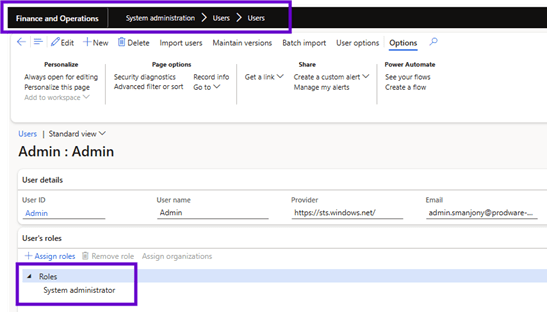
- The role of system administrator in Microsoft Dynamics 365 Finance and Operations applications.
To confirm that you have these privileges, follow these steps.
- In the Dynamics 365 Finance and Operations applications, go to System Administration > Select Users > Users.
- Select Installing user > Roles. Confirm the necessary permissions.
- In Microsoft Dynamics Lifecycle Services:
- The Organization Admin role allows you to create environments. In addition, the Project Owner or Environment Manager role must be assigned to the user in the Project Security Role field in Lifecycle Services.

Preparing the environment
To prepare your environment for data archiving, follow these steps.
- Ensure that your sandbox instance is on the latest version of Dynamics 365 Finance and Operations applications version 10.0.39 or later. Make sure you apply the latest quality updates for the version.
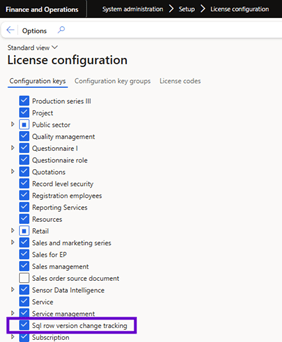
- In the license configuration, make sure that SQL row version change tracking is enabled. If not enabled, do the following:
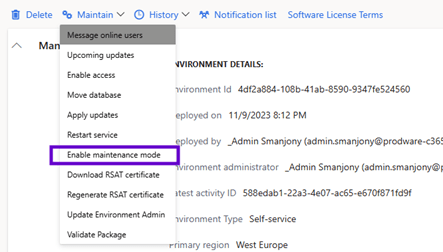
- In Microsoft Dynamics Lifecycle Services, select the environment and go to Maintain > Enable Maintenance Mode.
- Log in to the Finance and Operations applications and go to System Administrator > Setup > License configuration. Check the SQL row version change tracking checkbox and select Save.
- In Lifecycle Services, select the environment and then select Maintain > Disable Maintenance Mode.
If the Microsoft Power Platform environment is not configured for the sandbox instance, complete the configuration in Lifecycle Services.

Set up D365FO to archive data
To archive data, follow these steps to confirm that the Dataverse archiving add-on can be installed.
- In the Power Platform admin center, go to Environments, select the environment, and then select Dynamics 365 Apps. Ensure that the Power Platform environment is a managed environment (premium feature suite on Power Platform).

- Update the Finance and operations virtual entity app if the status is Update available.

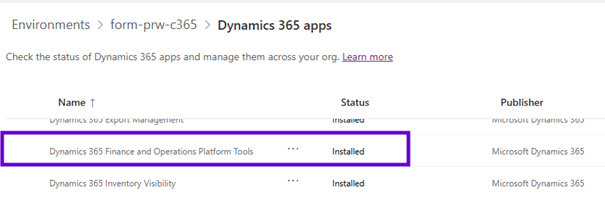
- If the Dynamics 365 finance and operations platform tools app is not installed in the Power Platform admin center for the selected environment, install it.
- Install Dynamics 365 Archive with Dataverse long term retention from the Power Platform administration center.
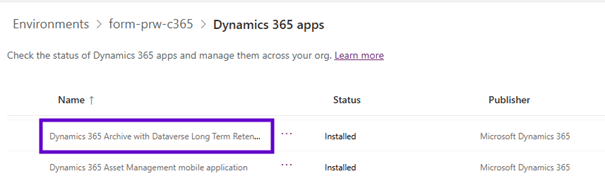
- If you have already installed the application, you must install the latest update.
- Enable Finance and Operations data archiving with Dataverse long-term retention.
- In the Finance and Operations applications, go to Feature Management.
- Select the Archive with Dataverse long term retention for overall archiving service integration. This feature enables all supported financial functional scenarios for archiving with long-term retention of Dataverse.

Dataverse’s Archive Long-term Retention workspace should now be available in the Workspaces list in Finance and Operations applications.
Schedule an archive job
Before scheduling an archive job, check the custom fields in the archive tables by running the validate archive table schema script.
- You can schedule Finance and Operations archiving jobs from the Archive workspace for supported functional scenarios using the new Long-term Retention jobs Wizard.
- Although you can schedule a time when you want the jobs to run to minimize the impact on other database operations, only the process of moving to history runs during the scheduled window. Other asynchronous archiving processes for long-term preservation of Dataverse occur continuously, even outside the planned time.
- Only one archive task can be run at any given time in all scenarios. The scheduled jobs will not start running until the previous archive job is complete.
Show progress of archive jobs
The Finance and Operations Archiving workspace provides the following details on the archiving process as it progresses through its various stages.
The Job status column visible for each archive scenario captures the overall state of the archive job.
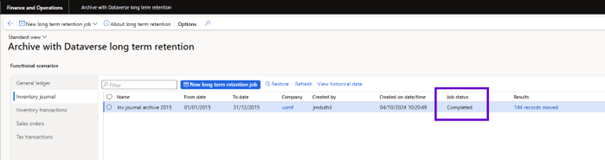
You can view the detailed progress log of each archive task: selecting View progress > View detailed logs.

The status In progress indicates that the end-to-end archiving process is ongoing, even if individual steps are completed.
| Job status | Description |
| Scheduled | A job is scheduled, but it is not being processed yet. Details about the scheduled date and time are available on the dashboard. |
| In progress | The archive job is in progress. Some of the interim stages in the archive job might be completed. |
| Complete | All stages of the archive job are complete. |
| Failed | The archive job failed. |
Display information in the archive workspace
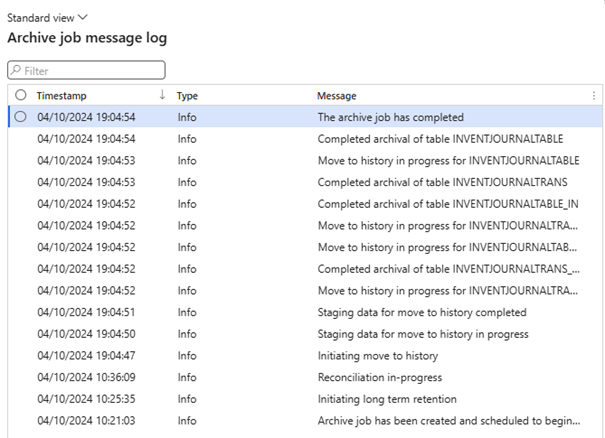
| Information | Description |
| Initiating long term retention | The long-term retention job is activated. |
| Initial sync for <tablename> in progress [x of y records synced] | Initial synchronization to the Dataverse long term retention is in progress. |
| Initial sync for <tablename> completed | Initial synchronization to the Dataverse long term retention is completed. |
| Marking in progress [x of y records of <tablename> marked] | The process is marking records in the finance and operations live application table for archiving, and the equivalent records in the Dataverse long term retention are being updated as retained. |
| Reconciliation in progress | Reconciliation is in progress to verify that the records that are marked as retained in Dataverse long term retention match the records that are marked for archiving in the finance and operations live application tables. |
| Reconciliation completed | Reconciliation for all finance entities is completed. |
| Pending move to history | The move to history process is waiting to begin. |
| Initiating move to history | The move to history process is activated. |
| Staging data for move to history in progress [x of y records of <tablename> staged] | Data is in the staging/queueing process for the move to history. |
| Staging data for move to history completed for <tablename> | Staging/queueing completed for the specified table. |
| Staging data for move to history completed for all tables | Staging/queueing completed. |
| Move to history in progress [x of y records of <tablename> moved] | Data is being moved from live tables to history tables. |
| Completed archival of table <tablename> | The move to history process completed for the specified table. |
| The archive job is complete | The end-to-end archival process completed for all tables in the functional scenario. |
 D365FOAdviceTips
Leave a comment