
- Display data using Fabric
- Display archived data in the data lake managed by Dataverse
- Remove archived data from the Dataverse managed data lake
This post describes how to display archived data in the long-term retention of Microsoft Dataverse.
Display data using Fabric
You can use Fabric to view live (active) and archived (long-term kept inactive) Dynamics 365 Finance and Operations application data. To use this feature, you must link your Dataverse environment to Fabric. If the configuration of the link to Fabric does not work, follow the steps in Link to Microsoft Fabric.
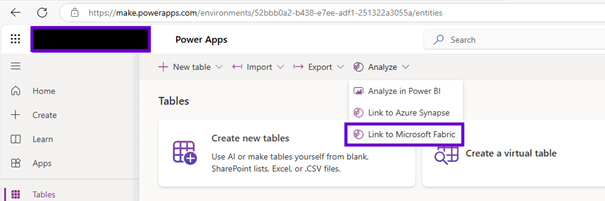
Display archived data in the data lake managed by Dataverse
To view archived data in Dataverse, follow these steps.
- Once the archiving task is complete, go to the Power Apps creator portal.
- Select Azure Synapse > Microsoft One Lake.
- Select Show in Microsoft Fabric.

Data from the datalake managed by Dataverse is available in Dataverse tables that have the prefix “mserp_.” In Dataverse tables that have this prefix, you can use the msft _datastatecolumn to filter data via a SQL WHERE clause:
- To filter inactive (archived) application data: WHERE msft_datastate=1
- To filter the active application data (live): «WHERE msft_datastate=0 or msft_datastate=NULL»
You can also access archived data using a model-driven application created in Power Apps that uses Dataverse Advanced Find. You can also create canvas-like apps in Power Apps.
Remove archived data from the Dataverse managed data lake
The bulk delete feature in Microsoft Dataverse helps you maintain data quality and manage system storage consumption by deleting data that you no longer need. You can bulk delete the following data:
- Outdated data
- Data that is no longer relevant to the business
- Unnecessary test or sample data
- Data that was imported incorrectly from other systems
And you can do the following:
- Delete data in multiple tables.
- Delete records in a specific table.
- Receive email notifications when a bulk delete is complete.
- Periodically delete data.
- Schedule the start time of a recurring bulk delete.
- Retrieve information about failures during bulk deletion.
To delete data in bulk, use the BulkDelete message to submit a bulk delete job. With the SDK, use the BulkDeleteRequest class.
A bulk delete job is represented by a record in the Bulk Delete Operation table. A Bulk delete record includes the following information:
- The number of records deleted by job.
- The number of records that the job failed to delete.
- If the job is set to repeat
- The start time of job
The bulk delete task runs asynchronously without blocking other activities. It deletes only the records created before the start of the task execution.
If a bulk delete job fails or terminates prematurely, the deleted records are not cancelled. They remain deleted. A record of failures is stored in the Bulk Delete Failure table. You can retrieve information from the error table that caused the failure.
To run a bulk delete job, you must have BulkDelete and Delete privileges on the table types to be deleted. You must also have read permissions on the table records specified in the QuerySet property. A system administrator has the necessary permissions by default.
You can perform a bulk delete on all tables that support the Delete message.
If the delete action on a specific table type triggers a plug-in or workflow (process), the plug-in or workflow is triggered each time the bulk delete job deletes a table record of that type.
Bulk deletion is also available for long-term data retention. Perform a bulk delete as you normally would, but set the query’s DataSource field to be retained.
With the SDK, you can use QueryExpression:

 D365FOAdviceTips
Leave a comment