
- Overview
- Business application data lifecycle
- Why archive data?
- Data types that can be archived
- How to enable the standard archiving feature
- How Data Archiving works
- Restore data from history to live tables
- Customization
- Understand the storage costs
- Storage capacity reports
- Conclusion
Overview
This post describes how to archive data in Microsoft Dynamics 365 Finance and Operations applications. Finance and Operations applications support custom retention strategies to securely archive and store unlimited data over the long term in a cost-effective manner.
Finance and Operations applications set no limits to active data, so they support your business growth. However, you may consider moving the historical and inactive data required for compliance and regulatory purposes to Dataverse’s long-term retention.
This feature does not limit the total number of records that can be archived. However, the current limitation of initial synchronization of data replication to Dataverse is limited to a maximum of one hundred million records in the largest table. Before evaluating this feature, it is recommended to delete all tables containing more than one hundred million records.
Data archiving is a process of identifying data that the ERP system no longer needs and moving it to a long-term storage location, such as an external database. Data archiving capability increases available storage space and improves overall system performance.
The archiving feature moves data from D365FO Data Base to a Microsoft-managed data lake and automatically saves a copy of this data in historical tables of D365FO Data Base. History tables occupy less database space than live tables by using fewer indexes.
Business application data lifecycle
The business application data lifecycle consists of three stages:
- Active data
- Transitions to historical and inactive data required for compliance and regulatory reasons.
- Transitions to deleted data.
Finance and Operations applications enable organizations to achieve the following benefits through archiving:
- Secure historical, inactive application data for the long term to meet audit, legal, and regulatory requirements.
- Reduce the size of the application database and the capacity consumed, potentially improving the application performance associated with large tables.
Why archive data?
In the dynamic world of ERP, effective data management is critical to operational efficiency. If you use Microsoft D365FO, have you ever wondered how archiving your data could improve the performance of your system?
Let us start with a key question: why is data archiving necessary for your organization?
- Performance optimization: Have you noticed that your system slows down as your database grows? Archiving old data can free up space and improve response times.
- Cost efficiency: Are storage costs an issue for your organization? Reducing the volume of data can result in significant savings.
- Regulatory compliance: Do you work in an industry where compliance regulations are strict? Archiving allows you to manage data while keeping it accessible at the time you need it.
- Improved user experience: How often do your users complain about navigating cluttered data? A cleaner database allows for more efficient data retrieval.
Let us start with the beginning: which datasets are suitable for archiving? Consider the following candidates:
- Transaction history
- Inactive customer/supplier information
Have you looked more closely at your data to determine what can be archived?
Data types that can be archived
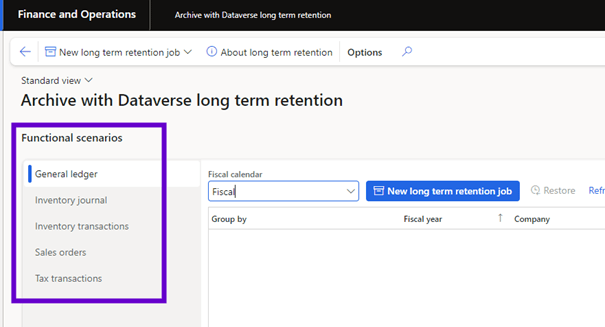
This feature currently supports archiving the following finance and transaction data types with long-term retention of Dataverse:
- Dynamics 365 Finance General ledger
- Dynamics 365 Finance Tax transactions
- Dynamics 365 Supply Chain Management Inventory transactions
- Dynamics 365 Supply Chain Management Inventory journals
- Dynamics 365 Supply Chain Management Sales orders.
Support for additional data types is planned in future releases.
How to enable the standard archiving feature
As the system administrator:
- Install the Dynamics 365 Archive with Dataverse long term retention from power platform admin center.
- Go to D365 Feature Management and enable the enable Archive with Dataverse long term retention feature.
- Archive with Dataverse long term retention workspace should now be available in the Finance and Operations application workspace list.
How Data Archiving works
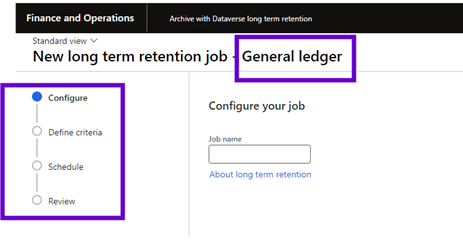
Application administrators can schedule archive jobs and specify criteria for supported functional scenarios. Data from the functional scenario tables is archived in Dataverse’s long-term retention.
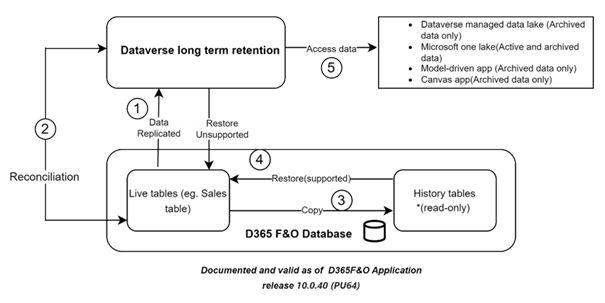
When an archive job is launched from the Finance and Operations Archive workspace, it includes the following steps:
- Data from live application tables (Sales table) in the currently archived functional scenario is replicated to long-term retention of Dataverse through virtual entities.
- Data that meets the archiving criteria is marked as ready to be archived in the Finance and Live Operations application tables.
- Live table records are marked as retained (archived) in the Dataverse long-term retention.
- A reconciliation process verifies that all live application table records that were previously marked as archival ready are available in the Dataverse long-term retention.
- Live application data that was previously marked as archival ready is moved to the history tables (Salestablehistory) in the Finance and Operations applications database and removed from the live application tables.
- Specific inquiry pages in the Finance and Operations Dynamics 365 applications can access this history table data.
- History table data can be restored to the live table or purged permanently. The permanent purge feature will be supported in a future release.
- The archived data in Dataverse long- term retention can be viewed using fabric, data verse managed data-lake, canvas app, model-driven app (Fabric subscription costs apply).
Restore data from history to live tables
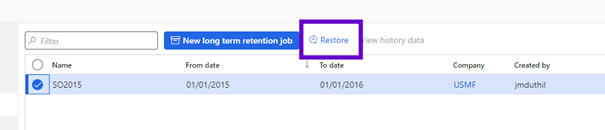
History table data can be restored to active tables from the archive workspace. When data is restored from history tables to live tables, the corresponding archived data in Dataverse’s long-term retention also changes status from inactive to active, because the data is no longer considered archived.
Customization
The archive framework includes custom fields and tables in supported functional scenarios. Therefore, clients can create their own archive scenario for custom tables. Clients must configure table customizations before starting an archive job.
During archiving, no data is archived from tables outside the functional scenario, even if they are linked. For example, when inventory transaction tables are archived, sales tables are not automatically archived.
- Long-term data is read only.
- X++ delete action is not respected when a data archiving policy is executed to move data out of the finance and live operation database.
- Finance and Operations attachments are currently not supported.
- The process of archiving scenarios involving long-term retention of Dataverse involves several steps that are sequentially executed in the background. The process may assume to 14 days.
- Data archived in Dataverse long-term retention cannot be moved to the live application table.
- Data archived in Dataverse long-term retention is secured by Microsoft Entra ID supported Dataverse security.
Understand the storage costs
On average, every gigabyte (GB) transferred from Finance and Operations applications to Dataverse’s long-term retention consumes 50% less database capacity. Live application data is compressed in the long-term retention of Dataverse. Savings may vary based on table data. You may see savings of more than 50%, or less. The savings can be more obvious when larger volumes (hundreds of GB) are retained.
Archived data is made available in history tables by allowing access via an inquiry page in the Finance and Operations applications. History tables that do not have an index consume on average 30% (or more) less capacity than live tables, depending on the table and indexes. If access to archived data in the application is not required, permanently delete the history tables for complete savings.

Storage capacity reports
Administrators can view storage size in existing reports from the Power Platform admin center for both finance and operations tables and Dataverse long term retention.
To view the storage consumed by archived data, Access Power Platform Admin Center reports for Dataverse.
In the Dataverse database storage report, the Archived Finance and Operations tables with the suffix “-Retained” provide a logical view of the storage capacity consumed by Finance and Operations data archived in Dataverse’s long-term retention.
For example, when the administrator displays the Dataverse database storage report, the general ledger tables are displayed as < tablename >-Retained. These tables provide a logical view of the storage capacity consumed by the Finance table that is archived in Dataverse’s long-term retention. In the report example of the following illustration, the table mesrp_generaljournalentrybientity-Retained is a functional scenario table from the general finance ledger that has been archived.
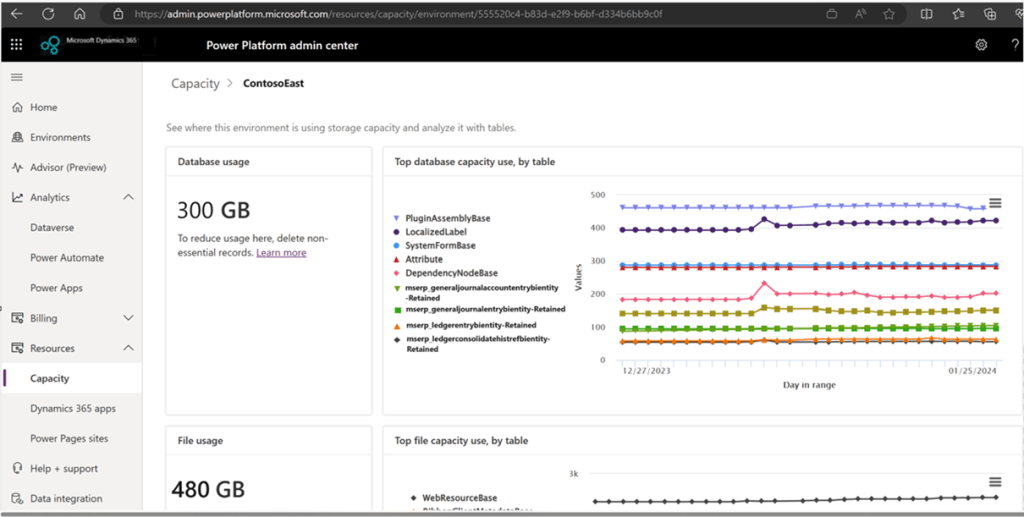
If the table < tablename >-Retained is not visible in the report, download the report to Excel to view it.
To view the storage consumed by Finance and Operations data, follow these steps.
- Access Power Platform Admin Center reports for Finance and Operations applications.
- Select Capacity > Finance and Operations.
- The administrator can view details of the Finance and Operations application tables as well as history tables. History tables that do not have an index consume less capacity than active application tables.
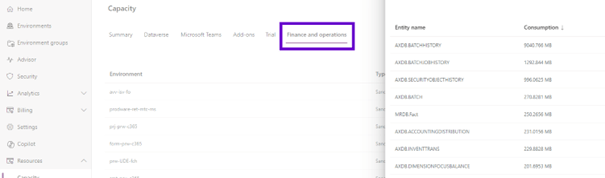
The live table consumes the highest capacity, followed by the history table, then the <tablename>-Retained table in Dataverse long term retention.
To achieve maximum capacity savings in production, consider purging the data from history tables.
To understand the reduced capacity savings, compare table data for live, history and <tablename> -Retained from reports after an archive policy is executed.
- After archiving, the automatic adjustment process may assume to seven days before the reduced capacity is reflected in the history table. It may assume to a day before the capacity of archived data for <tablename>-Retained tables is reflected in the capacity of the Dataverse database.
- Purge from the history table is not yet supported.
Conclusion
In conclusion, the archiving of data in D365FO is a strategic initiative that can lead to significant improvements in performance, cost management and compliance. By understanding the archiving process and using tools such as the archiving framework, your organization will be able to optimize its ERP system for future growth.
 D365FOAdviceTips
Leave a comment