- Overview
- Prerequisites
- Enable feature in D365FO
- Configure an archive task
- Display historical data from the history table
- Capacity Reports
Overview
This post explains how to archive the data of the general ledger of Microsoft Dynamics 365 Finance.
- General ledger archiving can only be done for the fiscal years for which the year-end closing process has been performed.
- The archiving jobs for the different years must be performed in chronological order. For example, the 2018 general ledger data must be archived before the 2019 general ledger.
Prerequisites
The following prerequisites must be met before archiving general ledger transactions:
- No period for a fiscal year and the company can be open.
- Year-end close must be run for the fiscal year for the company.
- The company’s previous year general ledger transactions must be archived.
Enable feature in D365FO
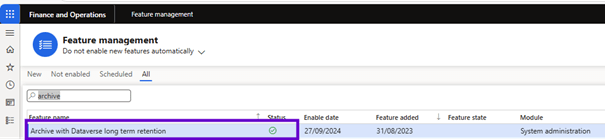
Archive with Dataverse long term retention feature must be enabled.
Configure an archive task
To set up an archive job, follow these steps.
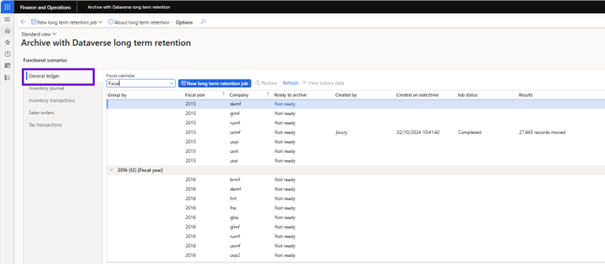
- Go to System administration > Archive with Dataverse long term retention to open the Archive with Dataverse long term retention workspace.
- Select the general ledger functional scenario.
- Select Refresh to populate the general ledger fiscal years and the company dataset to archive.
- Select New Long-term Retention to open a wizard that you can use to schedule a new General ledger long term retention job.
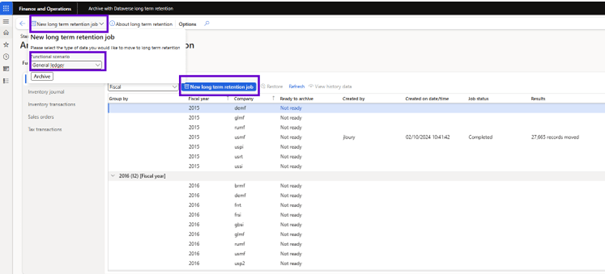
Perform the refresh after closing period and end of year on general ledger data for fiscal years and companies. Ready to archive status must be Ready before you can plan a new long-term retention task.
- Enter a name for the job and select Next.

New long-term retention jobs may be planned for one or more companies at a time. These jobs are performed sequentially.

- On the Define criteria page, select the combination of fiscal years and companies for which to archive general ledger data.
- Select Next.
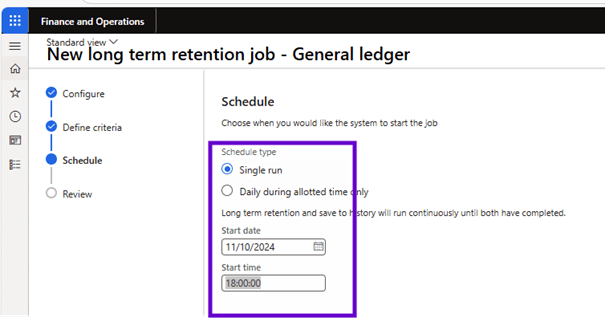
- Select the type of scheduling. Two types are supported:
- Single run: long-term retention and history saving are continuously executed until both processes are completed. Data is always archived first in the long-term storage of Dataverse. Then, the record in the history tables takes place.
- Daily during allotted time: Long-term storage runs continuously until it is completed. The process of saving to history is only executed during the specified archive start and end time.
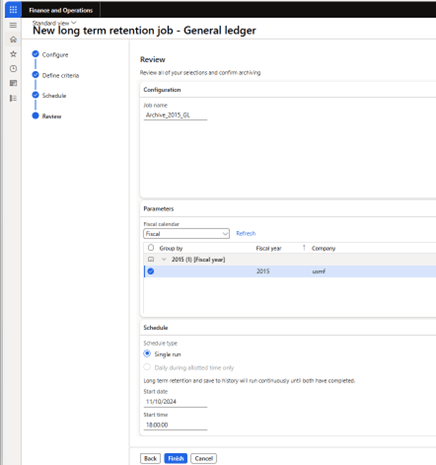
- Select Finish to schedule archiving job for selected fiscal years and companies.
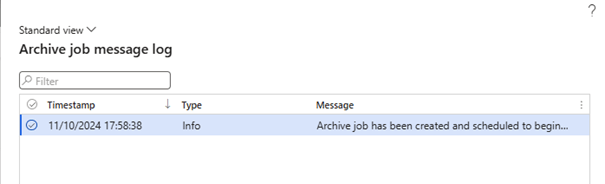
- Select View Progress to view detailed logs.

Display historical data from the history table
To view historical transactional details, follow this step.
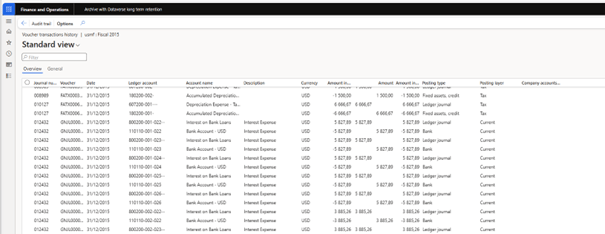
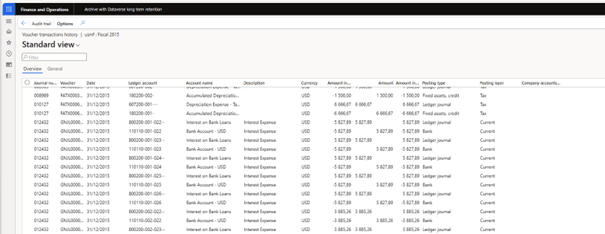
- Go to General ledger > Inquiries and reports > Voucher transactions history.
The archived data view displays the trial balance data as a summary. However, if you explore the transactional details, an empty window appears. Data has been moved to the long-term storage of Dataverse and copy of local history.
Archive with Dataverse long term retention workspace displays the complete history of the archive. Each row of the grid displays information such as the date the archive was created, the user who created it and its status.
To view the details of a selected archive, follow these steps.
- Select the job and then select View History Data from the toolbar.

Capacity Reports
Finance application tables moved to Dataverse long-term retention appear in the Power Platform admin center under database storage capacity reports.
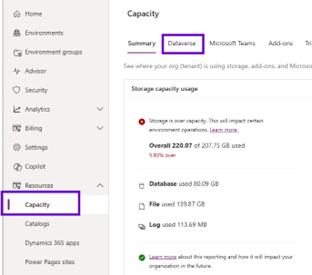
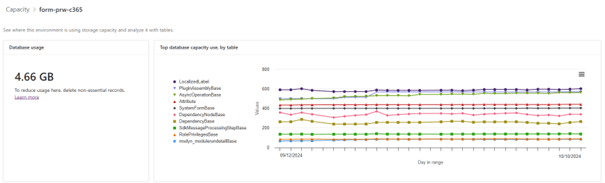
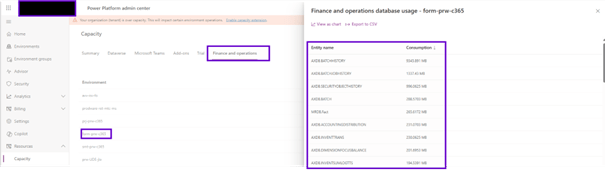
Live and historical tables are available in the Finance section of the Power Platform Admin Center capacity reports.
 D365FOAdviceTips
Leave a comment