- Overview
- Prerequisites
- Configure an archive task
- Display the status
- Display historical
- Capacity Reports
Overview
This post explains how to archive the inventory journal data of Dynamics 365 Supply Chain Management.
Prerequisites
Before the inventory journal data is archived, the following prerequisites must be met:
- The ledger period of the inventory journal that must be archived must be closed.
- The period must be at least one year before the “from” period date of the archive.
- Enable functionality in Dynamics 365 Supply Chain Management:
- In Finance and Operation applications, go to Feature Management.
- Select the Archive with Dataverse long term retention feature for overall archiving service integration. This feature enables all Finance and Operation functional scenarios for archiving through Dataverse’s long-term retention.
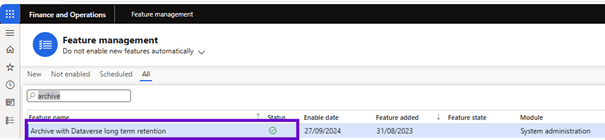
Archive with Dataverse long term retention workspace should now be available in the Workspaces list in Finance and Operation applications.
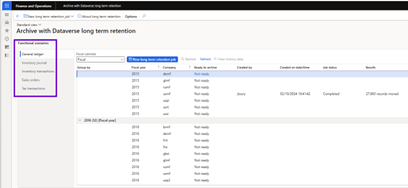
Configure an archive task
To move the inventory log records into Dataverse’s long-term retention, proceed as follows.
- Go to Workspaces > Archive with Dataverse long term retention.
- Select Inventory journal.
- Select New long term retention job to open a wizard where you can schedule a new Inventory Journal archival job with Dataverse long term retention.
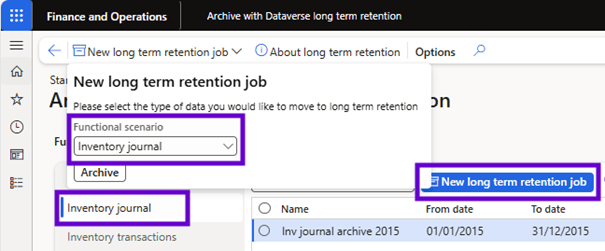
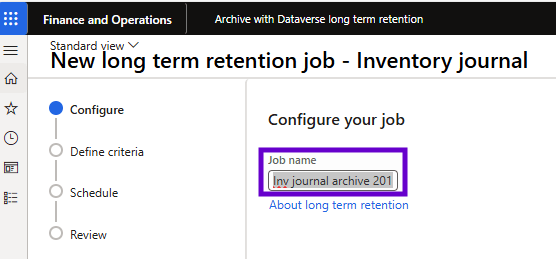
- Enter a name for the job and select Next.
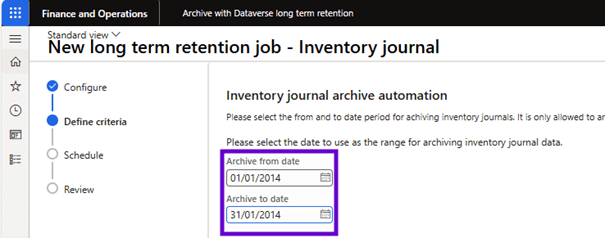
- Select the period of inventory journal that is to be purged and then select Next.
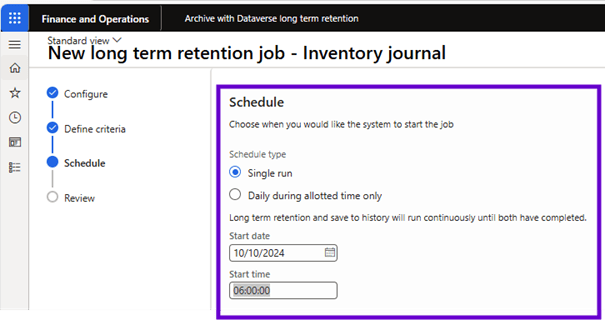
- Enter the start date and time of the job, then select Next.
- Select Finish to schedule the archiving job.
You receive a message that a long-term retention job has been created.
Display the status
To view the results of the long-term retention job, follow these steps:
- Go to Workspaces > Archive with Dataverse long term retention > Inventory journal.
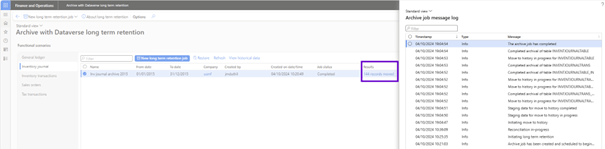
- A list of long-term retention jobs is displayed. Select the job with the job Status field set to Completed.
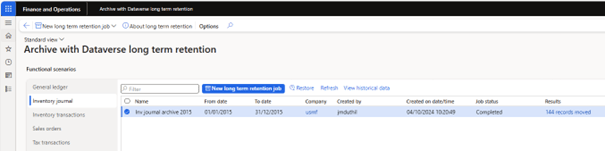
- Under Results, select the link.
- View information on the progress of the journal log archives.
- Select View Detailed Logs to display the log of messages from the archive job. This log describes in detail the stages of the long-term retention job.
Display historical
When inventory journal data is archived using Dataverse’s long-term retention, the archived data is replicated to a history table in the Dynamics 365 Supply Chain Management database. Users can then view archived data using an inquiry page.
To view historical data, follow these steps.
- Go to Workspaces > Archive with Dataverse long term retention > Inventory journal.
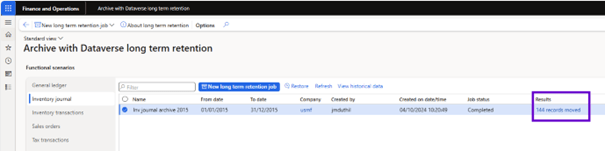
- A list of long-term retention jobs is displayed. Select the job with the job Status field set to Completed.
- Select View historical data to display the data in the history table.
Capacity Reports
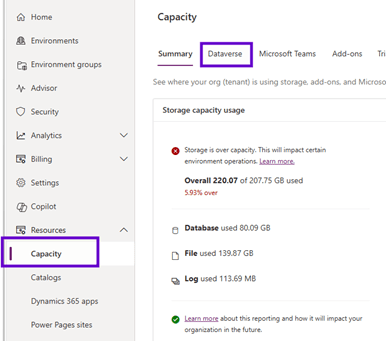
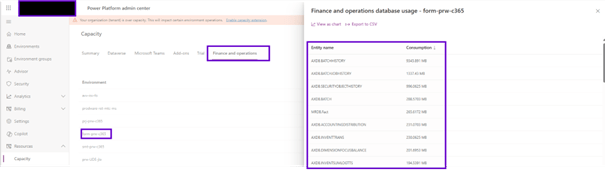
The capacity consumed by the inventory journal tables archived using Dataverse long-term retention is shown under the database storage capacity reports in the Power platform administration center.
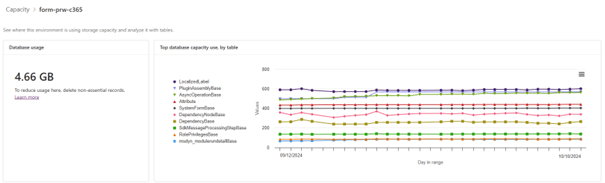
The capacity consumed by live and history tables in finance and operation tables is available in the Finance section of the Power Platform Admin Center capacity reports.
 D365FOAdviceTips
Leave a comment