
- Overview
- Prerequisites
- Configure an archive task
- Display the status
- Display historical
- Capacity Reports
Overview
This post explains how to archive Microsoft Dynamics 365 Supply Chain Management inventory-related documents t.
For removed inventory transactions, a scheduled job moves the corresponding inventory transactions originator from the InventTransOrigin table to the InventTransOriginHistory table.
Prerequisites
Before you can use this feature, you must enable it on your system.
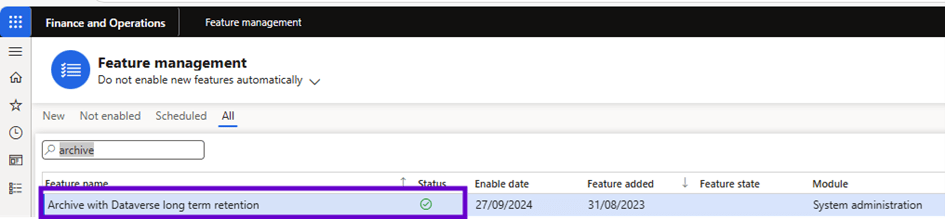
To enable the archiving feature in Feature Management, follow these steps.
- In the Dynamics 365 Finance and Operations applications, go to Feature Management.
- Select Archive with Dataverse long term retention for overall archiving service integration. This feature enables all supported financial and operational functional scenarios for archiving through Dataverse’s long-term retention.
Archive with Dataverse long term retention workspace should now be available in the Workspaces list in financial and operational applications.
Configure an archive task
To move the records into Dataverse’s long-term retention, proceed as follows.
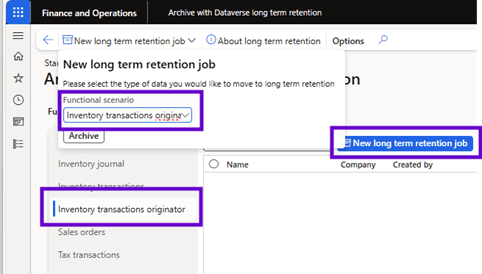
- Go to Workspaces > Archive with Dataverse long term retention.
- Select Inventory transactions originator.
- Select New long term retention job to open a wizard that you can use to schedule a new inventory transactions originator archival job with Dataverse long term retention.
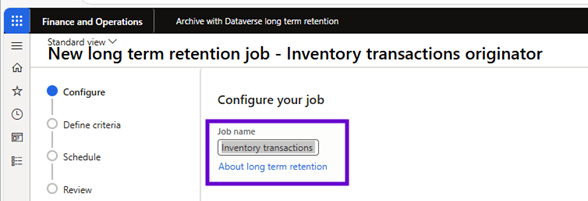
- Enter a name for the job and select Next.
- Select the legal entity of the inventory transactions originator that is to be purged, and then select Next.

- Enter the start date and time of the job, then select Next.
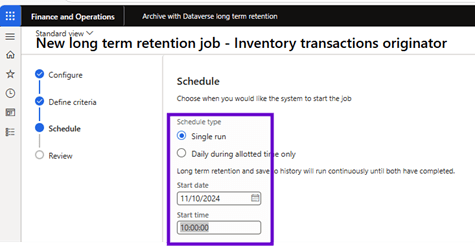
- Select Finish to schedule the archiving job.
We had an error message when setting up this archive: the mserp_inventtransoriginbientity was not available for archiving.
To correct the problem, I went to check on the entity Enable Long Term Retention
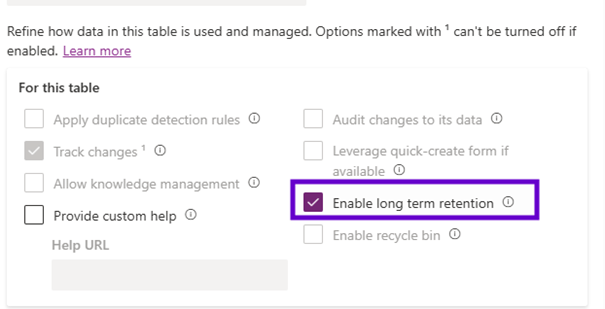
You receive a message that the long-term retention task has been created.
Display the status
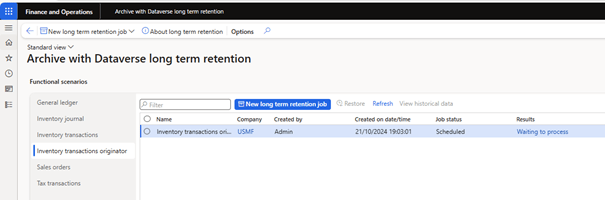
To view the results of the long-term retention work, follow these steps.
- Go to Workspaces > Archive with Dataverse long term retention.
- Select Inventory transactions originator.
- In the long-term retention Job list, select the Job.
- Under Results, select the link.

Display historical
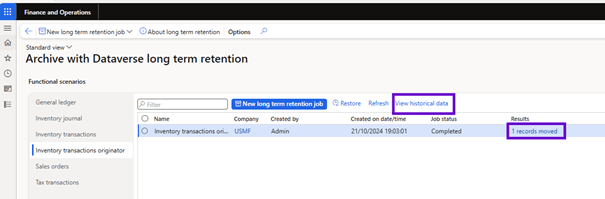
When inventory transactions originator is archived using Dataverse’s long-term retention, the archived data is replicated into a history table in the Dynamics 365 Supply Chain Management database. Users can view archived data using an inquiry page.
To view historical data, follow these steps.
- Go to Workspaces > Archive with Dataverse long term retention.
- Select Inventory transactions originator.
- In the long-term retention jobs list, select the jobs with the jobs Status field set to Complete.
- Select View Historical Data to display the data in the history table.
Capacity Reports
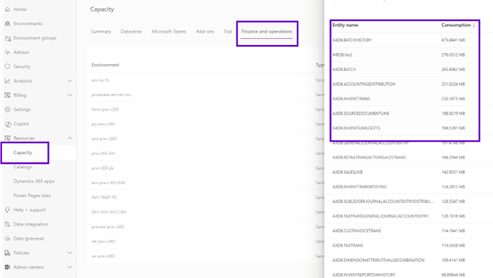
The capacity consumed by inventory transactions originator tables that are archived by using Dataverse long-term retention appears under the database storage capacity reports in the Power Platform admin center. The capacity consumed by live and historical tables in the finance and operations tables is available in the Finance section of the capacity reports in the Power Platform admin center.
 D365FOAdviceTips
Leave a comment