- Overview
- Prerequisites
- Enable feature
- Set up an archive task
- Display the status
- Display historical data
Overview
This post explains how to archive Sales order data in Dynamics 365 Supply Chain Management.
The archiving solution moves transactional data to history tables in the database. These tables have limited indexing, so the storage space is minimal. Historical transactions are moved to smaller volumes to avoid delays in other major processes.
Data can be moved to the active system if necessary. In addition, records in history tables are not editable.
Eligible data:
- Sales orders fully invoiced
- Data must be at least one year old. No recent data
- Accounting period for the affected SOs in closed or onhold.
- Inventory for the selected period in closed status.
Prerequisites
The following prerequisites must be met before sales orders can be archived:
- Sales orders are fully invoiced.
- Sales orders must not be part of an intercompany chain.
- Install the solution in Microsoft Power Platform
Enable feature
Archive with Dataverse long term retention feature must be enabled.
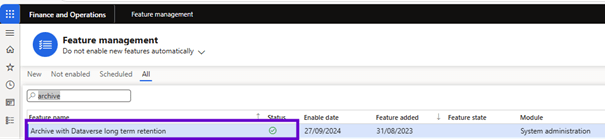
Set up an archive task
To plan long-term retention job, follow these steps.
- In Dynamics 365 Supply Chain Management, go to System administration > Archive with Dataverse long term retention workspace.
- Select the sales order scenario.
- Select New Long-term Retention to open a wizard that you can use to schedule a new sales order archival job with Dataverse long-term retention.

- Enter a name for the task and select job.
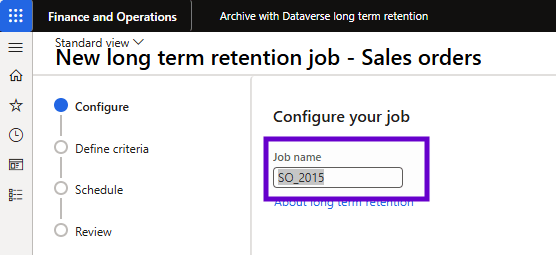
- Enter the date range:
- Select the date of the oldest Sales orders to be archived (“from” date). Select the date of the most recent Sales orders to be archived (“to” date).
- Select the legal entity (company) for which to archive Sales orders.
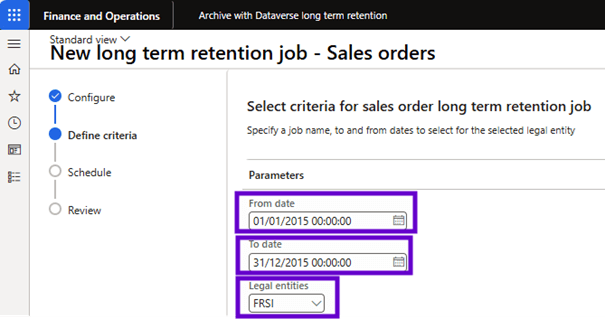
- Select Next.
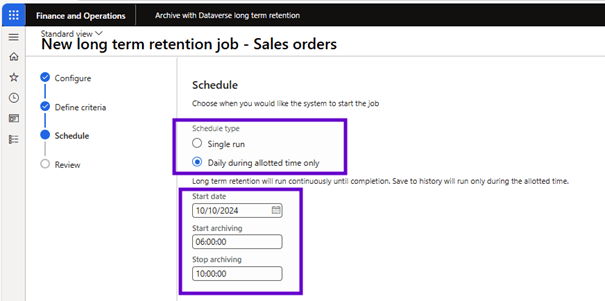
- Select the type of scheduling. Two types are supported:
- Single run: long-term retention and history will be continuously executed until both processes are completed. Data is always archived first in Dataverse long-term retention first. Then, the record in the history tables takes place.
- Daily during allotted time: Long-term storage runs continuously until it is completed. The process of saving to history is only executed during the specified archive start and end time.
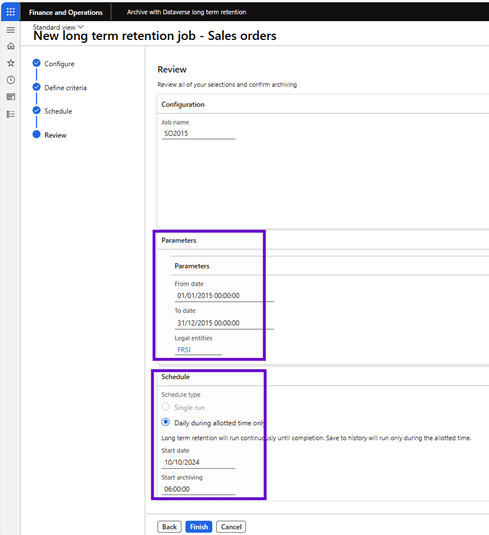
- On the last page of the wizard, confirm details and select Finish to schedule the Dataverse long-term retention sales order archiving job for the selected interval and company.
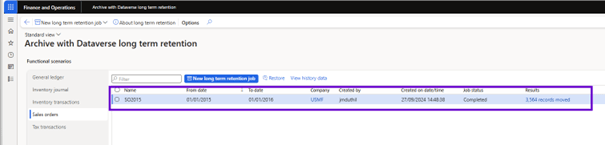
Archiving jobs appear on the dashboard.
Display the status
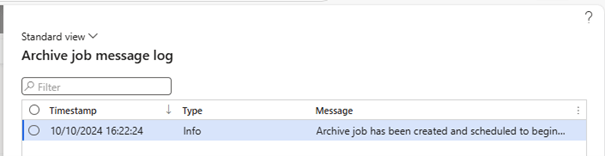
Select View progress on the Archiving job dashboard to view details of the status of the jobs.

Display historical data
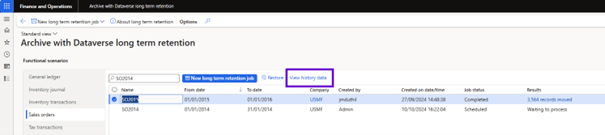
Archive with Dataverse long term retention workspace displays the complete history of the archive. Each row of the grid displays information such as the date the archive was created, the user who created it and its status. A button allows the user to check archived transactions.
To view the details of a selected archive, follow these steps.
- Select the job and then select View History Data from the toolbar.
- The Archived Sales Orders page displays all the Sales orders included in the archive job. To display a Sale Order, including its header and all its command lines, select it from the grid.
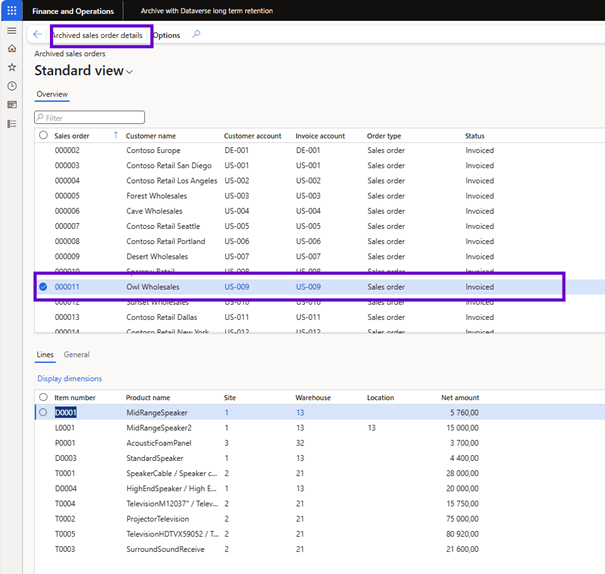
- In the Actions pane, select Archived Sales Order Details. From the order details, you can view more detailed information about the order.

- Select Inquiry.
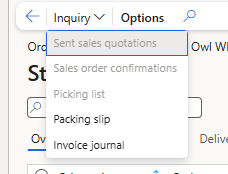
- From the menu, select the type of records to be displayed.
 D365FOAdviceTips
Leave a comment