
Business Challenge
Some customers reach the Tera octet in just a few years. So, what we see is that an over and year-and-year growth of Dataverse leads to several other business challenges. One of them is that having historical data in D365 Finance creates some sort of performance challenge for your inquiry screens, And the performance degrades as the data size increases.
Business case:
- Dynamics 365 Finance applications customers naturally generate business data at a regular cadence over time.
- On an average, medium to upper-mid market businesses accumulate >1TB of data in less than 5 years.
- The data growth is directly proportional to the age of the business and the number of transactions made.
Challenges:
- Maintaining the huge volume of historical data alongside live data creates performance issues.
- Performance of existing processes degrades over time when older data remains.
- SQL server indexing can only help up to a certain limit.
- Concerns about the database expansion and ability of ERP/CRM systems to support the transaction growth expected in their near future.
We also have some business challenges around SQL indexes. So, if the Dataverse size is getting bigger and bigger, the challenge that we have is to find the right time right spot for any given customer environment to do the rebuild index or even update stats. We also have a challenge, when you try to move the data from one environment to another environment, it takes time.
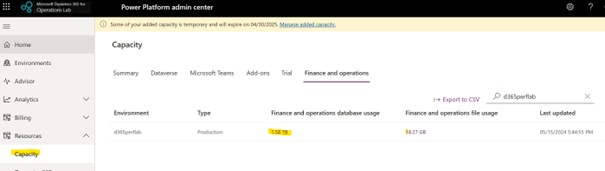
So, if you go to the PPAC and then you can see that on the left side the capacity and within capacity to click it one, then it shows your D365 Finance database.
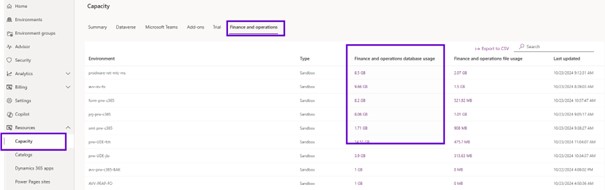
Database capacity where you can see the list of tables which is taking space. You want to look at what is the trend of that particular table, how it has been growing over the period of three months that we are displaying.
So, this is one of the key screens, so that you can track how your database is growing on the pole and which table is attributing to the growth of the database. It is a business challenge to track on the PPAC the euros stories.

So, you can click on the chart view that shows the first nine tables. But you can delete and add the table you want to have.
Data Clean up in D365 Finance
When we talk about Database and its growth, the first thing we should think about is cleaning up this database and therefore putting in place the standard cleaning routines provided by Microsoft.
Microsoft has therefore published a separate cleaning routine for the different modules. Please note that cleaning routines are not applicable or relevant for all customers.
Through PPAC and capacity management, you see which table has the largest data size assigned, so you can see if there is a cleanup routine for that particular table. You can use these post-processing cleaning routines to improve the size of databases.
Microsoft in recent versions to now automate certain routines.
For example, for staging tables in the DMF, if the cleaning routine is not set up, these tables will take more and more space, and this will eventually have an impact on performance. So, what Microsoft did is as part of version 36, this cleaner is automatically set up in the system. The time limit for the cleaner is 90 days.
So, anything older than 90 days is cleaned. This parameter is not necessarily the same for all customers and so I encourage you to change these parameters, to be a little more aggressive to control the size of the staging table.
For database logs from version 32, if you enable a database log on any table, it is not possible to finalize the wizard until you have set up the cleaning routine. However, this tool is widely used by customers and is very consuming in terms of database size with histories spanning several days. Some additional improvements in the framework of version 39 have been added to show which tables consume the most. A new tab has been added. You can see which table gives the most to the database log.
In addition, a data entity has been added to export the database log data. So, you can use this entity to export it via synapse link and on your lake, then store it there for your listener if you need it. Then you can get rid of the data in the database log.
In version 39, Microsoft has also added a cleaning routine for batch jobs and batch historization.
Before you start planning the archive, please do all the cleaning possible and then proceed with the archiving.
Data Archiving Framework

Data archiving helps manage my database growth, system performance and storage cost that increase periodically.
We need to focus on controlling the size of data which is part of maintaining environments through cleanups and now archiving: long-term data retention. You can set how long you want to keep the data.
Archive Framework and Architecture
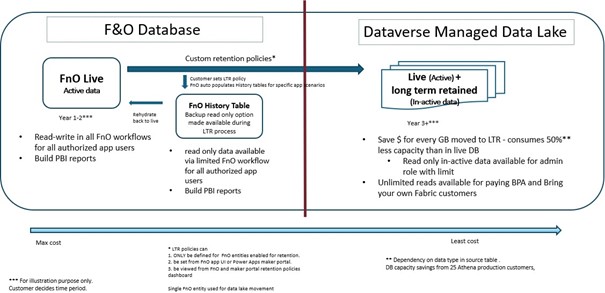
Now, just look at the high-level architecture of the data flow that we have in archive data framework. On the left side we have D365 Finance Database and on the right side Dataverse Managed Data Lake.
So, when you define your retention policy, so example, you want to archive a sales line, which was created 5 years ago.
You create a return policy for the two years: So, you want to keep two years data in your live table in D365 Finance. So, I want to keep two years in my Data base which is a D365 Finance live table. And then I want to the remaining three years to use an archived solution.
So, when you define the time solution, what we do as part of that archiving is that we are seeing all five years of the data called D365 Finance database to Microsoft database management.
So, all five years of whatever data is mixing there. Then as part of that process, we move three years of data that you wanted to archive from D365 Finance live table to a table which is called D365 Finance history table.
So, for example, if its Sales line will move to the SaleslineHistory, and then we go back to our database Dataverse manually, data lake, and mark those records as an archive.
So essentially, if you see you will have two years of the data in D365 Finance live table, you have three years of the data in history table.
And then you have five years of the data in Microsoft managed data lake, where three years is marked as an archive.
We are moving the data from an actual table to another table within the same database and how we save the stored data: if you look at any of our top tables like InventTrans, Sales line, we just do a data profiling. What you would see is that 20% is the data and 80% is the index. So, if I just move the three years of the data from actual tables to history table, which has one or two indexes only, it automatically reduces 80% because I am getting redundant indexes where that has been taken by my live table.
The next one is to save more space, more columns, more data by using column compression. So, in the lake we use a concept called column compression.
What it means is that. So, let us say we have in D365 Finance for InventTrans Table 100 columns, and eighty are invalid for your business. The remaining column is not being used: default values with zeros or blank, and it is repeated for each record that you have. So, what we do in the lake is that those columns are compressed: we create a one memory reference for all those repeat values and the columns, and we have a pointer to point to that one.
So, it is kind of more than 60% to 80% of the space that we save when we move the data.
So the one reason that Microsoft use history table is that if you are moving the data from live table to history, and because of any reason you wanted to reverse it: with an history table in D365 Finance, there is a way for you to reverse the data back to your original table. And with that, Microsoft maintains all the integrity. What it means is that Microsoft is keeping intact your recid id. So, when you move a Sales line from the live table to the history table, Microsoft keeps intact your id. So that when you revert it all, your relationship or advancement relationship that exist, it is being maintained.
And since Microsoft is making history, you have an option with an inquiry screen where you can do an inquiry and see the sales line you want to look at. You can do the inquiry; you can do some filtering.
In future Microsoft will also add a way to delete history tables. So, for example, now you have passed seven years, and you do not want that history record that you have. So, Microsoft will give an API to delete the data from your history.
Archive Framework – Data Flow

Now if we just look at this data movement in more visual format. You can see your live and History D365 Finance Database, we have managed lake is one thing that allow you to do your analytics. So, it has all the data that you can do analytics. And then we also have a tool called BPA can be use that tool as well to the reporting
Initially you have one thousand records in a live table, zero in history and 1000 in MDL tables replicated. Based on your archive rule, you wanted to archive four hundred rows of 1000. So what it will do is that it will move 400 to the history table and it will go, our archiving framework will go to the Microsoft manage data lake and concerning the 1000 records, it will do a reconciliation of marking 600 as in live record and 400 as a retained record which you can use and distinguish if you wanted to do a reporting filtering. I want to only reporting on live data, not on history.
And at the end basically you will have a live table of six hundred records and an MDL with six hundred live plus four hundred archives and then you can remove the history table. And in the manage lake, you can either use BPA or bring your own Fabric for any sort of reporting that you want to do.
InventTrans Archive Data Flow
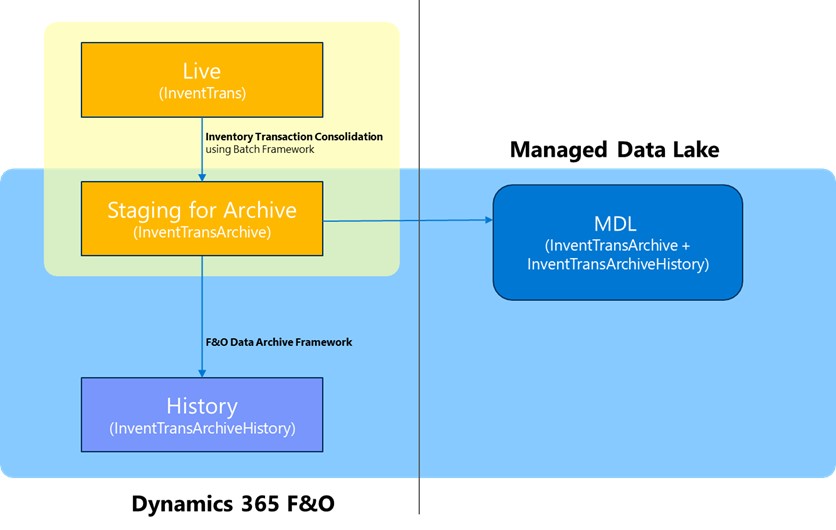
If we look in detail for InventTrans, one thing to mention here is that InventTrans been treated differently to our other tables for the scenario that has been released.
So, if you see here in the yellow and orange box is that InventTrans archival moving the data from the live table to staging table within the same DB.
And then what we introduce new for this archiving and longtime framework is that moving that staging archive data to the history and then moving that to the manage lake.
Now the question is that why it is treated differently, And the answer is pretty simple is that Microsoft treat it differently is that if you have running average cost or weighted average cost.
So, what we do as part of the cost solution that we had, we are already in live which does a summarization or consolidation. What it does is that against each item id the dimension combination. It is summarizing your transaction. And it posts one summarized entry into InventTrans and then moves all those detailed transaction to InventTransArchive. And that way you are still able to do your weighted average, running average cost. And you can build through if you want to do the archive.
Now the new framework moves InventTransArchive to history. And the framework that we have for archiving and long-term retention and will handle the Data base that Microsoft done for other tables.
Architecture Overview

Let us look a little deeper in terms of what are the different components that we have in the archiving framework.
First, we have the Component Box Dynamics 365 Environment: with the documentation we will install in the PPAC and D365 Finance the application components for Archive process.
This add in will install an Archive service: the name of this adding is Long Term Retention Archive. So, this is the microservice based architecture that will keep in sync with Dynamics 365 Finance and the Dataverse.
When that particular job will be scheduled from Dynamics 365 Finance using the archive workspace, as an end user, you will schedule a new job. That schedule will trigger the microservice based architecture and it will schedule a new job in Dynamics 365 Finance that will internally trigger the multiple services in Dataverse environment.
So that component (the live in the history table) reside within the AxDB and to support the movement of the data from Dynamics 365 Finance to manage data lake, we have a one-to-one relation that the data entity that have been created, and the bi entity.
So, for each live table in Dynamics 365 Finance that supports the data archive type, it will have a one history table and one BI entity. We must make sure the schema of that live table is in sync with the history table and the same schema should get reflected into the BI entity.
Why it is a one-to-one relation with the live table in the BI entity: The answer is Microsoft don’t want that the complex entity to be in place that will make the execution of that query slow on that the Dynamics 365 Finance as well as Microsoft wanted to make that, you know, the simple structure being moved into the manage data lake. The customers can use those tables based on the requirement.
Synchronizing the data from the live table to the managed data lake, will be handled through the CDS virtual entity adaptor service, and it will use the Azure Synapse link and Athena channel to keep on syncing the data from the live table to the manage data lake.
When you run this archive jobs as a UI, you will be able to see the different progress that Microsoft has given through the activity log. Using that log you will be able to see what is the status of data archive job that have been scheduled.
Behind the scenes there will be multiple services on the long-term data retention process that will be running in a sequential manner, in a way that when the job has been scheduled, so first it will perform the marking. Marking is nothing but the identification of the records that meet the criteria that has been defined into data contract for the query criteria that I have defined when I schedule the job.
Once the marking is done, the reconciliation will happen and the reconciliation will make sure that the data we have into D365 Finance Database and into the Dataverse, we did not lose any data.
And after completion of the reconciliation, the move to history will begin and the live records will get deleted, and those records will get moved into the history table. That way and the end cycle of that one archive job will get completed.
Keep in mind, as of now only one job will be in the executing state from the archive perspective. The system will not stop you to schedule number of jobs. All those jobs will remain in a queue in a waiting state until it gets a chance to execute. It will happen across the scenario.
So, let us say that we have a GL scenario, sales order scenario or different scenarios. If I have GL job has been executing. System will not stop me to schedule sales order, inventory transaction archive scenarios, but it will wait until it gets its turn.
Once the data has been copied over here, the next question would be how I can use those data. You can use this data using Microsoft Fabric and using Microsoft Fabric you will be able to query those data. You can build the power BI report and that way as an end user will have access to the data that has been archived records stored in the Microsoft managed data lake.
 D365FOAdviceTips
Leave a comment