- Save your views
- Pin the menu to favorites
- Customize the workspace
- Keyboard shortcuts
- Excel add-in for simple data
- Smart Guide to Copilot
- Monitor activities
I want to share with you a list of simple and useful tips that can help you improve the efficiency and usability of your D365 Finance system without any customization or configuration. These advices are available to all users.
Save your views
Not everyone finds it convenient to use forms as they are configured by default in the system. Microsoft provides a flexible and powerful mechanism that allows you to customize forms based on your needs and those of each user. You can adjust the field visibility, enable, or disable fields for editing, add new fields or change the order of fields.
You can also make certain fields mandatory. For example, you cannot create an Item without code, but you can create an Item without name. If you do not want someone to create unnamed Item, you can make this field mandatory on the creation form. No changes or developer intervention is required (be careful this change will be repeated on all your environments).
To ensure that each time a user opens a form, they see a version specifically adapted to their needs, they must save it and set it as the default value. The button to save custom settings is available on each form:


Pin the menu to favorites
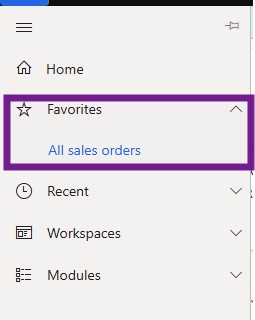
This advice can significantly reduce your workload and improve efficiency when working with the system. If you work with a few forms, you can mark them as favorites by clicking on the star next to the menu item. After that, you will no longer need to navigate the main menu to access them: they will be easily available in the Favorites tab for quick access.

Customize the workspace
If you frequently apply different filters when accessing a list form, you can save them in your workspace, so they are always available at the same place with one click.
Creating a workspace is quite simple. On the home page, use the personalization feature and click the “+ Add Page” button, enter a name and click OK.
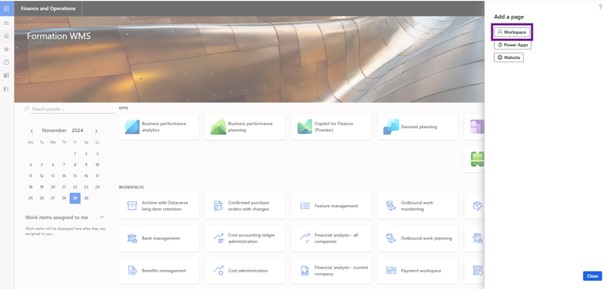
Adding new blocks and lists to the workspace is also simple. You can add widgets, lists, and even create charts.
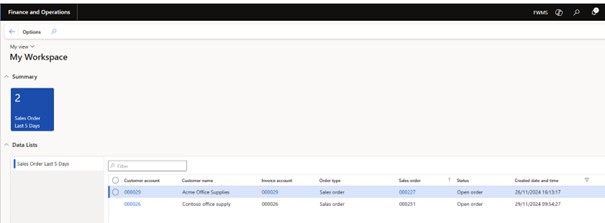
For example, set the filters you are interested in on the list of customer orders. Save the current form view, go to the Options tab in the menu and use the Add to workspace button. Choose the workspace you created from the list and select the display type.


The result :
Keyboard shortcuts
Many system actions have keyboard shortcuts, and knowing and using them can make interaction with the system faster and easier. To display the available keyboard shortcuts on any form, select the menu “Show Shortcuts” (right Click).
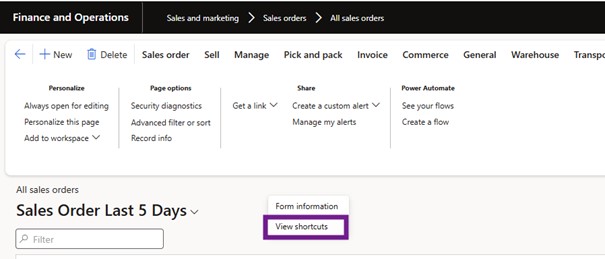

Here are some:
- Alt + N: Creates a new record.
- Ctrl + G: Opens the filter window for the field where the cursor is located.
- Alt + Q: this is a special search field that helps you find the required button in the menu.
- F2: Toggle between Edit mode and View mode.
- Esc: Closes the current form and brings you back to the home page.
- Ctrl + F2: Opens a menu with related information (not available on all forms, but you can consult the Launched products form for an example).
- Ctrl + F3: Opens the filter menu on the right side of the form.
Excel add-in for simple data
Open the reference table in Excel.
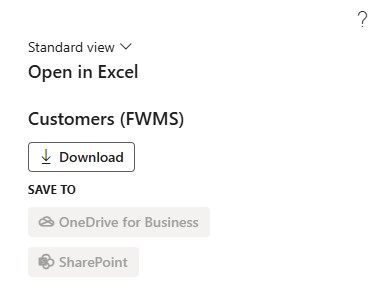

The table will open in Excel, where you can generate the required number of new records using the full range of Excel tools and publish the changes to the reference table.
Smart Guide to Copilot
In version 10.0.42, the ability to train Copilot was introduced. Now, Copilot can respond not only using information from Microsoft but also from documents that you upload.
For example, if you have customized a process or are using the standard process differently than Microsoft recommends, Copilot will still be able to assist. Just describe your process in a document, provide it to Copilot, and it will respond based on the information in your document.

It is very convenient and speeds up the onboarding process for new employees, so they no longer must dig through manuals to find the right section. This involves teaching good habits to Copilot 😊.
Monitor activities
D365 Finance automates key business processes that affect business efficiency. A large number of users increases the risk of human-induced errors.
Fortunately, the system includes a database log in which many changes can be tracked. It is sometimes essential to understand what actions (user or system related) have led to a particular outcome, to prevent this from happening again.
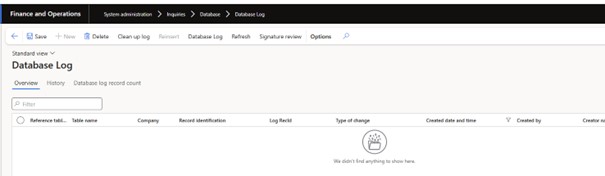
However, it is important to note that the more fields are recorded in the log, the more cluttered the database and the system performance slows down. The journal itself may not be opened again within a reasonable time. In addition, much of the information is recorded in a format that is difficult for users to interpret.
For example, warehouses and financial analytics are stored as internal system codes. A key parameter like security roles is not recorded at all in history.
Fortunately, on Microsoft AppSource you can find a simple add-in called ADBL for the database log, which solves these and many other problems. The Advanced Database Log (ADBL) improves log performance and presents information in a format that is understandable and useful to users and support staff.
 D365FOAdviceTips
Leave a comment