Sometimes you need to change the article code, when you make a typo for example while creating a product and you have to delete the article that you just created and start the process again from the beginning.
Microsoft introduced in version 10.0.42, a feature that allows you to change the article code of an already used article. This feature is called Rename item number.
Follow these steps to take advantage of the option to rename article numbers:
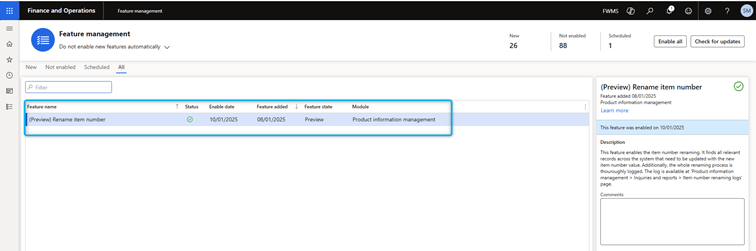
Navigate to Workspaces –> Feature Management and look for the “(Preview) Rename Item Number” feature. Enable the feature.
Go to Product Information Management –> Released Products and open a product. In my example, I opened the Item 1000 in an environment.
Open the General tab, here you can see two added menu items.
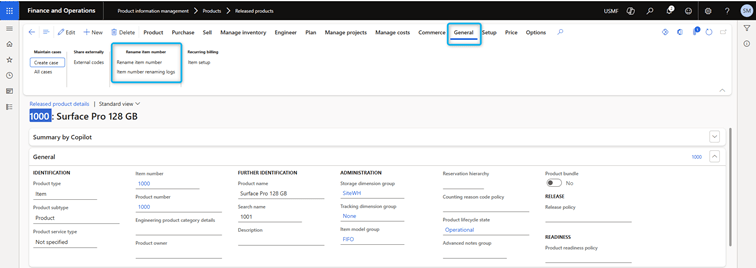
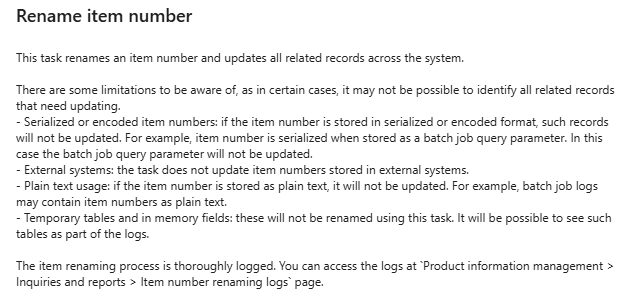
To change the item number, click on the “Rename Item Number” button. In the following menu, enter your new article number. Please note the security text:
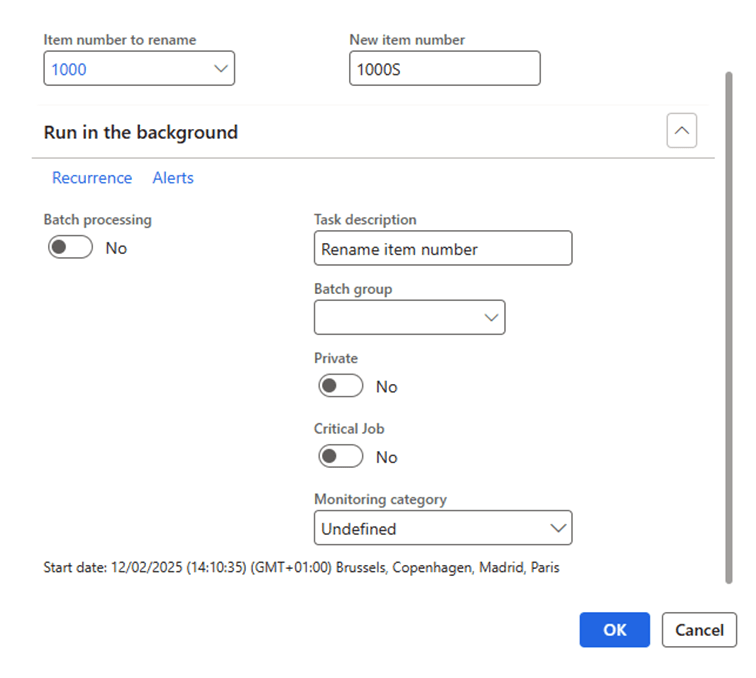
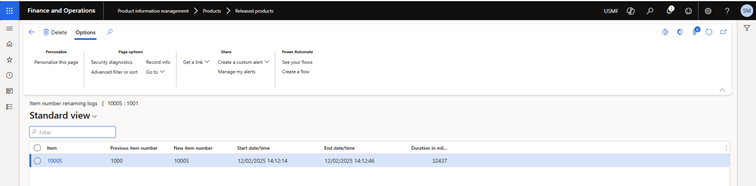
After the task is executed, the result is a released product modified with a correct log. This journal is also visible in the menu “Item number remaining logs”
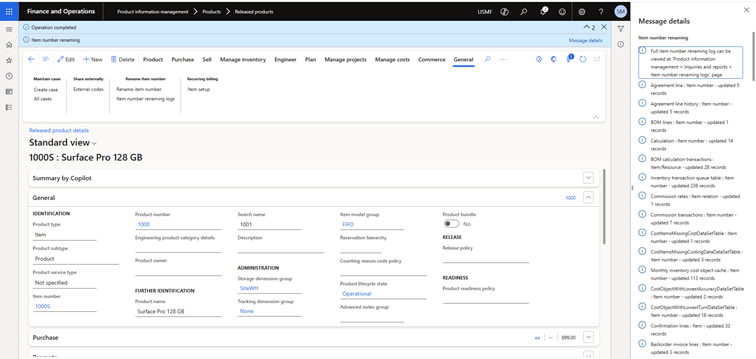
Finally, a result with all our inventory transactions modified:

An interesting feature in the new version.
However, this change seems quite risky:
- What happens if the item code is used as a financial dimension and there are transactions in the general ledger? When the item code was changed, it was updated in the financial dimensions of the journal entries.
- What about configuration tables such as Table – Group – All? The item code in the configuration table has been updated correctly.
- How does the change in the item code affect the number sequences? As expected, the system does not allow us to create a product with an existing code and return the appropriate error. That is great! However, if a continuous sequence of numbers is used, someone will have to manually adjust the serial number to accommodate the blocked code.
- How does the change in the item code affect temporary tables. For example, when you want to create multiple lines in a sales order and click on the button «+ Add lines», the system opens a form with a list of items in which you enter the quantities of the lines that you want to add to the order. This form is based on a temporary table. What if someone decides to change the items code of an item that you add at the same time? As expected, the feature does not update the item code in the temporary table. The system will not find the associated product information and will return an error (although not very clear).

In addition, the entire renaming process is fully documented. The log is available in Product information management > Inquiries and reports > Item number renaming log.

 D365FOAdviceTips
Leave a comment