
- Installation
- Process
Once transactions have been posted, organizations often need visibility into the subledger data so that accounting entries generated from these transactions can be analyzed. Today, organizations use fields such as document number, description or financial dimensions to track data from the subledger in the general ledger, because it is difficult to navigate through the data model to access the data in the subledger. The types of subledger data that are often tracked include sales order or purchase order numbers, vendor /customer names, payment references, the invoice numbers or reference numbers of external transactions imported into D365 Finance. In addition to being used for analytical purposes, the data from the subLedger are used for processes such as ledger settlement.
The Financial Tags feature (Tags) eliminates the need to use document numbers, descriptions or financial dimensions by allowing an organization to create and enter up to 20 user-defined fields on transactions. These fields are then stored in the accounting records created for transactions. Tag values are not stored in any subledger tables, nor in the Customer transaction table or Vendor transactions.
In version 10.0.32, the functionality “Financial Tags” were introduced in D365FO. This feature gives you the option to define up to 20 user-defined Tags. In this version, you can enter these Financial Tags into the general journals. In each new version, the Tags will be implemented into additional journals, documents and processes. In version 10.0.37, the following journals and transactions added support for Tags:
- General journal
- Global general journal
- Allocation journal
- Fixed asset journal
- All asset leasing journals
- Periodic journal
- Reporting currency adjustment journal
- Customer payment journal
- Vendor payment journal
- Invoice journal (vendor)
- Global invoice journal (vendor)
- Invoice register
- Sales order documents (Sales order, packing slip and customer invoice)
This functionality will be extended to subsequent versions of D365FO to include additional journal, documents and processes.
In this article, I will describe how you can configure and use Financial Tags.
Installation
- Select the delimiter in the general ledger parameters
- Create Tags and financial values
- Enable Financial Tags
Feature Management
To use this feature, you must enable the Financial Tags feature in the Feature Management workspace. The feature can be disabled at any time. If the feature is enabled and later disabled, all values entered for Financial Tags on transactions will be retained in the database. However, they will no longer be visible on transactions or inquiries in D365 Finance.

To make Tags support available on sales order documents, enable the Enable financial Tags for sales order invoicing feature in Feature management.

Starting with D365 Finance version 10.0.41, the Tags are available on the order documents. Enable financial Tags for purchase order invoicing feature is available in the Feature management. The feature is in private preview controlled by the flight PurchaseOrderFinTagFeature. To start using the Financial Tags on order documents, first create an IcM ticket to activate the flight.
Delimiter
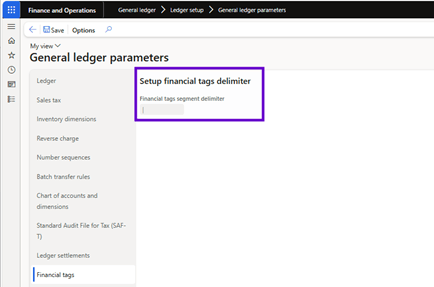
Entering Tags on transactions is similar to entering a ledger account using financial dimensions. Tags do not use the same control as a ledger account, but they still require a delimiter between tag values. You must set the Tag delimiter before setting Financial Tags. On the general ledger parameters page, select Financial Tags and specify the delimiter. The delimiter you specify should not be used in tag values entered on transactions. For example, if you set a hyphen (-) as delimiter, the customer name entered as Tag value cannot contain any hyphen. The delimiter cannot be changed once defined.
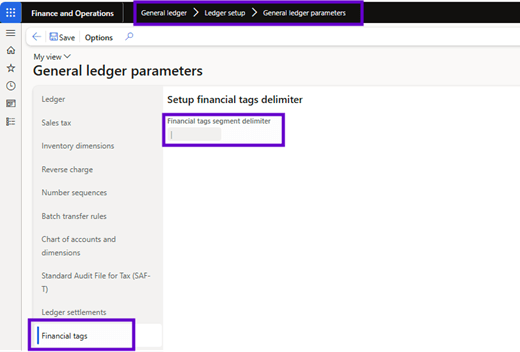
In the general ledger parameters, you must define the delimiter to be used in journal lines. You can find it in the new tab added “Financial Tags” in the parameter form and choose the delimiter to use:
The selection of the delimiter is the first step. If you do not select the delimiter, you will not be able to save the created Financial Tags:
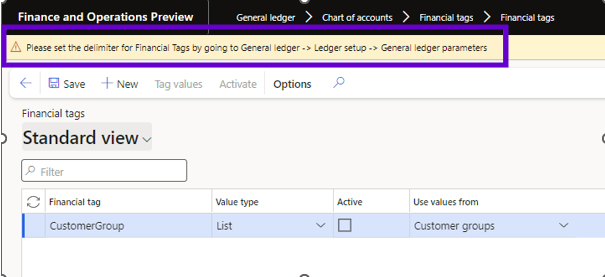
When selecting the delimiter, be aware that the delimiter cannot be used in the values of the Financial Tags and you cannot change the delimiter once it is defined.
The selection of the delimiter must therefore be made carefully and it should be aware that this choice of delimiter is shared between legal entities (unlike the creation of financial Tags itself, which takes place within the legal entity).
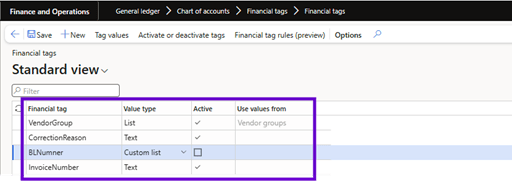
Once the feature is enabled, each legal entity can define up to 20 Financial Tags. Tags are specific to each legal entity. You can use the Financial tag configuration and Financial Tags custom list value entities to import the Tags for each legal entity. Therefore, you can quickly and easily define the same initial configuration in multiple legal entities.

Financial tag configuration:
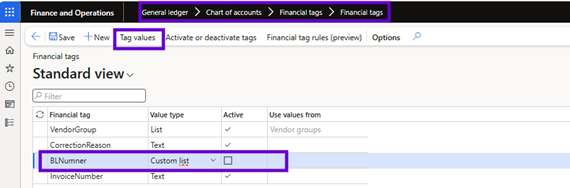
Financial Tags custom list value:

Starting to use financial Tags in D365FO? Choose the delimiter wisely!
With the preview default financial tag rules feature available since version 10.0.42 of D365FO, the awareness of the financial Tags feature to increase and the added value becomes much more important. To add subledger information to GL transactions, the option becomes more useful because of the rules for automatically entering these values when creating posting lines.
To use these financial Tags rules, the financial Tags must already be configured. And to enable financial Tags, you need to perform a basic configuration. One of the required steps is to configure the financial Tags delimiter. You should do this step wisely, for example because of its impact on the posting process!
To Delimit
To use financial Tags, you must choose a delimiter. This is necessary because, just like for the financial dimensions, when using several financial Tags, the values must be entered in a single column and the financial Tags are divided by the delimiter:

Before creating the necessary financial Tags, you must first select the delimiter to use in the general ledger settings:

What is important to consider when choosing this delimiter?
The delimiter is shared between legal entities
Even when the financial Tags are configured for each legal entity separately and the general ledger parameters may suggest that the same thing works for this configuration, the delimiter you choose is chosen in a shared manner between the legal entities.
You cannot use a delimiter equal to one character in the values of financial Tags
The delimiter you choose must not be a character value that you use in the values of one of the financial Tags. For example, if you use the delimiter “- ” and in one of the financial Tags you have values such as “2025-SO123”, this value cannot be used because the “- ” is part of that value of financial Tags and also of the delimiter you have chosen. If you want to enter a financial tag value that includes this delimiter value, you will get an error message.
You cannot change the delimiter after the first publication
In the Microsoft documentation, it is mentioned that the selected delimiter can no longer be modified. The phrase “Delimiter cannot be changed once defined” is not completely true. It is possible to change this to another value, but this is only valid as long as I have not posted any value! Once the first publication with a financial tag has been completed, the segment delimiter of the financial Tags is grayed out and can no longer be modified:
You must therefore choose the delimiter wisely, because it cannot contain characters of financial Tags values and is shared between legal entities.
Create Financial Tags
Before creating Financial Tags, note the following:
- Determine whether the data should be tracked as a financial dimension or as a financial tag. Financial Tags are an alternative to financial dimensions, especially when you track little or non-reusable values such as sales order numbers or purchase order numbers. .
- Once a financial tag is created, it can be disabled but not deleted. This restriction ensures that tag values remain available for reporting on posted general ledger entries. Financial Tags can be easily activated and deactivated at any time.
- The label of each Financial Tag may be changed at any time, even after the publication of transactions.
- If no transaction has been recorded for a specific Financial Tag, a change in the label of the Tag will have no impact. This behavior is useful when you need to reuse a tag in order to track other data.
- If transactions have been recorded for a specific financial tag, the values of the tag do not change. If the tag label was originally “Purchase Order Number”, but is then changed to “Sales Order Number”, the accounting entries posted before the label change will always contain the purchase order numbers entered and posted in the general ledger.
Create a financial tag
In the “Financial Tags” option of the General Ledger module, you can create the Tags that you want to use. For each Financial Tags, you can select the type of value, which Financial tag specific: basically corresponds to the type of values that you can use for this
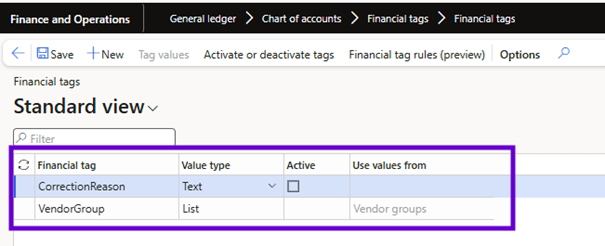
Follow these steps to create a financial tag:
- Go to General Ledger > Chart of Accounts > Financial Tags > Financial Tags.
- Select New to create a financial tag.
- Enter a label for the Tag. The label must begin with a letter or underscore and may contain only letters, numbers and underscores. No special characters, including spaces, are allowed.
- In the Value Type field, select Text, List or Custom List.
- If you have selected List in the Value Type field, select the value source in the Use values from field. The field contains a list of entities from which tag values can be selected when entering the transaction.
- If you selected Custom list in the Value type field, select Tag values to create the custom list of Tag values that will be available for selection when entering the transaction.
- Select Activate to activate the Tag.
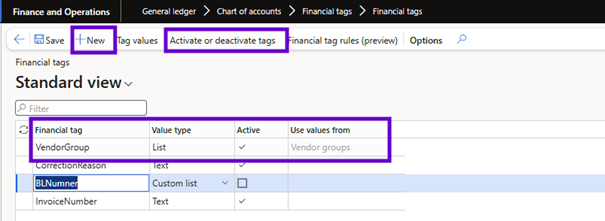
Once the Financial Tags are created, you must activate them. To do this, click the “Activate” button at the top of the form and change the Tags from the “Inactive” section to the “Active” section and confirm these settings by clicking “Activate or deactivate Tags”:

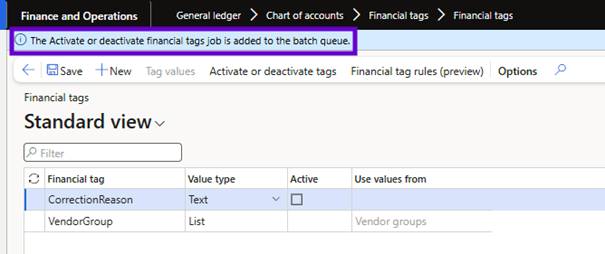
Clicking on “Activate or deactivate Tags” will create a batch jobs that will activate created financial Tags (or deactivate them if you want to disable a financial tag later):
Entering the values of Financial Tags on Journals and Lines transactions
Once a financial tag is activated, the Tags will be available for entry on each transaction supporting the feature.
When you enter journals, you can set tag values on the journals batch header. These values will then be used as default values for the journals lines. As for the other default values of the journals, they will be automatically entered on new lines added to the journal. However, they will not be entered on lines that already exist when you set the values on the header.
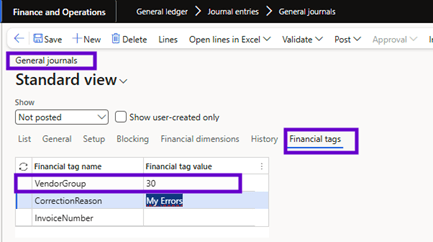
Default values for journals
Tag values that you enter in a journal are entered as default values as follows:
- Single-line voucher:
- The tag values that you add to the journal batch header are entered as default values on the account.
- The tag values you add to the account are entered as default values on the offset account.
- If the offset account already exists when you add tag values to the account, these tag values are not entered as default values on the clearing account.
- If tag values exist on both the account and the offset account, changes to tag values in one location do not update the values in the other location. For example, if you change the Tag values on the account, the Tag values on the offset account are not updated. This behavior prevents data loss if a user manually overrides the default values.
- When you add a new line, if you assign a new voucher number (which represents a new transaction), the default behavior is repeated. The Tag values of the lines of a voucher are never entered as default values on the lines of another voucher.
- Multi-line voucher:
- Tag values that you add to the journal batch header are entered as default values on the account of each row added to the voucher.
- Tag values that you add to the account on the first line are not entered as default values on the account of the next line of the voucher, and so on.

Default tag values do not exist in master data and are not available as default values. For example, it is not possible to set default tag values for customers or suppliers. In addition, the properties of a transaction itself are not automatically entered as default values. For example, a Tag has been created to track the customer’s name. If a transaction contains a customer, the customer’s name is not used as the default customer tag value. The value must be entered manually or imported.
Default values for documents
For documents, like journals, tag values are not entered as default values from the master data because the master data does not contain any default tag values. Most documents, such as customer orders, follow this general order by default:
- Tag values can be defined in the document header.
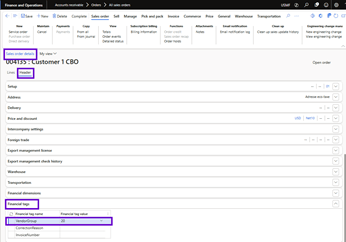
- The values of the Header Tags are used as default values on the document lines.
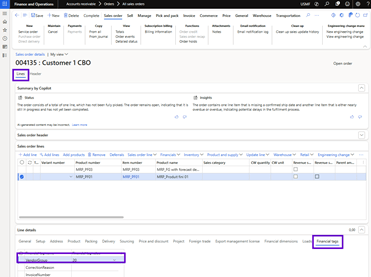
- The document line tag values are used as default values in accounting distributions (if the document is a source document and supports accounting distributions).
For the created accounting entries, the values of the Tags are entered as default values in the following way:
- Non-source documents:
- The Tag values for the summary account, such as Accounts Payable or Accounts Receivable, are entered by default from the header.
- All other accounts, such as expenses, revenues, taxes and discounts, use the default row tag values.
- Source documents:
- The Tag values for the summary account, such as Accounts Payable or Accounts Receivable, are entered by default from the header or accounting distributions, based on the general ledger settings used for the summary accounts. (Navigate to General ledger > Ledger setup > General ledger parameters.) By default, the Tag values are entered using the same logic as that used for the financial dimension values of the summary account.
- All other accounts, such as expenses, revenues, taxes and discounts, use the Tag values of accounting distributions by default.
If a document contains downstream documents, the Tags of the parent document are used for the child documents. For example, the Tag values of the header and lines of the sales order are used for the accounting created for the packing slip and customer invoice, in accordance with the logic described above.
Validation
When Tag values are entered in transactions, no validation takes place during the transaction entry or posting. Even if a Tag of type List or Custom List is defined, the Tag values are not validated to ensure that they exist in the list. For example, a List type tag is created and the purchase order number is selected as the source of the list. Although a list of purchase order numbers is presented, the user can enter a purchase order number that does not exist in the list.
Process
- Use Financial Tags in postings
- Analyze and report
- Correct the value of Financial Tags if necessary
Use Financial Tags in postings
Financial Tags can be used in general journals. Here, you can select the “Financial tag values” by default at the log level for log lines.

In the posting lines, these values will be the default values for transactions, but you can change them if you want. In this case, I use a value in the journal header and change that value on one line of the journal:
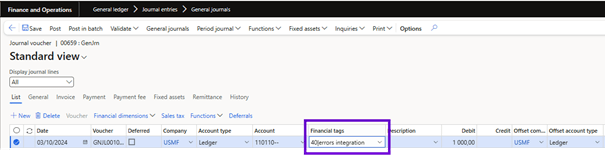
Analyze and Report
Once a transaction is posted, the Financial Tags are available on the lines of the general ledger account entry. They are displayed on the Voucher transactions and Transactions for main account pages. Financial Tags are displayed in separate columns, making them easier to sort and filter.
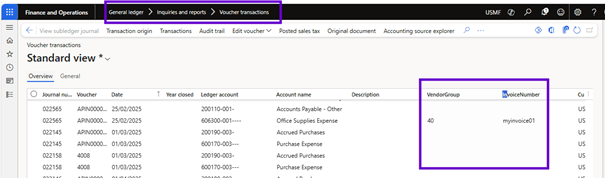
For the creation of reports, Tags are not part of the dimension sets. Therefore, you cannot obtain a trial balance of transactions for a specific tag value. For example, when viewing the verification balance, you cannot get the balances by Tag value. However, when you are exploring the balances of the trial balance, the Tag values are displayed on the detailed transactions. Detailed transactions, including tag values in separate columns, can be exported to Excel where they can be summarized if balances are required.
Example of voucher transactions:

Example of the Transactions page by clicking on the Trial balance:

Correct the value of Financial Tags if necessary
While financial Tags are available for reporting, they are not part of the ledger account and have no impact on the financial statements. Since the Tags are only used for internal analysis, changes to the values of the Tags are allowed once transactions have been validated. If you have posted a transaction, you can click “Edit voucher” on the voucher page to change values.
- In the Feature Management workspace, enable the feature titled Allow edits to internal data on general ledger vouchers. This feature allows certain roles to modify the Description field of accounting entries posted. If the Financial Tags feature is also enabled, this feature has been enhanced to allow modification of the values of the Tags.
- Once the feature is enabled, go to Voucher transactions.
- Use the query to find the transactions you want to change.
- Select the rows in Voucher Transactions , then select Edit internal voucher data. You can only edit the selected lines.
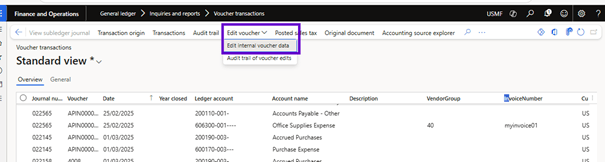
The page displays the rows you selected in Voucher transactions, including current Financial Tags and new Financial Tags. Current tag values are entered as default values for new Tags. Therefore, you do not need to enter everything manually again, but you can change only what is incorrect. You can use the Bulk update selected record button to perform bulk updates. Bulk updates are useful if you want to assign tag values to large groups of posted transactions that were incorrect or for which no tag value was defined (for example, because they were posted before the feature was enabled).


 D365FOAdviceTips
Leave a comment