
- Power AI prompt
- Copilot Studio
- Tests Copilot Sales Order Creation in D365 Finance
- Tests Copilot Sales Order Creation in Teams
Power AI prompt
A prompt is a natural language instruction that tells a large language model (LLM) to perform a task. The model follows the prompt to determine the structure and content of the text it needs to generate.
The goal here is to create a prompt that indicates the creation of the command header and a line and a prompt for adding line with output a formatted structure.
Create Sales Order
Create a PowerApps AI prompt, by visiting https://make.powerapps.com and choosing the environment:
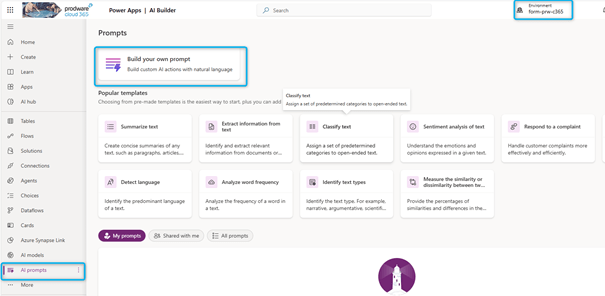
We define a prompt:

We add an input:

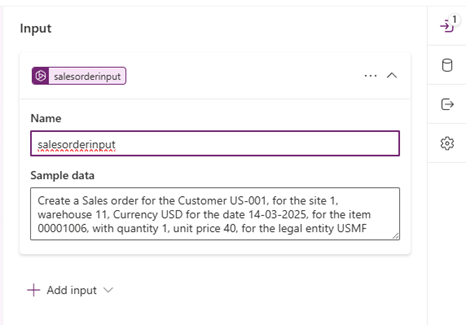
I add the following prompt:
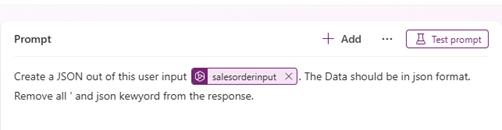
To add the input:

This would translate the values of Customer code, site, warehouse, item Id, quantity, etc. as a JSON. Click on test prompt, it will show you like this:

I changed the Output in order to have a JSON formatted:
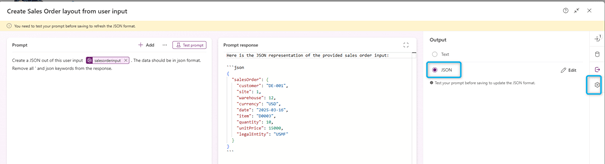
Click on Save Button.
Add Sales lines
I create another prompt:
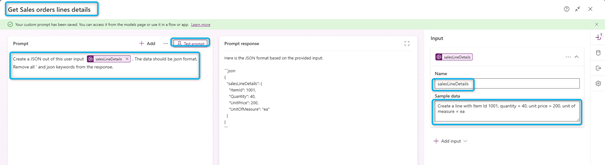
I changed the output format to JSON:

Click on Save Button.
Copilot Studio
Topics Create Sales Orders: Begin
Let us go to Copilot Studio and add topics to the agent: Copilot for finance and operations apps.
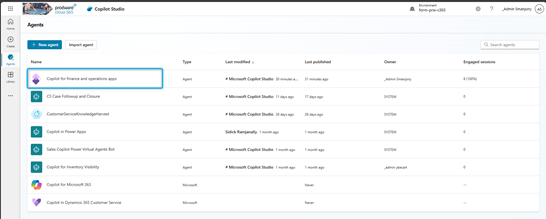
Add a topic:

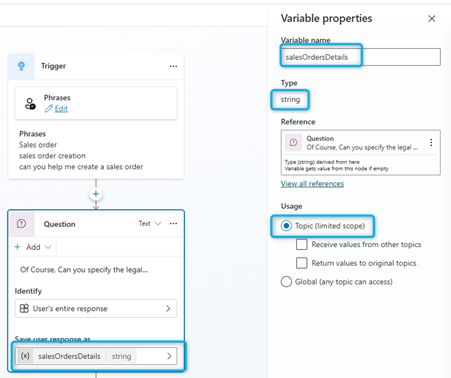
The first object to define is the trigger: Here you are defining phrases like ‘Sales order’, ‘sales order creation’, etc., meaning when the user gives a prompt like ‘Sales order creation’, it would understand to create Sales Orders.

Then we added a question:

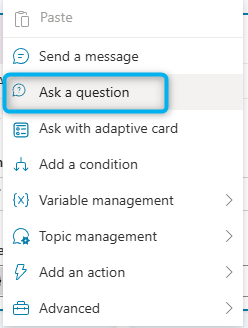
We save the entire response as a variable called ‘salesOrderDetails’:
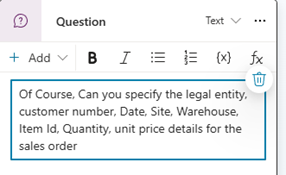

Which is a string type variable, and a local variable:
In the next step, we call a Flow:
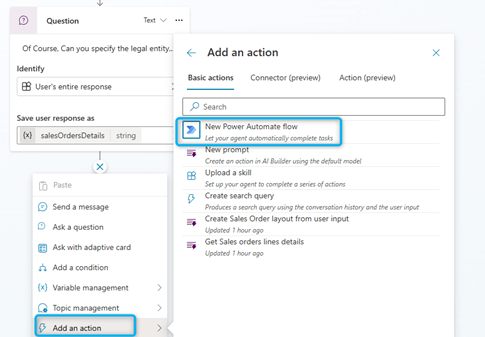
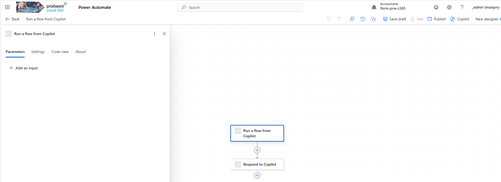
Flow Copilot Sales Orders
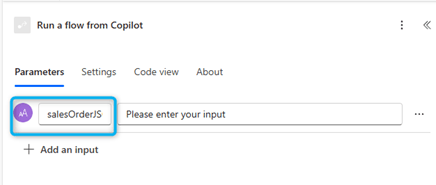
The first thing to do is to create an input that we be used to store the phrase enter in the copilot question (store in copilot studio in the variable: salesOrderDetails’).
I add an input:

As a next step, we are calling the Prompt we created in the precedent chapter:
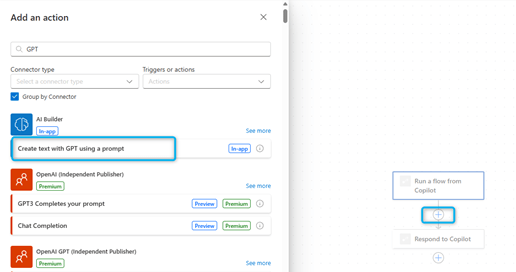

Let us parse the JSON to get the variables provided by the user:
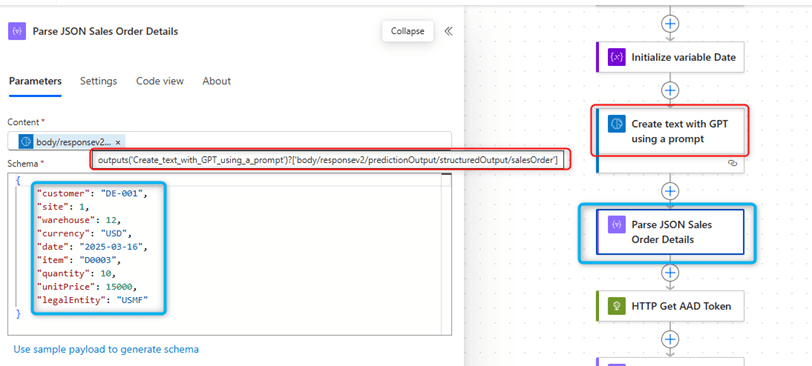
The JSON schema that we use is the one defined during the prompt: this will essentially help us get all the values of the variables for Customer account number, Item Id, Qty, sales price, etc. With these variables we will create the sales order, in the subsequent steps.
Next, we are calling a HTTP post to call the AAD token. You need to create an app registration in Azure Portal with Client Secret:
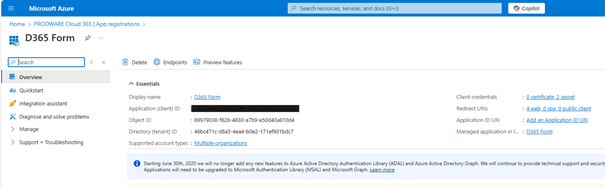
And add the apps registration in D365 Finance:
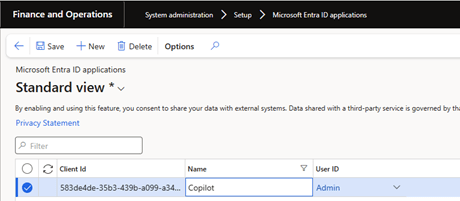
Now we can define the HTTP Get AAD Token:
- URL: https://login.microsoftonline.com/Tenant ID/oauth2/token
- Headers: Content-Type application/x-www-form-urlencoded
- Accept application/json
- Body: Client_Id=Cliend_Id_Value&Client_Secret=Client_Secret_Value&resource=Environment_Address
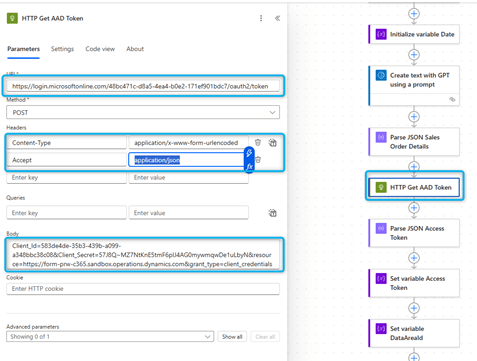
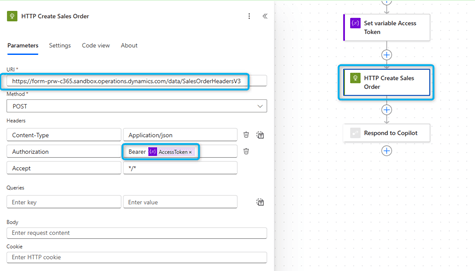
In the next step we will call the Sales Order OData entity, to create the sales order header (note that we are passing on the bearer token as authorization):
- URL: Environment_Address/ data/SalesOrderHeadersV3.
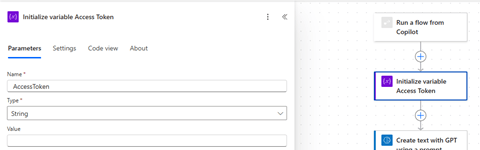
For the access token I created a variable to retrieve the value:
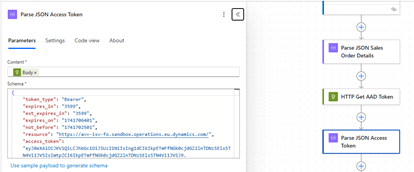
I parse the access token from the Get AAD Token:
And set the variable:

I call the Sales order OData entity, to create the sales order header:
- URL: Environment Address/Data/SalesOrderHeadersV3
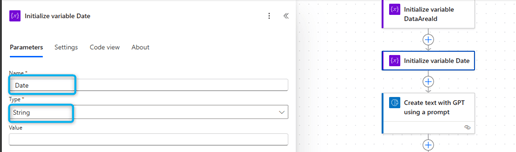
As my date is in format dd-mm-yyyy and in the different data entities for header and lines the dates are yyy-mm-dd, I correctly format the date. First, I create a variable Date:
Then I store the value coming from the JSON in format dd-mm-yyyy:
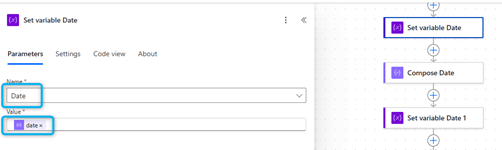
Then I convert the date into format: yyyy-mm-dd.
- formatDateTime(concat(split(variables(‘date’), ‘-‘)[1], ‘-‘, split(variables(‘date’), ‘-‘)[0], ‘-‘, split(variables(‘date’), ‘-‘)[2]), ‘yyyy-MM-dd’)

And at the end store again my value transformed to a variable date:
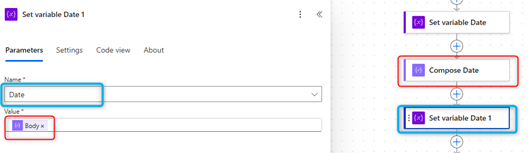
So now I can create my sales orders header for the Body:

The body of the sales order looks like this:
{
“dataAreaId”: “@{body(‘Parse_JSON_sales_order_details’)?[‘legalEntity’]}”,
“FiscalDocumentOperationTypeId”: “”,
“OrderTakerPersonnelNumber”: “”,
“RequestedReceiptDate”: “@{variables(‘Date’)}”,
“EInvoiceDimensionAccountCode”: “”,
“IsOwnEntryCertificateIssued”: “No”,
“CampaignId”: “”,
“Email”: “”,
“DefaultShippingSiteId”: “@{body(‘Parse_JSON_sales_order_details’)?[‘site’]}”,
“TransportationBrokerId”: “”,
“TransportationModeId”: “”,
“DeliveryAddressDescription”: “”,
“CFPSCode”: “”,
“IsSalesProcessingStopped”: “No”,
“TMACustomerGroupId”: “”,
“NumberSequenceGroupId”: “”,
“SalesOrderOriginCode”: “”,
“CustomerPaymentFinancialInterestCode”: “”,
“TransportationTemplateId”: “”,
“IsOneTimeCustomer”: “No”,
“SalesOrderPoolId”: “”,
“DeliveryAddressCountryRegionId”: “”,
“DeliveryAddressLatitude”: 0,
“TotalDiscountCustomerGroupCode”: “”,
“DeliveryAddressCity”: “”,
“SalesRebateCustomerGroupId”: “”,
“ThirdPartySalesDigitalPlatformCNPJ”: “”,
“SalesOrderPromisingMethod”: “None”,
“ShippingCarrierId”: “”,
“TotalDiscountPercentage”: 0,
“DeliveryAddressDistrictName”: “”,
“DeliveryAddressCountyId”: “”,
“ConfirmedReceiptDate”: “@{variables(‘Date’)}”,
“DeliveryAddressZipCode”: “”,
“FiscalOperationPresenceType”: “DoesNotApply”,
“QuotationNumber”: “”,
“IsConsolidatedInvoiceTarget”: “No”,
“LanguageId”: “en-us”,
“DeliveryAddressDunsNumber”: “”,
“MultilineDiscountCustomerGroupCode”: “”,
“CustomerPaymentMethodSpecificationName”: “”,
“ServiceFiscalInformationCode”: “”,
“CommissionCustomerGroupId”: “”,
“DeliveryAddressName”: “”,
“PaymentTermsBaseDate”: “1900-01-01T12:00:00Z”,
“DeliveryAddressStreetNumber”: “”,
“CreditNoteReasonCode”: “”,
“ChargeCustomerGroupId”: “”,
“TaxExemptNumber”: “”,
“IsDeliveryAddressPrivate”: “No”,
“CustomersOrderReference”: “”,
“ExportReason”: “”,
“OrderResponsiblePersonnelNumber”: “”,
“DeliveryAddressCountryRegionISOCode”: “”,
“CashDiscountCode”: “”,
“PaymentScheduleName”: “”,
“IntrastatTransactionCode”: “”,
“URL”: “”,
“CurrencyCode”: “@{body(‘Parse_JSON_sales_order_details’)?[‘currency’]}”,
“InvoiceType”: “Invoice”,
“ArePricesIncludingSalesTax”: “No”,
“InvoiceCustomerAccountNumber”: “@{body(‘Parse_JSON_sales_order_details’)?[‘customer’]}”,
“DeliveryAddressLocationId”: “”,
“CustomerTransactionSettlementType”: “None”,
“CommissionSalesRepresentativeGroupId”: “”,
“WillAutomaticInventoryReservationConsiderBatchAttributes”: “No”,
“IntrastatStatisticsProcedureCode”: “”,
“IsEInvoiceDimensionAccountCodeSpecifiedPerLine”: “No”,
“DeliveryAddressStreet”: “”,
“DeliveryModeCode”: “”,
“IsExportSale”: “No”,
“ConfirmedShippingDate”: “@{variables(‘Date’)}”,
“FixedDueDate”: “1900-01-01T12:00:00Z”,
“SalesTaxGroupCode”: “”,
“IsDeliveryAddressOrderSpecific”: “No”,
“CustomerRequisitionNumber”: “”,
“IsFinalUser”: “No”,
“ShippingCarrierServiceGroupId”: “”,
“ContactPersonId”: “”,
“EUSalesListCode”: “”,
“ThirdPartySalesDigitalPlatform”: “No”,
“PaymentTermsName”: “”,
“CustomerPostingProfileId”: “GEN”,
“DeliveryTermsCode”: “”,
“ShippingCarrierServiceId”: “”,
“DefaultLedgerDimensionDisplayValue”: “”,
“DeliveryAddressTimeZone”: null,
“SalesOrderName”: “Test Copilot”,
“DefaultShippingWarehouseId”: “@{body(‘Parse_JSON_sales_order_details’)?[‘warehouse’]}”,
“IsEntryCertificateRequired”: “No”,
“DeliveryAddressStateId”: “”,
“DeliveryBuildingCompliment”: “”,
“IntrastatTransportModeCode”: “”,
“InvoicePaymentAttachmentType”: “None”,
“DeliveryAddressPostBox”: “”,
“InvoiceAddressTimeZone”: null,
“DirectDebitMandateId”: “”,
“LineDiscountCustomerGroupCode”: “”,
“IntrastatPortId”: “”,
“OrderingCustomerAccountNumber”: “@{body(‘Parse_JSON_sales_order_details’)?[‘customer’]}”,
“CustomerPaymentFineCode”: “”,
“PriceCustomerGroupCode”: “”,
“DeliveryReasonCode”: “”,
“IsServiceDeliveryAddressBased”: “No”,
“InventoryReservationMethod”: “Automatic”,
“RequestedShippingDate”: “@{variables(‘Date’)}”,
“TransportationRoutePlanId”: “”,
“CustomerPaymentMethodName”: “”,
“SalesUnitId”: “”,
“FixedExchangeRate”: 0
}
Our sales order has been created in this step. We need the sales Id, and hence we are creating a variable called SalesId, which we are getting from the JSON response above:

We parse the SalesId from HTTP Create Sales order (SalesOrderNumber):
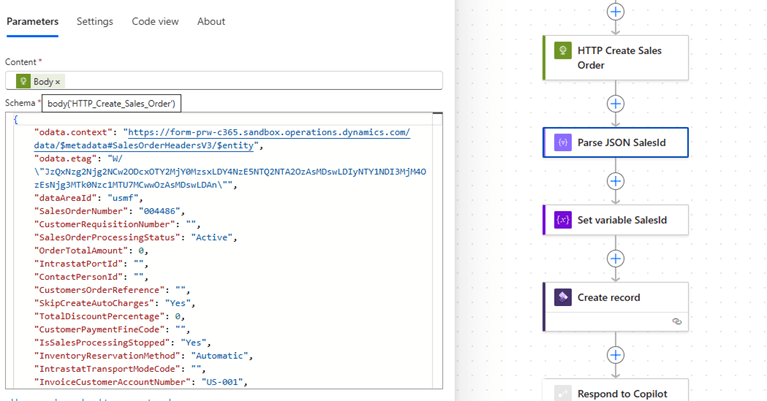
And finally set the variable SalesId:

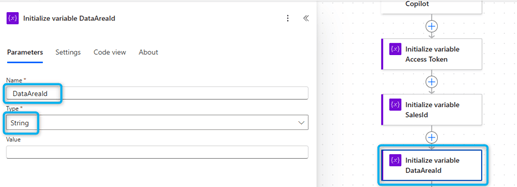
This variable SalesId will be the response of the flow and show to the user in Copilot, same thing for the legal entity. We initialize a variable:
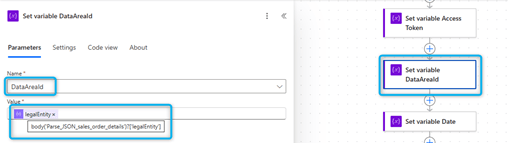
And set the variable with the value coming from the JSON:
Now we will create the first line, calling the Sales Line entity:
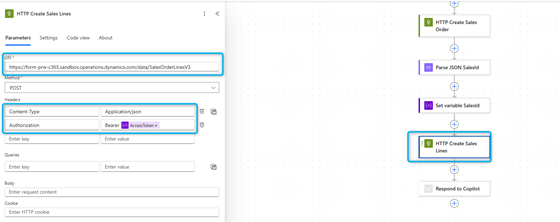
And in the body, we are passing all the variables from the above step:

And then we are returning the sales Id and legal entity generated to the Copilot as a last step of the flow:

Topics Create Sales Order: The End
Back in our Copilot Studio:

On getting the response from Flow, we are displaying it as a response to the user.
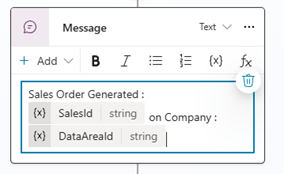
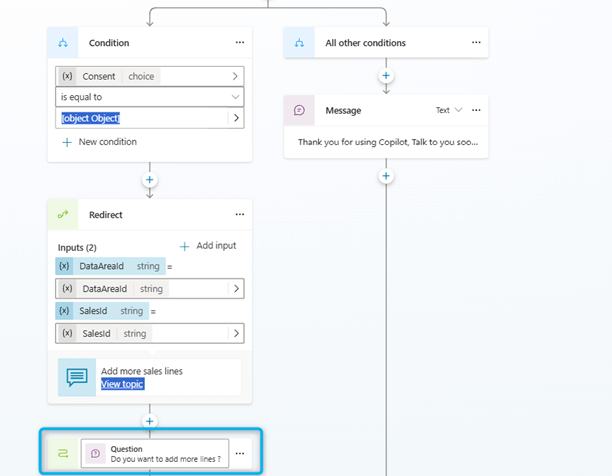
Next, we are asking the user the question, if he wants to add more lines:
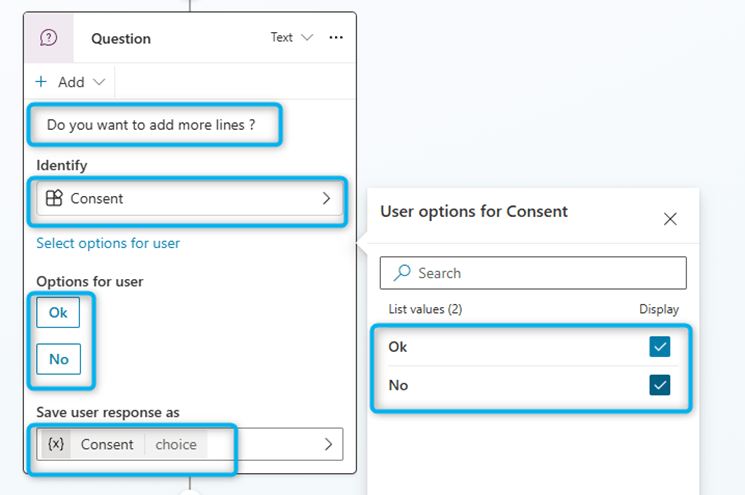
Where Consent is a custom entity which I have created previously for obtaining the user input:
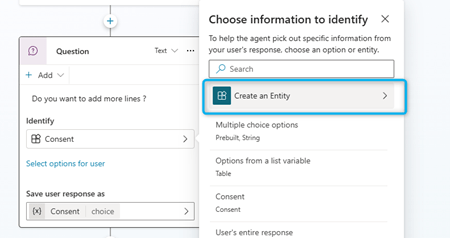
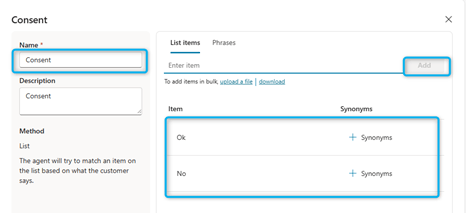
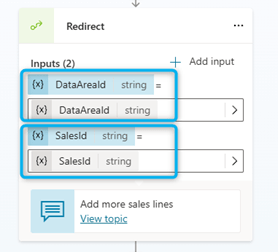
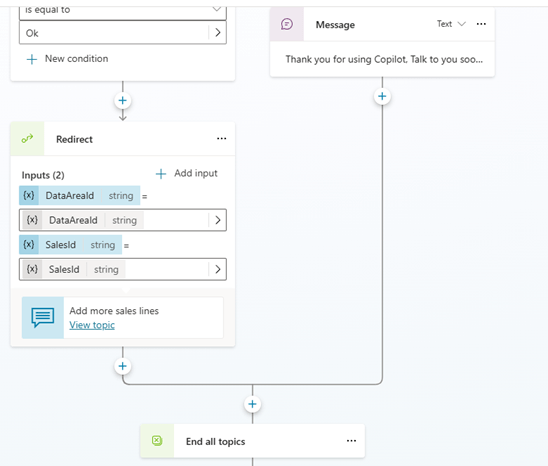
If the User chooses OK, it will create transfer the call to another Topic: Add more Sales lines.

We pass on this topic two variables Sales Id and Legal Entity:
Else it will end the conversation, there itself:
Topics Add more Sales Lines: Begin
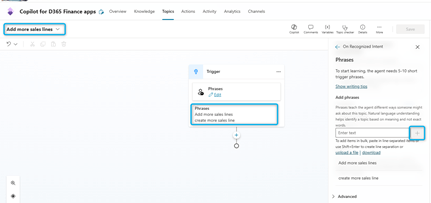
The New Topic is ‘Add more sales lines’, and I am passing my newly created SalesId, Legal Entity and SalesOrderDetails variables to this topic.
For SalesId and Legal Entity, this you can do by configuring the topic to accept variables as:
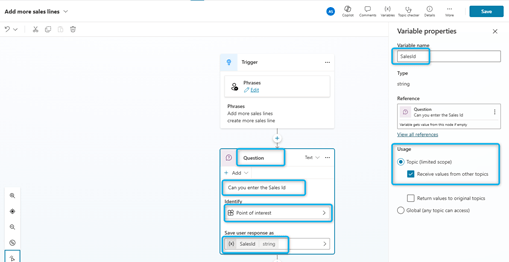
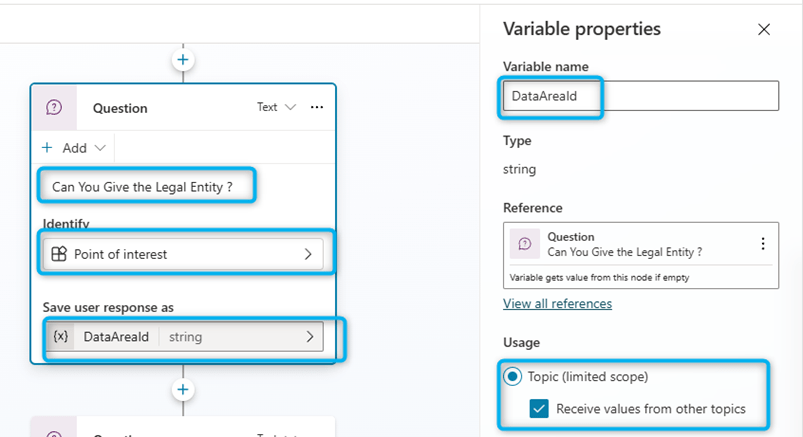
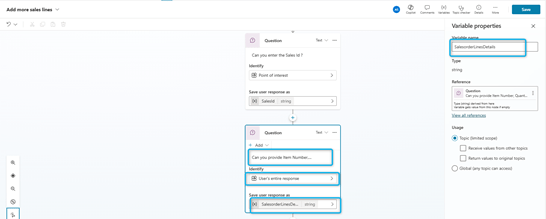
Then we added a question:
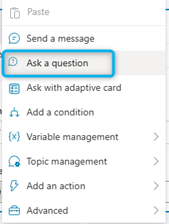
We save the entire response as a variable called ‘salesOrderLineDetails’, which is a string type variable, and a local variable. In the next step, we call a Flow:
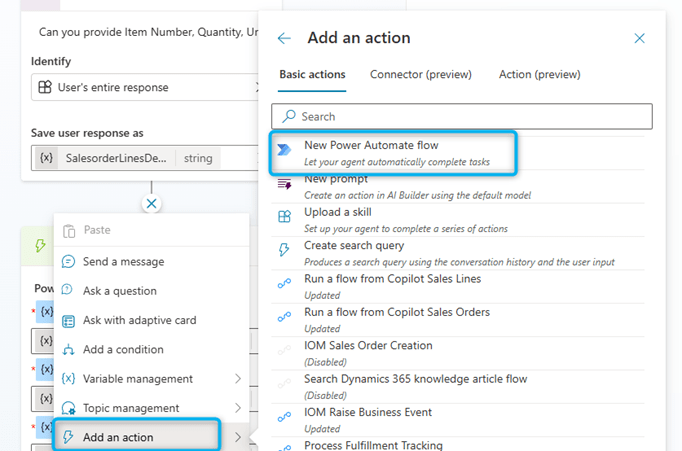
Flow Copilot Sales Lines
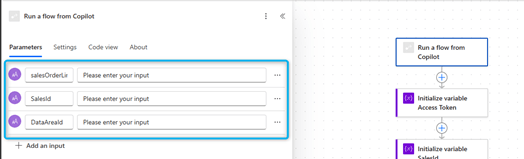
The first thing to do is to create an input that we be used to store the phrase enter in the copilot question (store in copilot studio in the variable: salesOrderLinesDetails’), the legal entity and the SalesId.

I add an input:

As a next step, we are calling the Prompt we created in the precedent chapter:
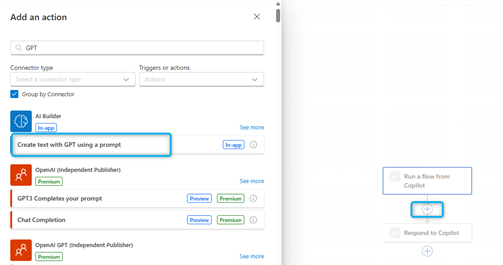

Let us parse the JSON to get the variables provided by the user:
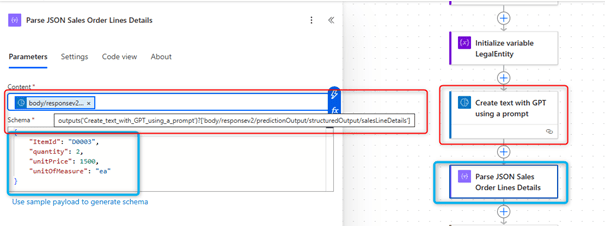
The JSON schema that we use is the one defined during the prompt: this will essentially help us get all the values of the variables for, Item Id, Qty, sales price, etc. With these variables we will create the sales lines, in the subsequent steps.
Next, we are calling a HTTP post to call the AAD token:
- URL: https://login.microsoftonline.com/Tenant ID/oauth2/token
- Headers: Content-Type application/x-www-form-urlencoded
- Accept application/json
- Body: Client_Id=Cliend_Id_Value&Client_Secret=Client_Secret_Value&resource=Environment_Address
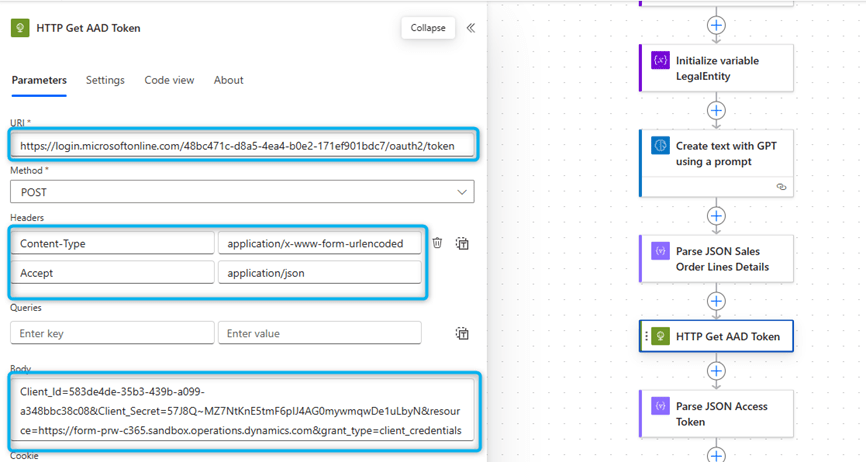
In the next step we will call the Sales lines OData entity, to create the sales order header (note that we are passing on the bearer token as authorization):
- URL: Environment_Address/ data/SalesOrderLinesV3.
For the access token I created a variable to retrieve the value:
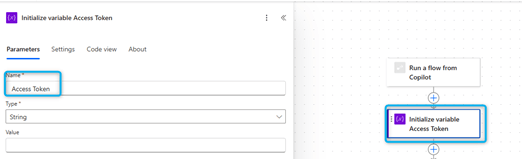
I parse the access token from the Get AAD Token:

And set the variable:
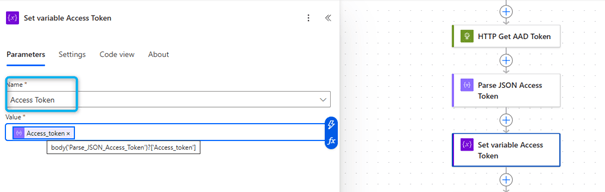
I call the Sales order OData entity, to create the sales order header:
URL: Environment Address/Data/SalesOrderlinesV3
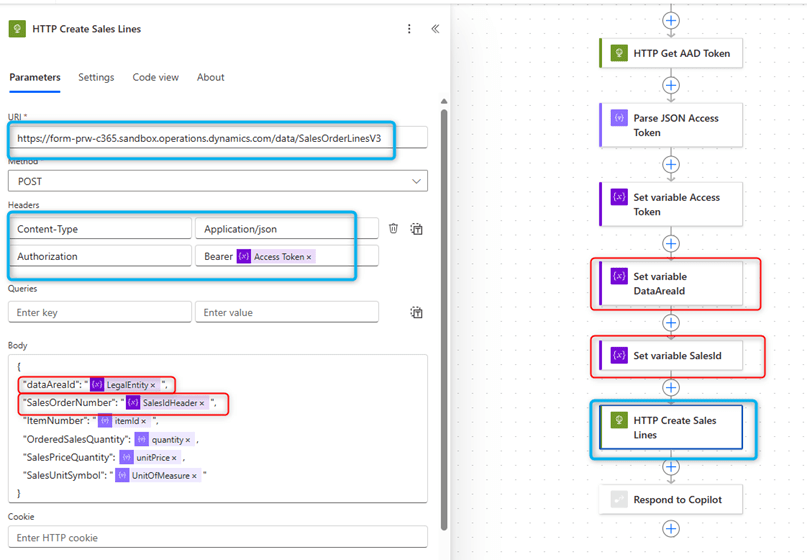
I have created two variables SalesId and DataAreaid to store parameters coming from Copilot studio.
Topics Add more Sales Lines: The End
Back in our Copilot Studio:
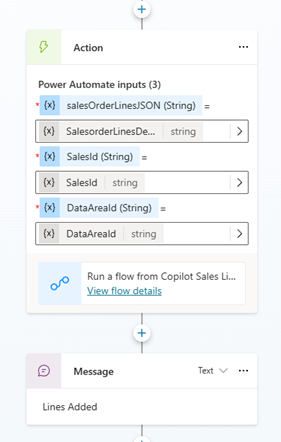
And back in the Copilot Create Sales Order, I am recursively calling the sales line topic like this:

And select the step:
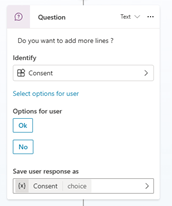
This selection adds this step in the Copilot:
Tests Copilot Sales Order Creation in D365 Finance
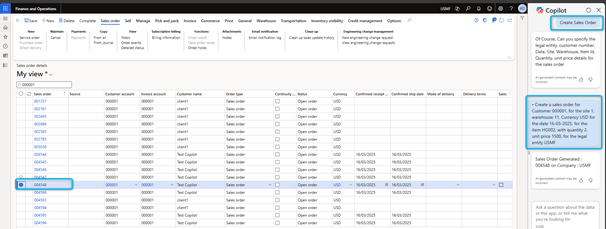
So, let us start to create a Sales order in D365 Finance with Copilot with the next sentences:
- Create Sales Order
- Create a sales order for Customer 000001, for the site one, warehouse 11, Currency USD for the date 16-03-2025, for the item HG002, with quantity 2, unit price 1500, for the legal entity USMF.
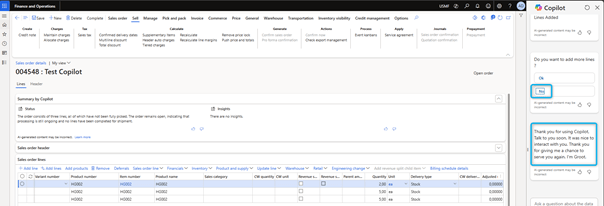
An after we had lines:
- ItemId HG002, with quantity 5, unit price 100, unit of measure ea


At the end we answer No:
Tests Copilot Sales Order Creation in Teams
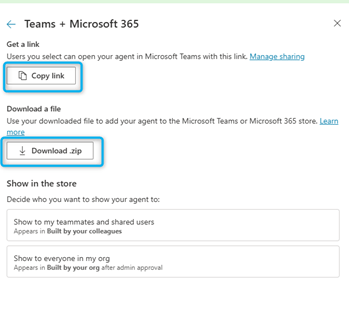
We saw that we could create orders in D365 Finance with Copilot, but it is possible to do the same directly in Teams. For this on the agent go to Channel and click on Teams + Microsoft 365:

And Activate the Channel:
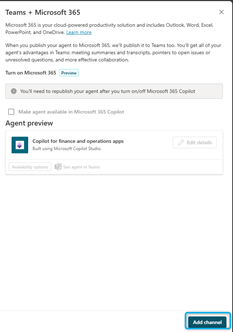
When the channel is added, we can open it in Teams:

We have other options available: share the agents or download the agent.

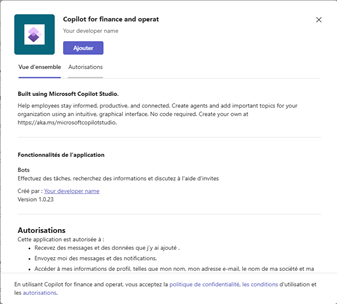
So, in Teams now, we add the agent:
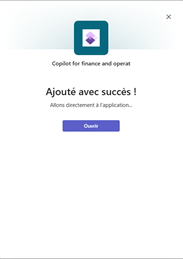
So, start to create a Sales order in Teams with Copilot with the next sentences:
- Create Sales Order
- Create a sales order for Customer 000001, for the site 1, warehouse 11, Currency USD for the date 16-03-2025, for the item HG002, with quantity 2, unit price 1500, for the legal entity USMF.
- And after we had lines: ItemId HG002, with quantity 5, unit price 100, unit of measure ea.
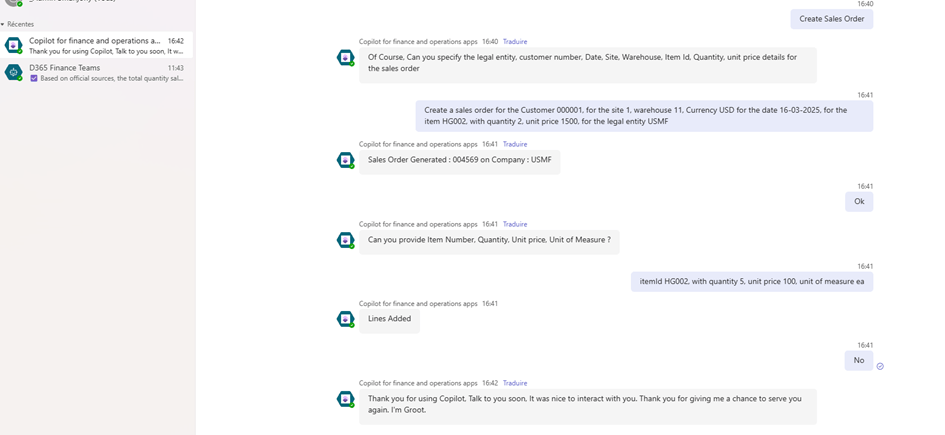
Open D365 Finance to see the order:

 D365FOAdviceTips
Leave a comment