
Global Parameters
These parameters are useful for license reports and reports on users’ aging balance.
You can find the settings related to security governance by using the following path: System administration > Setup > Security governance setup > Parameters (preview).
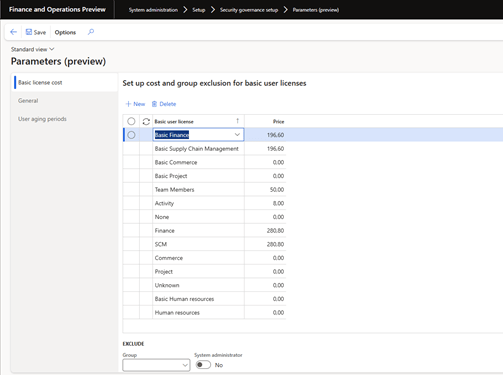
In the Basic License Cost tab, you can enter monthly fees by SKU in your preferred currency. When you fill in the lines, there is confusion about the difference between user licenses with and without the word Basic . After reviewing other forms, Basic Finance is the base SKU and licenses without prefix, as Finance is the attached license. In the list with options, now I am missing the lists for premium licenses (Finance and SCM). In addition, there is no way to specify the price of Device licenses.
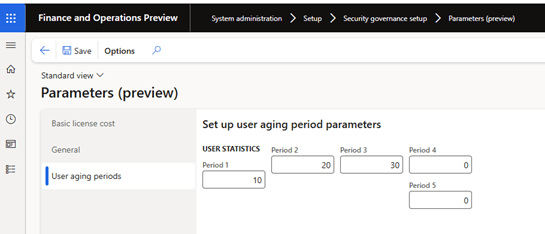
In the User Aging Reports tab, you can specify intervals in days that will be used for creating reports to verify users’ presence in the application, for example for 30, 60, 90, 180 and 360 days.
Basic License Cost Tab
- Go to System Administration> Setup > Security Governance Setup > Parameters.
- Expand the Basic License Cost section.
- Select New.
- In the Basic User License field, select the user license.
- In the Price field, enter the manual license price.
- Repeat steps 3 to 5 to configure the manual price for other user licenses.
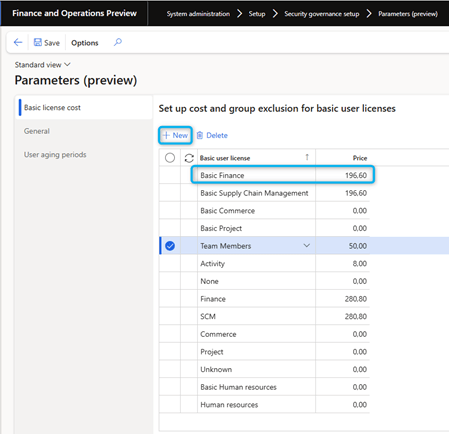
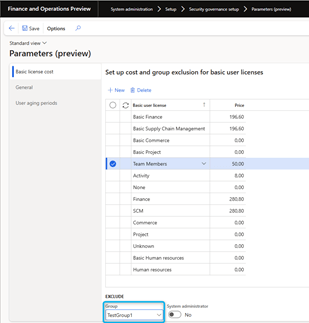
- To exclude user accounts from the license price calculation on the License usage summary report, in the Exclude section, select Group.
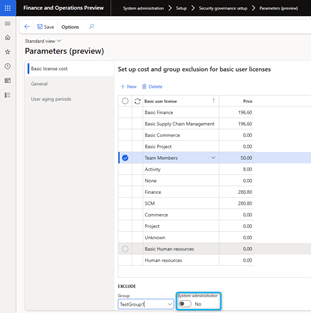
To exclude all system administrators from the license price calculation in the License Usage Summary report, set the System Administrator option to Yes.
General Tab
- Go to System Administration > Setup > Security Governance Setup > Parameters.
- Expand the General section.
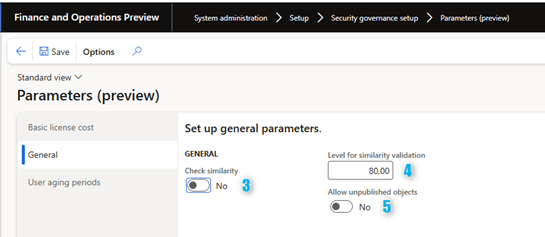
- In the Check similarity field, select Yes to enable similarity checking for duties in the Segregation of duties validation feature. Select No to disable similarity checking.
- In the Level for similarity validation field, enter the level of similarity validation performed for the Segregation of duties validation feature. This field defines the degree of similarity that can exist between duties before a conflict is detected.
- 5.In the Allow unpublished objects field, select Yes to allow unpublished objects in Security Configuration (System Administration > Security > Security Configuration). Select No to prohibit unpublished objects.
User aging periods Tab
- Go to System Administration > Setup > Security Governance Setup > Parameters.
- Expand the User aging periods section.
- In Period 1 field, enter the number of days to use for the User activity aging report.
- Repeat step 3 to set the number of days for the other four periods.
Set security categories
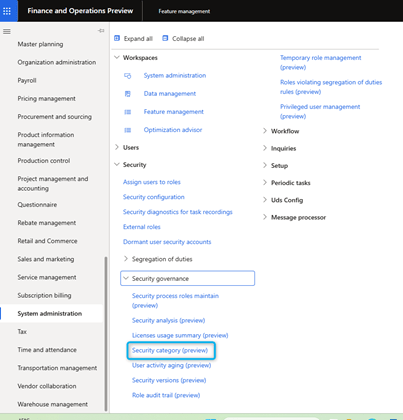
Next to the settings, there is another page where you can define categories for processes. System administration > Security > Security governance > Security category (preview)
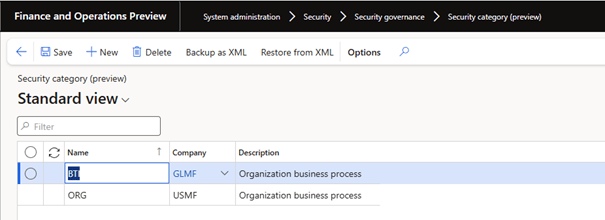
Categories are used for aggregation in the Process roles maintain module. You can define categories that allow you to register a new role under a given work stream or department. This configuration reduces development costs when security upgrades are required.
There are two ways to create a category:
- Create a category from scratch.
- Import an existing category from another company.
On another page, you can maintain the hierarchy of processes by category. At a minimum, you will need a configured category. You can also save and restore the security category from this page.
Create a new category
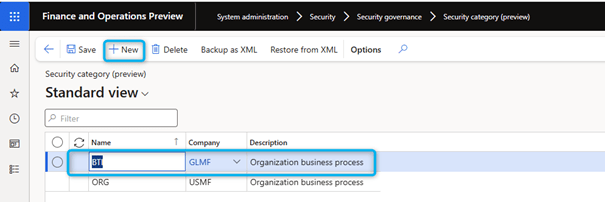
To create a category from scratch, do the following:
- Go to System Administration > Security > Security Governance > Security Category.
- Select New.
- Set the Name field.
- Optional: set the Company and Description fields.
- Select Save.
Import an existing category
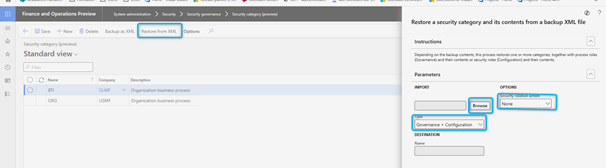
To import an existing category, follow these steps:
- Go to System Administration > Security > Security Governance > Security Category.
- Select Restore from xml.
- Expand the Settings section.
- Use the Browse button to specify the file path for the attachment.
- From the Type drop-down menu, select one of the following values:
- User Security Governance: impact on the process roles under the Security Governance module and does not have an impact on the security configuration.
- Security configuration: impact on the security configuration under the core platform and not on process roles under the security governance module.
- Governance + Configuration: impact on the security configuration as well as the security configuration under the core platform.
- Click OK. A message bar indicates whether the import was successful or failed.
Security category: Export / Import
Security categories provide options for XML backup and restore from XML.
Save as XML
- Go to System administration > Security > Security governance > Security category .
- Before starting the backup, verify that the security categories are configured.
- Select a security category and then select Save as XML .
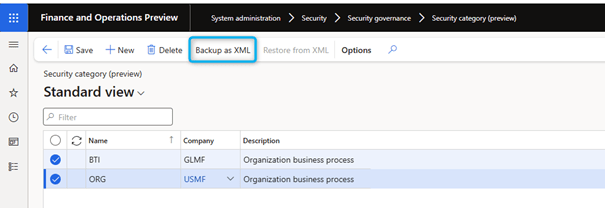
You can save a single selected category or all available categories. You cannot individually select multiple categories for backup at the same time.
- In the dialog box that appears, in the Fast tab, under the Type field, select one of the following values:
- User security governance: Generate a complete XML file of the security category and its associated configuration from the Process hierarchy page. If multiple hierarchies, tasks, duties, privileges, entry points or roles are defined under the category, the XML file includes only objects created on the Process Hierarchy page. It excludes all objects created under Core Security Configuration. For example, the XML file includes hierarchy, tasks and entry points but excludes duties, privileges, and roles.
- Security Configuration – Generate a complete XML file of the security category and its associated configurations from the Core Security Configuration . If multiple hierarchies, tasks, duties, privileges, entry points, roles, etc. are defined under the category, the XML file includes only objects created under the Core Security Configuration. It excludes all objects restricted to the Process Hierarchy page. For example, the XML file includes duties, privileges and roles but excludes hierarchy, tasks, and entry points.
- Governance + configuration – Generate a complete XML file of the security category and its associated configurations from the Process Hierarchy page and under Core Security Configuration . If multiple hierarchies, tasks, duties, privileges, entry points, roles, etc. are defined under the category, the XML file includes everything created under Core Security Configuration and all objects limited to the Process Hierarchy page. For example, the XML file includes everything like hierarchy, tasks, duties, privileges, entry points and roles.
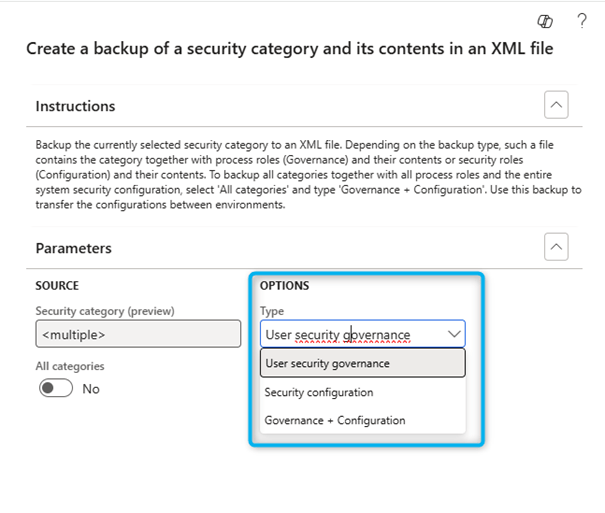
- Select Types , then select OK .
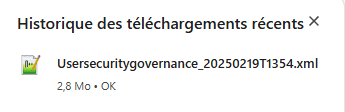
- When prompted, save the XML file in your local browser.
Restore from XML
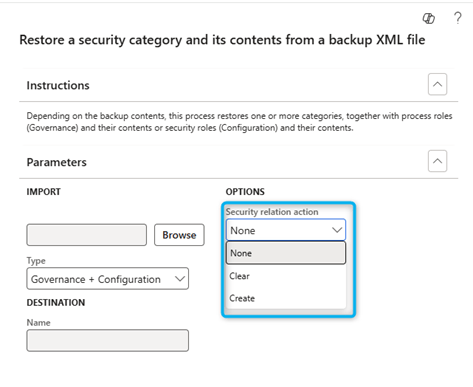
- Go to System administration > Security > Security governance > Security category .
- Select Restore from XML .
- In the dialog box that appears, use the file navigation option to specify the path of an XML file with a valid format.
- In the Type field, select a value.
- If you selected User Security Governance in the Type field, select one of the following values in the Security Action field:
- Create – Restore and publish the XML of the security category.
- Clear – Restore the XML from the security category.
- None – Restore the XML of the security category.
Create a process hierarchy in bulk
System administrators can use the Restore from XML function to create a complete hierarchy under a security category. For this approach, generate the XML file in the appropriate format, with the desired hierarchy under a category. Hierarchy can optionally include multiple processes in a hierarchical tree and security tasks under each process. Although the generation of the XML file is a manual process, this approach to creating a hierarchy can be faster if a specific pattern of the XML file is followed. Creating a template involves primarily copying and pasting the correct metadata. Make sure each category has a unique name.
Create a category via the user interface (UI) and use the Backup as XML function to download the initial file. Then edit the category in this file to create the new category that has the desired hierarchy.
 D365FOAdviceTips
Leave a comment