
Temporary role management
If a user is not available to work due to vacation or leave, for example, there is an option to set up a replacement in case another user should take over the duties to be performed in D365 Finance.
You can configure a user who will have other temporary other roles with start and end date/time. You can then replace the current security permissions or merge them. Periodic batch work will then assign or revoke access permissions. It keeps the history of originally assigned security roles, so that changes can be restored to a previous state.
Note that this will only manage access permissions. Workflow delegation must be managed through a feature already available in the user options.
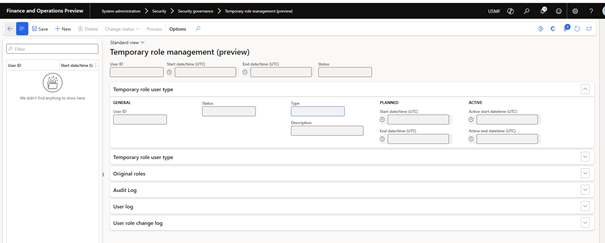
Temporary role management allows system administrators to assign temporary roles to a specific user account for a specific duration (called session). This feature is useful when a user of a company is absent for some time or if a role needs to be temporarily divided among several users. At the end of the session, the user account reverts to its original roles.
Session approval and processing
Only users with the System Administrator role can launch new temporary role sessions.
The process for temporary role sessions involves the following steps:
- On the Temporary Role Management page, select New to create a request for a new session. The request is in draft status. Wait for a system administrator to approve the request. System administrators can approve or modify session requests.
- To approve the session request, in the Change Status field, select Scheduled.
- Background process retrieves session request for processing. A system administrator can also process it manually by selecting Processing.
- At the beginning of the session, the selected user account is assigned temporary roles in D365 Finance.
- At the end of the session, the user account reverts to its original roles.
- There is no limit to the duration of a temporary role session.
There is no limit to the duration of a temporary role session.

Session types
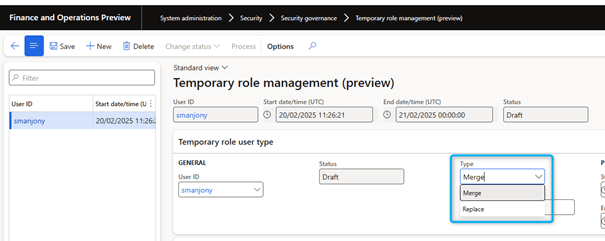
When creating a temporary role session, set the type to Merge or Replace.
- Merge: add temporary roles to existing user account roles. After the session of the temporary roles ends, users retain their original roles and added temporary roles are revoked.
- Replace: Replace existing user account roles with temporary roles. After the session of temporary roles ends, users are reassigned to their original roles and temporarily assigned roles are revoked.
For both types of sessions, the user account reverts to its original roles at the end of the session.
Assign temporary roles
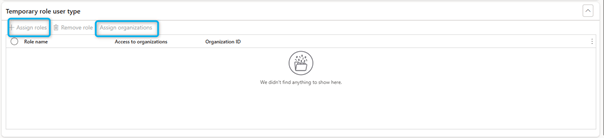
For a new temporary role session, select Assign roles to assign the temporary roles to the selected user account. You can also select Assign organizations to assign temporary roles to the selected organization only, not all organizations.
Audit logs
Use Audit Logs to view all actions performed on a given session request. The grid captures the following details:
- Status change
- Date
- Action timestamp
- User who made the change
- Whether it is the batch process or a system administrator who processed the request
User log
The User Log captures all sessions when one of the selected user accounts connects to the D365 Finance during the active temporary role session. This log allows you to track user activities and time spent on each session. It also captures the end date of the current session.
The User Log captures logging sessions that were performed during an active temporary role session. Nothing outside of the session is captured, even if the same user account was active in the system earlier and logged in.
User role change log
The User Role Change Log captures all role changes made during the current temporary role session. This log allows you to track role changes for a specific user account.
Security version management
The security version feature allows you to manage multiple versions of security configurations in a company. You can also compare and restore versions.
Create a version
To create a version of the security configurations at any time, do the following:
- Go to System Administration > Security > Security Governance > Security Releases.
- Select Create a version.
- In the Name field, enter a name for the version.
- Click OK.
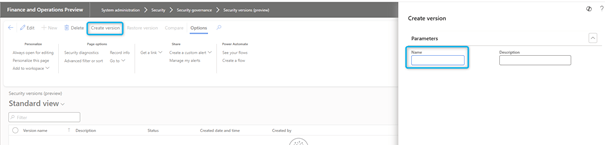
Versioning is an asynchronous process. You can use the Status column to monitor the process status. A status set to Running indicates that the build is in progress.
Restore a version
To restore the security configurations to a previously created version, follow these steps:
- Go to System Administration > Security > Security Governance > Security Releases.
- Select the version to be restored.
- Select Restore version.
- In the dialog box that appears, select the options you want.
- Click OK.

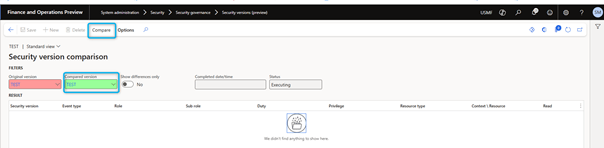
Compare the versions
Once security versions are created, users can compare them to better understand the differences between them.
To compare versions, follow these steps:
- Go to System Administration > Security > Security Governance> Security Releases.
- Select a version to compare.
- Select Compare.
- On the page that appears, select a version to compare with the previously selected version.
- Indicate if only differences or all details should be displayed.
- Select Compare.
Delete a version
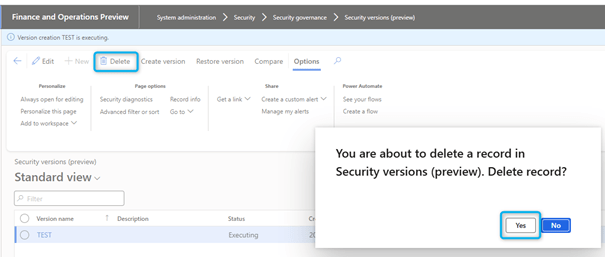
Users can delete security versions that are not required.
To remove a security version, follow the steps below:
- Go to System Administration > Security > Security Governance > Security Releases.
- Select the version to delete.
- Select Delete.
Privileged user management
When you have implemented D365 Finance and are already operational for a longer or shorter period, sometimes you may encounter an issue that needs to be examined, or particular parameters need to be adjusted according to the evolution of the activity. When configuring security roles, normal business users generally do not and do not need to have excessive permissions in the application. Using the Privileged User Management feature, you can temporarily grant access to the application where a connection will have all the permissions required to perform investigations or modify particular settings. The main difference with managing temporary roles is that this feature requires an approval step and all actions performed by a user will be recorded in the background. This feature is also known as fire-fighter access or break-glass procedure. The feature is therefore intended to provide emergency access to a user in the application.
When you open System administration > Security > Security user governance > Privileged user management (preview) the following page opens.
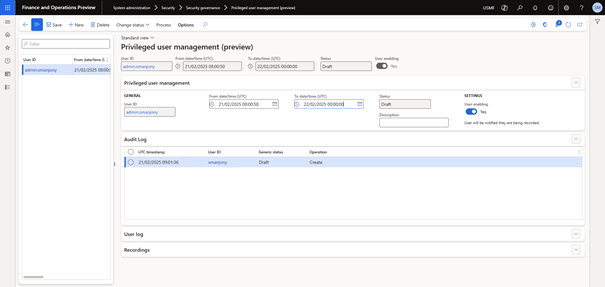
As a prerequisite, you can prepare one or two user accounts that will be disabled by default with the system administrator or other assigned roles. On this form, you can define a user who will be activated at a specific time and who will have access for a limited period of time. You can then check the settings and change the status to Approved using the menu item in the action bar. Once this is done, the Process action. You can run it directly or enable background operations by setting a periodic batch job.
Once batch processing has enabled this user, you can open Dynamics 365. The first thing the user will notice is an information bar indicating that all user activities are recorded using the task logger and will be available to system administrators.
The user will be deactivated after the end date/time defined in privileged user management record. You can also cancel access the access and force the process to deactivate the user and terminate the running session of the privileged user.
All actions are available for review. Audit logs and records are available. It would be possible to check all changes made by the user using the replay option of the task recorder. To be able to analyze the task records, you can download one or more files and open them using the task Recorder pane.

This also provides the ability to export the record to a Word document. When sensitive data is accessed or changed, the job record details store the values entered by the user. This is not visible in the Word document.
Privileged user management allows system administrators to schedule a session for selected user accounts. All user interactions are recorded in the Dynamics 365 finance and operations applications during this session if the user decides to continue using the Dynamics 365 finance and operations applications after reading the consent on the home page. This feature is useful when some high-privilege accounts are used for audit purposes. It ensures that users do not perform any unauthorized activity in the system and keeps a record of these activities, should this be necessary for future audits or compliance reviews.
System administrators can choose to enable or disable the given user account at the beginning of the session. As soon as the session ends, the account returns to its original state.
Session approval and processing
New privileged user sessions are initiated by a system administrator.
- On the Privileged Users Management page, select New to create a request for a new session. The query has a default status set to Draft.
- The system administrator can decide to enable or disable the selected user account for the privileged user session. Enable means that the user account is switched to the enabled state if it was originally disabled. Disabling disables the user account as soon as the session starts. Once the session is over, the user accounts return to their original state.
- Anyone with the system administrator role can approve or modify the session request. To approve the request, in the Change Status field, select Approve.
- The background process retrieves the session request for processing. A system administrator can also process them manually. The system administrator can schedule the session for the user account. They can also enable or disable the account after the session starts. As soon as the session ends, the account returns to its original state.
The maximum duration of a privileged user session is 24 hours.
It is recommended to allocate high-privilege user sessions only to high-privilege user accounts within the enterprise, and each privileged account should have unique functions. These privileged accounts are expected to remain disabled when not in use.
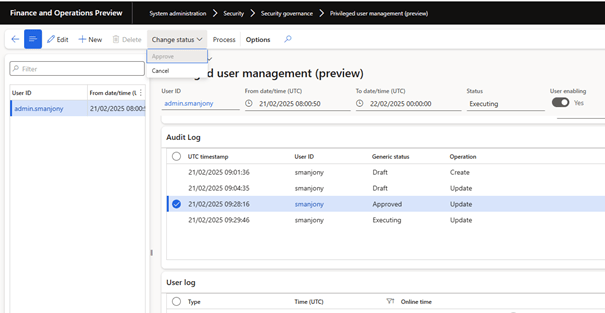
Audit logs
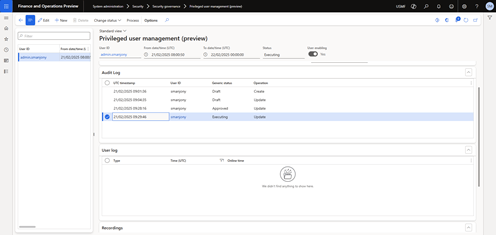
Use Audit Logs to view all actions performed on a given session request. The grid captures the following details:
- Status change
- Date and time of action
- who made the change
- The request has been approved by a system administrator or batch process.
User log
The User Log captures all sessions when one of the selected user accounts logs on D365 Finance during the privileged user session. This log tracks the user’s activities and time spent on each session.
The User Log captures only logging sessions that were performed during an active privileged user session. Nothing outside of this session is captured, even if the same user account was active in the system earlier and logged in.
Recordings
When a system administrator schedules a privileged user session for a user account, they will immediately receive a notification that the Task recorder utility will record UI interactions in D365 Finance. If the system administrator decides to proceed with the session configuration for a particular user, he agrees to save the selected user’s session in D365 Finance. The task recorder captures the type of action performed by the user (for example, selecting a button, entering a value, or navigating). It also captures all data related to this action.
When system users assigned to a privileged user session log into the D365 Finance applications, a consent message is immediately displayed at the top of the page. After reading the consent message, if he has decided to continue the session, he accepts the consent and the session is recorded. If they do not agree with the consent, they must immediately Close the application.
A separate record is created for each session. Records are stored in the Recordings tab of the Privileged User Management page and all records exist until they are manually deleted by the system administrator. System administrators can download each record by selecting it and then clicking Download. This feature is useful when audits or compliance reviews need to be completed for a user’s interactions.
 D365FOAdviceTips
Leave a comment