
- Introduction
- License control: Why?
- Licenses Application : how?
- Impacts
- License reports available
- Entra ID Groups
- Frequently asked questions
- Recommended actions
Introduction
Microsoft recently published a blog post on simplifying license management for Dynamics 365 Finance and Operations. This article contains a major update that may impact your Dynamics 365 environment. Microsoft will actively verify the validity of licenses assigned to users when the application starts. As of May 15, 2025, if the license is not issued, a warning will be displayed. Effective August 30, strict application of licenses will be implemented. If a user attempts to log in without a Dynamics 365 license, the user will be denied access to the application. The same applies if you use a license that does not match the roles defined for your user.
In this article, you will find valuable information and tips on how to comply with the licensing requirements. We will highlight recent updates to Dynamics 365 F&O and Lifecycle Services (LCS).
The information in this article is based on my current understanding of license enforcement and the information available to date. Changes have recently been made, and some details may be changed at a later date.
License control: Why?
I would like to start this article by explaining why Microsoft imposes licensing. Axapta V3, then V4 and AX 2009 licenses were based on the number of concurrent users. Since Microsoft Dynamics AX 2012, the license model has been modified to adopt nominative licenses. At that time, the Microsoft solution did not have active license verification. Through periodic alignments, the number of users was validated and Microsoft trusted companies to purchase the correct number of licenses.
For some time already with the Cloud version, Microsoft has then divided the product into several license references, such as Dynamics 365 Finance, Dynamics 365 Supply Chain Management and Dynamics 365 Project Operations. Separate licenses are then grouped within the same product, where certain entities, such as customers and employees, are shared by several products. Microsoft initially specified which standard roles are included in which license and clarified that assigning multiple roles or custom roles with multi-product functionality may require multiple licenses for the same user.
The customer is required to purchase and allocate the correct number of licenses, but there was (and still is) great confusion as the required license reports were missing. In recent years, Microsoft has taken steps to improve the underlying solution and reporting options. The privilege-based licensing concept was one of the improvements: standard privileges are managed in a list with a license SKU. By then creating a custom security role to reuse existing tasks and privileges, the application can know what licenses are used and specify the required SKUs for each role.
Now, to the extent that the license guide currently describes license SKUs and roles by SKUs, and where the privilege list corresponds to basic SKUs. Microsoft has now decided that it is time to start applying for the licenses.
Licenses Application : how?
Upon opening the Dynamics 365 Finance & Operation application, verification will be performed to verify that the appropriate license(s) are assigned to the user in Microsoft Entra ID. As of May 15, 2025, a notification will be sent to the user if the assigned license is missing or incorrect. This is a warning that, initially, will not prevent the user from performing their tasks in the application.

Looking at the details of the screenshot, there seems to be no option to close this warning. In addition to the in-app notification, LCS administrators will receive emails containing information about missing licenses.
As announced by Microsoft, customers will have until August 30, 2025, to purchase the appropriate licenses and assign them to users. From that date, unlicensed areas will no longer be available. If the user has security roles for Finance and Project Operations, such as without an attachment license, they will be able to access the Finance areas but lose access to the Project Operations features.
Impacts
When Microsoft published the first article about the application of licenses on March 28, not everyone was aware. Microsoft also sent an email to administrators around April 9. The strict application of licenses will come into effect on 30 August 2025. Microsoft will now warn users with a warning. This warning was supposed to start on April 30, but on May 1, customers received an email indicating that this measure would take effect on May 15, 2025.
Many questions and comments were raised regarding the timing and status of the application. Microsoft has put in place a FAQ to answer some of the questions: User security role reporting and technical validation for finance and operations apps FAQ – Finance & Operations | Dynamics 365 | Microsoft Learn. In addition, the Licensing Guide contains contradictory and confusing paragraphs.
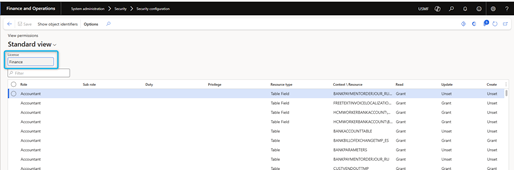
The delay between announcement and initial implementation of embedded warnings was noticeably short. As the initial warning was scheduled to begin on April 30, many customers and partners have reported their dissatisfaction with the notification delay to Microsoft. Normally, the correct number of licenses has already been acquired and allocated to users. When deploying customs or configured roles, the page understands the position of both customers and Microsoft. “View permissions” can be opened from the security configuration form which will display the required licenses.

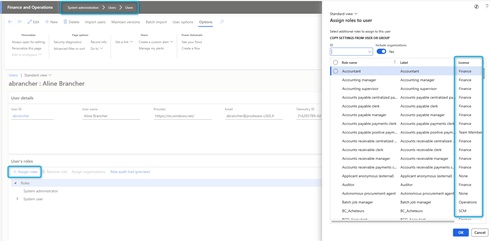
Or since assigning roles to users which will display the required licenses by role:
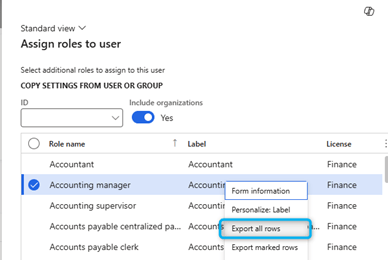
Which we can export to Excel:
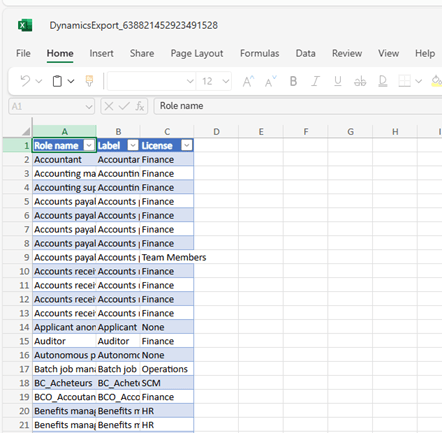
Using this information and the list of users and their roles, you can create the list of required licenses in your organization. So far, I think this has been underestimated by many clients and partners.
Creating custom roles with standard privileges and duties can sometimes be problematic. For example, read-only may be covered by a team member license, but in some cases, privileges are not listed in the SKU list, or some entry points have more extensive permissions than just reading.
The problem is time constraints for preparing security roles for an organization, and many existing clients have not reviewed security roles after their go live. In the absence of licensing controls and appropriate guidelines, customers may be sub-licensed for a number of reasons.
Strict enforcement will begin on August 30, which leaves time to ensure that companies license users appropriately. Warnings can impact the volume of support requests to internal IT teams. Ideally, users should be prevented from seeing the warning embedded in the application, but the time frame is too short for many businesses. Microsoft now wants to resolve license reporting issues before 15 May, the new date for warnings to end-users. I think there will be misreporting after that date. The future will tell us…
License reports available
Some reports are available today. Some have been available for some time, others have been added or modified recently.
Power Platform Admin Center
A license report is available in the Power Platform Administration Center (PPAC). It presents information on the available, allocated and required licenses. With the appropriate permissions, you can access this report through the link: Licenses | Power Platform Admin Center . It is recommended to open it via the new PPAC Admin Center interface. Note that the report is only updated every 72 hours (3 days). The changes made do not have a direct effect. It is hoped that in the future Microsoft will offer a faster refresh rate.
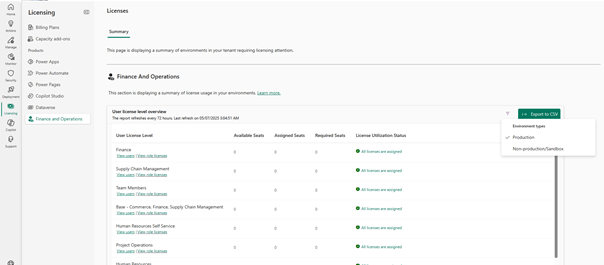
The initial view displays the number of seats recorded in the production environment. In the upper right, a filter option allows you to also include non-production environments.
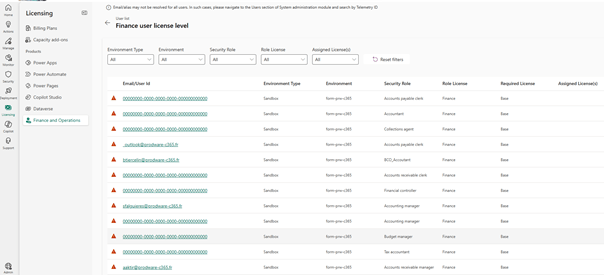
For each user license level, click “View Users” to view the details of the users and the status of the assigned licenses. The same person can be listed twice if multiple security roles are assigned. This view allows you to quickly check which users have the appropriate license.
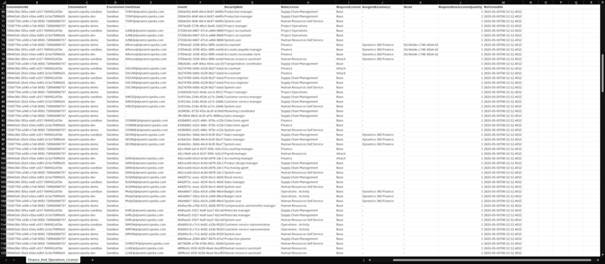
You can also export the report raw data in CSV format. You can then open the details in Excel and run an analysis. You can edit your Excel file with comments and use it as a to-do list, because the report is only updated every 72 hours.
LCS Report
As of April 30, a licensing report is available in Lifecycle Services (LCS). The information contained in this report is identical to that provided on PPAC, but with some limitations. If LCS admins do not yet have access to PPAC, they can view the details and follow up for appropriate licenses.
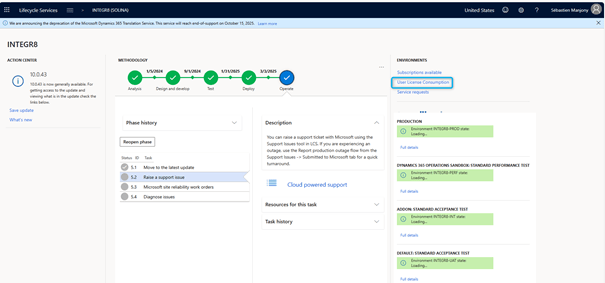
The report displays only data from the production environment.
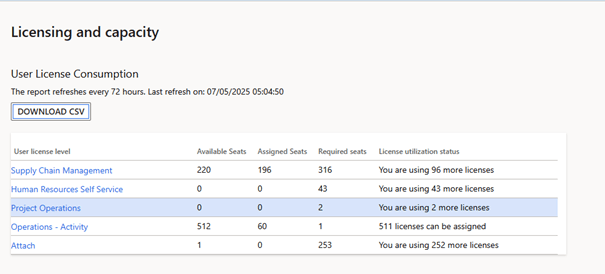
Via LCS, it is not possible to know which users need which license. You can then download the CSV file containing all the details. The same CSV as provided by PPAC will be generated. Downloading works when you are a user of the same tenant.
Reports built into the application
In version 10.0.43, Microsoft has added security governance features for users in preview, which will be available in version 10.0.44.
During the preview phase and licensing plans, one of the forms has been redesigned and is now available when you enable a new feature in the feature management called (Preview) User security governance license usage summary report.

Initially, the screen remained empty because the data was managed by Microsoft in back-end. There is no batch processing in the application itself. Now, data is flowing into sandboxes and production environments.
You can open the License Usage Summary page using the following navigation path: System administration > Security governance > License usage summary (preview).
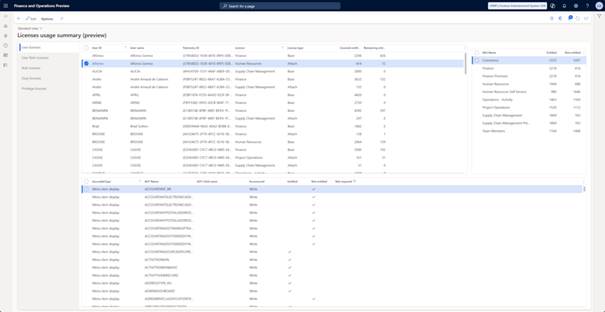
Unfortunately, there is still no documentation in this report, and the information on the tab “User licenses” is quite complex to analyze. Reading the form, I think it displays a summary of all user entry points and whether they are covered by licenses. Initially, I think the Covered Entitlements and Remaining entitlementscolumns are intended to indicate the number of entry points included in a SKU. If you view the details of the bottom grid, some entry points are marked as “Not entitled”. This information varies by record. This tab is incomprehensible in my opinion, except for the list by user and the required license. There is also a lack of information about security roles to check which roles are responsible for which rights. The rights do not therefore specify the license granted.
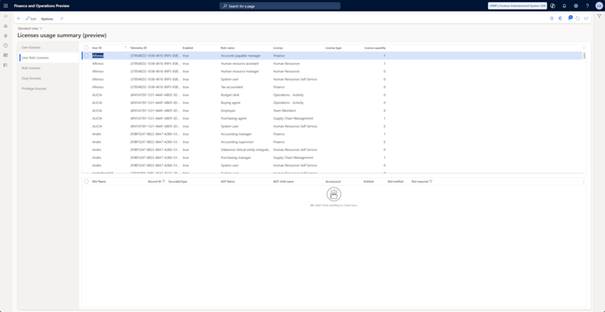
The “User role licenses” tab currently only contains information in the top grid. This information is especially useful. They indicate all roles assigned to the user, and the “License quantity,” column displays a value of 1 or 0. This does not indicate whether a license is required or not. This counts the number of licenses required in your tenant. This tells you if the license is required but does not tell you whether the per-user license is a base or an attached license.
Disabled users have always been a problem in licensing reports. If a user is disabled, they should not need a license, but those users continue to appear in the D365 Finance & Operation reports. This issue appears to persist in the License Usage Summary report, fortunately, these users are properly filtered in PPAC reports.
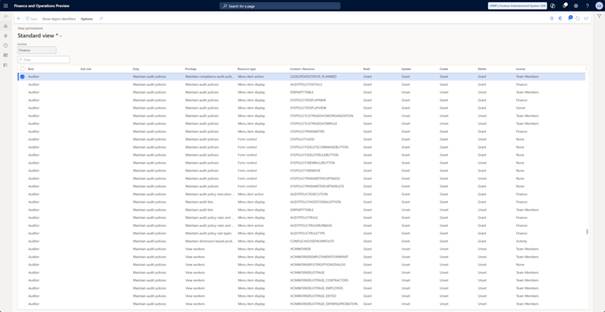
To find out which role requires which license, you can use the Security Configuration form and show the view permissions. This form displays reliable information. The information may not be as expected. For example, a read-only role requires a higher license than a team member. In this case, the standard or custom privileges used may grant more permission on some menu items than just read-only permission. You may want to check or ask someone else to check the security role details for options using cheaper user licenses, where possible.
Entra ID Groups
In addition to the manual assignment of security roles in Dynamics 365 or the use of automatic assignment rules, it is possible to use Entra ID groups to manage users and permissions without performing maintenance in Dynamics 365.
For Entra ID groups, there is an option to assign the licenses to Entra ID groups. If users are added and the number of licenses is sufficient, the user’s license will be automatically claimed. The feasibility of this approach depends on the products used, the security matrix of all users and the roles required. If a particular role is used, where one user would need a base license and another an attach license for the same role, this approach will not work. Instead of an attachment, the basic license will also be awarded.
Frequently asked questions
Microsoft has provided information that should clarify some issues. Microsoft created a FAQ page (User security role reporting and technical validation for finance and operations apps FAQ – Finance & Operations | Dynamics 365 | Microsoft Learn) and had to update the Dynamics 365 Licensing Guide to clarify issues. The May 2025 release contains many updates to clarify required licenses.
It is clearly stated whether users with the system administrator role need a license. If this role is used to administer the application, no license is required. If this role is assigned to the user to contribute to the process, such as creating orders or publishing journals, the appropriate license is required. Make sure you remove the other system administrator licenses from your environment. Other roles will be used to generate license reports, even if the system administrator role is assigned to them.

However, this opens up a new question: if a company doesn’t care about compliance/security and just wants to pay the minimum amount for the license, is there anything preventing it (to purchase the minimum number of seats required and simply assign each person a “SysAdmin” role to avoid paying additional licensing fees? For this to apply, a user must only have the “System Administrator” role. If another role is assigned (including the “System User” role), a license will be required.
Microsoft has not yet indicated in its FAQ whether the whole or only the production environment will be checked and licenses applied. Please note that according to the licensing guide, a user must have a license for any Dynamics environment.
The following links are essential to clarify your questions and future actions.
- Simplified license management for Dynamics 365
- Dynamics 365 Licensing Guide (download PDF)
- User Security Reporting and Technical Validation for Financial and Operational Applications FAQ (Microsoft Learn)
Recommended actions
To ensure that access to the D365 Finance & Operation application is not blocked, check the security and licensing requirements. Ensure appropriate licenses are issued by August 30, 2025. You can see the licensing process.
On May 15, the software verification will begin. Users will receive warnings about user licenses in the application. This time is far from ideal, as you can expect an overload of work from your internal IT support. There may not be enough time to acquire additional licenses or fix existing security role configuration issues to meet different license references.
Alert employees before they alert you. You may want to consider sending an announcement from your IT department to users. In this release, you can inform your employees that if an alert occurs, there is no need to file a request for internal assistance as you are confident the process is under control. Appropriate action will be taken by August 30, 2025.
If you see issues in your reports or the license calculation in your reports is incorrect, you can create a support ticket for Microsoft through the Power Platform admin center. There are currently license reporting issues, so make sure you validate your reports. Microsoft plans to release fix, but we do not know if it solves all the problems or what issues will remain.
 D365FOAdviceTips
Leave a comment