
- Copilot Studio: Begin Topics
- Power Automate: Give Item List
- Copilot Studio : return to Topics
- Power Automate: Modify Item Name
- Copilot Studio : End Topics
Adaptive cards are great tools available in Copilot Studio. They make your Copilot Chatbot answers more colorful, more lively and more relevant. They are a great way to share information across multiple platforms through JSON. Convert responses to key-value pairs in any format, including text, images, buttons and input fields.
This article aims to give you an overview of how to get answers from D365 FINANCE and present them as elegant adaptive cards in the Copilot Chatbot sidecars. This article can give you a cool hack to implement lookups on a control in Adaptive Cards in Copilot Studio for D365 FINANCE
Copilot Studio: Begin Topics
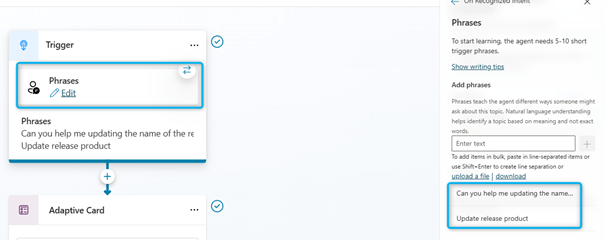
Start defining your Copilot Studio topic as follows by adding the following phrases to the trigger. Specify the keywords likely to trigger the Copilot topic:
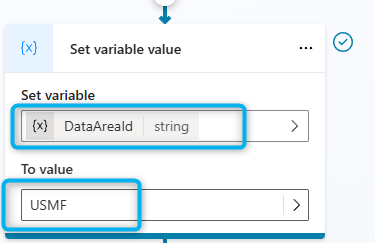
I add a variable to define the company:
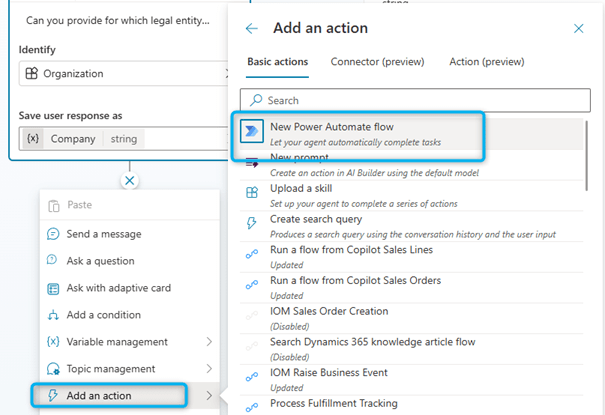
I add a Power Automate to to retrieve the list of Items, as a parameter I indicate the company and output I retrieve the list of Items:

Power Automate: Give Item List
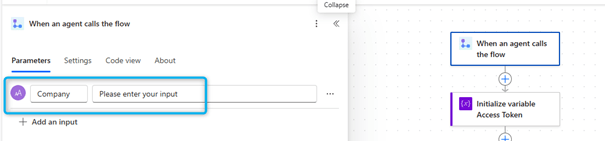
First, you need to define the user entries for the flow, like this:

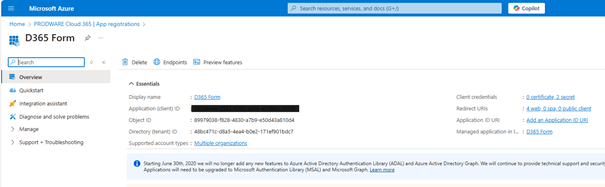
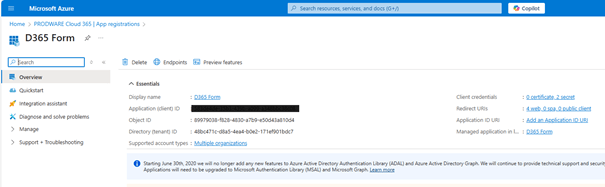
Next, we are calling a HTTP post to call the AAD token. You need to create an app registration in Azure Portal with Client Secret:
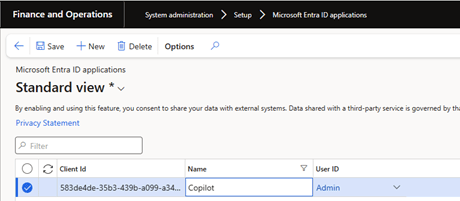
And add the apps registration in D365 Finance:

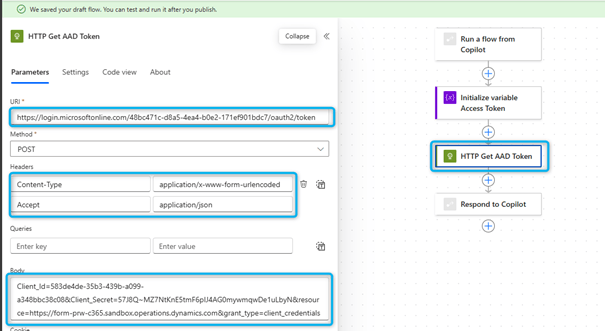
Now we can define the HTTP Get AAD Token
- URL: https://login.microsoftonline.com/Tenant ID/oauth2/token
- Headers: Content-Type application/x-www-form-urlencoded
- Accept application/json
- Body: Client_Id=Cliend_Id_Value&Client_Secret=Client_Secret_Value&resource=Environment_Address

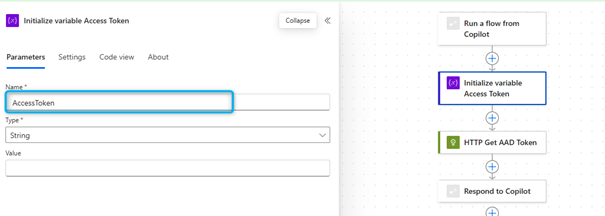
For the access token I created a variable to retrieve the value:

I parse the access token from the Get AAD Token:

And set the variable:
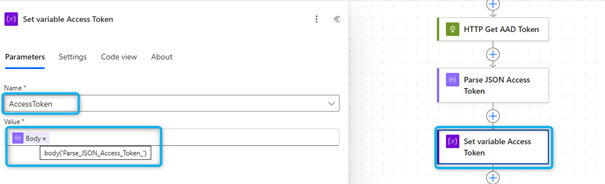
And in the next step: With the standard setup of: tenant_ID, Client_Id, secret and base URL. The token which I am receiving from the above step is what we are sending in the next step to call the list of products from D365F&O:
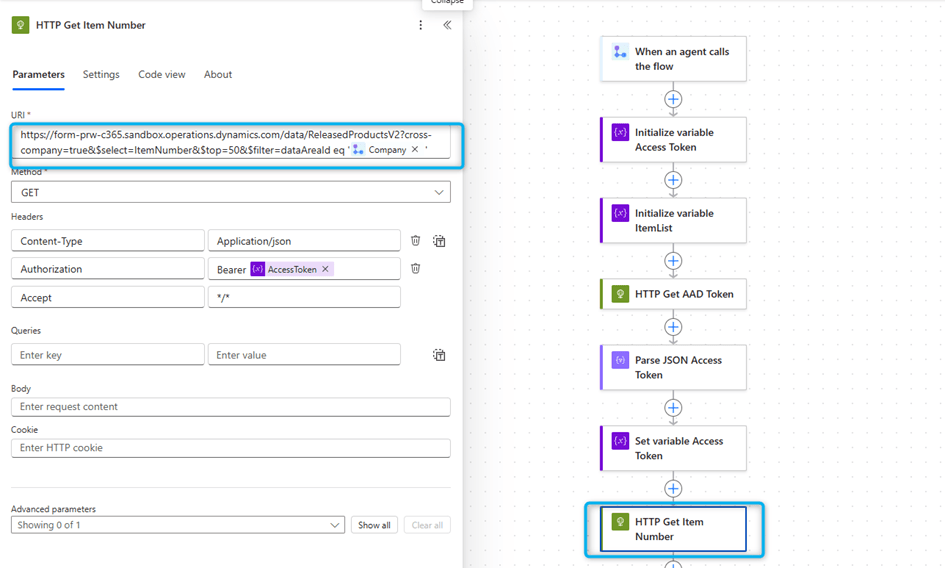
I am performing a get operation on the Odata entity shown above:
<<Base_UrL>>/data/ ReleasedProductsV2?cross-company=true&$select=ItemNumber&$top=50&$filter=dataAreaId eq ‘<DATAAREAID>’
This will get the released product list.
Here is now we can pass this payload response as an input to an AI prompt that can convert the JSON response as a string output:
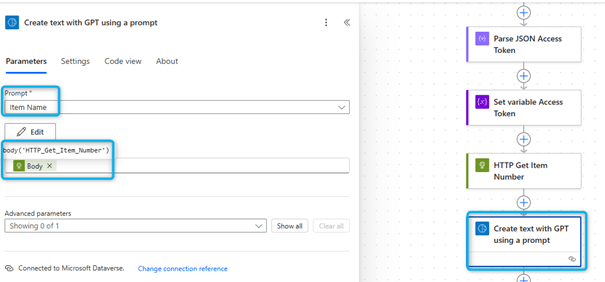
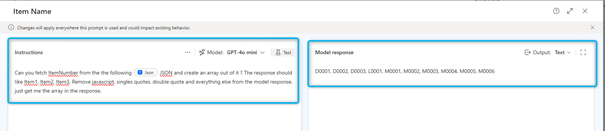
The above is an input payload that the prompt can understand and convert that as comma separated string.
In the last step I am just returning this response back to Copilot studio, for that I use a Variable Itemlist where I store the answer of the prompt and pass to the Respond to Copilot.

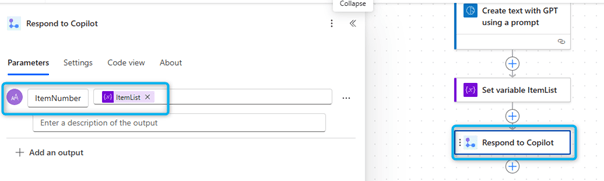
Copilot Studio : return to Topics
The above step would give me a comma separated string: ItemI1, Item2,Item3,Item4. To use this as a data source, we need to convert the same as a Table:
| ItemId |
| Item1 |
| Item2 |
| Item3 |
| Item4 |
Hence we are using a local variable called ItemNumberArray (which is a table type variable) and we are doing the conversion by using the Spilt function:
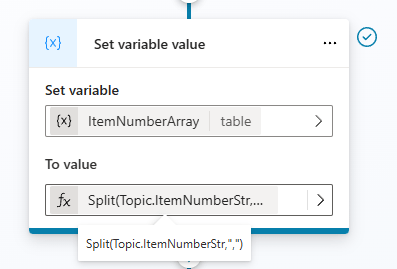
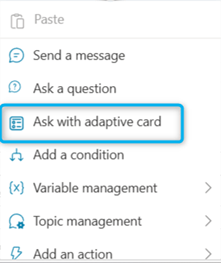
I add an adaptive card : Ask with Adaptive Card
{
type: “AdaptiveCard”,
‘$schema’: “https://adaptivecards.io/schemas/adaptive-card.json”,
version: “1.5”,
body: [
{
type: “TextBlock”,
text: “Product update form”,
size: “Large”,
wrap: true,
weight: “Bolder”,
style: “heading”
},
{
type: “Input.ChoiceSet”,
id: “ItemId”,
style: “compact”,
label: “Select product”,
isMultiSelect: false,
choices: ForAll(Topic.ItemNumberArray,
{
title: Value,
value: Value
})
},
{
type: “Input.Text”,
id: “NewItemName”,
label: “Item name”,
isRequired: true,
errorMessage: “This is a required input”,
placeholder: “Please enter product name”
}
],
actions: [
{
type: “Action.Submit”,
title: “Submit”,
style: “destructive”
}
]
}
Copy the payload which you copied from the above step:
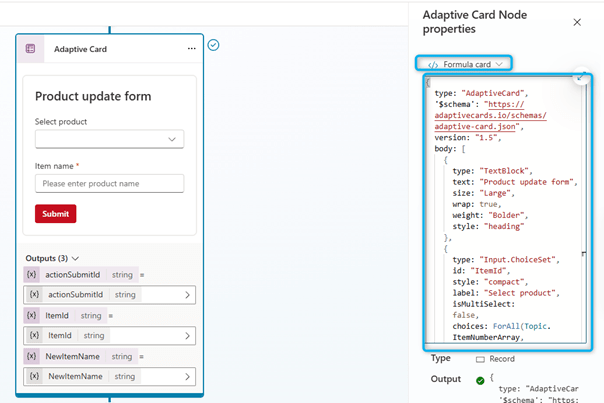
This will make the card control looks like this, with all the variables:

At this point, I call a flow that modify Item Name:
Power Automate: Modify Item Name
First, you need to define the user entries for the flow, like this:


Next, we are calling a HTTP post to call the AAD token. You need to create an app registration in Azure Portal with Client Secret:
And add the apps registration in D365 Finance:
Now we can define the HTTP Get AAD Token
- URL: https://login.microsoftonline.com/Tenant ID/oauth2/token
- Headers: Content-Type application/x-www-form-urlencoded
- Accept application/json
- Body: Client_Id=Cliend_Id_Value&Client_Secret=Client_Secret_Value&resource=Environment_Address
For the access token I created a variable to retrieve the value:
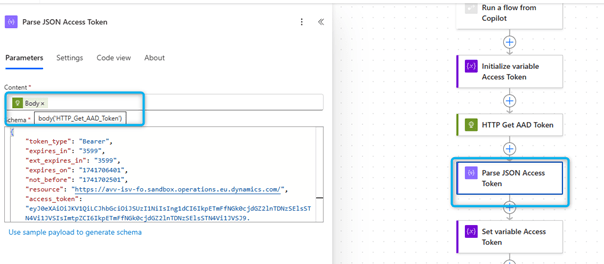
I parse the access token from the Get AAD Token
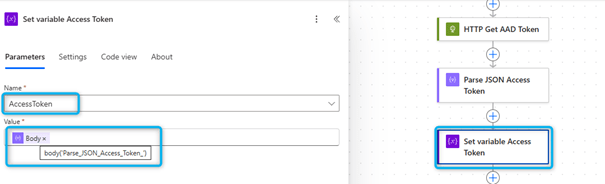
And set the variable:
And in the next step, I perform a patch to update the Item Name. To do this, I call the Odata like this:

I am performing a Patch operation on the Odata entity shown above:
<<Base_UrL>>/data/ReleasedProductsV2(ItemNumber= ‘<ITEMID>’,dataAreaId= ‘<DATAAREAID>’)?cross-company=true
This will update the released product with the necessary search name I am getting from the user.
Copilot Studio : End Topics
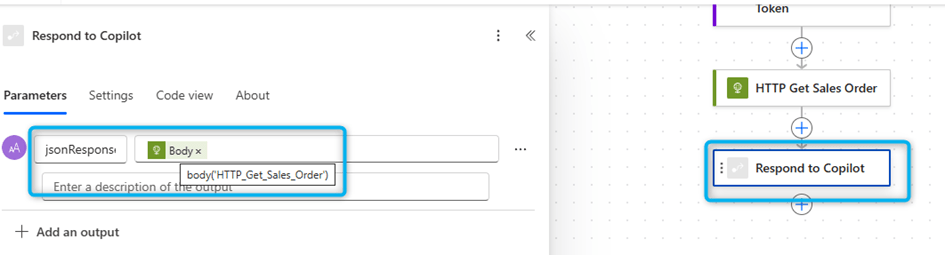
This I am sending back from my flow to Copilot as a message and displaying to the user:
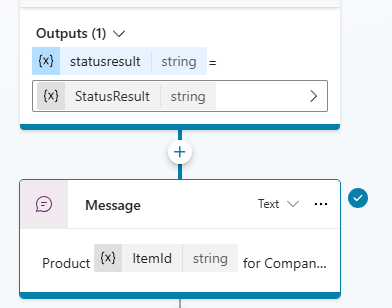
And then posting the information back to D365F&O and getting back the responses.Finally, I conclude:

 D365FOAdviceTips
Leave a comment