
- Set up the agent to track your email
- Review and accept the changes suggested by the agent
- Teach the agent to better interpret the content of incoming emails
- Tests
The supplier communication agent speeds up communications with suppliers concerning them by allowing Copilot to read emails from some or all suppliers.
When Copilot analyzes a vendor email, it can determine the subject of the message (for example, if it is an order confirmation or modification request) and which order it applies to. Copilot then compares the information extracted from the email to the system fields and indicates any changes. All you need to do is consult the information provided by Copilot, review the proposed changes and decide whether or not to accept them. Copilot saves you time, because you no longer have to manually search, open and modify the order in the system.
Copilot classifies each supplier email it reads into one of the following categories, based on the intent it detects in the message:
- Supplier order confirmation: Copilot detected that the intention of the message is to confirm one or more orders (all orders mentioned in the email).
- Request to modify order Supplier: Copilot has detected that the message contains at least one request for modification of purchase order. For example, the supplier wrote to you to inform you that he cannot deliver the total quantity requested for one or more lines, to inform you that he cannot deliver on time or to reject the order in its entirety.
- Rejected: Copilot has detected that the supplier cannot provide the requested order.
- Other: Copilot could not identify any of the previous intentions.
For the first two categories, Copilot identifies the orders to which the email is linked and matches the information from the email to the system information.
The agent is currently able to read incoming PDF attachments, but not Microsoft Word or Excel documents.
When you review incoming changes based on an email, the system displays the original email, current information, and specific proposed changes. You can thus better understand each modification. After reviewing the proposal and making the necessary corrections, you can apply the changes directly to the relevant PO.
Set up the agent to track your email
The supplier communication agent must be configured to monitor a specific email address and receive messages from vendors. Follow these steps to complete the setup.
If you wish to send/forward email communications from your own email address for testing purposes, you must also set up your email address as supplier contact. To do this, follow these steps.
- Acces to Procurement and sourcing > Vendors > All vendors
- Create or select a supplier.
- In the Contact information tab, add a line with your own email address (the one from which you will send/forward test messages).
To configure the agent:
- Log in to the Microsoft Dynamics 365 Supply Chain Management environment as a user with the necessary permissions to manage the agent configuration.
- Navigate to Agents > Agents (Preview) .
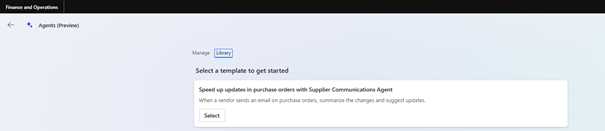
- In Library Tab, speed up updates in purchase orders with Supplier communications agent, and Select.
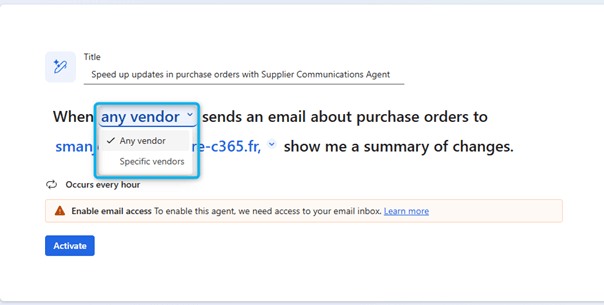
- On the Agent configuration page, use the drop-down menu to specify the providers whose emails the agent must analyze. Select “Any vendor” to track all vendors or “Specific vendors” to track a list of specific vendors you provide.
- Select the mailbox that the agent should monitor. The dropdown menu should show all mailboxes that the logged in user has access to.
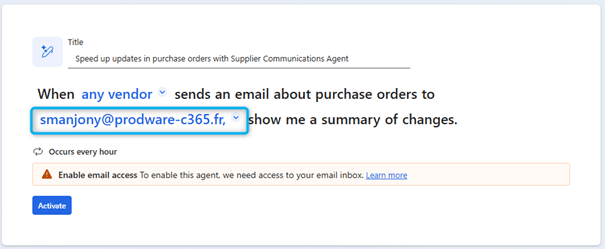
- Select Activate.
The “Enable email access” warning message you receive is informative and does not prevent you from activating the agent.
Review and accept the changes suggested by the agent
The agent detects changes in the following fields:
- Quantity
- Unit of measure
- Price
- Confirmation
- The delivery date
- Cancellation
To review and accept the changes suggested by the agent based on the emails they read, follow these steps:
- Open Workspace Purchase order receipt and follow-up.
- A “(Preview) Purchase order updates” tile indicates the number of emails to be checked. Select the title.
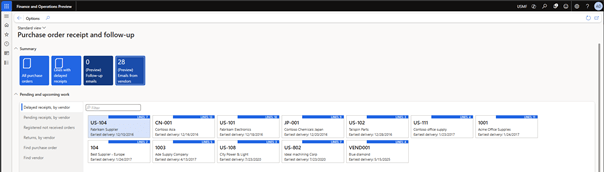
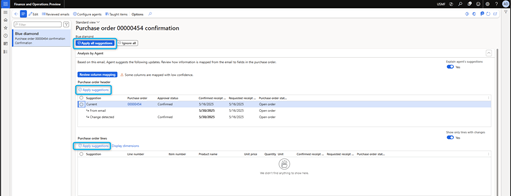
The left part of the “(Preview) Purchase order updates page lists all emails read by the agent. The right part displays the summaries generated by Copilot. Follow one of these steps:
- To apply all the changes suggested by the agent, select “Apply all suggestions”. This action affects all the purchase orders mentioned in the message.
- To apply all suggestions to a single selected purchase order header and all its lines, select Apply suggestions in the Purchase order header section.
- To apply suggestions to specific purchase order lines, select the lines concerned and then select Apply suggestions in the Purchaser order lines section.
Teach the agent to better interpret the content of incoming emails
If a supplier uses acronyms or unregistered language in the system, the supplier communication agent cannot interpret them. However, you can teach him to better interpret the content of incoming emails. You will thus contribute to improving their accuracy.
Teach the agent the column mappings
A Review column mappings button may appear at the top of the Copilot summary for several reasons:
- The supplier has attached a PDF document to the message, and several columns of this PDF can be mapped to a single field in the system.
- The message or attachment uses an acronym that the agent cannot interpret.

To resolve the issue, select “Review column mappings ” and clarify the mapping. You can then save the mapping for all providers, for the current provider, or not save it at all.
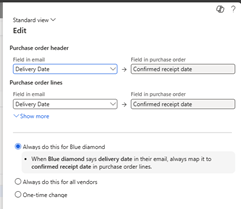
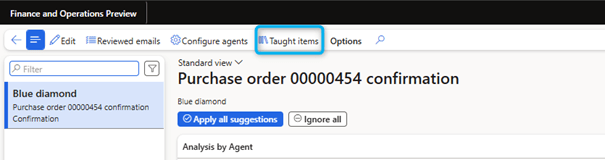
If you save a mapping for all suppliers or the current supplier, you can still access the Taught items to view everything that was taught to the agent. You can also know where to delete entries if necessary.
Teach the agent value equivalencies
A supplier may use synonyms or sector equivalences that are not registered in your system. You can train the agent to recognize these equivalences.
For example, you use a unit of measure called “cartons”, but one of your suppliers always uses the name “cassettes” for the same unit. When the agent detects a name change, you can clarify the equivalence for the concerned line. In this case, the learning panel appears. You can then save the equivalence for all suppliers, for the current supplier, or not save it at all.
Tests
I placed an order for vendor Blue Diamond to order some tablets and HDMI cables. Here is the details of the order.

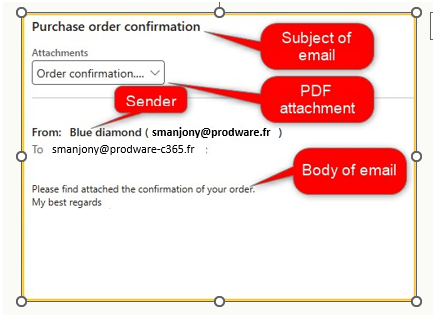
A few days later I received an email from Blue Diamond, my vendor, confirming a purchase order that I placed a few days ago. The email does not contain any details about the order. The vendor joined a PDF file with all the details. The details of the PDF file are as follows. As you can see highlighted in yellow, almost everything is different from what I have ordered.

Looking at the analysis done by the agent, I noticed bold differences from my original order.
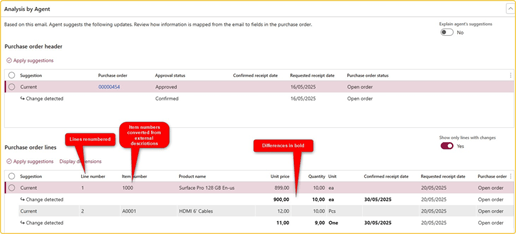
Adjusting and teaching for differences. The agent will log all these changes to the “Taught items” form for next time.
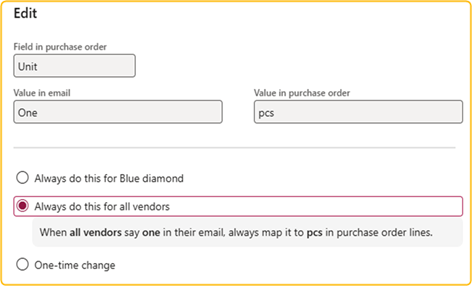

Applying suggestions for individual lines or all suggestions

Purchase order confirmed and changes applied
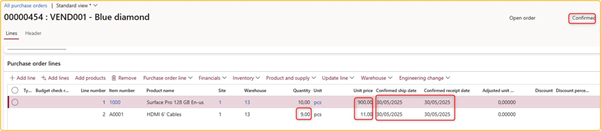
 D365FOAdviceTips
Leave a comment