
- Configure query criteria and mail settings
- Review and send written emails
- Automatically send follow-up emails
The supplier communication agent helps you identify, and track orders not confirmed by suppliers or whose delivery is overdue. For each detected order, the agent automatically generates a draft email addressed to the concerned supplier.
The supplier communication agent helps you to perform the following actions:
- Create queries to identify commands that need tracking. Each request is unique for each user. You can therefore create and adjust them to meet your specific needs. Two default queries are available: one for tracking unconfirmed orders, and the other for tracking delivery delays. You can modify or delete these default requests as needed.
- Configure how emails are generated for each request.
- View drafts of emails generated by the agent. After viewing each message, you can edit it, copy it to your email client, and/or send it. To generate the emails, the agent uses data from the command lines and/or associated tables.
By default, the system provides two predefined queries that you can use to search for commands that require action:
- Unconfirmed orders: This query searches for those orders that are assigned to you and have a delivery date within the next 60 days but have not yet been confirmed by the supplier (i.e., have an empty-confirmed delivery date). The query uses the following specific criteria:
- The Confirmed delivery date field is empty.
- The Owner field is set to your user account (the current user).
- The Deliver remainder field is set to a value other than 0 (zero).
- Delayed orders: This query searches for orders that are assigned to you and are delayed (i.e., have a confirmed delivery date of one or more days). The query uses the following specific criteria:
- The Confirmed delivery date field is set to a date earlier than the current date.
- The Owner field is set to your user account (the current user).
- The Deliver remainder field is set to a value other than 0 (zero).
Configure query criteria and mail settings
The following procedure explains how to set up queries to identify purchase orders that require tracking. It also explains how to configure the way in which Copilot generates the content of supplier emails for each request.
- Open the (Preview) Follow-up emails page by following one of these steps:
- Access to Procurement and Sourcing > (Preview) Supplier Communications Agent > (Preview) Follow-up emails.
- Open the workspace «Purchase order receipt and follow-up». A thumbnail titled “(Preview) Follow-up emails” indicates the number of emails to be checked. Select it.
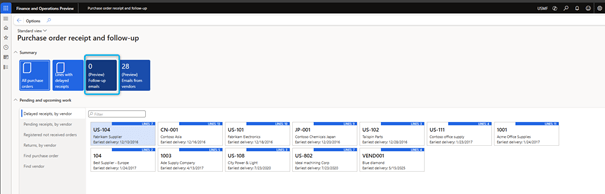
- Follow one of these steps:
- To edit an existing query, select it from the list and then select Edit.
- To delete an existing query, select it from the list and then select Delete.
- To create a new query, select “Configure agents”. Then, under « Library », select « Send follow-up emails with Supplier Communications Agent ».

- Change the request name as per your requirements. (The default name is “Draft follow-up emails for purchase orders“.)
- Select if you want the query to look for unconfirmed orders or delayed purchase orders.

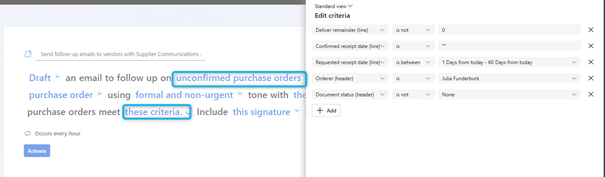
- Change the criteria to define commands that need tracking. For example, you can search for unconfirmed orders of the next two months, orders created more than three days ago, or orders sent but not confirmed.
- If you have chosen that the query searches for delayed purchase orders, the following default criteria are used:
- The Deliver remainder field on the line is set to a value other than 0 (zero).
- The Confirmed receipt date field on the line is set to a date between 60 days and 1 day before the current date.
- The Orderer field of the header is set to your user account (the current user).
- If you have chosen that the query searches for delayed purchase orders, the following default criteria are used:

- If you have chosen that the query is looking for unconfirmed purchase orders, the following default criteria are used:
- The Deliver remainder field on the line is set to a value other than 0 (zero).
- The Confirmed receipt date field on the line is empty.
- The Orderer field of the header is set to your user account (the current user).
- The Document status field in the header is set to a value other than None.
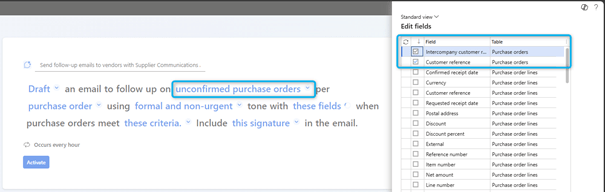
- Select the fields that need to be included in the email, such as delivery dates or address.
- To add a signature, select Signature and enter the desired text. You can also add a footer with the following text: “This email was written with the help of AI.”
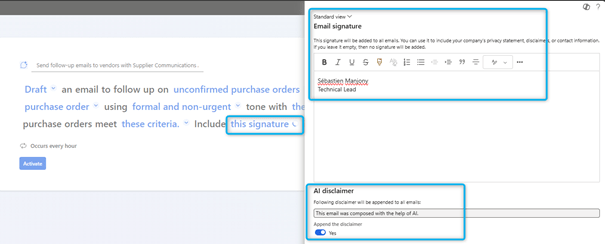
If your system is set up to send emails automatically, the email footer is mandatory.
- Select the tone of the emails (Casual or Formal, or Urgent or Non-urgent ).
Here are some examples of other requests you could configure:
- To generate emails for orders created less than three days ago and not yet confirmed, specify the following criteria:
- The Deliver remainder field on the line is set to a value other than 0 (zero).
- The Confirmed receipt date field on the line is empty.
- The Created Date field is set to date between three days before the current date and the current date.
- The Orderer field of the header is set to your user account (the current user).
- To generate emails for orders from supplier group A that were created less than three days ago and are not yet confirmed, specify the following criteria:
- The Deliver remainder field on the line is set to a value other than 0 (zero).
- The Confirmed receipt date field on the line is empty.
- The Created Date field is set to date between three days before the current date and the current date.
- The Orderer field of the header is set to your user account (the current user).
- The Vendor (group) field is set to A .
Review and send written emails
To view previously created emails for different configurations, go to Procurement and Sourcing > (Preview) Supplier Communications Agent > (Preview) Follow-up emails. Configurations are displayed on the left and emails of each configuration on the right.
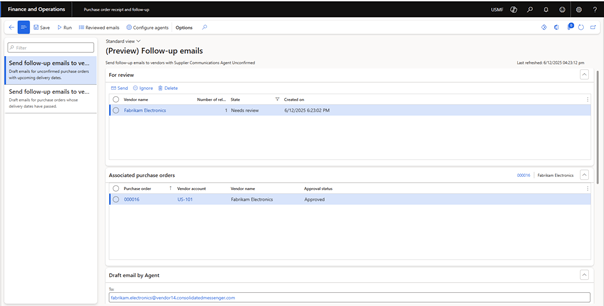
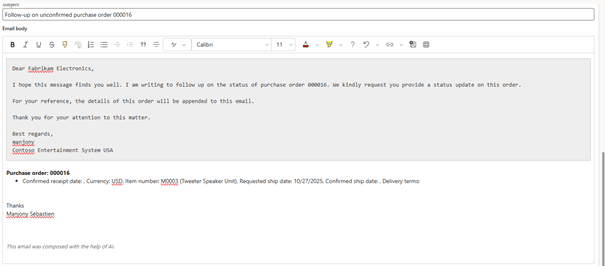
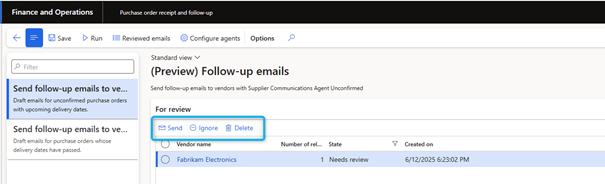
Edit each message as needed, then select Send to send it to the provider.
Automatically send follow-up emails
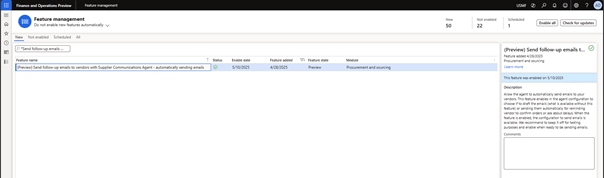
If emails are to be sent automatically, without verification by the user, an administrator must use Feature management to enable the functionality (Preview) Send follow-up emails to vendors with Supplier Communications Agent – automatically sending emails. This feature is optional and disabled by default.
When the feature is enabled, the email address of the administrator who configured the agent is used as the sender for each email that the system automatically sends.
 D365FOAdviceTips
Leave a comment