
- Introduction
- Display top-level metrics
- Display license summaries at product level
- Identify users with unassigned licenses
- Filtering and sorting capabilities
- Access the user license details
- Assign licenses in the Microsoft 365 admin center
- Analyze the license rights of the roles
- Summarize (Copy to clipboard)
- Best practices
- LCS Report
Introduction
On PPAC and LCS, reports are now available, showing the number of licenses required and users with assigned or missing licenses.
When Microsoft announced the application of user licenses, there was virtually no information available on the exact number of licenses. In the meantime, Microsoft has modified the rules by abandoning the old license calculation logic available in the Dynamics 365 Finance and Operations application. This logic had errors, and a new calculation was introduced, executed in the Power Platform Administration Center, outside of Dynamics 365.
Microsoft has introduced a new version of the license reports. The V1 version was difficult to understand and sometimes caused confusion, especially when customers compared with what was indicated in D365 Finance & Operations at the level of configuration security.
V2 version of the report has been grouped by product license and offers better features for acting.
The user license consumption experience in the Power Platform administration center allows administrators to monitor and manage licenses for both Finance and Operations applications. It shows which users need licenses, which ones are properly assigned, and where the gaps are, so you can act before the per-user license validation deadlines.
Key features include:
- Role-based user license analysis
- Environment-level license requirement breakdown
- Security role-to-license mapping
- Drill-down actions into access-level entitlements
- Filters for unmet or misaligned licenses
- Export-ready reports for compliance and planning
If you are on the Power Platform Admin Center, you can go to Licenses in the left menuand then select the Finance & Operations tab.
The report is updated every 24 hours. The timestamp of the last update appears at the top of the report

Display top-level metrics
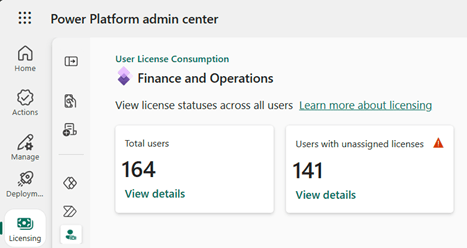
It starts with two vignettes:
Total users: all users in the Finance and Operations environments connected
Users with unassigned licenses: users who are assigned roles that require a license, but do not have an assigned license in the Microsoft 365 admin center.
Select View details inTotal users or in Unassigned users to see the details of each user
Display license summaries at product level
By continuing to view the details, you get the list of users who are missing one or more licenses.
If you are an administrator, you can also click on Manage licenses, where you will be redirected to the M365 administration portal.
For each product there is a label with the total number of users without licenses (Users with unassigned licenses), these are missing license assignments.
A “Summary” button is available. It will copy the summary in text format to your clipboard.
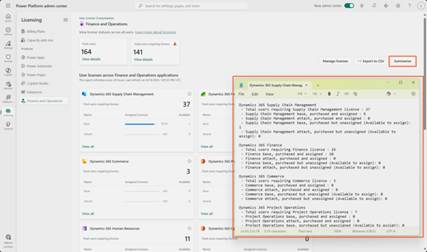
The summary view of product licenses allows you to check if your licenses meet the needs of your users. By comparing required licenses to purchased, assigned and available ones, you can quickly identify gaps and decide whether to reassign existing licenses or purchase more. Each Dynamics 365 Finance and Operations product displays a map with:
- Total users requiring a license
- By product, base licenses assigned, base licenses available to assign
- By product, attach licenses assigned, attach licenses available to assign
User license consumption reports support these products:
- Commerce
- Finance
- Human Resources
- Project Operations
- Team Members
- Operations – Activity
- Operations (Legacy licenses)
- Supply Chain Management
Select View All to explore the licensing assignments for users of each product.

Identify users with unassigned licenses
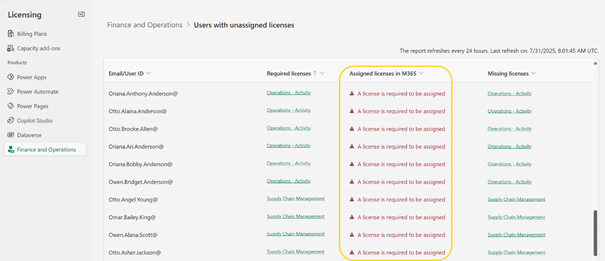
Identify users with missing license assignments using the view Users with unassigned licenses.
| Column | Description |
| Email/User ID | Entra ID identity |
| Required license | Based on security role corresponding duties and privileges |
| Assigned license in M365 | Finance and Operations app licenses assigned to the user in Microsoft 365 admin center |
| Missing licenses | Required Finance and Operations app licenses not assigned to the user in Microsoft 365 admin center |
Users in the view Users with unassigned licenses cannot log in to the system once license validation has started.
Filtering and sorting capabilities
Filter and sort by assigned licenses or missing licenses.
Use the drop-down list in the Licenses assigned column in M365 to search for missing or incorrectly assigned licenses at large scale:
- Sort the results (increasing or decreasing).
- Filter by specific license types, such as Commerce, Finance, Human Resources, Supply Chain Management or Team Members.

Use the filter in the “Missing license“ column to display users who are missing a specific license, such as Supply Chain Management. Assign the appropriate basic license based on the product.
Access the user license details
For any user, select the Required license link to open the Required license details screen by environment, where you can see why the license is needed and which environment requires it.
| Field | Description |
| Environment name | Where the user is assigned the security role |
| Environment type | Production |
| Security role | Assigned role |
| Required license | License required triggered by role |

Assign licenses in the Microsoft 365 admin center
For any user, select the missing license link to display the license options screen and select the Manage button in the Microsoft 365 admin center to open the Microsoft 365 admin center for that user and assign the required license.

Analyze the license rights of the roles
From the user role, you can drill deeper into mapping the security role to the license:
- View all supported licenses for a security role, such as Commerce, Finance, Human Resources, Supply Chain, Team Members or Activity.
- Find out how many users have a correct license and how many users have an incorrect license
Decomposition of securable objects
View menu items and access levels (read/write) that contribute to licensing requirements to better understand the licensing requirements for each role:
| Field | Description |
| Securable Type | Example: MenuItemDisplay |
| AOT Name | Application Object Tree name |
| Access Level | Read or Write |
| Entitled | Included in the mapped license scope |
| Not Entitled | Not included in the mapped license scope |
| Not Required | Doesn’t affect license scope |

Export in CSV format
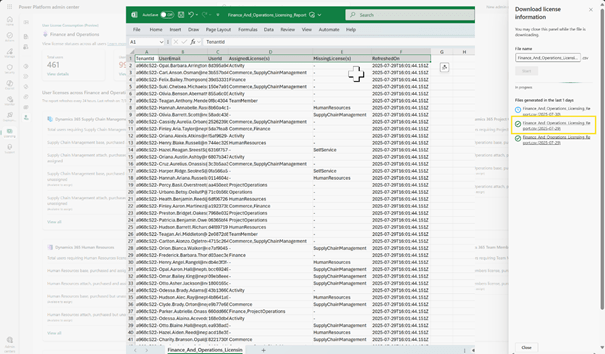
You can export user data to a CSV file by selecting the Export to CSV button located on the page.
The exported file contains only the following columns:
- TenantId
- UserEmail
- UserId
- AssignedLicense(s)
- MissingLicense(s)
- RefreshedOn
For complete rights or role mapping information, use the Power Platform admin center views.
Summarize (Copy to clipboard)
You can copy the license summary to your clipboard by selecting the Summarize button at the top of the page.

Best practices
- Align the assignment of licenses on actual use telemetry, not on job titles.
- Use version 10.0.44 or later to validate roles using the User Security Governance feature.
- Review monthly and remove the security accounts of inactive users in Finance and Operations.
- Coordinate with purchases to align purchases with required licenses for users.
LCS Report
A similar report is available on LCS when you navigate to the default page and then open the User License Consumption tile. The new look is not yet implemented on LifeCycle Services (LCS).

 D365FOAdviceTips


Leave a comment