
Introduction
License management has now become a necessity in Dynamics 365 ERP applications. With Microsoft’s licensing process, which will take effect in November 2025, every menu item, role and task accessed by each user of the system must be associated with the appropriate license type. Otherwise, companies may face unnecessarily high licensing costs.
So what should the system administrators or consultants do in this process? At this point, the new “Licenses Usage Summary” report from Microsoft has become critically important. It is now possible to analyze in detail the licensing needs, not only according to the role assigned to the user in the system, but also by analyzing the tasks, privileges and menu options accessible through this role. This report helps to identify the licenses needed by a user and the roles responsible for these needs.
With the introduction of user security governance features, Microsoft has also introduced a form called “Licenses Usage Summary”. This form must first be activated via feature management. It is available in versions 10.0.43 as a preview version and 10.0.44 in GA. The form data is based on the new PPAC calculations at the object level, and through a data flow transmitted to individual Dynamics 365 Finance & Operation environments.
No batch processing or X++ coding is used to populate the new license tables. The update frequency is currently around 2 to 8 hours, but Microsoft wants to offer more updates. Manual updating is not possible at this time but would be a highly appreciated option.
The user licenses summary page in the User Security Governance workspace helps administrators understand how security roles and respective permissions define license requirements in their financial and operational environment. Dynamics 365.

This page provides a telemetry-based view of user activities and calculates actual license requirements based on actual usage, allowing organizations to align licenses with the current Microsoft licensing guide.
Use of the report
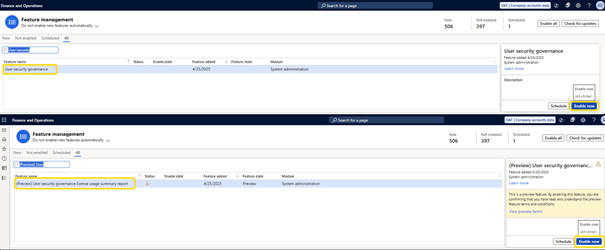
Before accessing the user security governance workspace, you must activate it in feature management:
- Go to System Administration > Feature Management.
- Search:
User security governance
User security governance license usage summary report
Select and enable both features.
When you open the form, you will find several tabs, each with multiple grids of information. The details are not intuitive and need a little help to understand what you are viewing and validate all the details.
You can access the report from: System administration > Security > Security governance > Licenses usage summary

The User Security Governance Licenses usage summary page provides a layered view of:
- How system permissions are exercised
- How responsibilities correspond to different types of roles
These details allow for more in-depth visibility into user access patterns
The workspace offers summaries on several dimensions:
- User – Individual usage patterns from telemetry
- User Role License – Role-to-license tier mapping
- Role – Aggregate role-level permissions
- Duty – Functional areas or grouped operations
- Privilege – Specific actions or menu items tied to user tasks
Each securable object is labeled with:
- License type – Associated license level
- Entitled – Included in the scope of the current license
- Not Entitled – Not included in the mapped license
- Not Required – Doesn’t affect license assessment
These attributes simplify reviews and ensure that security access meets the needs of the business.
The lower panel details the license requirements at the securable object level:
- SecurableType – Menu item display
- AOT Name/ Child Name – From the application object tree
- Access level – Read or write
Organizations can use this summary to:
- Validate that the security roles reflect the actual responsibilities of the users.
- Identify and correct excessive or outdated role assignments.
- Improve governance by aligning usage with internal controls.
- Prepare for compliance and future audits.
From this page, administrators can:
- Assess roles for review or refinement.
- Identify risks related to the separation of duties.
- Export data for audit, license planning or governance purposes.
You can export the data from each panel to Excel for compliance or reporting purposes.
Tab structure
- User licenses: Displays the required licenses based on the roles assigned to each user in the system.
- User role licenses: Displays the user ID, roles assigned to the user, and the license type associated with each role.
- Role licenses: Allows for role-based analysis. Displays the SKU licenses correspond to a role, as well as its duties, privileges and AOT components.
- Duty licenses: Displays the required licenses for specific tasks.
- Privilege Licenses: The most detailed level, this tab shows the AOT elements each privilege grants access to and the associated license.
User Licences
So don’t settle high licensing requirements but look at the details if you expect a lower license. Let’s start with the user licenses and look at the license requirements reported by the PPAC calculation

The main license is Finance.Thanks to the roles assigned to Martin, he has access to a total of 3623 objects: 3623 via Finance and 0 requiring additional licenses. One can express it this way, even if it is not perfectly literal.
The data of the first grid comes from the view LicensingUserDirectLicenseAssignments . Let’s open it and look at it using the table browser. It contains the same information as those displayed on the screen: values like UserRecId and SkuRecId . These values indicate the user and the license type
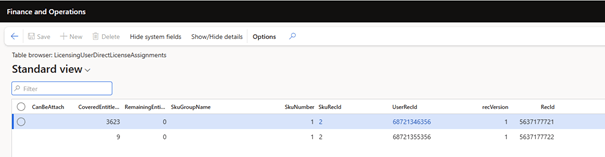
The second grid on the right comes from the view LicensingUserRequirementsSummaryView. This view allows you to see the number of objects covered for each type of license.

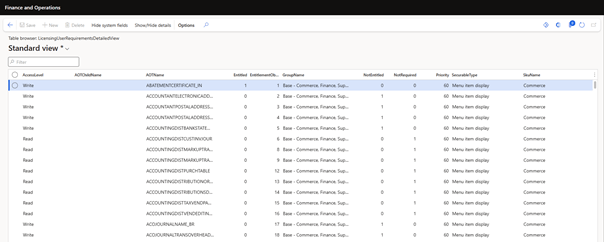
Let’s now move on to the main view where license requirements are displayed: LicensingUserRequirementsDetailedView. This table may contain many records, as it is duplicated by license type and can include thousands of rows, all generated based on the roles assigned to the user.
User Roles Licenses
In the second tab, we can again see the assigned roles and required license types. The “Quantity of licenses” column allows us to create custom reports. The CSV file also contains this column

Role licenses
The page displays all combinations with a security role and available license SKUs. The columns “Allowed” and “Not allowed” must be understood to read this page. If the “Not allowed” column is set to 0, the SKU can be used to meet licensing requirements. I suggest setting a filter on the role name and focusing on individual roles for better understanding.
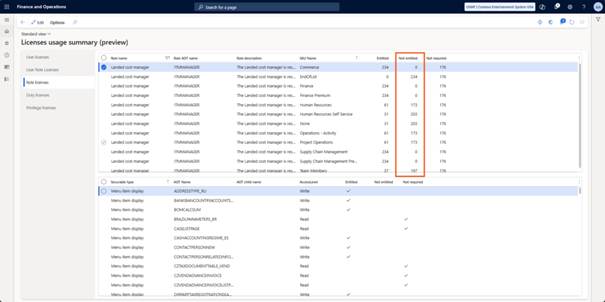
For further analysis, access the “Duty Licenses” and “Privilege Licenses” tabs. You will then need to filter individual functions and privileges to understand the requirements.
 D365FOAdviceTips


Leave a comment