
- Prerequisites
- Step 1: Upgrade to the latest quality update
- Step 2: Remove inactive user accounts
- Step 3: Familiarize yourself with the license model
- Step 4: Check user roles and licenses mappings
- Step 5: Validate with the user security governance
- Step 6: Align license assignments in the Microsoft 365 admin center
- Step 7: Plan more licenses
- Conclusion
This article is intended to help administrators prepare for the validation of user licenses for Dynamics 365 Finance and Operations applications. It provides detailed instructions to align licenses with security roles and avoid user access interruptions when implementing this validation.
Each step includes explanations, concrete and compliant with security governance best practices, indicating the For what reason? , What Action? and the By what means.
Use this article sequentially for best results and repeat steps 3 to 6 periodically as your security model and user base evolve.
Prerequisites
- System administrator access in Dynamics 365 Finance and Operations
- Power Platform Admin or Organization Admin permissions
- Access to the Microsoft 365 Admin Center
- Update to the latest quality update
- Understanding the Dynamics 365 product model (base vs. attach)
- Enable user security governance reports in feature management
- Consult the Dynamics 365 license guide
Step 1: Upgrade to the latest quality update
For what reason?
The upgrade ensures that your environment has the latest licensing validation logic, telemetry and reports needed for informed decision making. New governance features, including User Security Governance (USG), have been introduced and enhanced in recent releases and may not be available in earlier releases.

Running the latest proactive quality update (PQU) reduces the risk of experiencing known issues or missing features that affect license calculations or report completeness. This step also standardizes behavior across all environments, so that your analysis in test or sandbox environments reflects what you observe in production.
This ensures that your administrators can rely on an up-to-date License Usage Summary and associated reports to confidently plan assignments.
What Action?
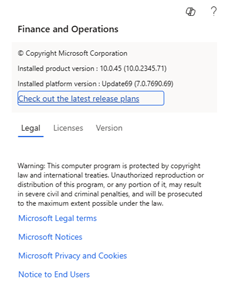
You check and, if applicable, upgrade the application and platform versions for all relevant Dynamics 365 Finance and Operations environments.
You can also verify that the user security governance features (including license usage reports) are enabled in feature management. Once the upgrade is complete, you can access the Security Governance workspace and its reports. This step forms the basis of the data you will use in subsequent steps.
By what means?
Use LCS to apply the latest proactive quality update to all environments, prioritizing the test environments you use for validation, and then apply it in your production environment.
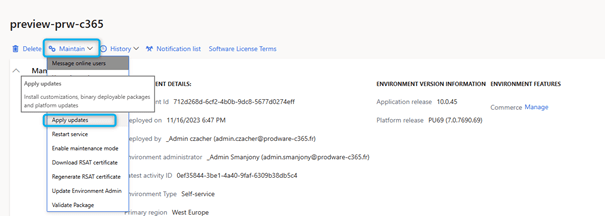
After applying the latest proactive quality update, log in to Dynamics 365 Finance and Operations and access System Administration > Feature Management. Search for and activate the following features:
- User security governance
- User security governance license usage summary report

Then open System Administration > Security > Security Governance to verify that the reports License usage summary, Security analysis and License usage overview are available.

Step 2: Remove inactive user accounts
For what reason?
Inactive users skew licensing requirements by appearing in reports as if they still need access to the system. This issue may lead to errors in the calculation of the number of required licenses or overpurchases. Removing unused accounts ensures that your estimate of licensing needs reflects reality. This cleaning step improves both cost control and audit readiness.
Removing inactive users also eases your administrative burden when assigning licenses. It reduces the risk of accidental reactivation of outdated accounts. By deactivating inactive users now, you avoid later mistakes and focus on the really active users that are essential to your business. This cleaning operation is a quick gain that immediately improves data quality and compliance.

What Action?
You identify and deactivate (or delete) users who have not logged in during the inactivity period defined by your organization.

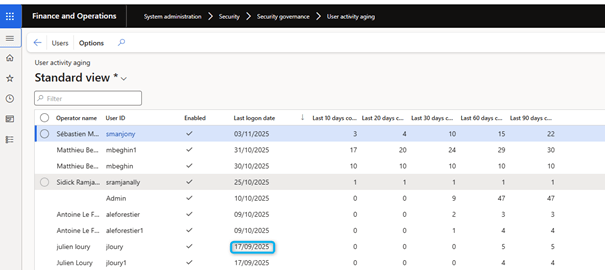
The User Activity Age report in the User Security Governance workspace provides a configurable view of users grouped by inactivity ranges (e.g., 30 , 60 , 90 , 120+ days).
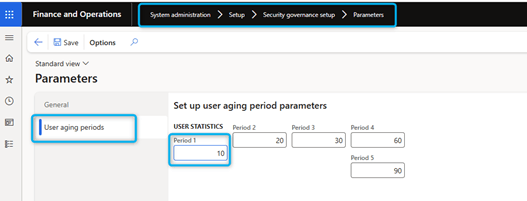
Based on your company’s HR and IT policies, use these groupings to determine which inactive accounts to disable.
Once these inactive accounts are deactivated, the high-level license reports reflect all active users.
By what means?
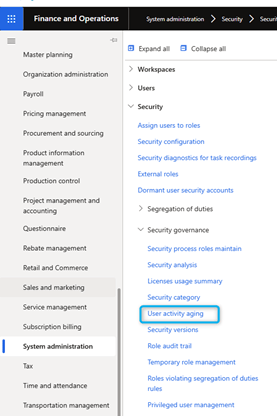
Access System Administration > Security > Security Governance > User Activity Aging to view current activity levels.

Configure your day ranges under System Administration > Security > Security Configuration Setup > Parameters > User aging periods to align them with your company’s policy (e.g. 30/ 60/ 90/ 120+ days).

For each inactive user, go to System Administration > Users > User and set Enabled to No.
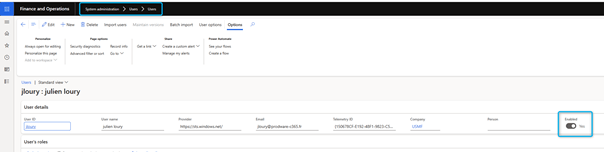
Please allow 24 hours to confirm that inactive users are no longer included in the license reports (Power Platform Administration Center/ Lifecycle Services and User Security Governance).

Step 3: Familiarize yourself with the license model
For what reason?
Dynamics 365 Finance and Operations applications use a named user model that maps roles, duties, and privileges to licensing requirements. If you don’t understand this model, you risk to sub-license or over-license.
Users who use features covering Finance, Supply chain management, Commerce, Human resources and project operations may need multiple licenses (Base + Attach) to remain in compliance with the applicable product use conditions.
“Team Members and Operations – Activity” licenses are designed for lightweight or read-only use, but a single “write” privilege can take a user to a higher license level.
Knowledge of these nuances ensures that your security design matches the minimum license level required for each user. It also allows you to explain your decisions to stakeholders and to pass audits with confidence.
What Action?
You review the current Dynamics 365 License Guide to understand access rights, basic and add-on licensing requirements, and product-specific requirements. More specifically, you identify the functional coverage of each type of license (e.g. relevant processes in finance and supply chain management) and any overlaps.
You establish a simple correspondence between your main user profiles and the types of licenses intended for them, according to their responsibilities.
Pay particular attention to customs roles that may group privileges between different products, as these roles often result in additional licensing needs. Be sure to share this understanding with stakeholders to ensure consistent definitions when you need to explain requirements for other license acquisitions.
By what means?
See the Dynamics 365 License Guide. Create an internal reference document linking standard roles and your main custom profiles to the corresponding licenses.
Mark areas where your current roles appear to exceed the intended scope (e.g., unexpected write privileges) and point them out for correction in step 4 of the review.
Share this information with security and functional leaders to reach consensus before licensing or purchasing. Update this reference as your roles evolve.
Step 4: Check user roles and licenses mappings
To be carried out via reports in the PPAC (Power Platform Administration Center)
For what reason?
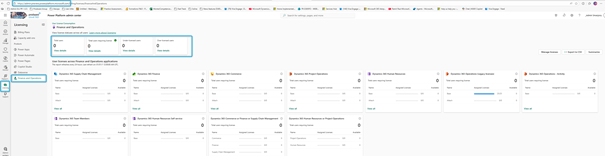
An overview of licenses in different environments allows to identify the deficiencies of available licenses. For example, the number of Finance licenses may be insufficient compared to the number of users who need them. This step is the quickest way to determine how many licenses of each type to assign or acquire, and to identify unlicensed users.
It provides an overview of privileges between tenant, completing the detailed analysis of privileges within system administration for Finance and Operations applications. By detecting gaps upstream, you can avoid last-minute purchases, approval bottlenecks and potential problems for your users when launching the validation of user licenses.
You can also detect assignment errors (for example, licenses assigned to users who no longer need them) that you can reassign to fill in the gaps.
What Action?
Use the “User License Consumption” reports in the Power Platform Admin Center for Finance and Operations applications to compare required, purchased, and assigned licenses by product.
The report shows the total number of users requiring a license, basic licenses assigned/available and additional licenses assigned/available by product (Finance, Supply Chain Management, Commerce, HR, Project Operations, Team Members, Operations – Activity).

You can explore the “Unlicensed users” section to precisely identify unlicensed users and know the required license. You can export this data in CSV format.
Exporting to CSV format allows for deeper analysis, more accurate filtering and easier sharing with stakeholders.
By what means?
Open Power Platform Admin Center > Licensing W Finance & Operations and product‑level license summaries.

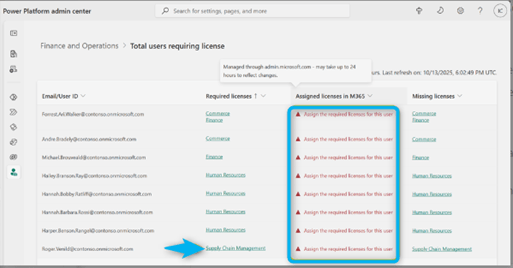
Select View Details/View All to see user level requirements and the “Total users requiring a license” list; use the filters to focus on specific types of licenses in shortage.

Export the CSV file and annotate the gaps, for license gap analysis
Then forward the results to the purchasing department or your Microsoft partner.
If you do not have access to the Power Platform admin center, open Lifecycle Services > Project > Environment > User License Consumption Report and download the CSV file for a similar view.

Keep this license gap analysis at your fingertips – you solve it via role cleansing (step 4) and licensing assignment/scheduling ( steps 5 to 6 ).
The product card show:
- Total users requiring a license
- Base licenses: assigned vs. available to assign
- Attach licenses: assigned vs. available to assign
- Supported products include Finance, Supply Chain Management, Commerce, HR, Project Ops, Team Members, Operations – Activity

Step 5: Validate with the user security governance
For what reason?
User Security Governance provides a detailed view, based on telemetry and privilege levels, of why a user needs a license. With this view, you can remove unnecessary rights and minimize costs. It shows which roles, duties and privileges result in a user’s privileges being elevated from team member to full license (or requiring the use of multiple applications), allowing you to target remedial actions.
This in-app validation complements the top down counts from the Power Platform admin center by confirming root causes of license requirements. Without this step, you risk assigning or purchasing licenses that you could avoid by optimizing roles. It is essential for auditing and documentation, as it precisely shows how your security architecture matches the licensing requirements.

What Action?
Use the License Usage Summary in User Security Governance to analyze users by role and explore the Role Duty Privilege chain. You can focus on the items labeled “Allowed” (covered), “Not Allowed” (requires a higher or different license) and “Not Required” (action or privilege inherited from the system user, not included in the license calculation).

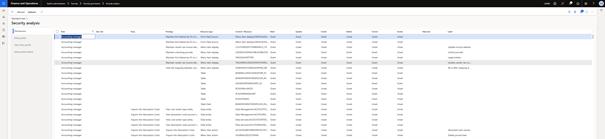
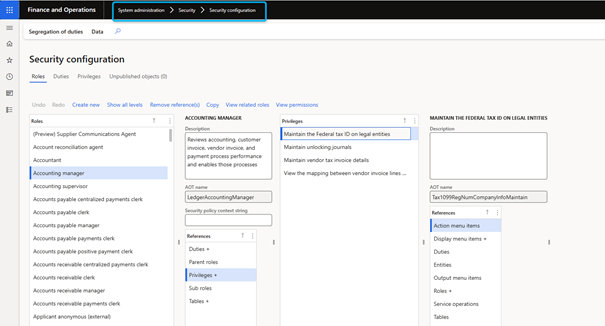
You can also use security analysis to identify specific privileged entry points introduced in roles, and the security configuration to adjust or remove them.
If a privilege is actually required, you can check the required license and schedule license assignments accordingly in the Microsoft 365 admin center.
The objective is to assign each user profile the appropriate minimum license level without removing the tasks and privileges required for the business function performed by the user.
By what means?
In Finance and Operations apps, go to System administration > Security > Security governance > License usage summary and filter by users or roles. For users with unusual licensing needs, review privileges marked as “Not Allowed” to identify entry points of escalation.

Use security analysis to locate all roles that include the problematic entry point, then open the security configuration to adjust or correct the role (e.g., remove write or high impact privileges for read-only profiles).
Recalculate or refresh the report and verify that the user meets the intended license level. If this is not possible, plan to assign the appropriate licence in step 6. Document changes and their rationale for traceability purposes.
Entitled: The action or privilege is covered by the current license and does not require a superior license.
Not Entitled : The action or privilege is not covered and requires a higher or different license to be compliant.
Not Required : Action or privilege inherited from the system user, not included in the license calculation.

Security Analysis: Identify privileges, entry points and all roles that include them; locate the root causes of license needs.

Security Configuration: Adjust roles and privileges (for example, remove high-impact privileges) in order to tailor licensing requirements.
License Usage Overview: Review privileges and duties based on required license to guide remediation and role design.

Step 6: Align license assignments in the Microsoft 365 admin center
For what reason?
Early in license validation, users without the required licenses cannot connect to Dynamics 365 Finance and Operations production environments. The prior assignment of appropriate bases and attach licenses helps to avoid any business interruption, particularly for end-of-period operations related to finance, warehousing, and order processing.
Relying on “available licenses” without explicit attribution is insufficient: you need to assign licenses to each user for them to be recognized. Timely assignments also reduce the support workload related to end-user alerts and avoid emergency escalations to procurement or IT. Finalizing assignments after step 4 ensures you are not purchasing licenses that more rigorous role management practices would avoid.
What Action?
Assign to each user the appropriate Dynamics 365 Finance, Supply Chain Management, Commerce, Human Resources, Project Operations, Team Members or Operations – Activity licenses, in accordance with the recommendations of the Power Platform administration center and user security governance guidelines. For users with access to multiple applications, assign a base license (the largest application) then the necessary additional licenses.
If you see improperly assigned licenses (for example, a full license for a read-only user), reassign them to the users who actually need them. Create a task list from the Power Platform admin center, in the “Total users requiring license” section, and process it methodically. Ensure HR and business leaders’ agreement for any role change.
By what means?
In the Microsoft 365 administration center, navigate to Users > Active users [Select user] > Licenses and applications, then assign the required licenses. Follow the Start-and-Add sequence: for example, first assign Dynamics 365 Finance, then Dynamics 365 Supply Chain Management Attach to Qualifying Dynamics 365 Base Offer (Attach) if the user needs both.
Where possible, you can create a direct link from the user records in the Power Platform admin center to the Microsoft 365 admin center to speed up assignments.
After assignment, wait 24 hours and then review the Power Platform Admin Center& User Security Governance reports to verify that the user no longer appears in the “Total users requiring license” category. Keep a change log (user, license, date) to facilitate audits and renewal planning.
Step 7: Plan more licenses
For what reason?
If the Power Platform admin center reports that more licenses are required than purchased, you must acquire or reserve additional licenses to ensure user access to Dynamics 365 Finance and Operations applications. The reservation of licenses (for customers with an Enterprise contract) allows you to commit now so that the licenses are immediately available, billing being staggered during your next update. Anticipating avoids last minute approvals, procurement delays and operational risks as validation approaches. This also facilitates budgeting by smoothing costs and justifying additional expenses. Proactive planning is essential during major role changes, mergers or new deployments.
What Action?
You determine the gap between required, assigned and available licenses for each product. Depending on your contract type, you can reserve licenses or purchase additional licenses through a cloud solution provider or enterprise contract. You can document the date of use of reserved licenses, thus confirming the financial commitment in your next order. You can also coordinate with your reseller or Microsoft partner regarding specific pricing or prerequisites. Finally, you can plan a margin for growth and user integration to limit repeated transactions.
By what means?
For customers with an Enterprise contract, in the Microsoft 365 admin center, go to Billing > Your products > Volume licensing > Make reservations, select the appropriate Enterprise contract, set a use date (up to six months in advance) and add the required services and quantities. Confirm and make the reservation (note the 72-hour cancellation period). For cloud solution providers or customers who do not have an Enterprise contract, contact your partner or purchase the licenses directly so that they appear in the administration center for assignment.
Once the new licenses are visible, allocate them to users (step 5) and check in the Power Platform administration center that the missing licenses are indeed available. Update your internal license tracking tool with bookings, purchases, quantities and renewal or regularization notes.
Conclusion
1 Update to the latest quality update via LCS.
2 Remove inactive users via User Security Governance Report > User Activity Aging
3 Model exam license via the Dynamics 365 License Guide
4 Review user-role correspondence via the Power Platform Administration Center
5 License validation triggers via the User Security Governance (License Usage Summary, Security Analysis)
6 Assign licenses via Microsoft 365 administration center
7 Plan more licenses via Volume license reservations / Purchase of cloud solutions from vendors
 D365FOAdviceTips
Leave a comment