
- Introduction
- Why the Agent Deployment Wizard Matters
- Agents You Can Deploy with the Wizard
- Who Should Use This Wizard?
- How to Access the Deployment Wizard?
- 🛠️ Step‑by‑Step Deployment Process
- ✅ Conclusion
A practical guide to faster, safer, and standardized Copilot agent deployments.
Introduction
The Copilot Hub Agent Deployment Wizard is a new centralized experience designed to simplify how organizations deploy Dynamics 365 agents across business applications. Instead of following lengthy manuals or scattered setup documentation, administrators now benefit from a guided, secure, and consistent deployment process.
Through the wizard, Microsoft‑provided agents can be deployed directly into environments such as Dataverse, Power Platform, and Dynamics 365 Finance apps, with built‑in validation steps that ensure everything is properly configured before activation.
Whether you’re setting up your first agent or managing a multi‑environment rollout, this wizard standardizes the experience and reduces risk.
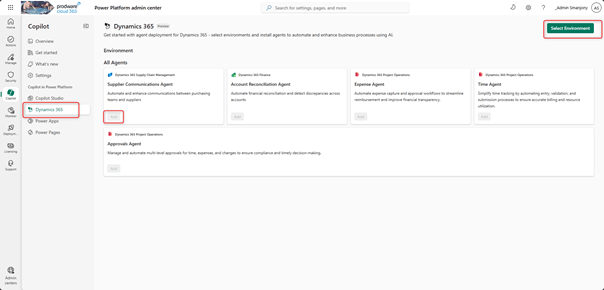
To run the Agent Deployment Wizard, navigate to the Power Platform Admin center (currently available only in the preview portal Power Platform admin center):
Why the Agent Deployment Wizard Matters
Microsoft distributes Dynamics 365 agents as managed solutions—which means proper platform configurations, security roles, and environment readiness are essential.
The wizard ensures deployments follow best practices by helping you:
- Discover all deployable Dynamics 365 agents
- Verify that the target environment meets required prerequisites
- Apply necessary environment-level configuration
- Deploy agents safely and consistently
- Monitor deployment and troubleshoot any failures
In short, it provides a centralized, all‑in‑one deployment experience aligned with security and governance requirements.
Agents You Can Deploy with the Wizard
The tool supports Microsoft‑provided Dynamics 365 agents, such as:
- Supplier Communications Agent
- Account Reconciliation Agent
- Expense Agent
- Time Agent
- Approvals Agent
Each agent comes with its own setup logic, data requirements, and permissions, which the wizard handles step by step.
Who Should Use This Wizard?
This tool is designed for:
- IT teams preparing environments
- Power Platform or D365 Finance administrators
- Copilot/Agent administrators
- Microsoft Finance & Operations application administrators
If you manage environments, agents, or user permissions, this wizard is built for you.
How to Access the Deployment Wizard?
Access is available through the Power Platform admin center (preview portal):
- Go to Copilot → Dynamics 365
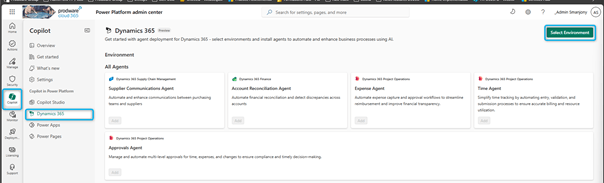
- Select your target environment
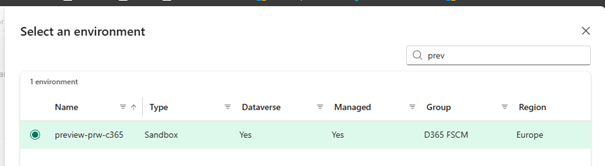
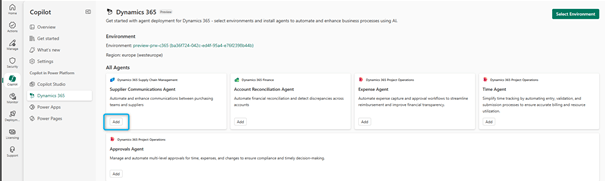
- Choose the agent you want to deploy
- Click Add to launch the wizard
🛠️ Step‑by‑Step Deployment Process
Although each agent may require additional configuration, all deployments follow a common 5‑step workflow.
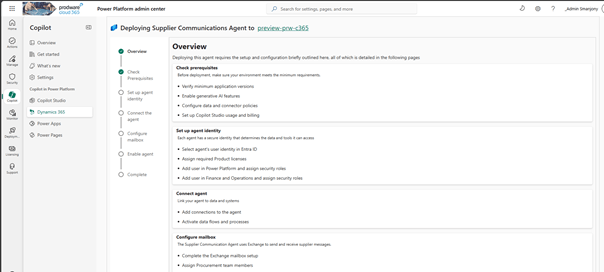
Step 1 — Check Prerequisites
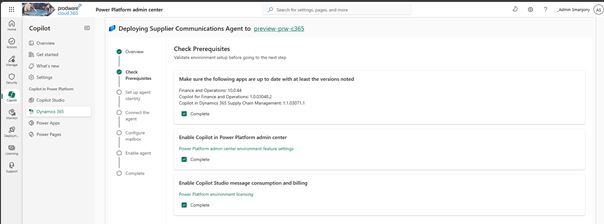
The wizard validates that the target environment has:
- All required Dataverse apps and packages (installed by the deployment process if necessary)
- Copilot enabled and generative AI settings configured
- Proper message consumption settings (Managed on License Pages of PPAC°
- Virtual entities refreshed (when needed)
Any missing or misconfigured prerequisite is clearly flagged with instructions to fix it—preventing deployment blockers later on.
Step 2 — Configure the Agent Identity
Every Dynamics 365 agent runs under a dedicated identity.
This step guides you through:
- Selecting or creating the agent’s user account
- Assigning required Microsoft licenses
- Adding the user to the Dataverse environment
- Assigning required Dataverse security roles
For D365 Finance agents, additional steps include:
- Adding the user to the Finance environment
- Assigning Finance security roles
This ensures the agent has the right access to perform its tasks.

Step 3 — Connect the Agent
The wizard then configures all required connections:
- Creates necessary Dataverse connections with agent identity
- Updates connection references
- Verifies connector approvals according to governance rules
- Activates required Power Automate flows (sometimes via Power Apps)
Once done, the agent is fully connected to its underlying services.

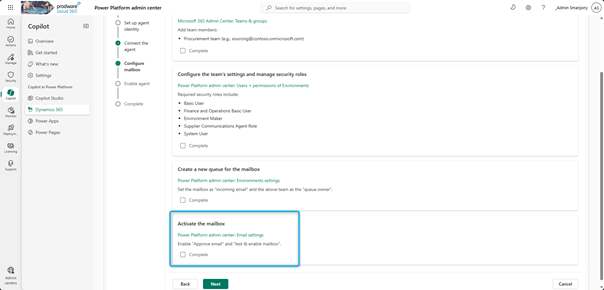
Step 4 — Configure Mailboxes (If Needed)
Some agents rely on email communications.
If so, the wizard helps configure:
- Server-side synchronization
- Approval and activation of relevant mailboxes
This ensures the agent can send or receive emails as required.
Step 5 — Enable the Agent
The final activation step includes:
- Publishing the agent bot in Copilot Studio
- Confirming that the agent is enabled and ready
- Enabling required features in Feature Management (for D365 Finance agents)

At the end of this step, the agent is live and ready for use.
After Deployment
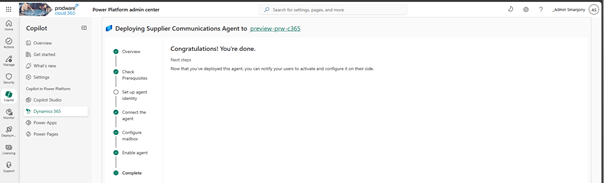
Once the shared setup process is completed, the wizard provides agent‑specific guidance to configure:
- Business logic
- Functional parameters
- User permissions
- Ongoing management
This is particularly true for Dynamics 365 Finance agents, where certain settings are completed directly inside D365.
✅ Conclusion
The Agent Deployment Wizard represents a major evolution in how Copilot agents are deployed across Dynamics 365 ecosystems.
It delivers:
- Clear deployment visibility
- Faster and more predictable installation
- Reduced configuration errors
- Better alignment with governance and security
For organizations adopting Copilot and Dynamics 365 agents, this tool makes deployments simpler, safer, and fully standardized.
 D365FOAdviceTips
Leave a comment