
- Step 1: Analyze the System Trace
- Step 2: Analyze the Query in SQL Server
- Step 3: Review Missing Index Suggestions
- Step 4: Apply the Index in Visual Studio
- Final Thoughts
In this article, I’ll walk you through a straight‑to‑the‑point performance optimization technique that can deliver dramatic speed improvements for complex queries in Dynamics 365 Finance and Operations.
By combining the Trace Parser with SQL Server’s Display Estimated Execution Plan, you can:
- Identify exactly which queries are hurting performance
- Detect missing indexes
- Clearly see the percentage of cost SQL Server estimates you’ll save by adding them
No magic. No fluff. Just a clean and repeatable process.
This approach assumes the query logic is already well designed and reasonably optimized.
Missing indexes won’t fix queries that are slow by design.
Step 1: Analyze the System Trace
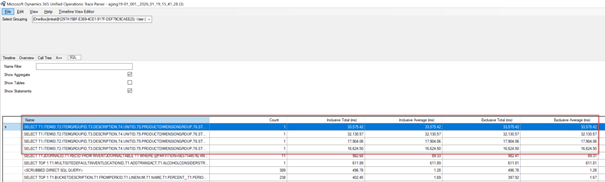
Start by collecting a trace from the slow area of the system using the Dynamics 365 Finance and Operations Trace Parser.
Once the trace is generated:
- Identify the operations with the longest execution time
- Extract the SQL queries responsible for the slowdown
These are the queries we’ll analyze next.
Step 2: Analyze the Query in SQL Server
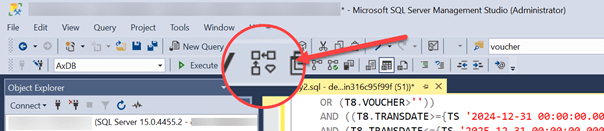
Copy the time‑consuming SQL query and paste it directly into SQL Server Management Studio (SSMS).
Then:
- Enable Display Estimated Execution Plan
- Run the query
SQL Server will now analyze the execution strategy without actually executing the query.
Step 3: Review Missing Index Suggestions
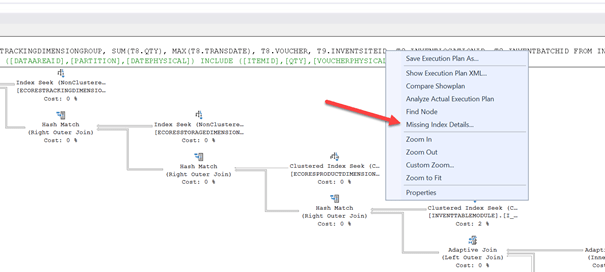
In the execution plan, look for the Missing Index warning.
- Right‑click on the missing index text
- Select Missing Index Details…
This opens SQL Server’s recommendation window.
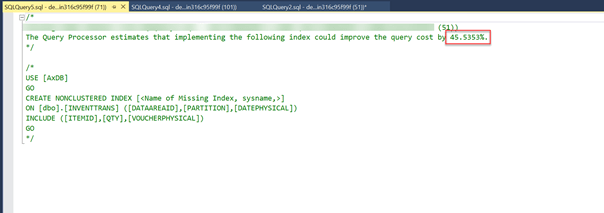
Here you can clearly see:
- Which columns should be indexed
- Which columns should be included
- The estimated performance improvement
Step 4: Apply the Index in Visual Studio
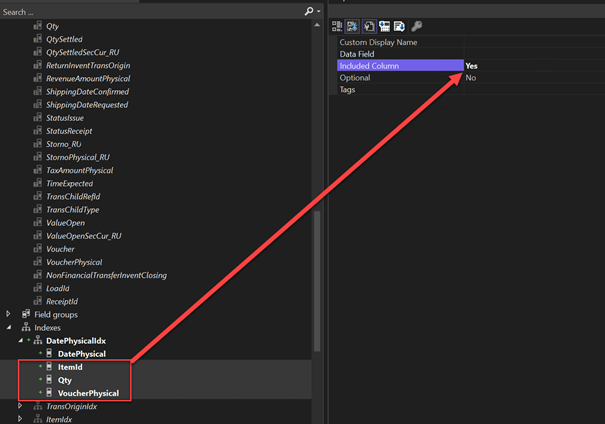
Once you understand the recommendation, you can implement it properly inside Visual Studio.
In this case, the suggested index included:
- ItemId
- Qty
- VoucherPhysical
These fields were added as included columns, exactly as SQL Server recommended.
Always remember:
- Review index suggestions carefully
- Avoid blindly creating indexes
- Validate the impact in test environments first
Final Thoughts
This simple technique can quickly reveal performance wins that are often overlooked. When used correctly, it gives you a data‑driven way to justify index creation — backed directly by SQL Server’s own cost analysis.
 D365FOAdviceTips
Leave a comment