
- Introduction
- Why set up a Sales Order Agent in D365 Finance?
- Use Case
- Architecture
- Prerequisites
- Installation
- Billing
- Monitor the agent
- Test the agent
- Sales Order Agent Components
- Limitations and constraints
- Conclusion
Introduction
The Sales Order Agent developed by the Microsoft FastTrack team is a standalone agent designed to automate end-to-end customer order processing in Dynamics 365 Finance & Operations. This agent leverages Copilot Studio, AI Builder (GPT), Dataverse and Dynamics 365 native connectors to transform a historically manual, time-consuming and error-prone process into a digitalized, intelligent and supervised workflow.
The agent is able to:
- Automatically read incoming emails containing attached purchase orders.
- Extract data from a PDF or an image via custom AI Builder prompts.
- Validate clients and products directly in Dynamics 365 Finance & Operations.
- Automatically create headers and command lines in D365 Finance & Operations, without human intervention when no exception is detected.
- Manage exceptions with a ‘human-in-the-loop’ process, allowing supervision and manual validation if necessary.
This solution is provided in the GitHub FastTrack Implementation Assets as a ready-to-deploy agent that can be modified or extended depending on business needs. It includes an orchestrator, specialized flows (parse document, validate customer, validate products), Dataverse components and installation instructions.
Why set up a Sales Order Agent in D365 Finance?
1. Eliminate manual and repetitive tasks: Companies still receive a large part of their orders via email, often in the form of PDFs or images. Manual processing involves extraction, data verification and input—a slow and error-prone process. The agent replaces this work with an automated and reliable flow.
2. Improve data quality and reliability: Thanks to the automatic validation of clients and products in D365 Finance & Operations, the agent significantly reduces the risk of errors or inconsistencies in the ERP system.
3. Speed up order taking: The agent processes incoming emails in a few seconds, which allows:
- superior responsiveness towards customers,
- a reduction in order confirmation times,
- a smooth processing even in case of peaks of activity.
4. Reduce operational costs: Automation helps reduce the burden on teams of administrative tasks to refocus them on:
- the customer relationship,
- the analysis,
- the activities with high added value.
5. Provide full governance and traceability: Each step is plotted in Dataverse, including:
- the original email,
- the extracted data,
- the automatic and human actions,
which facilitates internal audits.
6. Align with the Microsoft Copilot-first vision
- infuse AI into ERP processes,
- reduce the ‘digital debt’,
- increase productivity and user satisfaction.
Use Case
Sales Order Agent is an autonomous agent for processing sales orders received via email attachments, validating customer and product data, and creating orders in Dynamics 365 finance and operation apps with minimal human intervention.
- Email received with attachments in personal or shared mailbox
- Each attachment and the extracted data saves to Dataverse
- After validating the customer and products, the sales order gets created in Dynamics 365 and a notification is also sent
Architecture
Solution Capabilities
- Autonomous Email Processing: Monitors mailbox for email attachments
- AI-Powered Document Parsing: Extracts structured data from PDF/image attachments
- ERP Integration: Validates customers/products and creates orders in ERP
- Exception Handling: Routes items requiring manual review
- Automated Notifications: Sends processing status updates
- Supported File Types: PDF documents, image files (JPG, PNG, etc.)
Flow
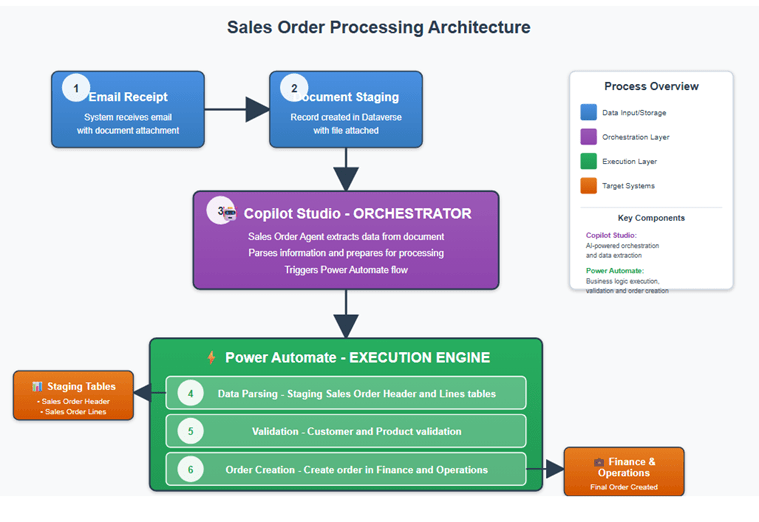
- Email Receipt : System receives email with document attachment
- Document Staging: Record Created in Datavers with File Attached
- Data Extraction: Sales Order Agent extracts data
- Data Parsing: Sales Order Agent parses data into staging Sales order Header and lines Tables
- Validation: Sales Order Agent validates customer product
- Order Creation: Sales Order Agent creates order in D365 Finance
Prerequisites
- Connected Dataverse environment with an environment with finance and operations apps. To confirm this, you can check in the Power Platform Admin Portal for a given environment that there is a corresponding link to Dynamics 365.
- The user who installs the Sales Order Agent solution must be a licensed user in Dynamics 365.
- Dataverse virtual tables enabled: Released products V2 (mserp), Customers V3 (mserp)..
- Sales Order agent solution imported and agent configured as indicated in the next section.
- System Administrator role for solution import and agent configuration.
- Manual Reviewers should be assigned the Sales Order Agent Reviewer security role after the solution is imported.
- During solution import, ensure to provide values for either a personal mailbox or a shared mailbox to monitor, the mailbox folder to monitor, the company code (for the sample file you can use usmf) and a reviewer email address. After solution import, the corresponding environment variables can be updated from the context of an unmanaged solution.
- Please ensure that the environment where the agent is running either has Copilot Studio credits assigned, or there is a pay as you go billing plan in place..
If you require to monitor other folders than Inbox, please ensure there is a rule in place to route the emails automatically to the respective folder. For example, for a subfolder SalesOrder, you’d need to provide the value Inbox/SalesOrder for the folder to monitor.
Installation
Import Solution
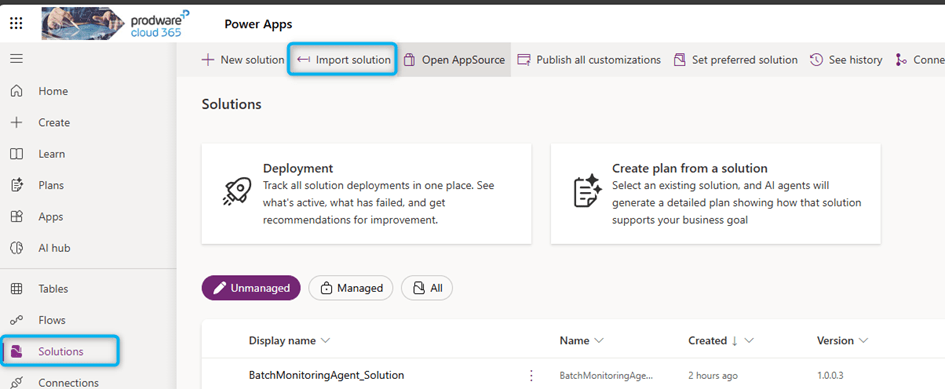
- Import Solution: Import the Sales Order Agent solution from the Solutions folder and please consider the following to make the agent work for your specific needs and data: https://github.com/microsoft/Dynamics-365-FastTrack-Implementation-Assets/tree/master/Agents/AI%20ERP%20Agents/Sales%20Order%20Agent/Solutions
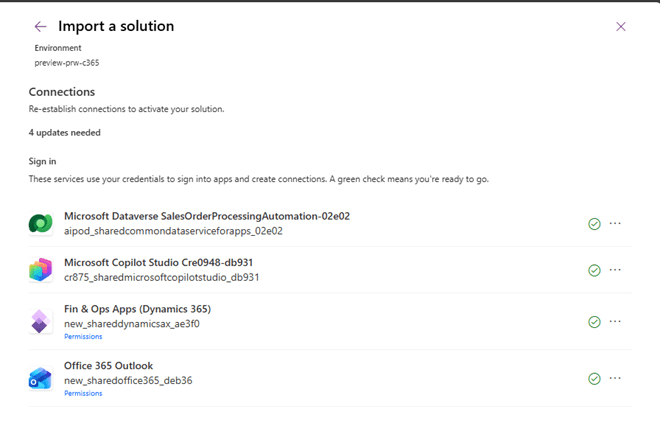
- Create the connections for Power Automate flows access systems using the least privileged accounts or a service principal where possible.
- Update the environment variables – when importing the solution you should provide a mailbox to monitor for incoming sales orders attachments. You can choose a shared and/or personal mailbox. Ensure to provide email address for the reviewer mailbox and the company code.
- By default only pdf attachments are processed. If you’d like to process images as well, set ProcessImagesAttachments variable to Yes.
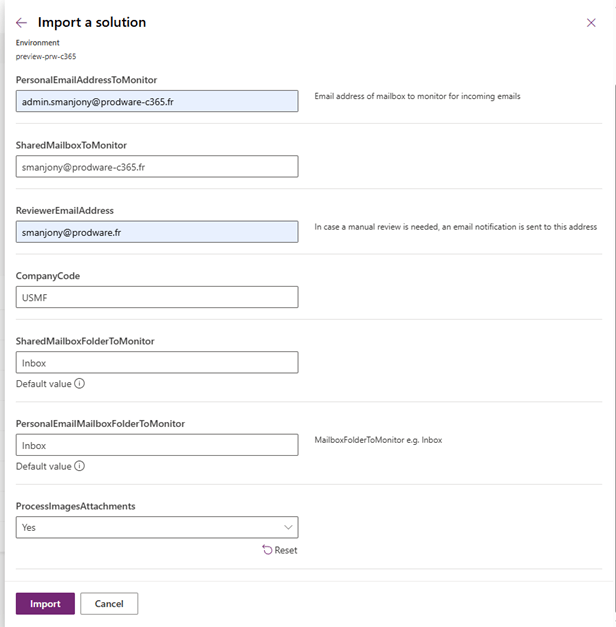
- Click on the import button. Wait for the solution to be imported

Update Flows
- Update the Finance and Operation instance – This step is required for the flow to integrate with your ERP instance. Navigate to make.powerautomate.com, select the relevant environment and from the list of flows, open the flow SOA V3 – Create Order in ERP. Click on the flow and then Edit – this should open the flow in the Power Automate designer.
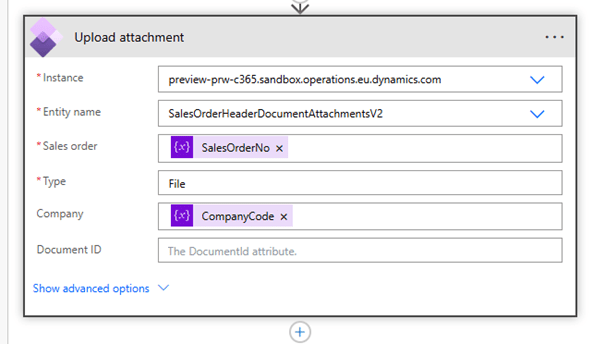
- Open the condition if the ERP Sales Order was not created and edit the ERP instance for these 2 actions: Create Sales Order Header in ERP and Upload attachment
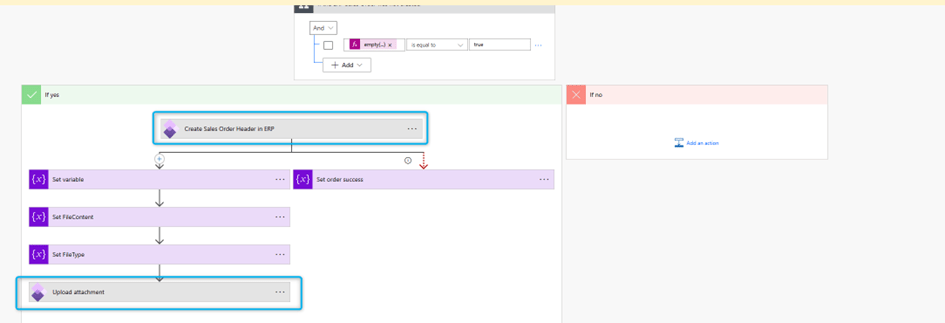
- Change the instance and wait for a few seconds for the change to be processed.
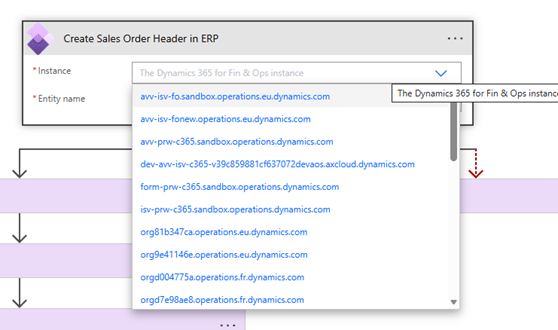
- Please double-check post-change that the input parameters have kept their values.
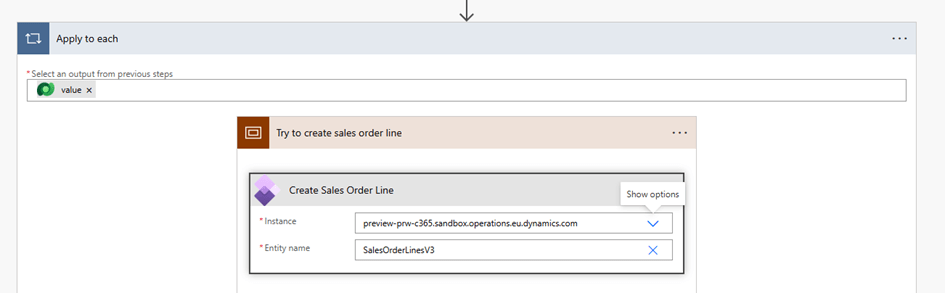
- Open Apply to each- > Try to create sales order line and change the ERP instance for Create Sales Order Line action as well and wait for the ERP instance update to complete and to observe the input parameters keeping their values.
- Save your flow changes.
If the flow is not editable, go back to the Flow main page, refresh it, then try to open again the Editor Page.
Expand flow
Customer validation – Sales order agent validates customer name, and if not found, will search using the email address if available in the document. The agent flows validating the customer depends on the json extracted to contain the column deliverycustomername, deliverycustomeremail. Consider if this is necessary for your organization, and update as needed e.g. identifying customer by VAT Number if its provided – if you’d like to change the customer validation criteria, ensure to update the AI Builder extraction prompt to collect the required fields,create Dataverse column to store the VAT Number in the Staging Sales Order Header table, update the LoadSalesOrderData flow to populate the new column from the extracted JSON, and SOA V3 – Validate Customer agent flow to use the VAT Number for customer identification.
Products validation – Sales order agent validates the product codes, and if found, when creating the sales order lines it will use the extracted product code, quantity, and unit of measure. The agent flows depends on the json extracted to contain columns productcode, productquantity, productunitofmeasure. Similarly with the customer extraction, if you need to capture different columns with your prompt, you will need to update the AI Builder extraction prompt, create Dataverse columns in the Staging Sales Order Line table, and update LoadSalesOrderData flow and SOA V3 – Validate Products agent flow.
Publish Solution
- Open the solution and verify components and environment variables
- Then publish all customizations as indicated in the above image.
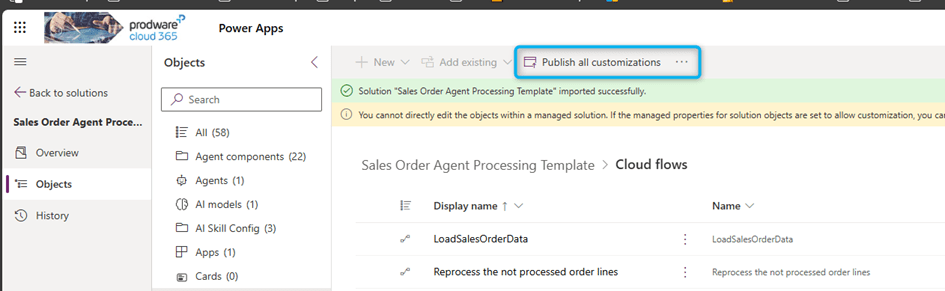
- This ensures the agent, flows, and connections are fully activated.
Verify Agent & Connections
- Open copilot studio and select the correct environment.
You should see “SalesOrderAgent.”

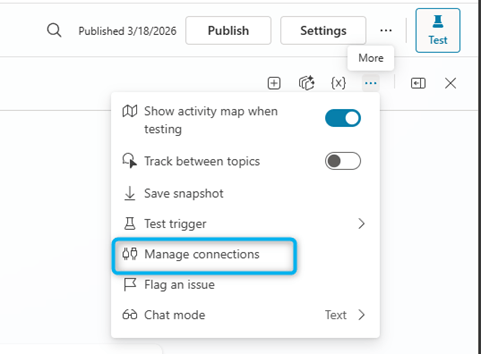
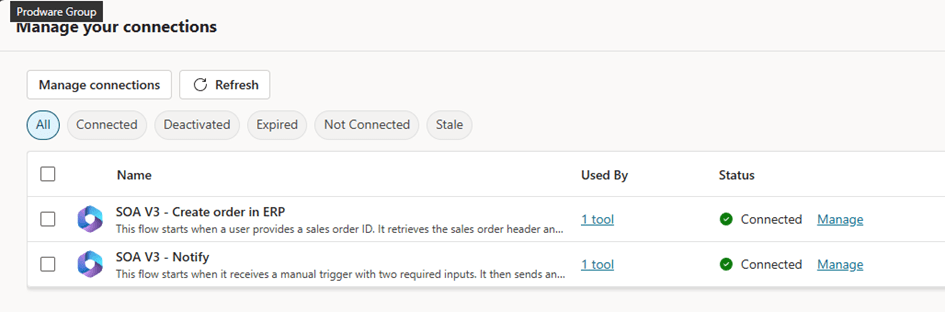
- In the test pane, choose Manage connections to confirm everything is properly linked.
- Ensure all are Connected; create missing ones if needed.
- Publish the Sales Order Agent and press Publish button

Enable Channels
Go to Channels and enable Teams and Microsoft 365 channels.
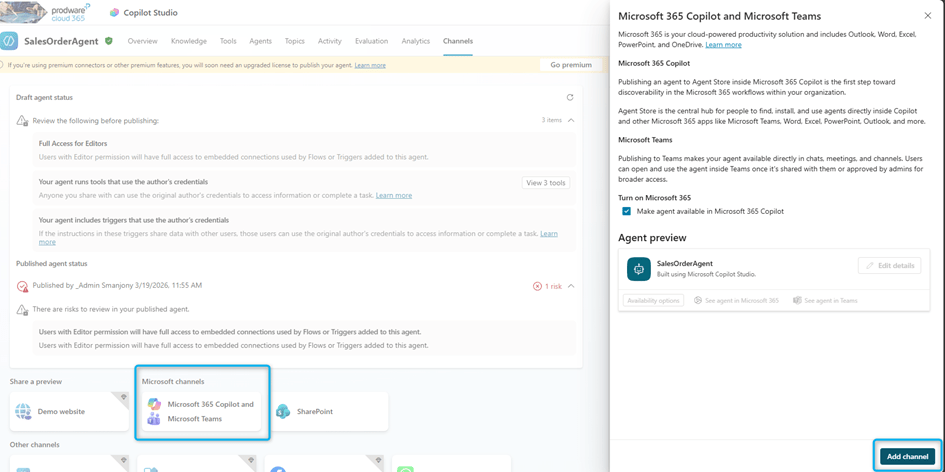
Republish After Changes
If you modify any of the following, republish the agent (Do this any time you modify the agent):
- Topics
- Instructions
- Switch model to Chat GPT-5
- Add triggers
- Add MCP tools or connectors
Billing
The agent is going to consume Copilot Studio credits – depending on the complexity and size of the documents parsed it can consume around 30 to 80 credits (1 credit = 0.01$) per attachment processed.
Please ensure that the environment where the agent is running either has Copilot Studio credits assigned, or there is a pay as you go billing plan in place.
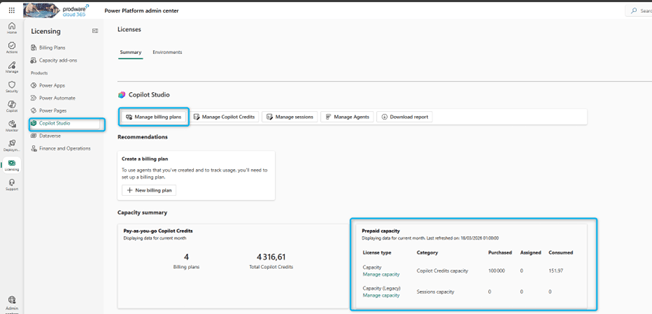
Monitor the agent
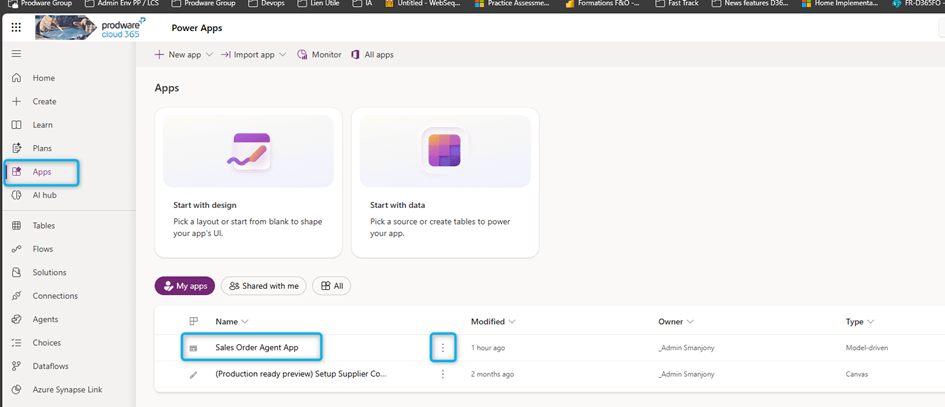
Using the Sales Order Agent App – in order to access the monitoring app, you can open make.powerapps.com, select the environment where you installed the Sales Order Agent solution, then select Apps from the left-side options, select Sales Order Agent App then Play button from the ribbon.


Test the agent
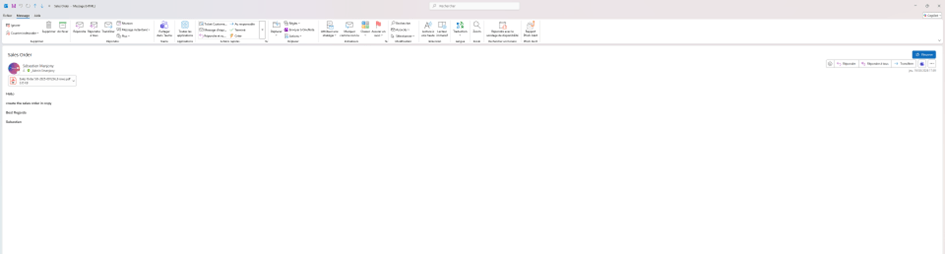
Send an email with attachment to the configured mailbox address.
Sample document – You can use the test pdf document for testing if you have the sample data available in your Finance and Operations environment. Company Code should be usmf and the products 1000, A0001 should have default order settings (Site and Warehouse) configured. https://github.com/microsoft/Dynamics-365-FastTrack-Implementation-Assets/tree/master/Agents/AI%20ERP%20Agents/Sales%20Order%20Agent/Solutions
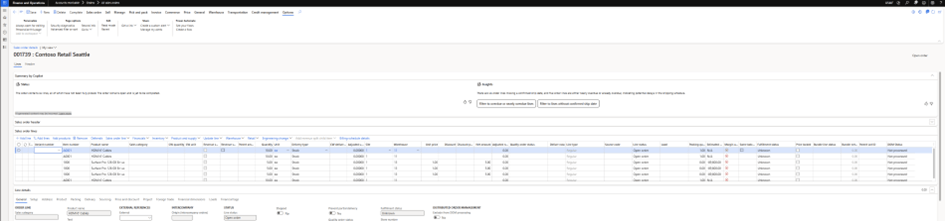
I sent an email with a pdf to create a sales order. The agent independently scanned the mailbox, parsed the document, checked the items and customers, and created the sales order.
Sales Order Agent Components
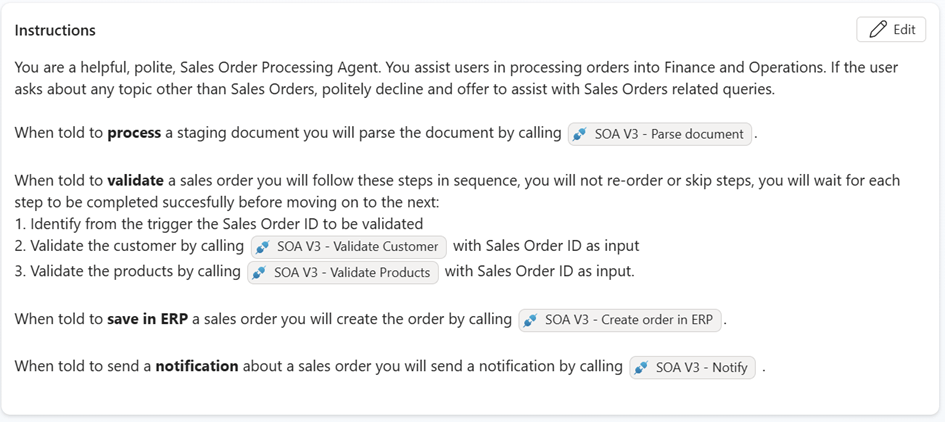
The agent orchestrates the entire sales order processing workflow, invokes appropriate agent flows based on the staging record processing status, and handles error scenarios and routing.
Agent Instructions
Instructions are created with the agent :
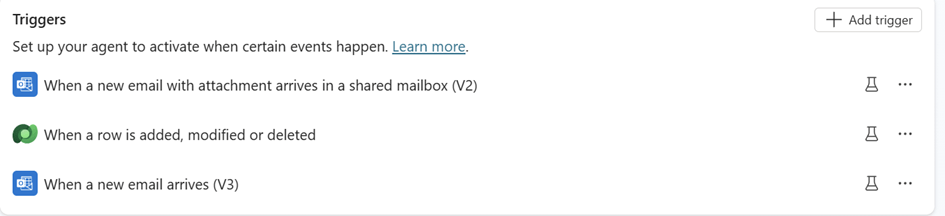
Triggers
- Dataverse trigger for processing status updated
- Office 365 triggers for new emails into personal and shared mailbox
Agent flows
For implementing deterministic sales order specific validation rules, as well as sales order header and lines creation, several agent flows have been created:
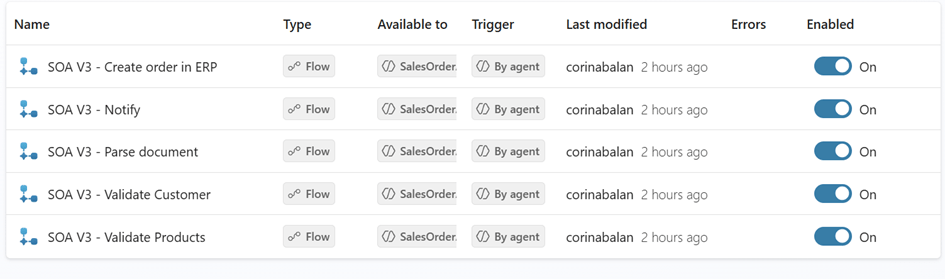
- Parse document – agent flow which uses AI Builder custom prompt to extract data from email attachment in JSON format.
- Validate customer – agent flow which tries to uniquely identify customer in Dynamics 365 using customer name or email.
- Validate products – agent flow which tries to uniquely identify the products in Dynamics 365 using product codes.
- Create order – agent flow which creates the sales orders in Finance and Operations.
- Notify – agent flow which sends emails when the sales orders are processed or need manual review.
- LoadSalesOrderData – flow which splits the extracted JSON into dedicated Dataverse tables.
- Update Processing Status to Valid – flow which updates processing status.
- Reprocess the not processed lines – flow which re-tries to proces any failed order lines.
Dataverse tables and custom app
- Sales Order Agent App – visible to users with Sales Order reviewer, sys admin or sys customizer security roles.
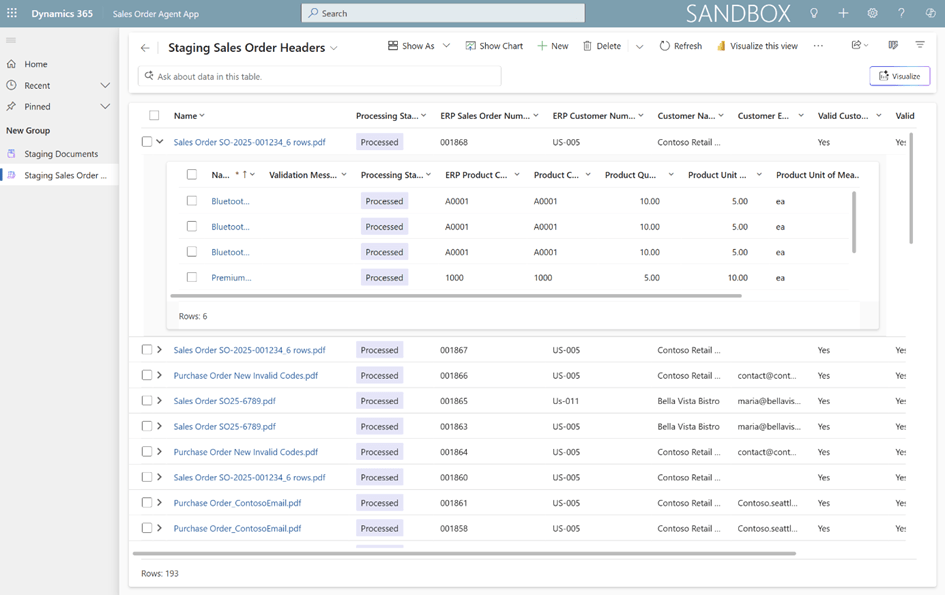
- Staging Document – stores email attachments and extracted data.
- Staging Sales Order Header – stores header level data, customer information.
- Staging Sales Order Lines – stores line level data, product codes, product details.
If you require to capture additional columns e.g. VAT Number, you’d need to include the columns in the AI Builder data extraction prompt, also create a new Dataverse column in the staging sales order header and/or lines tables depending on where the data should be stored, and ensure to include in the LoadSalesOrderData flow an update to load the newly added columns from the extracted JSON into the relevant Dataverse table.
AI Builder Prompt
Limitations and constraints
- The processing of email attachments, the extracted sales order data validations and processing are asyncronous operations.
- The agent is going to consume Copilot Studio credits. Depending on the complexity and size of the documents parsed it can consume around 30 to 80 credits (1 credit = 0.01$) per attachment processed.
- The agent only processes the email attachments: pdf by default, and optionally also images (png,jpeg,jpg) (controlled with environment variable)
- The agent uses AI Builder custom GPT prompts for document extraction. The GPT prompts support documents with less than 50 pages: https://learn.microsoft.com/en-us/ai-builder/add-inputs-prompt#limitations
- The agent uses Office 365 connectors for monitoring the mailboxes: https://learn.microsoft.com/en-us/connectors/office365/#limits
- Copilot Studio limitations: https://learn.microsoft.com/en-us/microsoft-copilot-studio/requirements-quotas
Conclusion
The Sales Order Agent FastTrack is a powerful accelerator for any business that wants to modernize order taking in Dynamics 365 Finance. Thanks to intelligent automation, integrated ERP validation and optional human supervision, it transforms a manual flow into a fluid, precise, auditable and highly scalable process.
It is also an excellent reference base to build your own F&O agents on Copilot Studio, reusing the architecture, flows, prompts and patterns proposed by Microsoft FastTrack.
 D365FOAdviceTips
Leave a comment