- Environments Provisioning
- Install the application on an existing environment
- Update the application to a newer version
The finance and Operation applications have been redesigned as a Microsoft Dataverse hosted application. It is possible to provision the Finance and Operation applications directly in the Dynamics 365 platform. Additionally, most administrative actions in Power Platform are available through the administration center and an API-based experience.
Environments Provisioning
Provisioning a new environment is much easier in the power platform administration center than in LCS. This is possible from the user interface.
If these environments are to be deployed by partners, it is necessary to set up what are called delegated administrative privileges. Your partner will then be able to deploy the environments on your tenant. In this environment based on Dataverse you can deploy any application: Sales, SCM, Finance.
For example, when deploying a Finance and Operations application environment you must have a license of Dynamics 365 Finance or Dynamics 365 Supply Chain Management for customers and Dynamics 365 Operations Application Partner Sandbox for partners. This license must be assigned by your licensing administrator to your user account in Microsoft Entra.
The easiest way to set up and run finance and operations applications in the Power Platform is to create a new environment using a model.
The other option is to do it via Power Shell scripts: When you have a large number of environments to deploy another way is to use PowerShell to deploy them in parallel. You can also use the service principles if you do not want to use individual accounts for service accounts.
Create a new environment via templates
A model is a set of applications published by Microsoft and preinstalled in a Power Platform environment. Templates allow you to quickly deploy an environment with application configuration without having to manually install each application in a defined sequence. When you use a template, you always get the latest version for every application available at that time.
For now, it is only possible to create trial environments via the user interface.

When you create a new environment in the Power Platform admin center, you can select Enable Dynamics 365 apps. A list of environment templates will then be available under Automatically deploy these apps.
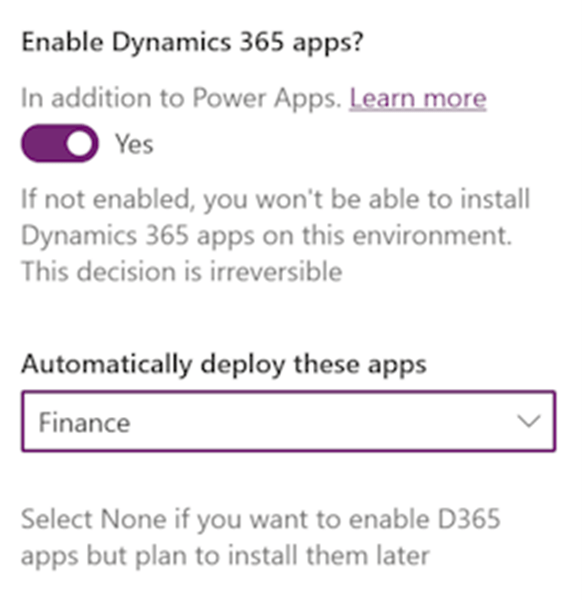
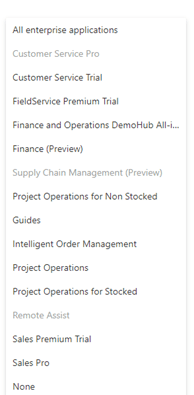
This list is dynamic, so you see that the references to Finance, Supply Chain Management, Commerce, Project Operations based on the licenses assigned to the administrator creating the environment.
For example, for the Finance and Operations applications you need a license for Dynamics 365 Finance or Dynamics 365 Supply Chain Management for customers and Dynamics 365 Operations Application Partner Sandbox for partners. This license must be assigned by your licensing administrator to your user account in Microsoft Entra.
To create a new environment, click on New:
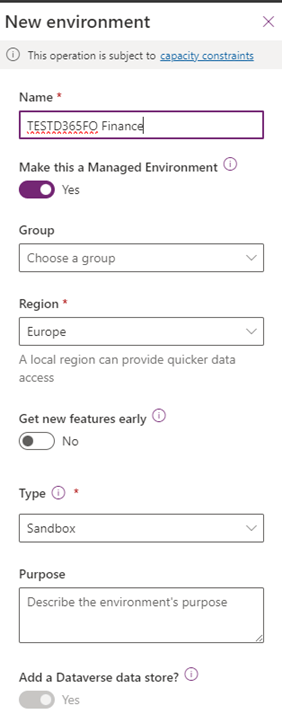
Then enter a Name, Region, and type:
And then use the Finance template:
Your environment has two runtime URLs:
- An application for customer engagement (URL of the environment)
- An application for finance and operations (URL Finance and Operations)
Power Shell
First, you need to make sure the administrator has the right role and license. From a role perspective, there are two roles, mainly the Dynamics 365 platform administrator or the power platform administrator.
And on the license side, the administrator user must have a Finance or SCM license. And another thing is needed before you deploy is capacity: You may need to buy capacity, or you may get capacity based on new user licenses purchased. It is no longer necessary to buy Tier 2, 3, 4 and 5 but capacity and then the power of your environment will be then through the licenses assigned to your environment.
With PowerShell you can create multiple environments on the fly. In JSON, some options are important:
- DevtoolsEnabled = True / False. This option allows you to define whether we create a sandbox or a development environment. This is not modifiable afterwards. So, if you want to create a sandbox, set it to False.
- The Template option allows you to define whether we use a Finance or SCM template.
- The DomainName option allows you to define the unique environment name. The name of the environment does not guarantee the URL of the environment.
- The LocationName defines the region where you can deploy the environment. Through the command Get-AdminPowerAppEnvironmentLocation we can have all regions.
If you create the environment via PowerShell, it will always be deployed with the latest update service and quality update.
So, to install an environment, you must first open PowerShell in Admin mode. You can have an environment with D365FO applications, demo data, a developer environment, or a sandbox.
All Commands:
#Install the module
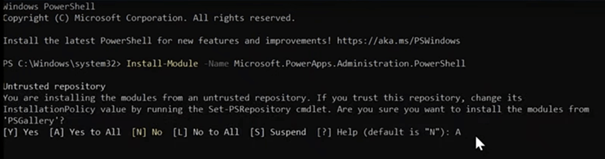
Install-Module -Name Microsoft.PowerApps.Administration.PowerShell
Write-Host “Creating a session against the Power Platform API”
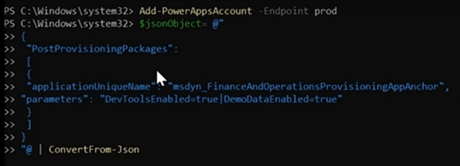
Add-PowerAppsAccount -Endpoint prod
#To construct the json object to pass in
$jsonObject= @”
{
“PostProvisioningPackages”:
[
{
“applicationUniqueName”: “msdyn_FinanceAndOperationsProvisioningAppAnchor”,
“parameters”: “DevToolsEnabled=true|DemoDataEnabled=true”
}
]
}
“@ | ConvertFrom-Json
# To kick off new environment Provisionment
# IMPORTANT – This has to be a single line, after the copy & paste the command
New-AdminPowerAppEnvironment -DisplayName “MyUniqueNameHere” -EnvironmentSku Sandbox -Templates “D365_FinOps_Finance” -TemplateMetadata $jsonObject -LocationName “Canada” -ProvisionDatabase
The first command is to install the Power apps module. You say yes to all, for all installed components.
After that, we need to use the command for creating sessions with the power platform API. This command adds the Admin account that will be used to deploy this environment. The account that must have the Admin role is the Dynamics 365 administrator or the Power Platform administrator.

The next step is to define the JSON object:
And then set the parameters:

It will take about 40 minutes, 50 minutes to deploy. The environment is created with its CRM URL, and the D365FO URL. Once the environment is created, users must be added from the user interface. For now, it is necessary to do both sides Power Platform and D365FO, this feature will be added in the coming months that will allow system administrators to automatically synchronize Dataverse roles with those of Finance and Operations
Install the application on an existing environment
Now suppose you have an environment in the Power Platform Admin Center. This is a Dataverse environment, you must install the Finance and Operations application on that environment. It can be a Sales environment, customer service. You need to install two applications. One is called Dynamics 365 Finance Operations platform tools and the other is provisioning application.
It will be possible to activate the development tools. If you want a development environment you must check the box. Otherwise, it will create as sandbox. You can select the version to install, it will display the last three versions. So, if you do not want to install the latest version, it is at this level that it is feasible. You can select previous versions of the product to install. You can select demonstration data.

The environment you are using must support Dynamics 365 applications. As part of the installation process, you can select one of the supported versions. This flexibility is useful if you want to use a version that is not the latest GA release.

If you try to complete the installation without enabling the Enable Dynamics 365 Applications option, you receive an error such as “Dynamics 365 Finance and Operations provisioning application is not supported on SchemaType: Standard”. The schema is not a visible property in the Power Platform Admin Center and cannot be modified once the environment has been created.
You must install the platform tools application before installing the provisioning application. If you do not install the platform’s Tools application first, you will receive an error such as “Please install the Dynamics 365 Finance and Operations Platform Tools application before installing the Dynamics 365 Finance and Operations provisioning application.”
You must have a license to install Finance and Operation applications in Power Platform. Examples of licenses:
- Dynamics 365 Finance
- Dynamics 365 Supply Chain Management for customers
- Dynamics 365 Operations Application Partner Sandbox for partners
- Your license administrator must assign the license to your user account in Microsoft Entra.
- Have at least 1 GB of available Operations and Dataverse database capabilities.
To install on an environment, perform the following steps.
- Log in to the Power Platform admin center.
- In the navigation pane, select Environments. The list of environments page is displayed.
- Select an environment that meets the prerequisite criteria.
- On the environment details page, on the Resources map, select Dynamics 365 Applications.
- Select Install application.
- Select Dynamics 365 Finance and Operations Platform Tools. This application provides platform support for the installation of ERP-based applications. It must be installed before proceeding to the next step. If you have multiple licenses for this application, there may be multiple entries for the same application. In this case, select any entry with the status On. Then select Next.
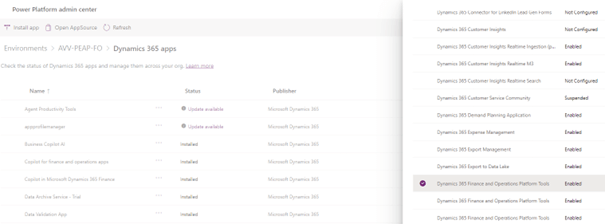
- Accept the terms and conditions, then select Install to start the installation. Wait for the installation to complete before proceeding to the next step. After the installation is complete, the value in the Status column changes from Installation in progress to Installed.
- Select Install application.
- Select Dynamics 365 Finance and Operations Provisioning Apps. This application provides the functionality of Finance and Operation applications for Dynamics 365 Finance, Supply Chain Management, Project Operations, Human Resources and Commerce workloads. If you have multiple licenses for this application, there may be multiple entries for the same application. In this case, select any entry whose status is Configured. Then select Next.

- Select OK to open the provisioning application setup configuration page.
- On the Provisioning Application page of Dynamics 365 Finance and Operations, define the following fields to configure the application:
- Enable developer tools for Finance and Operations: Check this box to get a sandbox environment enabled for developers in which you can connect Visual Studio and make X++ changes. If you leave this box unchecked, you get a standard sandbox or production environment.
- Enable demo data for Finance and operations: Select this checkbox to deploy the standard Contoso demo data with your application.
- Select the version of the product to install: You can select one of the supported versions available for installation.

- Accept the terms and conditions, then select Install to start the installation. Installation takes about an hour. While the installation is still in progress, the status of the Finance and Operations Provisioning application is displayed as Installation in progress.
Update the application to a newer version
On your environments you will want to install the services updates or quality updates. You access the Dynamics 365 applications under resources and find your provisioning application. There is a new manage button.
- Log in to the Power Platform Admin Center.
- In the navigation pane, select Environments. The list of environments page is displayed.
- Select an environment where the Finance and Operations Provisioning application is already installed.
- On the environment details page, on the Resources map, select Dynamics 365 Applications.
- Select the check box next to Dynamics 365 Finance and Operations Provisioning App, select the More Application Actions button (…), then select Manage. If the Manage command is not available, you run the latest version and no updates are available.
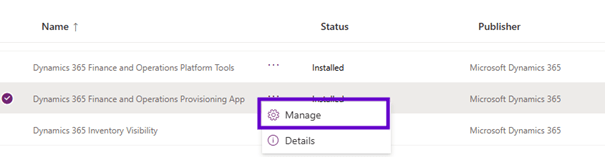
- A message box informs you that you are about to go to a new page where you can manage the Finance and Operations Provisioning application. Select OK.

- The Dynamics 365 Finance and Operations provisioning application update experience page opens in a new browser tab or window. From the drop-down list, select a new version of the application. The drop-down list only includes versions that are later than the currently installed version. If no version is listed, the current version of your environment is the most recent version.
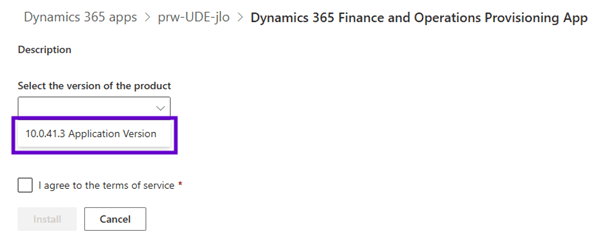
- Accept the terms and conditions, then select Install to start the update.
The update takes about an hour. While the update is still in progress, the status of the Finance and Operations Provisioning application is displayed as Installation in progress.
This is a new way to update quality service updates or updates on the existing environment.
If you click on the CRM URL, there is a new application Finance & Operation Package Manager. If you click on it, there is an Operation History menu. This option lists your application history.

You can also see detailed logs of how this update went.
 D365FOAdviceTips
Leave a comment