
- Start
- Summary of the project
- Project profile
- Implementation guidance
- Information on the telemetry
- Administrator
- Perform project reviews
When you integrate an implementation project into the Dynamics 365 Implementation Portal, the following features can help you manage your project.
- Manage project details.
- Manage project users.
- Project profile by selecting products, features, and other characteristics.
- Consult the implementation guidance adapted to your project profile.
- Display telemetry information (if applicable/available)
Start
To start managing an implementation project, follow these steps.
- Log in to the Dynamics 365 Implementation Portal using your work account or your personal Microsoft account.
- In the navigation panel on the left side, select Projects.
- Choose the project you wish to manage.

Summary of the project
The Summary tab on Project Page allows you to perform the following tasks:
- Display and update key details such as project name, implementation partner, project phase, products involved and country or region where the implementation team is located.

Some fields are not editable, such as the LCS Go-Live date and LCS ID (for projects with finance and operations applications), Tenant ID (for all projects). Instead, they are linked to the project in the backend.
To change the Go-Live date, update it in the LCS Milestone under the Go-Live date Deployment Methodology. Once you have updated the Go-Live date in Dynamics 365 Lifecycle Services, it will be reflected in the implementation portal within one day.
- Create project reviews or open an active project review.
- Consult the implementation guidance adapted to your project based on the project profile.
- Display telemetry information if it is enabled/approved for your project.

Project profile
Use the project profile to specify the implementation project products and features, their capabilities, and other characteristics.
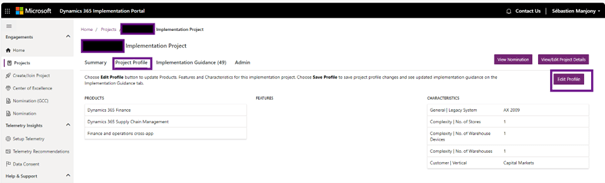
Update the project profile in the Project Summary tab or in the Project Profile tab.
The Summary tab collects information about features you are implementing or plan to implement, as well as other features.
The Project Profile tab gives you an overview of all the details of the project. You can switch between read-only and editable views from the Project profile tab.
When you select a product, the page displays the capabilities of the product.
To save your changes, select the Done action. A notification at the top of the page tells you that implementation recommendations are based on your changes.
When the message Recommendations have been generated successfully appears, choose the Implementation Recommendations tab to display updated recommendations.
Implementation guidance
The implementation guidance is intended to provide the right information at the right time for each implementation project. Each time you update the project details or profile, the implementation guidance is updated.
Implementation guidance is presented in two places on the project page:
- The Summary tab displays the most important recommendations.
- The Implementation guidance tab displays all implementation guidance for your project.
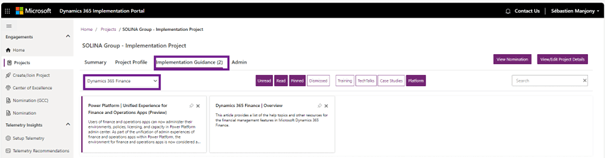
You can interact with the guidance in the following ways:
- Select a card to open the link or article.
- Pin a card to save the link to the Implementation Guidance tab.
- Select Pinned to display the tips you pinned.
- Delete a card.
- Select Dismiss to view the items you have rejected.
The Implementation guidance tab includes the following features:
- A product filter helps you find relevant articles if you have multiple products.
- If features are selected in the project profile, you can also filter the guidance by feature.
- The search field searches all generated guidance using the keywords you enter.
- Select guidance by type, including TechTalks, training materials, case studies and platform level guidance.
Information on the telemetry
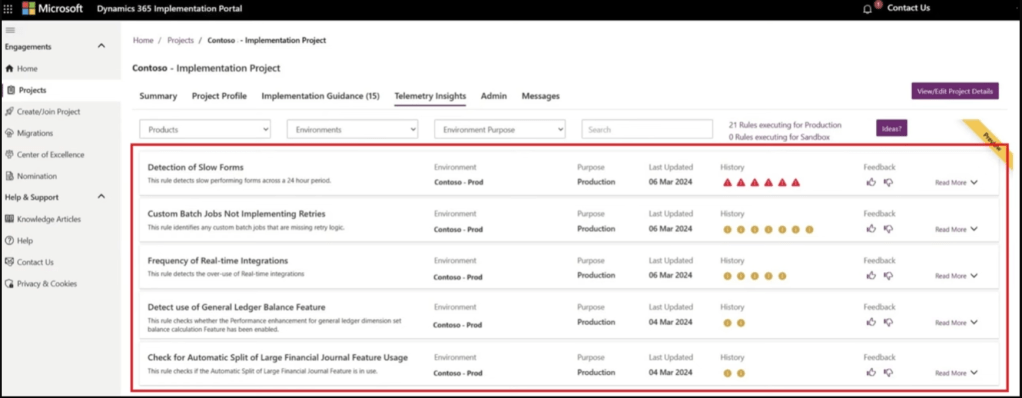
This tab is visible for all projects created with the integration wizard. Telemetry information detects optimization opportunities and provides practical guidance based on usage patterns in customer environments.
Administrator
Project users
You can set users:
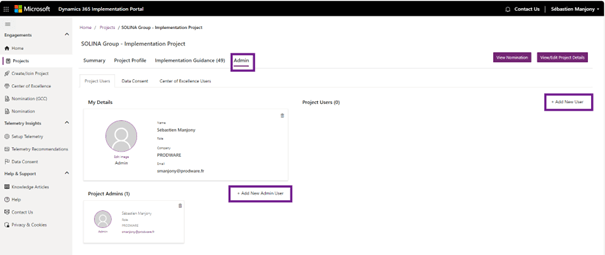
- Project Users: Users who are part of the project and can view/edit the details of the Project.
- Project Admins: Users who have administrative access to perform actions such as Add/Remove users and admins from the project.
Project administrators can perform the following actions:
- Select Add new user to join a project user to the project.
- Select Add new admin user to join a project admin to the project.
- Select Delete (the trash icon on the user card) to remove a user or administrator from the project.
- Select Set as admin to make a project user an admin.
Consent to data
The customer’s consent to data sharing (if applicable) for the given project.

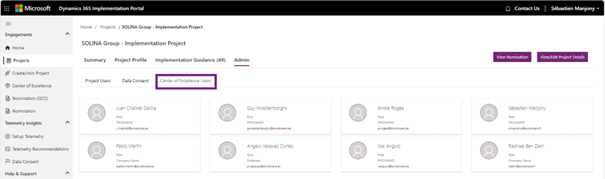
Centre of Excellence
If the current user is part of the Centre of Excellence (CoE) partner team as part of the Partner Portfolio engagement. This section displays the other CoE users who are part of the project.
Perform project reviews
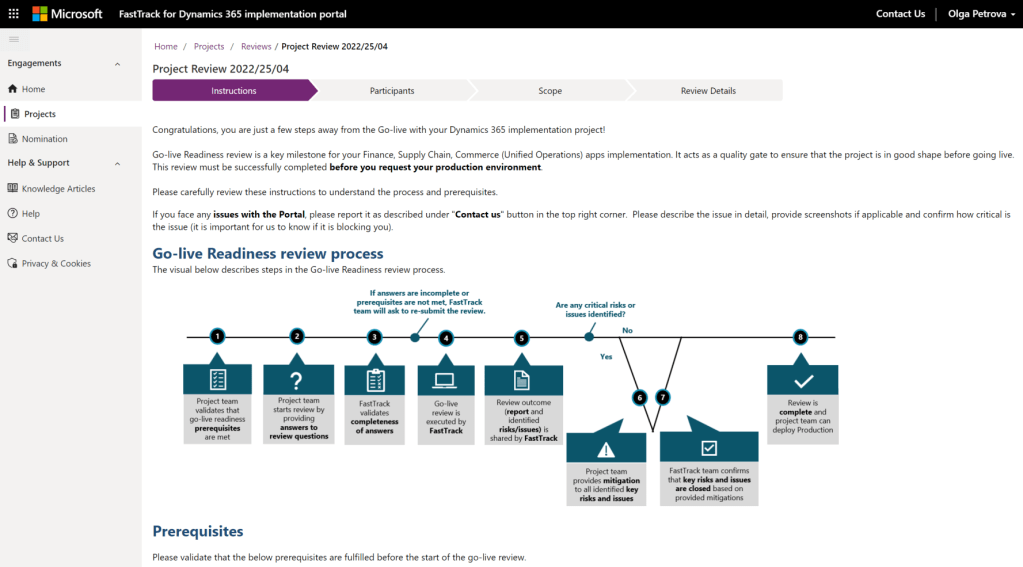
Once your project is set up, you can proceed to project reviews. The final project review is the FastTrack team’s go-live Readiness Review .
All finance and operations application implementation projects must undergo a readiness for go-live review with Microsoft before the production environment can be deployed. After reviewing the project based on the implementation portal information, the FastTrack team provides a report that outlines potential risks, best practices, and recommendations for successful go live. The review may take up to three business days for the initial report, plus time required for any risk mitigation.
Status of the evaluation
Notices may have the following status:
- Planned: A review is ready for the project team to begin providing answers to FastTrack team questions.
- Discover: The project team provides answers to questions.
- In–review: FastTrack team reviews project team responses to questions, analyzes results and determines recommendations.
- Mitigation: FastTrack team has shared review results with project team and is awaiting confirmation that the project team addressed critical risks and issues.
- Complete: The go-live Readiness Review is complete. Microsoft activates the production environment location in Dynamics 365 Lifecycle Services and the project team can deploy the production environment.
Messages
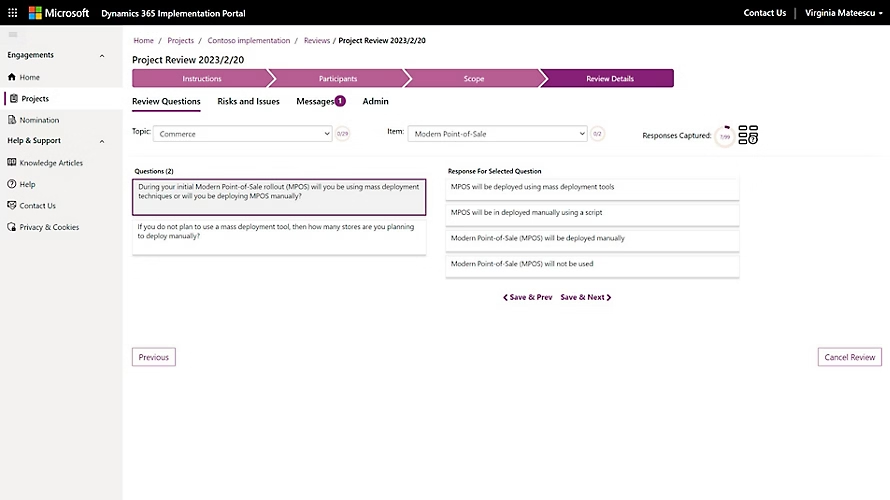
During the go-live Readiness Review, the FastTrack team may contact project administrators who are not managed by FastTrack. The FastTrack team submits a message for each issue or risk, and administrators can provide responses in the Messages tab.
The Messages tab is located in two locations:
- In the Project Summary tab, the Messages tab lists all the messages related to the project.
- The Messages tab of a review record lists the messages related to the review or the risks and issues that were identified as part of the review.
Messages are only made available on the portal after an initial message is sent by the FastTrack team. This feature is not enabled in all projects during the early phases of the implementation process.
 D365FOAdviceTips
Leave a comment