
- Understanding virtual entities
- Enable virtual entities in Dataverse
- Checking the configuration of your virtual entities
- Conclusion
D365 Finance offers powerful integration capabilities with other Microsoft platforms, including virtual entities. These entities provide real-time access to D365 Finance data directly in Dataverse and Power Platform, without duplicating data storage. They can be used for example in Copilot Studio as Knowledge for agents (preview functionality)
In this article I explain how to set up and use virtual entities effectively.
Understanding virtual entities
Virtual entities facilitate integration by making D365 Finance data accessible in Dataverse without being physically stored there. Instead, data remains active and up to date in D365 Finance, reducing duplication and storage costs. Virtual entities are essentially dynamic links, making D365 Finance data available for applications and automation within the Power Platform.
Why use virtual entities?
- Real-time integration: access data instantly, reflecting its current state in D365 Finance.
- Storage efficiency and optimization: avoid duplicate data storage costs.
- Simplified development: streamline integration without complex synchronization configurations.
- Complete CRUD operations: perform creation, read, update, and delete operations directly from the Dataverse and Power Platform applications.
Enable virtual entities in Dataverse
- Open the Power Platform administration center and select the Environments tab.
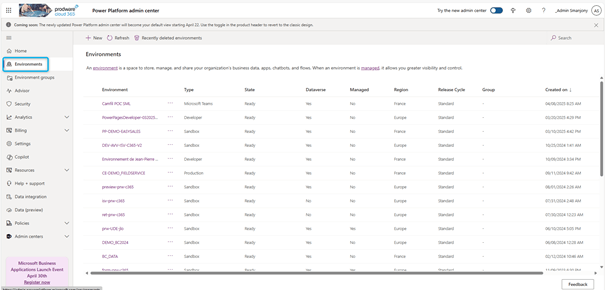
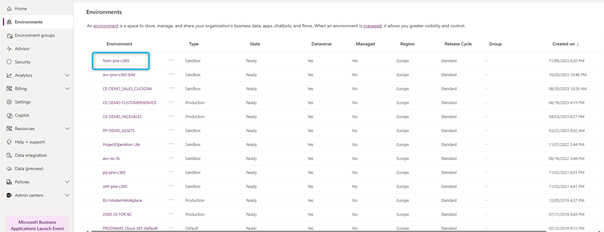
- Choose the environment related to your Dynamics 365 Finance instance.
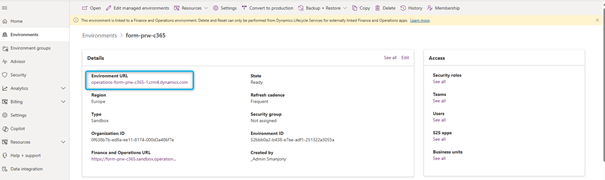
- • Click the environment URL in the details section to open the environment, then click the Advanced Search filter icon.
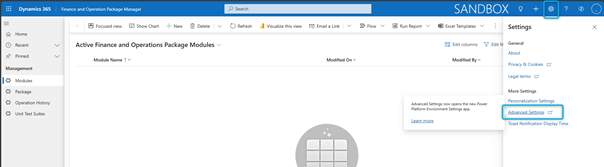
- And finally on the Filter icon:

- In the Find drop-down list, select Available Finance and Operations Entities, apply additional filters, if necessary, then click on Results.
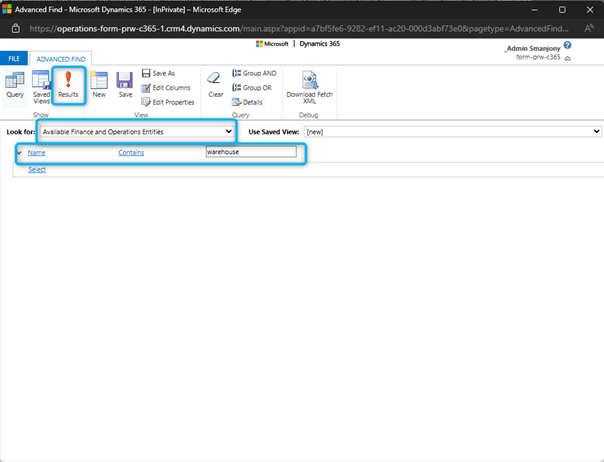
- Locate and open the entity you want to activate.

- Check the Visible box and save your changes.

You can force a refresh of a virtual entity’s metadata when you expect that the entity metadata in finance and operations apps has changed. To force a refresh, select the Refresh checkbox, and then save your change. The latest entity definition from finance and operations apps is synchronized to Dataverse, and the virtual entity is updated.
To disable a virtual entity and remove the virtual entity metadata from the Dataverse environment, clear the Visible checkbox.
You can track changes for finance and operations virtual tables in Dataverse if you have set for the data entity in D365 Finance the Allow Row Version Change Tracking Metadata property to Yes.
Checking the configuration of your virtual entities
To confirm that your virtual entities are properly configured:
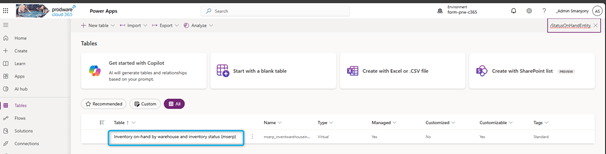
- Access tables in Power Apps and search for your virtual entity.
Conclusion
The implementation of virtual entities between D365 Finance and Dataverse simplifies data integration and allows for smooth, real-time synchronization between ERP and CRM systems for example. By following these steps and best practices, your organization can significantly improve its operational efficiency and collaboration across departments.
Virtual entities also allow integration with Microsoft Fabric via Dataverse connectors.
 D365FOAdviceTips
Leave a comment