
- Introduction
- D365 Finance & SCM as a Native Power Platform Application
- Provisioning a Unified D365 Finance & SCM Environment
- Visual Studio Configuration
- Applying Service Updates to a UDE Environment
- Conclusion
Introduction
Microsoft is redefining how Dynamics 365 Finance & Supply Chain Management (D365 Finance & SCM) environments are provisioned, developed, and maintained.
D365 Finance & SCM applications are no longer deployed as isolated ERP systems. They are now native, cloud-based applications running on Microsoft Dataverse, fully integrated with the Power Platform and administered through a unified management interface.

This evolution delivers significant improvements in:
- Environment provisioning
- Application Lifecycle Management (ALM)
- Developer productivity and integration
D365 Finance & SCM as a Native Power Platform Application
With the unified administration experience:
- D365 Finance & SCM runs on Dataverse
- Power Apps, Power Automate, Copilot Studio, and ERP workloads share the same environment
- Administration is centralized
This means:
- No separate ERP infrastructure to manage
- No fragmented administration tools
- A single, consistent Power Platform environment for all components
Prerequisites
Before setting up a unified D365 Finance & SCM environment, ensure the following prerequisites are met.
System Requirements
- Local machine with at least 20 GB of free disk space
- Stable, high-quality internet connection
Azure Configuration
- An Azure application registration in Microsoft Entra ID
- A valid client secret associated with the application
Security and Permissions
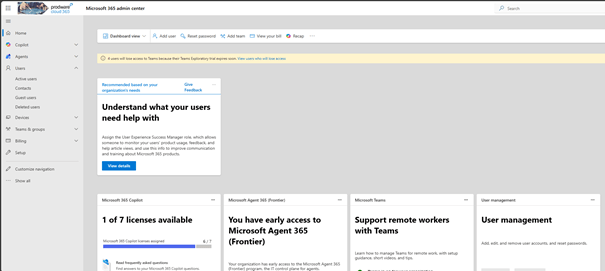
- The user performing the setup must have Power Platform Administrator rights
- Permissions can be assigned via the Microsoft 365 Admin Center: https://admin.microsoft.com/
Power Platform Environment
- The target environment must already exist and be accessible
- At least 1 to 1.5 GB of free Dataverse capacity
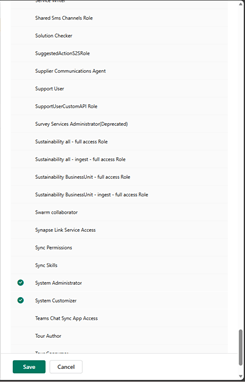
- The user must have either System Administrator or System Customizer roles
Role assignment path
- https://make.powerapps.com: Power Apps > Environment > Advanced Settings > Security > Users
- User > Manage Security Roles > Assign System Administrator / System Customizer
Development Tools
- Visual Studio 2022 (Professional or Enterprise)
- SQL Server Express / LocalDB (installed by default with Visual Studio)
- DGML Editor installed in Visual Studio
Provisioning a Unified D365 Finance & SCM Environment
Power Platform Admin Center (PPAC)
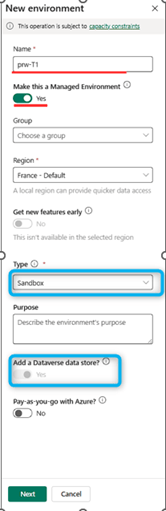
Access the Power Platform Admin Center and navigate to: Manage > Environments
Create a New Test Environment
- Create a new environment
- Enable Dataverse
- Select an ERP template (Finance, Supply Chain Management, or Project Operations)
- Save the environment

Within the newly created environment:
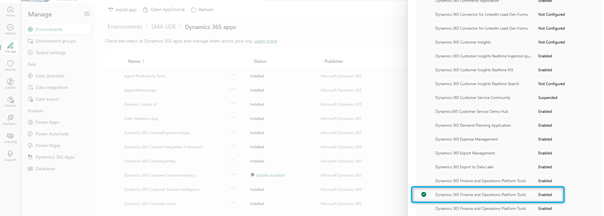
- Go to Resources > Dynamics 365 apps
- Install Dynamics 365 Finance and Operations Platform Tools (mandatory prerequisite)
- Install the Finance and Operations Provisioning App
Installation Options:
- Enable Developer Tools for X++ to support X++ development
- Optionally include demo data for testing and validation purposes
⏱️ The installation process typically takes around one hour
PowerShell Provisioning (Recommended for DevOps Automation)
PowerShell is the preferred approach for automation and CI/CD pipelines.
Required Module Installation: Install-Module Microsoft.PowerApps.Administration.PowerShell -Force
Environment Provisioning Script (Example)
Add-PowerAppsAccount -Endpoint prod
$Location = “France”
$Region = “francecentral”
$EnvName = “prw-USE-DEV01” # Max 20 characters
$TemplateMetadata = @”
{
“PostProvisioningPackages”: [
{
“applicationUniqueName”: “msdyn_FinanceAndOperationsProvisioningAppAnchor”,
“parameters”: “DevToolsEnabled=true|DemoDataEnabled=true”
}
]
}
“@ | ConvertFrom-Json
New-AdminPowerAppEnvironment \
-DisplayName $EnvName \
-EnvironmentSku Sandbox \
-Templates “D365_FinOps_Finance” \
-TemplateMetadata $TemplateMetadata \
-LocationName $Location \
-RegionName $Region \
-ProvisionDatabase
This automation handles:
- Activation of development tools
- Deployment of demo data
- Post-provisioning ERP configuration
- Consistent, repeatable environment creation
Visual Studio Configuration
Prerequisites
- Visual Studio 2022 (Professional or Enterprise)
- SQL Server Express LocalDB
Validate LocalDB installation: sqllocaldb create MSSQLLocalDB -s
Install Power Platform Tools
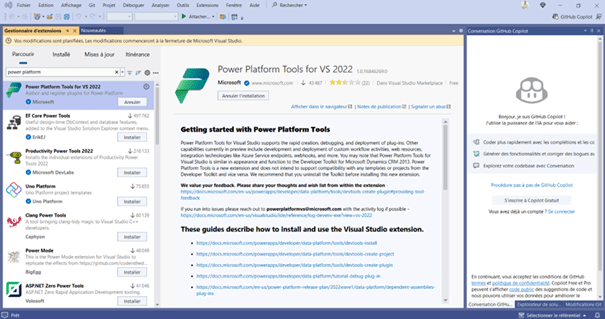
Install Power Platform Tools for Visual Studio 2022 from the Visual Studio Marketplace
Connect Visual Studio to Dataverse
- Open Visual Studio
- Navigate to Tools > Connect to Dataverse or Download Dynamics 365 FinOps assets

- Sign in using your developer account
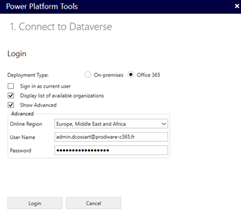
- Select the unified sandbox environment

- Choose the default solution

Notes:
- If MFA is enabled, disable all optional connection prompts
- Guest users from another tenant must download the Finance & Operations extension and metadata
Once connected, Visual Studio downloads:
- Finance & Operations Visual Studio extension
- System metadata
- Cross-reference database
Files are stored under: C:\Users\<UserAccount>\AppData\Local\Microsoft\Dynamics365
⚠️ At least 16 GB of free disk space is required
Automatic vs. Manual Configuration
By default, automatic configuration is enabled and recommended:
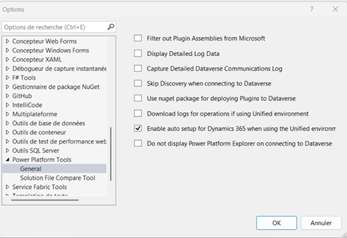
- Metadata extraction
- X++ compiler and tooling configuration
- Metadata workspace setup
Advanced users may opt for manual configuration:
- Manually extract PackagesLocalDirectory
- Configure metadata via Extensions > Dynamics 365 > Configure Metadata

Key Configuration Fields
- Cross-reference DB: (localdb)\.
- Metadata folder: X++ modules directory
- Reference metadata: extracted PackagesLocalDirectory
Only one configuration can be active at a time.
After completion:
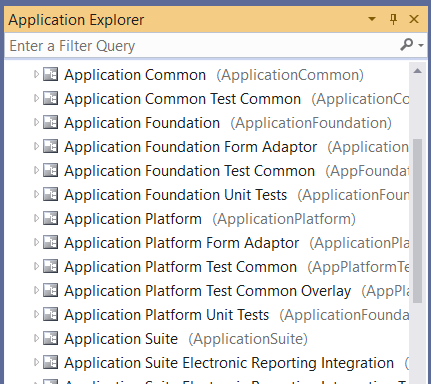
- Open View > Application Explorer
- Restart Visual Studio if required
Applying Service Updates to a UDE Environment
- Open PPAC > Environments
- Select the UDE environment
- Go to Resources > Dynamics 365 apps
- Open Finance & Operations Provisioning App
- Select More actions (⋯) > Manage
- Choose the target version and accept the terms
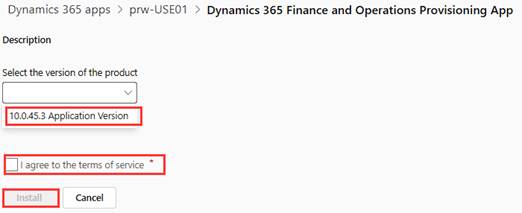
Track progress via Package Manager > Operation History.
Logs can be downloaded for audit or troubleshooting purposes.
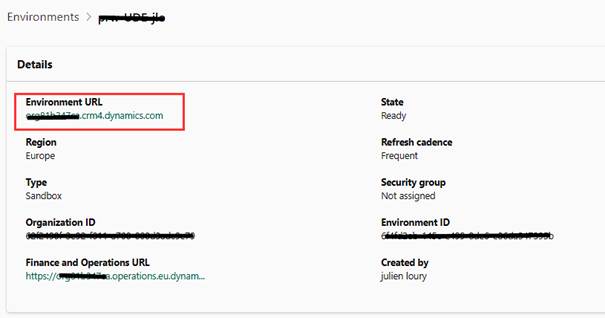
Once the status shows Succeeded, the environment is ready.
Conclusion
D365 Finance & SCM is now a native Power Platform application.
Unified environments significantly simplify:
- Application Lifecycle Management (ALM)
- DevOps and CI/CD automation
- Developer onboarding and productivity
Visual Studio tooling is fully cloud-connected and automated, while PowerShell enables repeatable, enterprise-grade provisioning.
If you are still relying on legacy CHE development virtual machines or manual configurations, now is the time to modernize your D365 Finance & SCM platform.
 D365FOAdviceTips
Leave a comment