Setting up Dynamics 365 Finance and Operations within Power Platform requires careful preparation. Many installation failures happen because prerequisites are not met or environment limitations are misunderstood.
Installing Apps in PPAC UI & PowerShell
Prerequisites
Before installing the Finance and Operations Provisioning App, ensure the following:
1. Correct environment type
The provisioning app must only be used for new unified environments.
If your Dataverse environment is already linked to an LCS-managed environment, installation will fail.
2. Required licenses
You must have one of the following licenses assigned in Microsoft Entra ID:
- Dynamics 365 Finance
- Dynamics 365 Supply Chain Management
- Dynamics 365 Operations Application Partner Sandbox
You can verify assigned licenses from the Subscriptions page.
3. Capacity requirements
- Minimum 1 GB database capacity
- Required for both Dataverse and Finance & Operations databases
4. “Enable Dynamics 365 apps” must be enabled
When creating the environment, the option Enable Dynamics 365 apps must be checked.
If not, you’ll encounter this error:
Dynamics 365 Finance and Operations Provisioning App isn’t supported on SchemaType: Standard
This setting cannot be changed afterward — a new environment must be created, ideally using an ERP template.
5. Platform Tools app is mandatory
Always install:
👉 Dynamics 365 Finance and Operations Platform Tools
before installing the provisioning app.
Skipping this step results in an installation error.
Limitations
- Reusing a deleted environment domain
The environment domain name cannot be reused for 7 days after deletion. - Environment URL length
The Dataverse environment hostname must be 19 characters or fewer.
Otherwise, installation fails.
Workaround: shorten the environment URL.
- Missing Finance and Operations URL
After installation, the F&O URL may not appear in PPAC.
Workaround:
- Edit the environment
- Change a field such as Description
- Save
This forces synchronization and displays the URL.
Installation from PPAC
The following Dynamics 365 resources must be installed:
- Dynamics 365 Finance and Operations Platform Tools
- Dynamics 365 Finance and Operations Provisioning App
Steps:
- Sign in to the Power Platform Admin Center (PPAC).
- Select Environments.
- Choose an environment that meets prerequisites.
- In Resources, select Dynamics 365 apps.
- Click Install app.
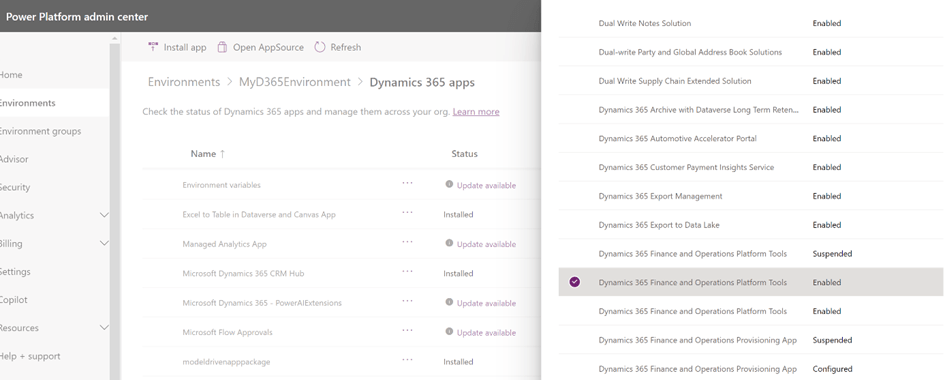
Install Platform Tools:
- Select Dynamics 365 Finance and Operations Platform Tools.
- If multiple entries exist, select one with status Enabled.
- Click Next.
- Accept terms and select Install.
- Wait until status changes from Installing to Installed.
Install Provisioning App:
- Click Install app again.
- Select Dynamics 365 Finance and Operations Provisioning App.
- If multiple entries exist, select one with status Configured.
- Click Next.
- Select OK to open configuration.
Configuration options:
- Enable Developer Tools for Finance and Operations
- Checked → Developer-enabled sandbox (Visual Studio + X++)
- Unchecked → Standard Sandbox or Production
- If unchecked, environment is a Unified Sandbox Environment (USE)
- Enable Demo Data for Finance and Operations
- Deploys standard Contoso demo data
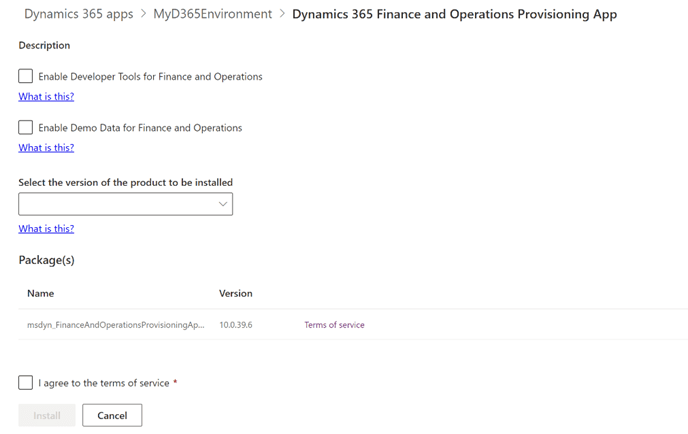
- Select product version
- Choose any supported version available
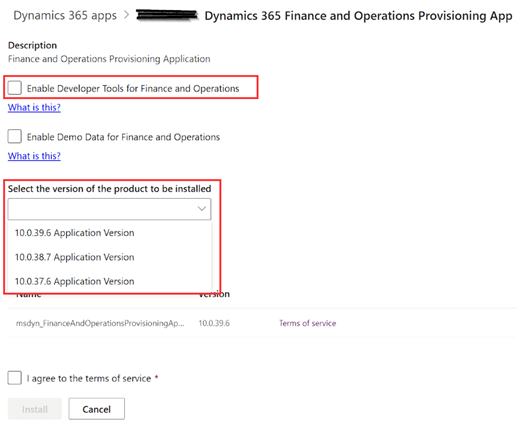
Accept terms and click Install.
⏱ Installation time: 1 to 1.5 hours
PowerShell
At this time, this functionality is not available via PowerShell.
Installing QUs and Service Updates
Update Finance and Operations Applications:
- In PPAC, open the environment.
- Go to Dynamics 365 apps.
- On Dynamics 365 Finance and Operations Provisioning App, click … > Manage.
⚠️ Only the latest Quality Update (QU) is available per version.
Steps:
- Open Power Platform Admin Center.
- Select Environments.
- Choose an environment where the provisioning app is already installed.
- Under Resources, select Dynamics 365 apps.
- Select the provisioning app.
- Click More actions (…) > Manage.
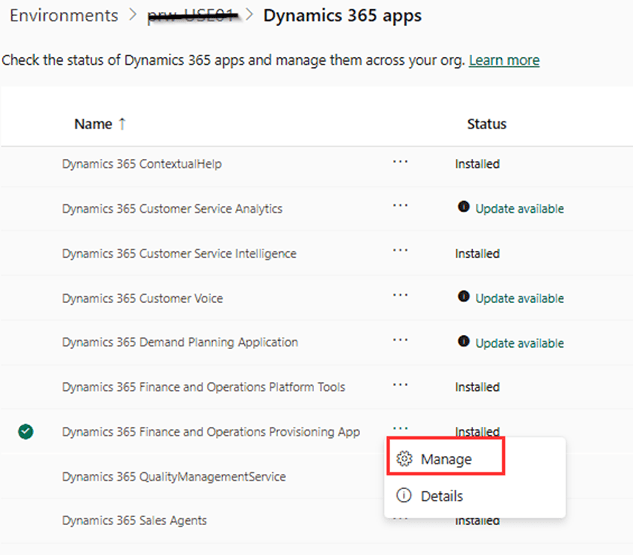
If Manage is not available, the environment is already on the latest version.
- Confirm by selecting OK.
- The update experience opens in a new tab.
- Select a newer version from the dropdown.
Only versions higher than the currently installed one are shown.
If no versions appear, the environment is already up to date.
- Accept terms and click Install.
⏱ Update duration: approximately 1 hour.
Each application version includes its latest Platform Quality Update (PQU).
Older versions cannot be reinstalled.
Preview builds are only available for environments that allow preview features.
🧠 Key Takeaways
- Always enable Dynamics 365 apps during environment creation
- Install Platform Tools before Provisioning App
- Keep environment URLs short
- Updates are only forward-moving — no downgrade possible
- Preview builds require preview-enabled environments
 D365FOAdviceTips
Leave a comment