
Overview
This article explains how to automate the deployment of Power Platform environments using Azure DevOps pipelines, Power Platform CLI, and Service Principals.
It also provides estimated deployment times and explains current platform limitations.
⏱ Deployment Time Estimates
Environment Creation (without Dynamics 365 apps)
- USE or UDE environment: ~10 minutes
Dynamics 365 Finance & Operations Apps
Deployment time depends on selected options:
- Dynamics 365 Finance and Operations Platform Tools
- Dynamics 365 Finance and Operations Provisioning App
- Optional development tools
- Optional Contoso demo data
⏳ Estimated time: between 1 hour and 1 hour 30 minutes
🤖Automation Scripts in Azure DevOps
Automation is implemented using Power Platform Build Tools and Power Platform CLI (PAC) within Azure DevOps pipelines.
🔐Service Principal Authentication
Why use a Service Principal?
Traditional username/password authentication is no longer ideal, especially with the widespread use of Multi-Factor Authentication (MFA).
👉 Service Principal authentication is the recommended approach for automated pipelines.
How Service Principal Authentication Works
- Register a new application (Service Principal) in your Microsoft Entra tenant.
- Register this application in Power Platform.
- Grant access to the Admin endpoint.
To allow a Service Principal to communicate with the Admin endpoint, it must be registered according to: “Registering an admin management application”
Service Principals created using the following command: pac admin create-service-principal are automatically registered on the Admin endpoint.
🧰Installing Power Platform CLI
Step 1 — Install CLI
Download and install the latest version: https://learn.microsoft.com/power-platform/developer/cli/introduction
👉 Download PowerAppsCLI.msi
Step 2 — Verify Installation
After installation:
- Close and reopen PowerShell
- Run: pac –version
If you see something like: 1.30.3+g3c3a123
✅ Installation is successful.
Step 3 — Authenticate
Create an interactive authentication session: pac auth create
A login window opens — select your Microsoft account.
Step 4 — Create the Service Principal
Run the command below using your environment ID:
pac admin create-service-principal –environment xxxxxxxx-xxxx-xxxx-xxxx-xxxxxxxxxxxx
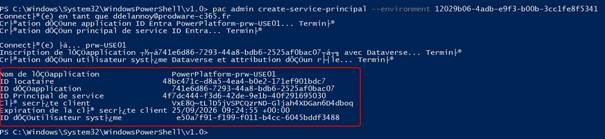
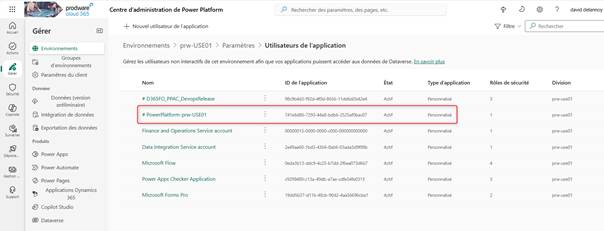
The Service Principal will then appear in Power Platform Admin Center (PPAC).
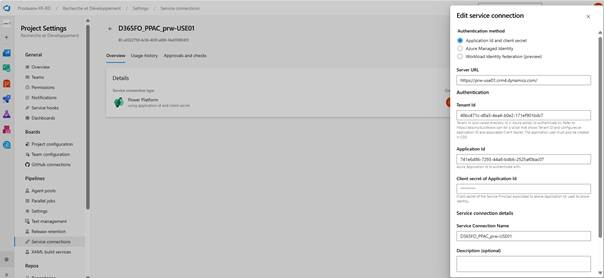
🔗Creating the Service Connection in Azure DevOps
Once the Service Principal exists:
- Create a Service Connection in Azure DevOps
- Use the Power Platform connection type
- Authenticate using the Service Principal
This connection will be reused across pipelines.
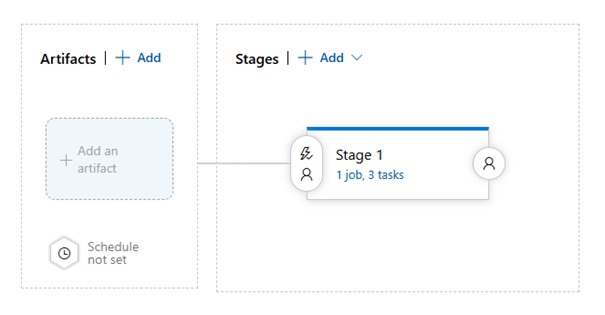
🔄Azure DevOps Pipelines
To deploy environments automatically, create a pipeline without artifacts.
🧩 Required Pipeline Tasks
1️⃣Power Platform Tools Installer
This task must be added once, before any other Power Platform task.
Purpose:
- Installs required Power Platform tools on the build agent
Important:
- Use version 2.0
Why version 2.0?
- Based on Power Platform CLI
- Includes all Build Tools capabilities
- Microsoft recommended version
No additional configuration is required.
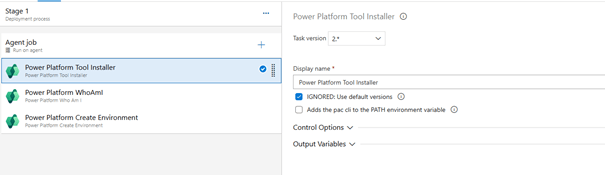
2️⃣Power Platform WhoAmI Task
Purpose:
- Verifies connectivity to the Power Platform environment
- Confirms authentication is working correctly
💡 Recommended early in the pipeline to avoid failures later.
Parameters :
| Parameter | Description |
| authenticationType | PowerPlatformEnvironment (username/password) or PowerPlatformSPN (Service Principal) |
| PowerPlatformEnvironment | Environment service URL defined in Service Connections |
| PowerPlatformSPN | Service Principal connection defined in Service Connections |
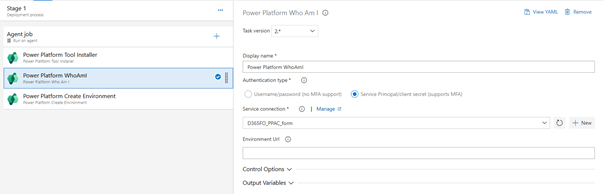
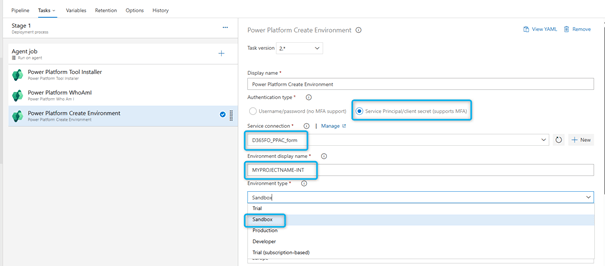
3️⃣Power Platform Create Environment Task
This task provisions a new Power Platform environment.
⚠️ Environment creation is only possible if your tenant has available capacity or licenses.
Main Parameters :
| Parameter | Description |
| authenticationType | Required for SPN authentication |
| PowerPlatformEnvironment | Target endpoint (e.g. https://powerappsbuildtools.crm.dynamics.com) |
| PowerPlatformSPN | Service Principal service connection |
| DisplayName | Display name of the environment |
| LocationName | Deployment region |
| EnvironmentSku | Sandbox, Production, Trial, or SubscriptionBasedTrial |
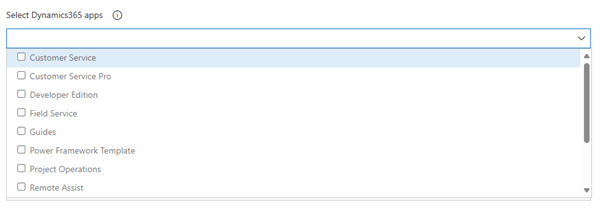
| AppsTemplate | Supported apps: Customer Service, Field Service, Project Service Automation, Sales |
| CurrencyName | Base currency (cannot be changed later) |
| LanguageName | Base language |
| DomainName | Unique environment URL prefix |
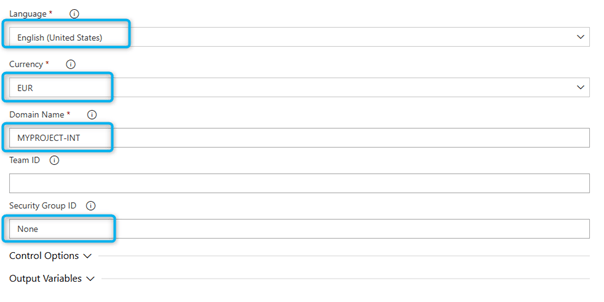
🔎 Domain Name Behavior
If the chosen domain already exists:
- A numeric value is automatically appended
Example:
May become:
⚠️Current Limitation
At this time, it is not possible to select:
- Dynamics 365 Finance
- Dynamics 365 Supply Chain Management (SCM)
directly from the Dynamics 365 Apps option during environment creation.
These applications must be deployed through other provisioning processes.
✅ Conclusion
By combining:
- Power Platform CLI
- Service Principal authentication
- Azure DevOps pipelines
- Power Platform Build Tools v2.0
You can achieve:
- Fully automated environment provisioning
- Secure MFA-compatible authentication
- Consistent and repeatable deployments
- Significant time savings for DevOps teams
 D365FOAdviceTips
Leave a comment