
- Introduction
- What the report gives you
- Getting to the report
- Reading the top-level metrics
- Comparing what you need to what you own
- Pinpointing unlicensed users
- What a blocked user sees
- Filtering and sorting at scale
- Drilling into a single user
- Going deeper: role license entitlements
- Exporting for procurement and compliance
- One-click summary to clipboard
- Best practices
- Known limitations
- Wrapping up
Introduction
Per-user license validation is coming for Dynamics 365 finance and operations apps — and when it switches on, anyone without the right license simply can’t sign in. The good news: you no longer have to guess who’s covered. The User License Consumption experience in the Power Platform admin center shows you, at a glance, who needs a license, who’s correctly assigned, and exactly where the gaps are — in time to fix them before the deadline bites.
In this article I’ll walk through the whole experience: how to reach the report, how to read the headline numbers, how to drill from a single under-licensed user all the way down to the security role and menu item driving the requirement, and how to export it all for procurement and compliance.
Why it matters: Once validation starts, an unlicensed user is a blocked user. This report turns license cleanup from a spreadsheet guessing game into a targeted, evidence-based task — aligned to actual role entitlements, not job titles.
What the report gives you
At its core, User License Consumption brings six capabilities together in one place:
- Role-based user license analysis
- Environment-level license requirement breakdown
- Security role-to-license mapping
- Drill-down into access-level entitlements
- Filters for unmet or misaligned licenses
- Export-ready reports for compliance and planning
Getting to the report
Three clicks and you’re in:
- Sign in to the Power Platform admin center.
- Select Licensing on the left menu.
- Under Products, choose Finance and Operations to open User License Consumption.
Freshness note: The report refreshes every 4–12 hours. The most recent timestamp always appears at the top, so you know how current the picture is before you act on it.
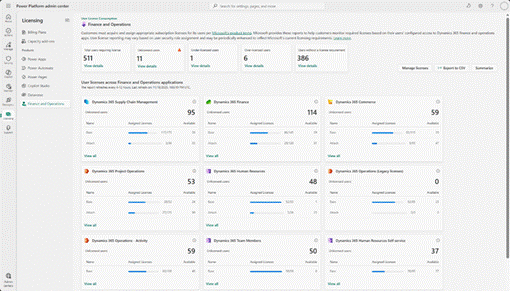
The User License Consumption summary — your single pane for finance and operations licensing.
Reading the top-level metrics
The cards across the top give you the headline health of your tenant:
- Total users requiring license — everyone across your connected finance and operations environments.
- Unlicensed users — assigned a role that requires a license, but with no license in the Microsoft 365 admin center. These are the people who’ll be blocked.
- Under-licensed users — they have a license, but it doesn’t meet what their roles require.
- Over-licensed users — assigned more than they need, so a candidate for reallocation and savings.
- Users without a license requirement — roles that are excluded from licensing entirely.
Select view details on the Total users requiring license or Unlicensed users card to break things down user by user.
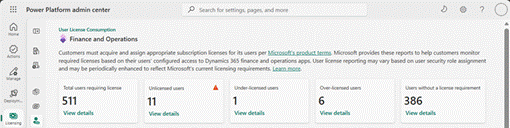
Headline metrics: total, unlicensed, under-licensed, over-licensed, and excluded users.
Comparing what you need to what you own
The product-level summary answers the procurement question directly: do the licenses you’ve purchased match the licenses your users actually need? Each finance and operations product shows a card with total users requiring a license, plus base and attach licenses assigned and still available — so gaps and surpluses jump straight out.
Reporting covers these products:
- Commerce · Finance · Human Resources · Supply Chain Management
- Project Operations · Team Members · Operations – Activity · Operations (Legacy licenses)
Select View all on a card to drill into the per-user license assignments for that product.
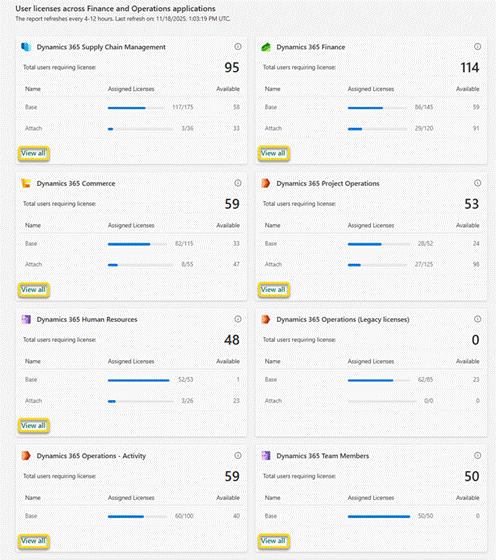
Product-level cards comparing required, assigned, and available base and attach licenses.
Pinpointing unlicensed users
The Users with unassigned licenses view lists everyone missing a license assignment in the Microsoft 365 admin center, with four columns that tell the whole story:
| Column | Description |
| Email / User ID | The Entra ID identity. |
| Required license | Derived from the security role’s duties and privileges. |
| Assigned license in M365 | Finance and operations app licenses assigned to the user in the Microsoft 365 admin center. |
| Missing licenses | Required licenses not yet assigned to the user in the Microsoft 365 admin center. |
The stakes, plainly: Users in the Unlicensed users view can’t sign in once license validation starts. This view is your pre-deadline punch list.
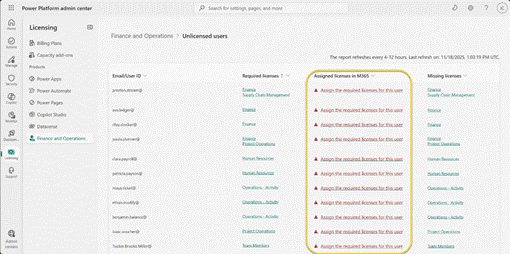
The Users with unassigned licenses view — required vs. assigned vs. missing, per user.
What a blocked user sees
Once validation begins, any user without the required license is stopped at the door of the finance and operations app and shown a clear message: they need a license, and they should request one from their administrator. The fix is simple — assign the right license, and they’re back in.
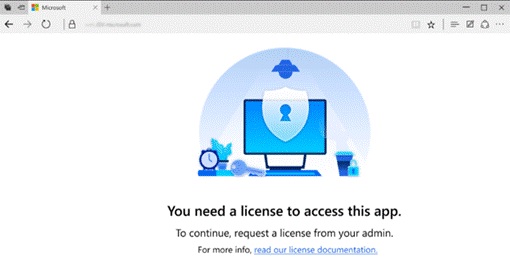
The sign-in block a user hits when they’re missing a required license.
Filtering and sorting at scale
With hundreds or thousands of users, you need to slice fast. Use the Assigned Licenses in M365 column dropdown to sort ascending or descending and filter by specific license types — Commerce, Finance, Human Resources, Supply Chain Management, or Team Members.
The Missing license column has its own filter: narrow to everyone missing, say, Supply Chain Management, then assign the correct base license for that product in one focused pass.
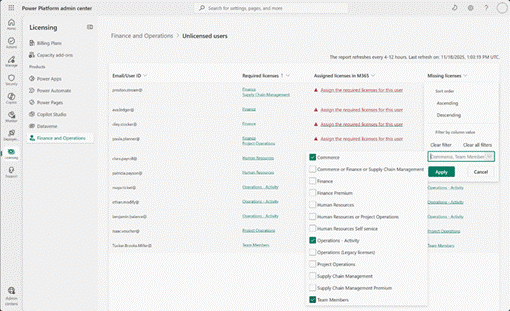
Sorting and filtering by assigned and missing license types.
Drilling into a single user
Select any user’s Required license link to open Required license details per environment — the screen that explains why a license is needed and where:
| Field | Description |
| Environment name | Where the user is assigned the security role. |
| Environment type | Production or Sandbox. |
| Security role | The assigned role. |
| Required license | The license that the role triggers. |
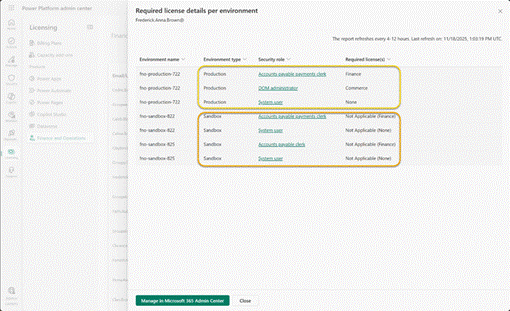
Per-environment detail showing which role in which environment drives the requirement.
From the same flow, select a missing license link to bring up the license options, then Manage in Microsoft 365 admin center to jump straight to that user and assign what they need.
Going deeper: role license entitlements
From a user’s role you can drill into the security role-to-license mapping itself — invaluable for understanding custom roles.
Role license matrix
- See every compatible license for a role (Commerce, Finance, Human Resources, Supply Chain, Team Members, or Activity).
- See how many users are correctly vs. incorrectly licensed for that role.
Securable object breakdown
Go all the way down to the menu items and access levels (Read/Write) that contribute to the requirement:
| Field | Description / Example |
| Securable Type | Example: MenuItemDisplay. |
| AOT Name | The Application Object Tree name. |
| Access Level | Read or Write. |
| Entitled | Included in the mapped license scope. |
| Not Entitled | Not included in the mapped license scope. |
| Not Required | Doesn’t affect license scope. |
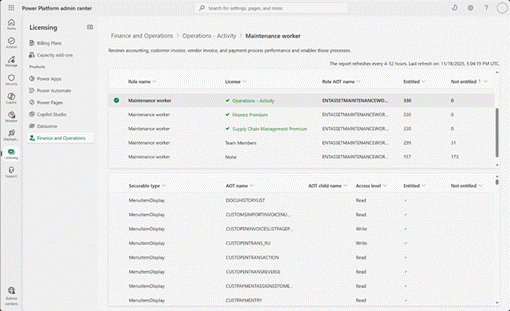
Securable object breakdown — the menu items and access levels behind a license requirement.
Exporting for procurement and compliance
Select Export to CSV and choose a standard or detailed report.
| Standard report columns | Detailed report columns |
| TenantId | TenantId |
| UserEmail | EnvironmentId |
| UserId | EnvironmentName |
| RequiredLicense(s) | EnvironmentType |
| AssignedLicense(s) | UserEmail · UserId |
| MissingLicense(s) | SecurityRole |
| RefreshedOn | Required/AssignedLicense(s) · RefreshedOn |
For full entitlement or role-mapping detail, stay in the admin center views — the CSV is for breadth, the views are for depth.
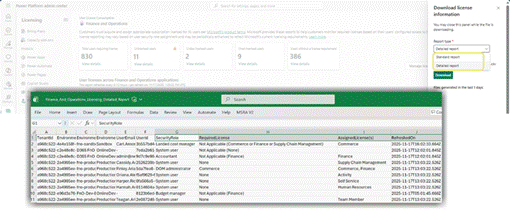
Exporting standard or detailed user license data to CSV.
One-click summary to clipboard
Need a quick paste into an email or ticket? The Summarize button at the top of the page copies the license summary straight to your clipboard.
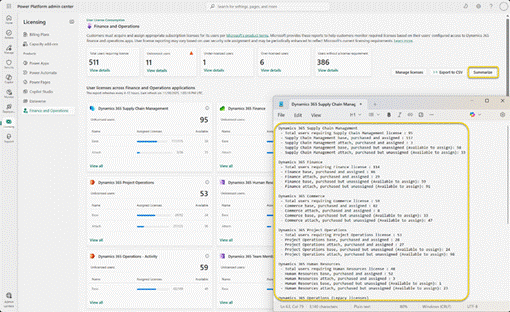
The Summarize button copies the license summary to your clipboard.
Best practices
- Automate bulk assignment with PowerShell for bulk user provisioning.
- License to usage, not titles — align assignments with actual usage telemetry.
- Use version 10.0.47 or later to validate roles with the User security governance feature.
- Review monthly and remove dormant user security accounts.
- Loop in procurement so purchases track the licenses users actually require.
Known limitations
- You may see a GUID instead of an email. A GUID ties each user record to an Entra ID identity; it surfaces when identity metadata is incomplete, or when someone is deleted in Entra but their finance and operations role assignments remain.
- Custom security roles might need reanalysis to align cleanly with licensing.
Wrapping up
User License Consumption turns an anxious, deadline-driven scramble into a calm, repeatable routine: read the headline numbers, filter to the gaps, drill into the why, assign in Microsoft 365, and export the evidence. Do a monthly pass and per-user validation becomes a non-event rather than a fire drill.
Start here: Open the report, sort the Unlicensed users view, and clear that list first — those are the only people who get locked out on day one. Everything else is optimization.


Leave a comment