- Introduction
- Before you begin: eligibility
- Step 1 — Confirm environment eligibility
- Step 2 — Provision a unified environment in PPAC
- Step 3 — Perform the copy operation
- Step 4 — Validate the migration
- If your LCS environment doesn’t appear in PPAC
- Wrapping up
Introduction
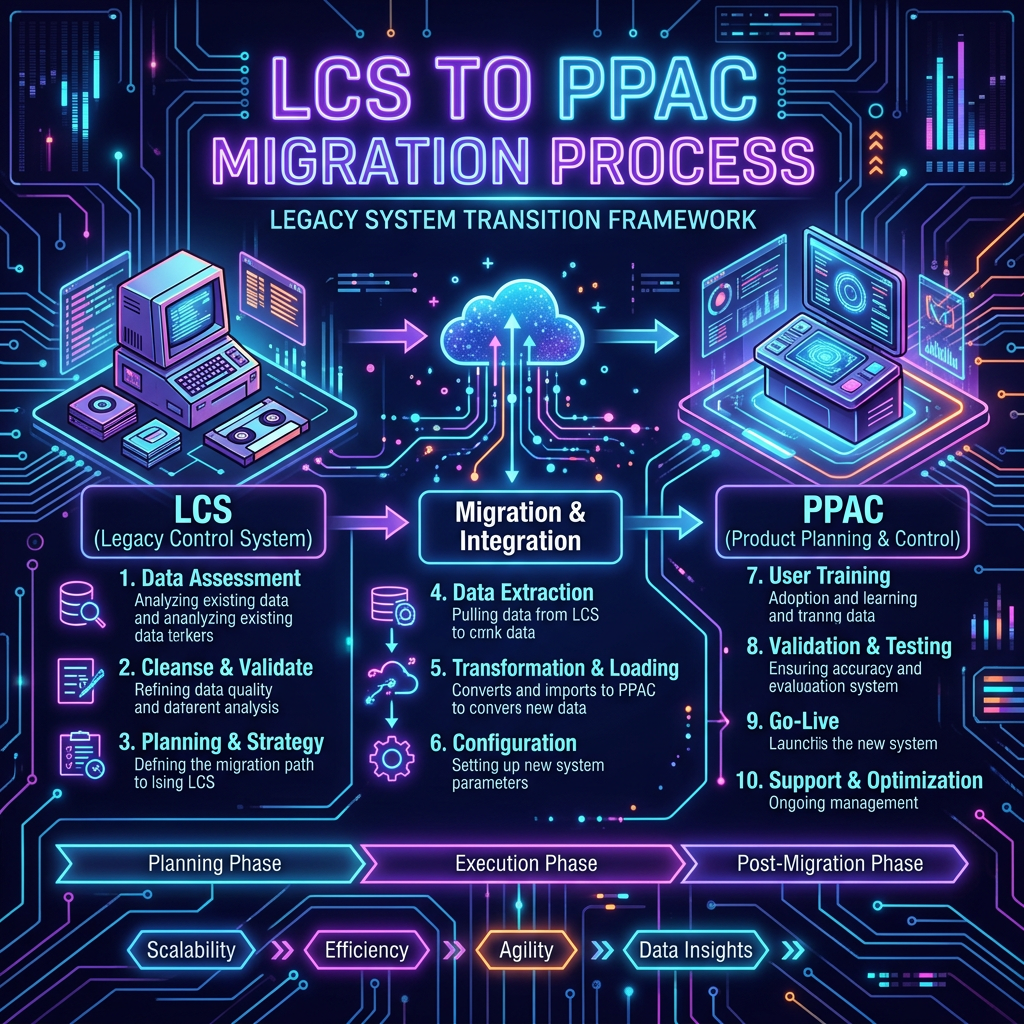
Lifecycle Services has been the home of Finance & Operations environment management for years — but that era is closing. Microsoft is consolidating environment administration into the Power Platform admin center (PPAC), and that means moving your existing LCS-provisioned environments over. The good news: if your environment was created with Power Platform integration enabled, the move isn’t a painful rebuild — it’s a guided Copy operation that brings your data, code, and metadata across in one pass.
This guide walks the migration end to end: confirming your environment is eligible, provisioning a unified ERP-based environment in PPAC, running the copy, validating the result — and what to do in the case everyone dreads, where the source environment doesn’t show up in the copy options at all.
Provision a unified (ERP-based) environment in PPAC, then use Copy → Everything to move your LCS environment’s Dataverse data, X++ code, and metadata into it. Both environments must be in the same tenant and region. If the source was never integrated with Power Platform, you fall back to a manual migration instead.
Before you begin: eligibility
A few non-negotiables decide whether the smooth path is even open to you:
- Source environment — must be a finance and operations app provisioned via LCS with Power Platform integration enabled. This is the single condition that makes the copy possible.
- Target environment — must be a unified environment (ERP-based template) provisioned in PPAC. Creating one requires a subscription or license for the relevant Dynamics 365 app.
- Same Azure region and same tenant — both environments must share both. Cross-region or cross-tenant copies are not supported here.
The ERP-based templates available in PPAC, and the licenses that unlock them:
| License | Template name | Template ID | Comments |
| Dynamics 365 Finance | Finance (preview) | D365_FinOps_Finance | |
| Dynamics 365 Supply Chain Management | Supply Chain Management (preview) | D365_FinOps_SCM | |
| Dynamics 365 Project Operations | Project Operations Integrated (preview) | D365_FinOps_ProjOps | |
| D365 Operations Application Partner Sandbox | Project Operations Integrated (preview) | D365_FinOps_ProjOps | |
| Dynamics 365 Commerce | Commerce (preview) | D365_FinOps_Commerce | Available only for trials. |
Step 1 — Confirm environment eligibility
Start at the source. Your LCS-provisioned finance and operations environment needs to have been created with Power Platform integration — that’s what surfaces it in PPAC in the first place.
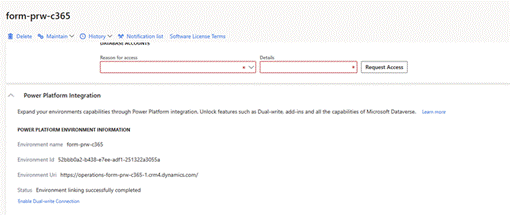
The source environment, originally provisioned through LCS with Power Platform integration.
Once an integrated environment exists, it should reflect automatically in the Power Platform admin center alongside your other environments — no manual registration required.

The LCS environment appearing in the PPAC environments list.
Step 2 — Provision a unified environment in PPAC
Now build the destination. In the Power Platform admin center, create the unified environment that will receive the copy:
- Open the Power Platform admin center.
- Select + New to create a new environment.
- Choose your Type (Developer or Sandbox), set the Region to match your LCS environment, and pick an ERP-based template for finance and operations.
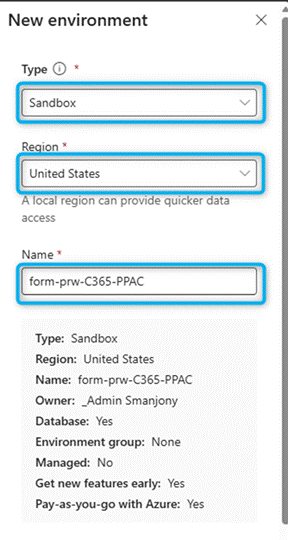
Creating a new ERP-based environment in PPAC.
Decide how the environment is governed: whether to add it to an environment group (security group and policies), make it a Managed Environment to get new features early, attach a Dataverse data store for building apps, and whether to use a pay-as-you-go billing format.
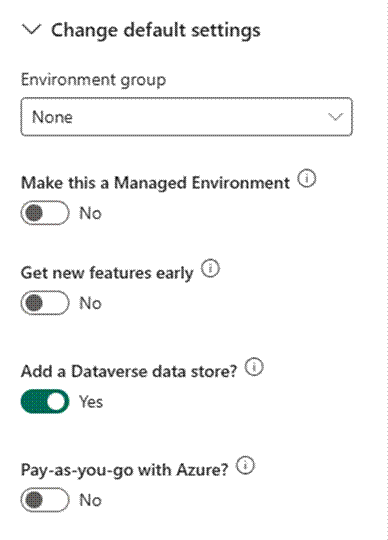
Choosing environment group, managed environment, Dataverse, and billing options.
Heads up: Some options become unavailable depending on earlier choices — the form adapts as you go, so don’t be surprised when a setting greys out.
Define a clean URL for the environment — avoid addresses with incongruous strings of numbers, since this is what people will type and bookmark.
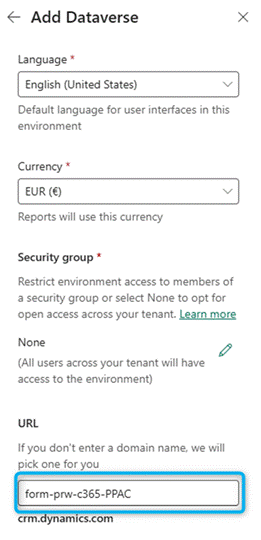
Defining a readable URL for the new environment.
Confirm that you want to deploy the Dynamics 365 Finance applications into the environment.
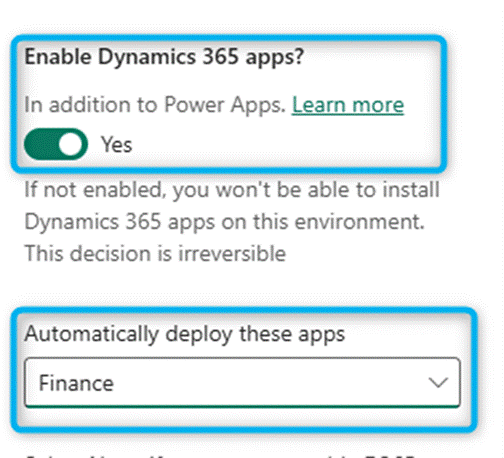
Opting to deploy the D365 Finance applications.
Select Save and wait for provisioning to finish — it runs for a few minutes before the environment is ready.
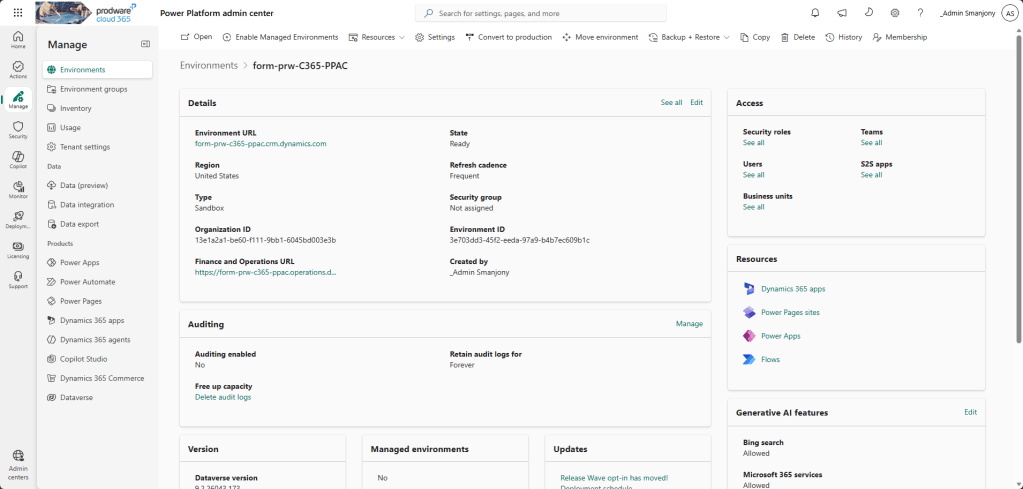
Provisioning completes and the unified environment comes online.
Step 3 — Perform the copy operation
This is the gate: The copy only works if your LCS environment was created with Power Platform integration. If it wasn’t, the source simply won’t appear in the copy options — jump to the fallback section below.
With both environments in place, run the copy:
- In the Power Platform admin center, go to Environments.
- Select the source environment — the one originally created in LCS but now visible in PPAC.
- Select Copy in the top action pane.
- In the copy wizard, set Copy Type to Everything (this includes Dataverse data, X++ code, and metadata), then select the target unified environment you just created.
- Confirm and start the copy.
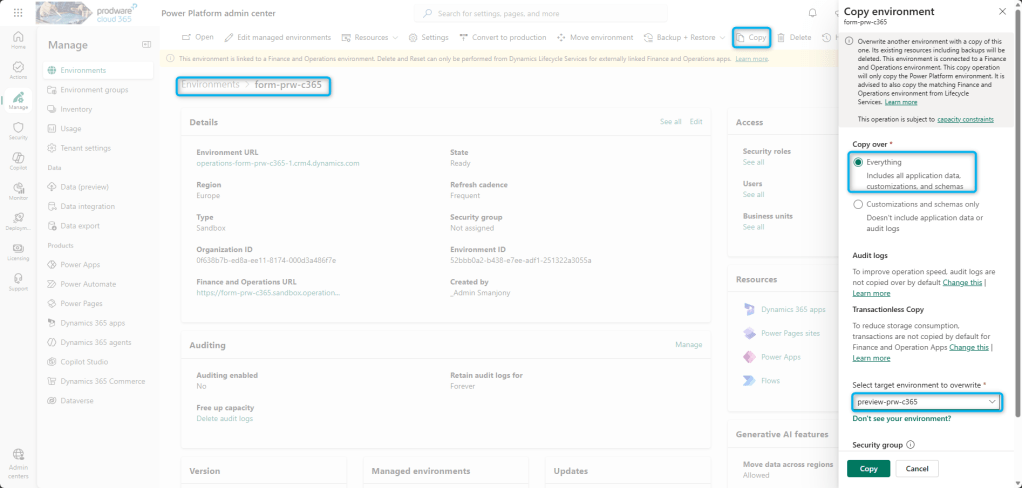
The copy wizard — Copy Type set to Everything, pointed at the new unified target.
Step 4 — Validate the migration
Once the copy completes, don’t declare victory until you’ve checked the destination end to end:
- Sign in to the target environment.
- Verify data integrity, customizations and extensions, and integrations and workflows.
- Test your DevOps pipelines and ALM processes against the new environment.
Why validate thoroughly: A copy that brings the data but breaks an integration or a release pipeline isn’t a migration — it’s a future incident. Confirm the moving parts before you point users at the new environment.
If your LCS environment doesn’t appear in PPAC
If the source environment is not showing up in the PPAC copy options, the cause is almost always the same: it was never provisioned with Power Platform integration. In that case the guided copy isn’t available, and you migrate manually instead:
- Manually provision a new unified environment in PPAC.
- Migrate the Dataverse data via export/import or Dataflows.
- Move the X++ code through source control or deployable packages.
- Re-apply configuration and extensions to match the original environment.
It’s more hands-on, but the end state is identical: a fully unified environment running in PPAC, ready for the post-LCS world.
Wrapping up
The path from LCS to PPAC is far smoother than a rebuild when the prerequisite is met: confirm Power Platform integration, provision an ERP-based unified environment in the same tenant and region, copy Everything across, and validate the result. When integration is missing, the manual route gets you to the same place with a bit more effort.
Start here: Before anything else, open PPAC and check whether your LCS environment is already listed. If it is, you’re on the easy path — provision the target and copy. If it isn’t, plan for the manual migration now rather than discovering the gap mid-cutover.


Leave a comment