A practical guide to cleaner access reviews, stronger auditability, and better licensing hygiene
Executive overview
| Microsoft Dynamics 365 Finance and Operations now includes a preview of User Log V2 and a redesigned dormant user report. Together, these capabilities provide a clearer view of sign-in activity, inactive accounts, and user activity patterns. This article explains why the feature matters, how to activate it, how to use it, and where its current limits require additional governance. |
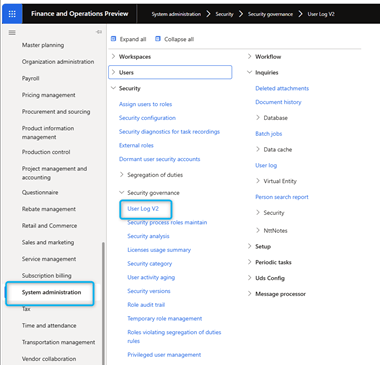
Figure 1. User Log V2 in the Security governance navigation.
Key takeaways
- User Log V2 records verified sign-in events and supports filtering, grouping, and export to Excel.
- The dormant user report identifies users who have not signed in within a configurable period, including users with no sign-in on record.
- The feature supports access reviews, offboarding controls, audit investigations, and licensing data quality.
- User Log V2 starts collecting data only after activation. Historical records are not migrated from the legacy log.
- Organizations should operate the legacy and V2 reports side by side during a transition period.
- The underlying SysUserLoginEventsLog table can support downstream reporting through Fabric or Synapse Link, while no standard data entity is provided.
Why dormant-user governance matters
User access rarely remains static. Employees change roles, leave the organization, move between legal entities, or stop using an application while their accounts remain enabled. Without a recurring review, dormant accounts can weaken security governance and distort licensing reports.
The user log and dormant-user views support three recurring controls:
- Periodic access reviews: confirm whether enabled users still need access.
- Offboarding and role-change checks: identify accounts that should be disabled or reassessed.
- Licensing hygiene: remove unused access from reports before making licensing decisions.
Usage information also helps security teams investigate unusual sign-in patterns, such as activity at unexpected times or a sudden change in login frequency. These signals do not replace a security investigation, but they provide useful evidence for review.
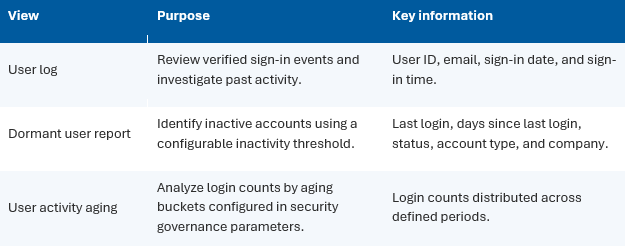
What the feature provides
Prerequisites and activation
The following prerequisites must be met before activation:
- Sign in with the System administrator role.
- Enable the User security governance feature, because User Log V2 depends on it.
- Use Platform update 72 with build 7.0.7996.40 or later, or a later platform update.
- Use Finance and operations version 10.0.48 or later.
Enable the Preview Feature
| 1 | Open Feature management In Finance and operations, go to Workspaces > Feature management. |
| 2 | Find the feature Select All and search for User log. |
| 3 | Enable it Select (Preview) User log and dormant user report V2 feature, then choose Enable now. |
| 4 | Refresh the session Perform a hard refresh of the browser session so the new navigation becomes available. |
| 5 | Open User Log V2 Go to System administration > Security > Security governance > User Log V2. |
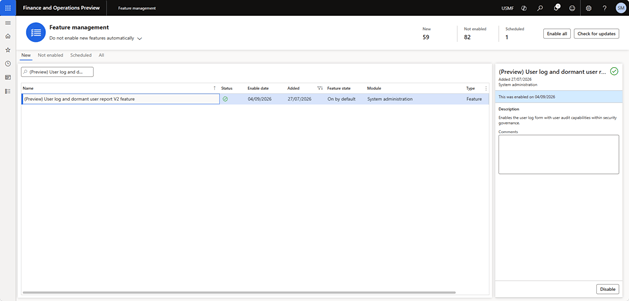
Figure 2. Enabling the preview feature from Feature management.
| Role access The User Log V2 form is available to System administrator and Security administrator roles. |
From legacy reporting to User Log V2
The legacy User log remains available under System administration > Inquiries > User log. It shows login records and online time, although an active session does not display the current elapsed online time. The legacy dormant-user report can be launched under System administration > Security and filtered by days since last login, account type, and status.
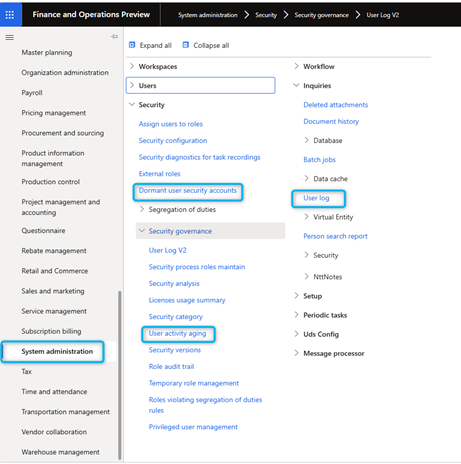
Figure 3. Legacy and V2 security-governance entry points.
Using User Log V2
The User log tab lists verified sign-in events with the most recent entries first. The grid is read-only, but users can apply standard filtering and grouping and export the result to Excel.
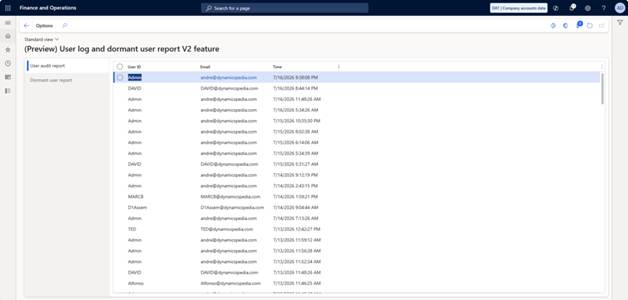
Figure 4. User Log V2 sign-in event list.
| What the log records User Log V2 captures the login event for audit purposes. It does not store online time. |
Using the dormant user report
The second tab provides a dormant-user view. Administrators define inactivity criteria and select Show to refresh the results. Interactive filtering and sorting improve analysis compared with the legacy report.
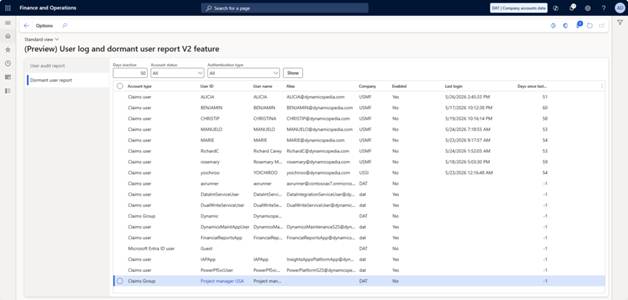
Figure 5. Dormant user report with configurable filters.
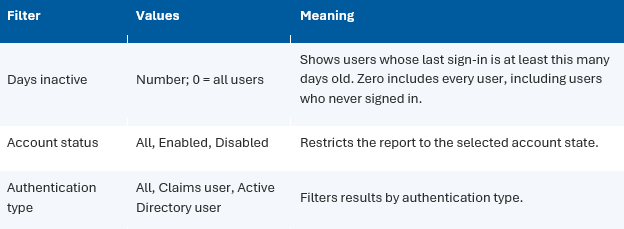
Interpreting the result
The result includes User ID, User name, Alias, Company, Enabled, Last login, Days since last login, and Account type. For users who never signed in, Last login is blank and Days since last login is -1. The value -1 is therefore a status indicator, not a negative inactivity duration.
Limits and transition considerations
User Log V2 is a new capability backed by a new login-event table. It is not an extension of the legacy report, and the system does not migrate historical data into the new table.
| Critical transition rule Data collection begins only after the feature is enabled. Continue to consult the older dormant-user report for activity that occurred before activation. |
During the transition, a user may appear inactive in the new report simply because the recent login occurred before V2 was enabled. For this reason, the source document recommends using both reports side by side until the organization has completed its normal inactivity-review period.
User activity aging reads from the new login-event table when the feature is enabled. The source document notes that there is no separate switch on that page to use legacy logs, other than disabling the feature.
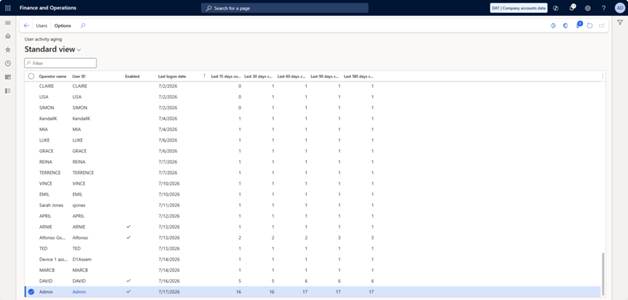
Figure 6. User activity aging based on the new login-event data.
Data model and reporting options
The new sign-in records are stored in SysUserLoginEventsLog. Reporting uses CreatedDateTime as the event source. The table also includes NotBeforeDateTime and ExpiryDateTime, which represent the validity window of the authentication token.
For custom analysis, users can export the grid to Excel. The source document states that no data entity is provided. As an alternative, the table can be enabled in Fabric or Synapse Link and used as a source for Power BI reporting.
Recommended governance operating model
The following operating model is a practical recommendation for organizations adopting the feature:
| 1 | Define the policy Agree inactivity thresholds, review frequency, evidence retention, escalation, and ownership. |
| 2 | Establish the baseline Record the activation date and retain a legacy report extract to support the transition. |
| 3 | Review exceptions Validate service accounts, integration identities, test accounts, and justified low-frequency users before taking action. |
| 4 | Apply controlled remediation Disable access through the approved identity and application governance process, with traceable approval. |
| 5 | Reconcile licensing Refresh licensing reports only after access changes have been completed and validated. |
| 6 | Monitor trends Use recurring exports or downstream analytics to identify changes in inactivity and sign-in behavior. |
| Governance principle Dormancy is a review trigger, not an automatic decision. Always validate business purpose, identity type, legal requirements, and approved exceptions before disabling access. |
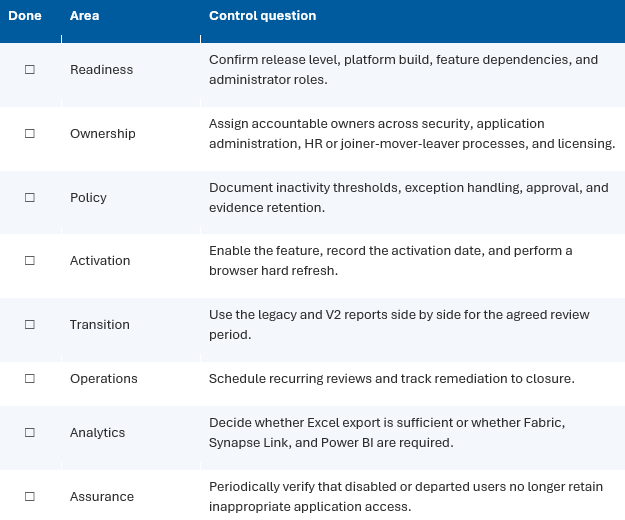
Implementation checklist
Conclusion
User Log V2 and the dormant-user report provide a practical foundation for stronger access governance in Dynamics 365 Finance and Operations. They make sign-in evidence easier to review, improve dormant-account analysis, and support cleaner licensing data.
The most important implementation point is the absence of historical migration. Organizations should activate the feature deliberately, record the activation date, and run the legacy and V2 reports in parallel until the new dataset covers the full review window. Combined with clear ownership, documented exceptions, and controlled remediation, the feature can become a valuable part of the recurring security and licensing operating model.
| Final recommendation Enable the feature as early as your release and governance constraints allow, then integrate dormant-user review into the regular access-review cycle. |


Leave a Reply