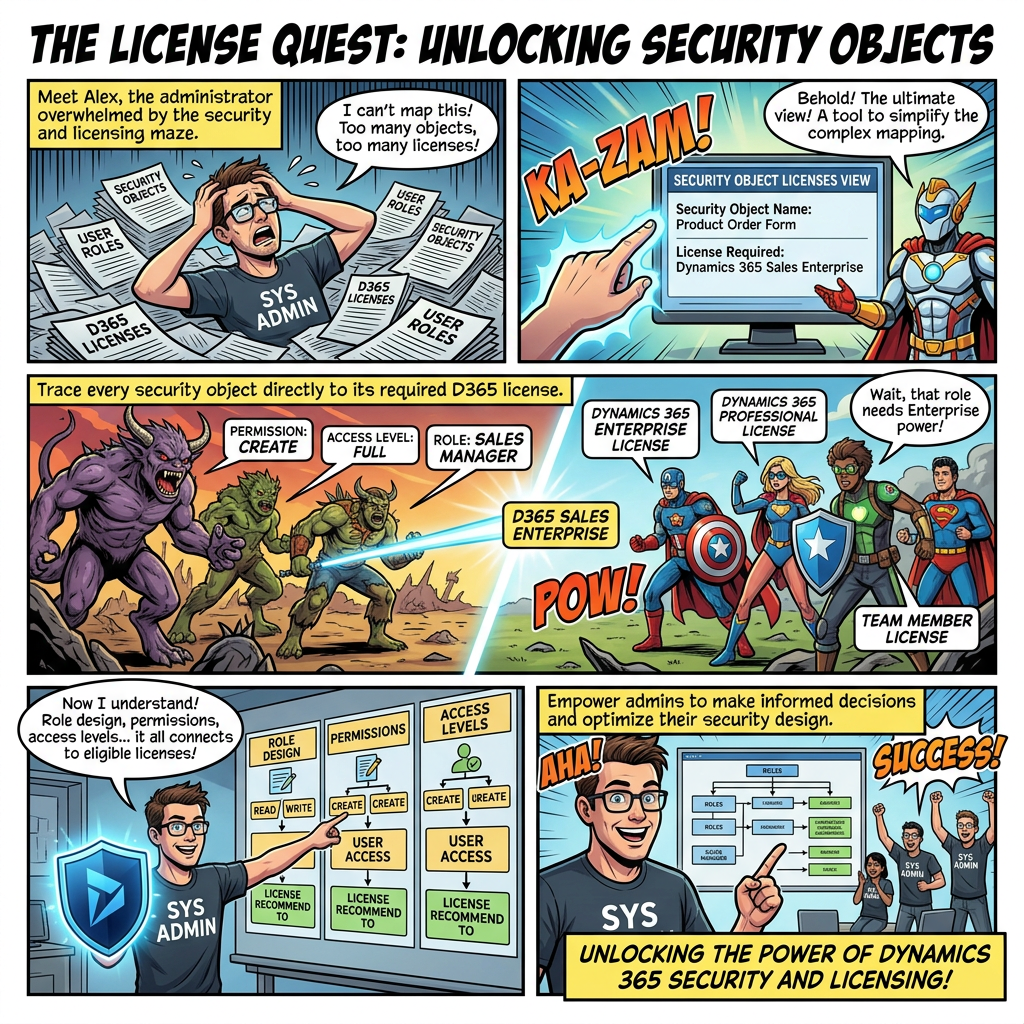
How the Security object licenses view helps administrators understand role design, permissions, access levels, and eligible licenses
Executive overview
| The Security object licenses view (Preview) adds an object-by-object license breakdown to user security governance. It connects the security hierarchy to each securable object, its permission grants, the resulting access level, and the applicable license. The view provides a practical basis for investigating why a role produces a particular license requirement. |
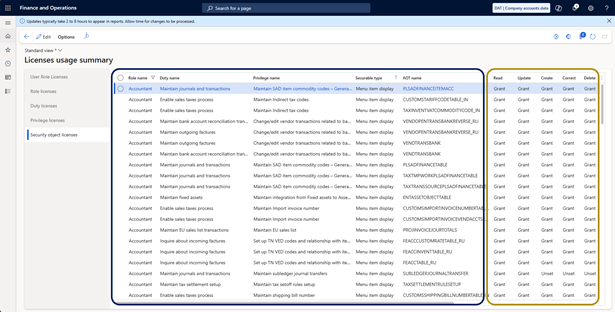
Figure 1. Security object licenses view with the security hierarchy, permission grants, access level, and license.
Key takeaways
- The preview view provides one row per securable object and maps each object from role to eligible license.
- The hierarchy includes role, subrole, duty, privilege, securable type, and AOT information.
- Permission columns cover Read, Update, Create, Delete, and Invoke, followed by the effective Access level.
- The License column can show more than one eligible SKU, separated by “or”.
- The report can help identify Write access where only Read access is required.
- The complete object-to-license inventory can be exported to Excel for deeper analysis.
Why object-level visibility matters
Role-level licensing summaries can show that a role is not entitled under a particular license without immediately revealing which underlying object drives the result. The Security object licenses view addresses this gap by exposing the detailed path from role configuration to securable object and license.
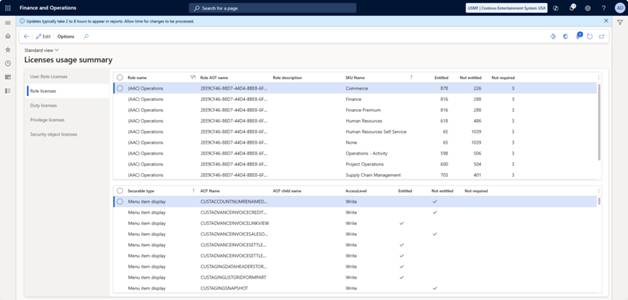
Figure 2. License usage summary showing entitled and not-entitled results at role level.
In the supplied example, a single role can be associated with requirements spanning Finance, Supply Chain Management, and Project Operations. Object-level visibility makes it possible to investigate the elements behind those requirements rather than relying only on aggregate role results.
Prerequisites and activation
- Use a System administrator account in finance and operations apps.
- Upgrade to the latest quality update identified in the source as version 10.0.47 or 10.0.48.
- Enable (Preview) User security governance security object license view in Feature management.
| 1 | Open Feature management Search for the preview user security governance object license feature. |
| 2 | Refresh the feature catalog if necessary If the feature is not visible after the environment update, select Check for updates. |
| 3 | Enable the feature Enable the preview feature for the target environment. |
| 4 | Open the report On Licenses usage summary, select the new Security object licenses tab. |
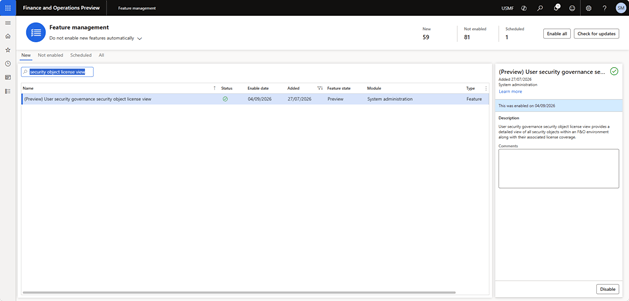
Figure 3. Preview feature displayed in Feature management.
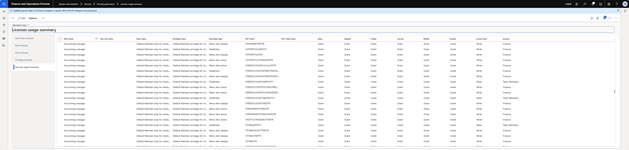
Figure 4. Wide Security object licenses grid after feature activation.
Anatomy of the Security object licenses view
Each row represents one securable object. The columns move from the security hierarchy to the AOT object, then to individual permission grants, the rolled-up access level, and the eligible license.
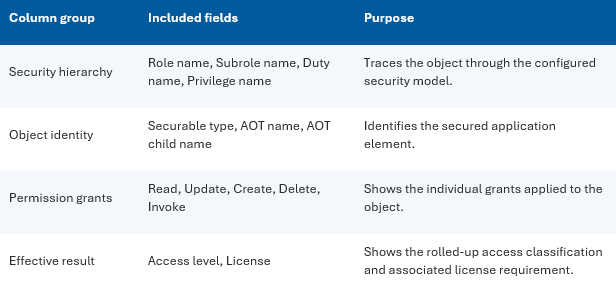
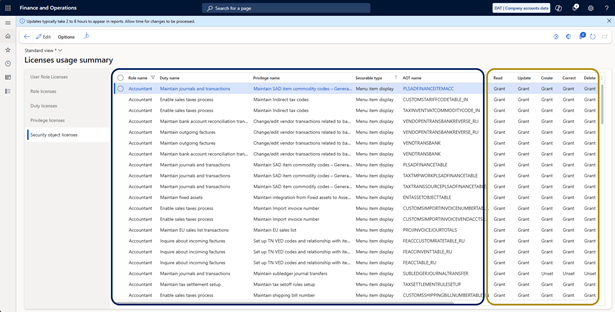
Figure 5. Object-level traceability from security role to permissions and license.
How permissions affect access level
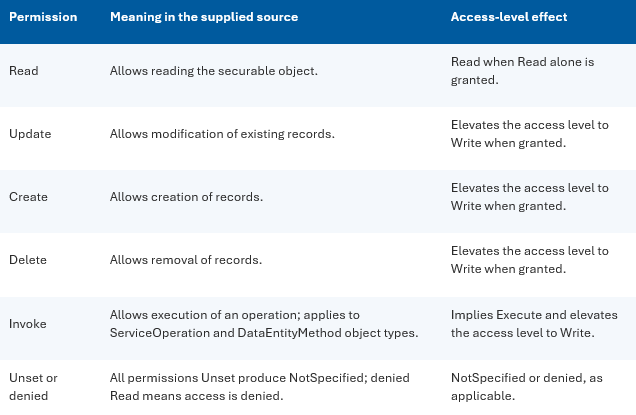
| License interpretation When multiple license SKUs satisfy the requirement, the License column lists the alternatives separated by “or”. The supplied source also states that when Access level is Read, the applicable license is no higher than Team Members or Human Resources Self-Service. |
Use the report to investigate role licensing
| 1 | Open the view In License usage summary, open Security object licenses view (Preview). |
| 2 | Filter the role Restrict the grid to the security role that requires analysis. |
| 3 | Review the trace Inspect the hierarchy, object identity, and permission columns. |
| 4 | Check the license Review the final License column for each relevant object. |
| 5 | Challenge unnecessary Write access If a license is higher than expected, verify whether Update, Create, Delete, or Invoke is granted but not required. |
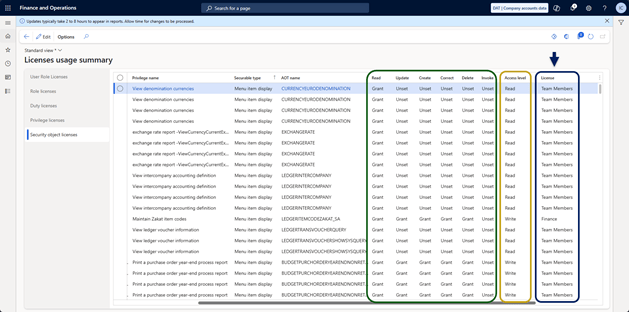
Figure 6. Read and Write access levels shown next to the resulting License column.
A common review pattern is a securable object configured with Write access even though the intended business requirement only needs Read access. This can increase the requirement from Team Members to a full user license.
| Control principle Use the report as evidence for a security-design review. Do not remove permissions solely to reduce licensing. Confirm the business task, control requirements, test results, and approved role design before deployment. |
Find objects with multiple eligible licenses
Filter the License column with the Contains operator and the value “or”. This identifies objects for which more than one license SKU can satisfy the requirement and helps determine whether an existing license already covers the object before role, permission, or access-level changes are considered.
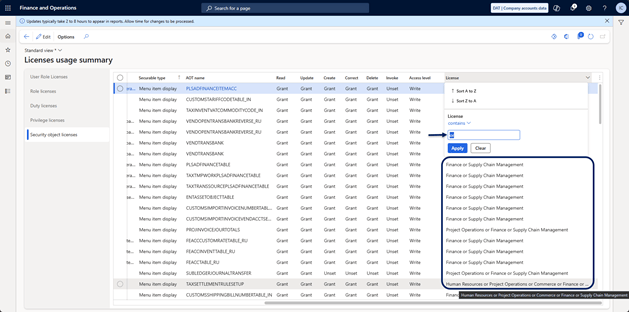
Figure 7. License filtering using Contains and the value “or”.
Export the inventory to Excel
Select Open in Microsoft Office to export the detailed object-to-license inventory to Microsoft Excel. The exported dataset can support filtering, reconciliation, documentation, and deeper security analysis.
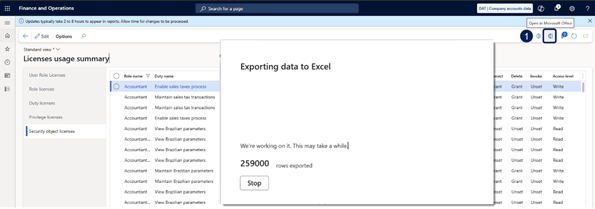
Figure 8. Exporting the detailed Security object licenses dataset to Excel.
Adjust the Excel export limit when required
The source document states that the default value of 0 allows up to 50,000 exported rows. A system administrator can raise the maximum to a value up to 1,000,000 rows.
| 1 | Open Client performance options Go to System administration > Setup > Client performance options. |
| 2 | Locate the export setting Find Maximum number of rows to export to Excel. |
| 3 | Set the required limit Replace 0 with an approved higher value, up to 1,000,000 rows. |
| 4 | Save Save the configuration before repeating the export. |
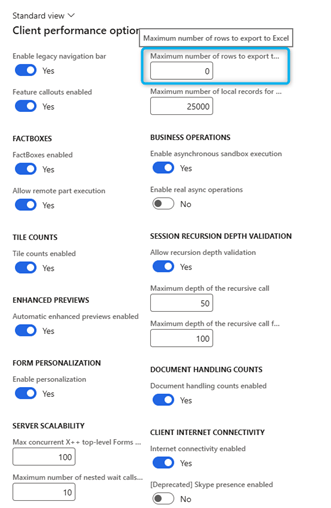
Figure 9. Maximum number of rows to export to Excel in Client performance options.
| Operational consideration A larger export limit allows a larger dataset to be exported in one session. Apply the setting according to the organization’s operational and governance requirements. |
Recommended governance workflow
| 1 | Baseline the role Record the role, duties, privileges, target users, and current license outcome. |
| 2 | Trace the driver Use the object-level grid to identify securable objects and grants influencing the license. |
| 3 | Validate business need Confirm whether Read, Write, or Invoke access is required for the business task. |
| 4 | Design the least-privilege change Where justified, revise the role through the approved security-design process. |
| 5 | Test end to end Validate business execution, segregation of duties, integrations, and regression impact. |
| 6 | Recalculate and document Re-run licensing analysis and retain the before-and-after evidence with approvals. |
| Important distinction The Security object licenses view explains the configured relationship between security objects and license requirements. It should be used alongside role governance, least-privilege design, testing, and licensing validation. |
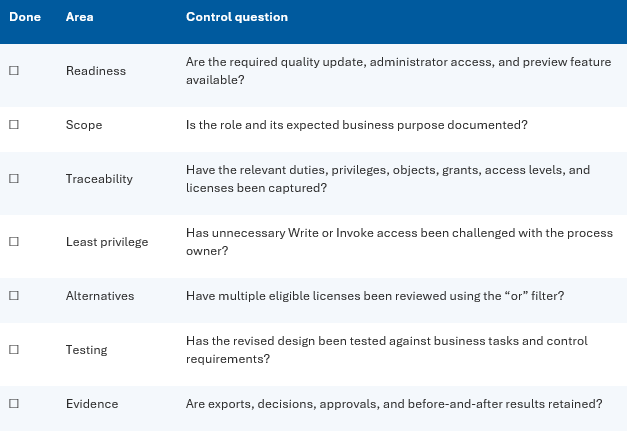
Implementation checklist
Conclusion
The Security object licenses view brings object-level transparency back into the Dynamics 365 Finance and Operations user interface. By linking roles, duties, privileges, securable objects, permission grants, access level, and eligible license, the report makes it easier to explain why a role produces a particular licensing result.
Its strongest use is not simply license reduction. The view supports a more disciplined conversation between security design, business access, least privilege, licensing, and audit evidence. Used with controlled role changes and end-to-end testing, it can become a valuable component of recurring security and license governance.
| Final recommendation Use the new view to establish an auditable object-to-license baseline, then prioritize roles where unexpected Write access or multiple eligible licenses warrant a structured review. |


Leave a Reply