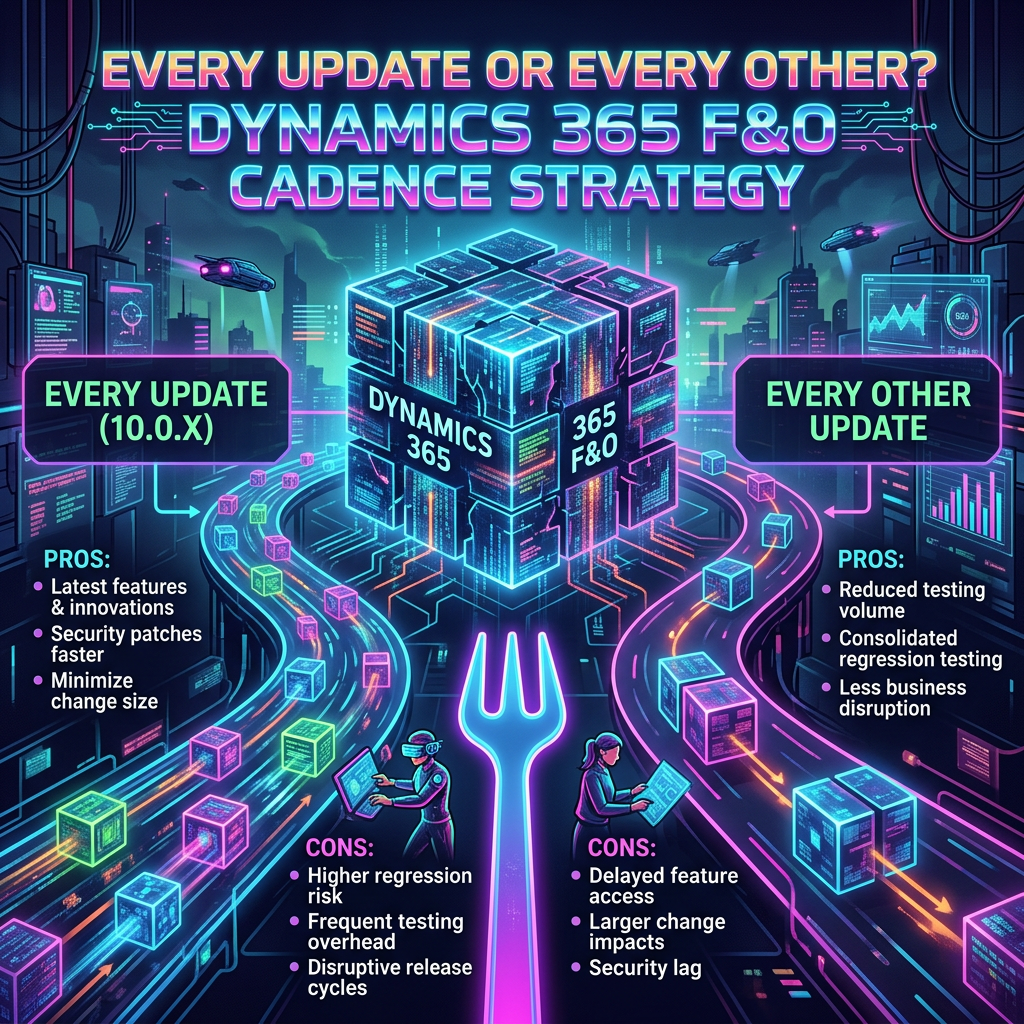
A practical guide to maintenance cadence for Dynamics 365 Finance & Operations unified environments
The takeaway : Maintenance cadence is an operational control, not a background setting. Review it deliberately across Production and every sandbox, align it with release governance, and monitor the published rollout schedule before critical milestones.
A service update is routine—until it lands at the wrong moment. In Dynamics 365 Finance & Operations unified environments managed through the Power Platform admin center (PPAC), the selected cadence determines whether an environment receives the next available service update or skips it in favor of the following one. That choice can materially affect testing, change control, and go-live readiness.
A recent FastTrack communication highlighted unified environments moving from version 10.0.48 to 10.0.49 on the standard service-update schedule, including cases close to go-live. The lesson is straightforward: update behavior must be governed across the entire environment landscape, not checked only in Production.
1. Why cadence deserves executive attention
Service updates protect the platform and keep customers on a supported release path. They also introduce a controlled change to a live application landscape. For project leaders, the question is therefore not whether updates exist, but whether the selected timing supports the program’s validation and deployment plan.
The risk near go-live
If an environment is eligible for the next update and its maintenance settings are not aligned with the project plan, the platform can schedule that update during a sensitive stabilization or cutover period. The resulting version change may force additional regression testing and governance decisions.
What Microsoft communicates
Microsoft publishes a rollout schedule for unified-environment service updates update in Release schedule for service updates (unified environments). The schedule identifies when sandbox and Production environments in each station are expected to receive the update. Microsoft also uses the Microsoft 365 Message center for advance notification; the published service update schedule remains the primary reference for rollout dates and changes.
A newly created environment is not immediately eligible
According to the Microsoft guidance referenced in the source material, a newly created environment is not eligible for service updates during its first seven days. After that period, eligibility follows the published rollout schedule and the environment’s configured maintenance settings.
Business impact in plain language
- Release confidence: A version change can expand the scope of final regression testing.
- Cutover stability: Update timing should not compete with data migration, dress rehearsals, or production stabilization.
- Auditability: The team should be able to explain who selected the cadence, why it was selected, and when it was last reviewed.
- Shared accountability: Architects, administrators, project management, and business process owners all need visibility of the decision.
2. Production and sandbox management
A common governance gap is to configure Production in PPAC and assume the same control is visible everywhere. For unified environments, the maintenance experience differs by environment type until the beginning of this week.
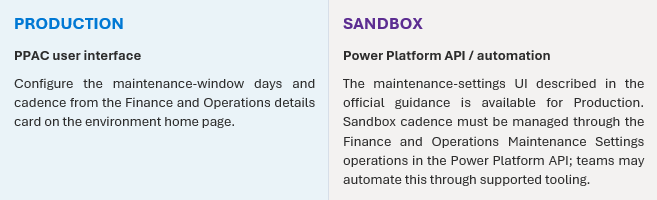
Now you can use PPAC user interface for Production and Sandbox.
Production Environment:
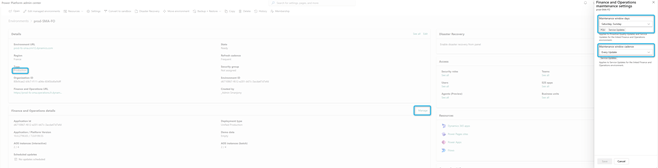
SandBox Environment:
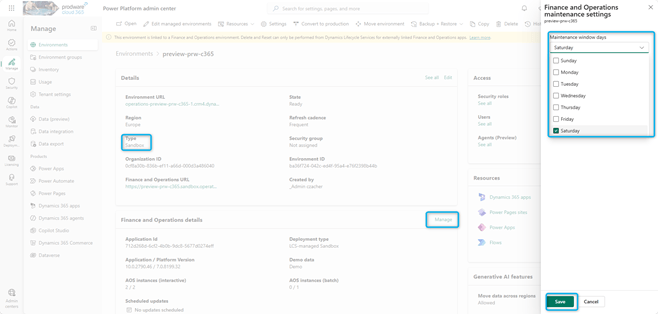
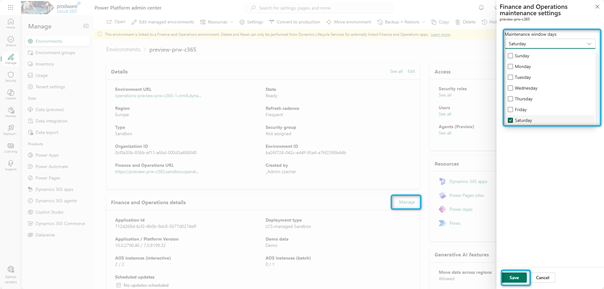
Weekday selection
Use the Maintenance Windows Days dropdown to select the days of the week when your environment can receive service updates and PQUs. Schedule the update on one of the selected days, based on the rollout schedule for your environment.
Set the weekday selection on the Finance and Operations details card on the environment home page.
Finance and Operations details card
Cadence selection
The maintenance window cadence determines whether a production environment receives every service update or every other service update. Select one of the following options:
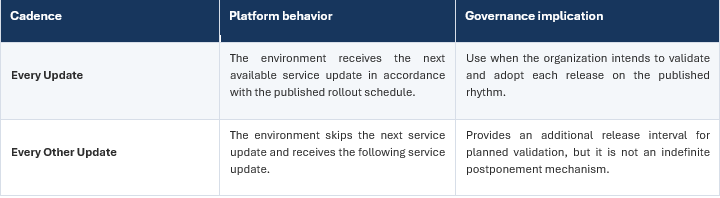
- Every update: The environment receives the next available service update.
- Every other update: The environment skips the next service update and receives the following service update.
Finance and Operations details card
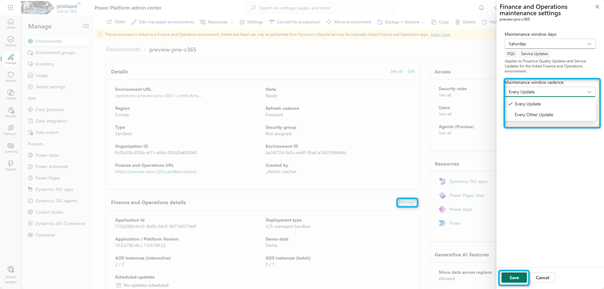
If you select “Every Other Update”, that means it works as it has always done. If you are two versions behind and the new release is ready, you get auto-updated.
If you select “Every Update”, that means as soon as a new version hits GA, it schedules you for an update even if you are only one version behind.
If you’re using an approach where you want to plan and manually go in and press the update button, the second option gives you much less flexibility. Most importantly, you need to be aware of this setting and know what your environments are set to so you can align it with your upgrade strategy.
Why every sandbox matters
Microsoft’s validation model applies a service update to at least one sandbox in the same tenant before Production. The referenced guidance states that sandboxes generally receive an update 10–15 days before Production and that, before the Production update, validation confirms that at least one sandbox received the same update at least five days earlier. Exact timing remains subject to the selected maintenance windows.
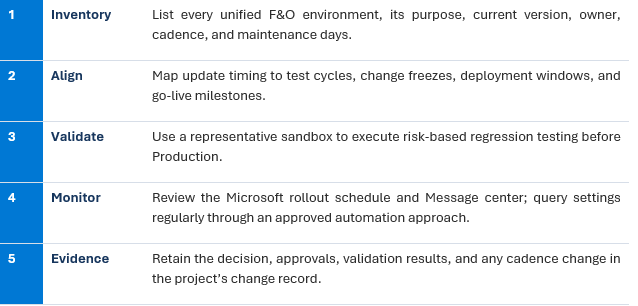
That sequence only creates business value when the selected sandbox is representative and the team uses the interval for focused validation. Dev, Test, and UAT should therefore be included in the environment inventory and reviewed deliberately—rather than leaving sandbox cadence invisible until a release is already scheduled.
A practical control model
3. “Every Update” versus “Every Other Update”
The maintenance-window cadence controls whether an eligible environment receives each service update or alternates between releases. The labels are simple, but their operational consequences are significant.
The 10.0.48 example
Consider an environment running version 10.0.48. With Every Update selected, it receives version 10.0.49 according to the rollout schedule. With Every Other Update selected, it skips 10.0.49 and receives 10.0.50 according to the relevant schedule.
Important boundary:
“Every Other Update” does not allow an environment to remain indefinitely behind. The source communication warns that deferral is no longer available once an environment is two versions behind. Treat cadence as managed timing—not as an exemption from servicing.
4. The recommended operating approach
The safest approach is not to select one cadence globally and forget it. Treat the setting as a release-management decision that can vary by environment purpose and project phase, while remaining consistent with Microsoft’s servicing boundaries.
Before a critical milestone
- Confirm the current application version and selected cadence for Production and every sandbox.
- Check the published service-update schedule for the environment’s station.
- Confirm maintenance days and avoid a collision with cutover, mock cutover, migration, or stabilization activities.
- Ensure at least one representative sandbox is positioned to receive and validate the version before Production.
- Agree regression scope, entry/exit criteria, business owners, and the escalation path for defects.
- Record the cadence decision and assign a named owner for the next review.
During normal operations
- Include update-cadence review in the regular release calendar rather than relying on a one-time configuration.
- Monitor official notifications and the rollout schedule; do not use a community tool as the authoritative schedule.
- Automate inventory and status reporting where practical, using approved identities, least privilege, secure credential handling, and change logging.
- Test business-critical processes, integrations, batch jobs, reporting, security roles, and customizations in the designated sandbox.
- Revisit the decision after go-live, major deployment waves, environment refreshes, or changes to the support model.
Recommended default posture:
For projects approaching go-live, consider “Every Other Update” when an additional release interval is needed and the environment remains within Microsoft’s supported deferral boundary. This is a governance recommendation—not a substitute for checking the official schedule, validating eligibility, and confirming the setting in each environment.
5. Optional community tooling for sandbox cadence
You can use a PowerShell utility published by Ted Ohlsson. It is designed to help administrators list F&O sandbox environments, view their current maintenance cadence, and change the selected cadence through a guided PowerShell experience.
Prerequisites
- Power Platform Administrator or Dynamics 365 Administrator rights in the target tenant.
- Microsoft Power Platform CLI version 2.12 or later installed on your computer
How does the script work?
- Download it directly from here.
- Run PowerShell and type ((point the route to the place you put the file)):
cd “c:\UpdateCadence”
.\Set-FinOpsSandboxUpdateCadence.ps1

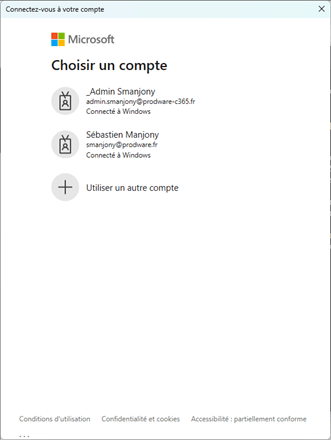
3. A new window will then open where you need to sign in to the tenant that you would like to run this on. Note: the logged-in user does not need to be connected to the same tenant.
4. Once logged in, give it some time and be patient (it can take up to a minute for it all to load), but once loaded, you will get the list of all your F&O sandboxes with the current settings for them and the option to change the Window cascade option.
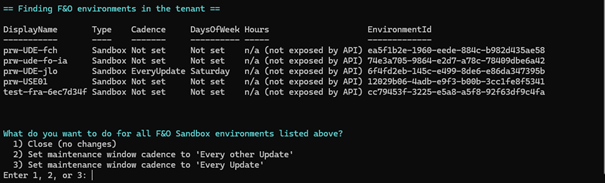
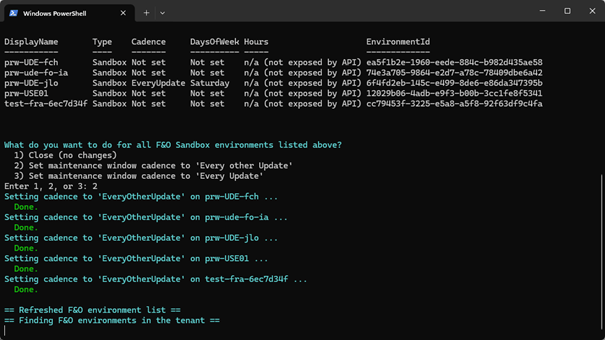
5. Select option “2” or “3” to change the settings for your environment and hit Enter.
6. Once done, it will refresh the settings for you:
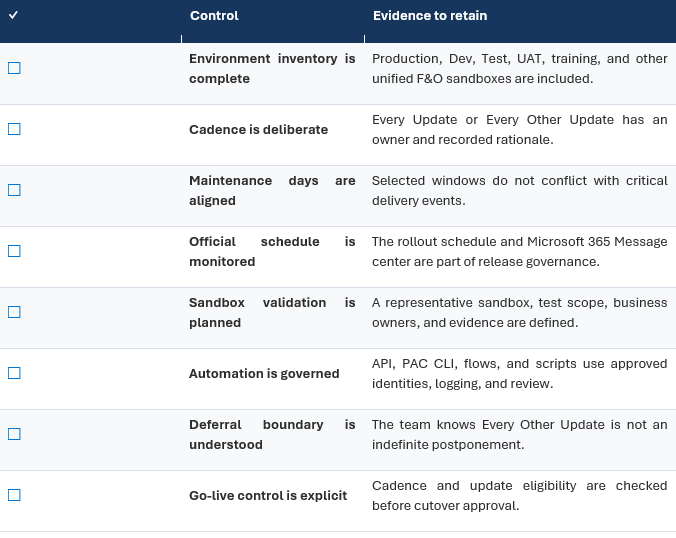
6. A concise governance checklist
Conclusion
The new cadence choice makes update governance more visible—and more consequential. “Every Update” can support rapid adoption, while “Every Other Update” can provide an additional interval for planned validation. Neither option removes the need for active ownership.
The practical priority is to know the setting on every environment, understand the rollout schedule, validate in a representative sandbox, and protect critical delivery windows with evidence-based change control. A small configuration review today can prevent a large release discussion at the worst possible time.
References
Official Microsoft sources
- Manage service updates for unified environments
- Release schedule for service updates (unified environments)
- Finance and Operations Maintenance Settings operations – Power Platform API
- Microsoft Power Platform CLI introduction
- Microsoft 365 Message center


Leave a Reply