
- Introduction
- So, what exactly is BPA?
- Enter the BPA MCP Server
- Creating a new agent for the BPA MCP server
- Using the ERP MCP Server
- Closing thoughts
Introduction
How combining Business Performance Analytics (BPA) with the Model Context Protocol (MCP) unlocks a new class of AI agents for Dynamics 365 Finance & Operations.
So, what exactly is BPA?
Who still needs convincing about the power of Dynamics 365 BPA? Dynamics 365 Business Performance Analytics (BPA) is a built-in, free reporting and analytics platform for Dynamics 365 Finance & Operations. It delivers pre-built, blazing-fast reports across your financial and operational data. Users can explore indicators such as the procure-to-pay process or the record-to-report cycle through embedded Power BI and Excel — complete with data refreshes and dimensional, role-level security.
What it covers
- Unified data model: BPA breaks down data silos by providing a consistent, dimensional model across the main financial value chains — instead of juggling fragmented, complex reporting tools.
- Architecture: ETL pipelines move data from D365 Finance into a governed structure, with Microsoft Fabric integration on top.
- Value-chain orientation: Reports are organised around the key business cycles — R2R, P2P, O2C and A2R.
- Performance & granularity: High-performance queries run against atomic, line-level data (e.g. individual invoice lines), not pre-aggregated figures.
- Accessibility & tooling: Users reach the analytics directly through a web hub, using embedded Power BI dashboards or Excel.
- AI & Copilot: Upcoming capabilities include Copilot integration, so users can simply ask, in plain language: “What was my total invoice amount for vendor X last quarter?”
- Security & retention: Role-based security governs data access. Today it keeps around eight rolling quarters (two years) of data available.
Core components & capabilities
- Value chains — data is organised by the key business processes.
- Data model — dimensional modelling, operating at both transaction (document) and line level for truly granular analysis.
- User experience — a web platform to browse pre-built reports or craft custom ones in Power BI and Excel.
- Extensibility — connects to D365 Finance, external systems, and partner solutions for a 360° view.
BPA dashboard — pre-built analytics on D365 Finance data.
Enter the BPA MCP Server
With the introduction of the BPA MCP servers available for D365 BPA, you can have it all — pairing BPA’s analytical depth with the agent-friendly muscle of MCP servers.
Why choose between rich analytics and intelligent agents, when you can plug them into each other?
Key aspects of the D365 BPA MCP server
- Purpose: Enables AI agents to understand, query and act on Dynamics 365 Finance & Operations data through the Model Context Protocol (MCP).
- Data access: Connects to BPA to expose analytical models — fact tables, dimensions and measures.
- Security & governance: Applies row-level security (RLS) based on the authenticated user’s role, so AI agents only see the data they are allowed to see.
- Use cases: Automate tasks, surface variances, forecast financial trends, and unlock natural-language querying over ERP data.
- Integration: Works with Microsoft Copilot and Teams — and with third-party AI agents too.
Requirements for the D365 MCP servers
Version & environment
D365 Finance & Operations: version 10.0.38 or higher (10.0.47+ recommended to benefit from the latest capabilities). Environment type: Tier 2+ sandbox, or Unified Development environment. Cloud-Hosted Environments (CHE) are not supported.
System configuration
Feature Management — enable the “Dynamics 365 ERP Model Context Protocol Server” feature.
Allowed clients — your MCP client (e.g. VS Code) must be registered on the Allowed MCP Clients form.
Authentication
A Microsoft Entra ID account is required for secure authentication.
Supported tools / operations
- execute_dax_query — runs a DAX query against the default BPA dataset.
- get_bpa_dataset_schema — returns the schema of the BPA dataset. Use it to understand the tables, columns and relationships available for analysis.
Creating a new agent for the BPA MCP server
Create your agent
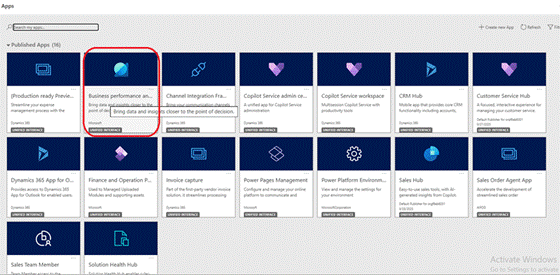
Spin up a new agent in Copilot Studio by following the usual flow, picking the right agent template and filling in the necessary information:
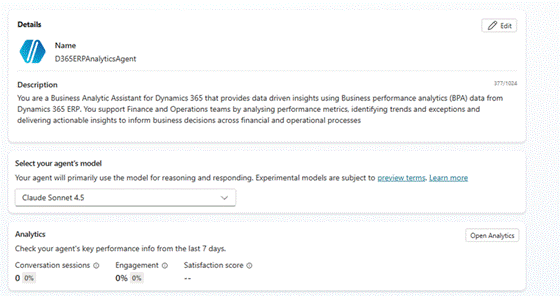
Figure 1 — Creating a new agent in Copilot Studio.
Go to Tool > Add a tool > Model Context Model tab, then pick “MCP Server for D365 ERP Analytics using Business Performance Analytics”:
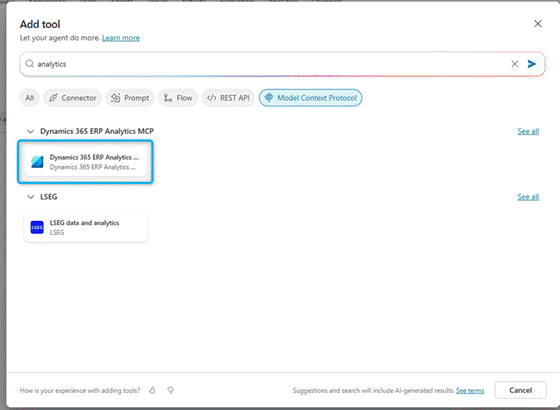
Figure 2 — Selecting the BPA MCP server tool.
Click Configure. The agent will appear in your tools list.
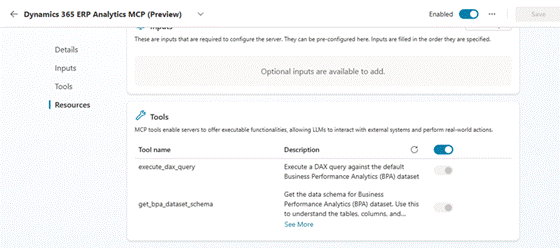
Figure 3 — The BPA MCP server registered as a tool.
Inside the details, you’ll find additional information. These ensure the user has the correct credentials, both for validation at connection time and when retrieving data.
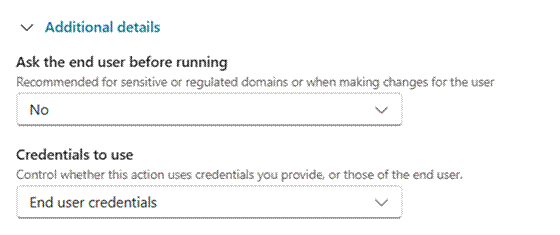
Figure 4 — Tool details and credential settings.
Under Settings > Generative AI, make sure the Code Interpreter is enabled.
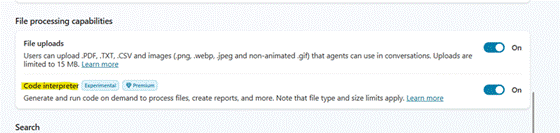
Figure 5 — Enabling the Code Interpreter.
Click Save, then Publish to apply your changes.
Test your agent
Give it a spin. The agent first calls the tool to fetch the BPA dataset schema, then runs the DAX query:
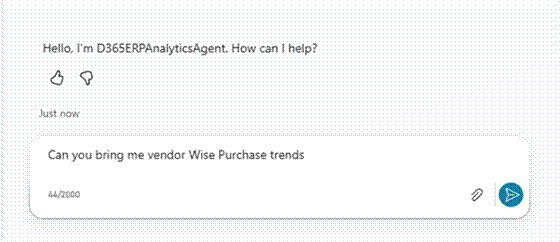
Figure 6 — Agent requesting the BPA dataset schema.
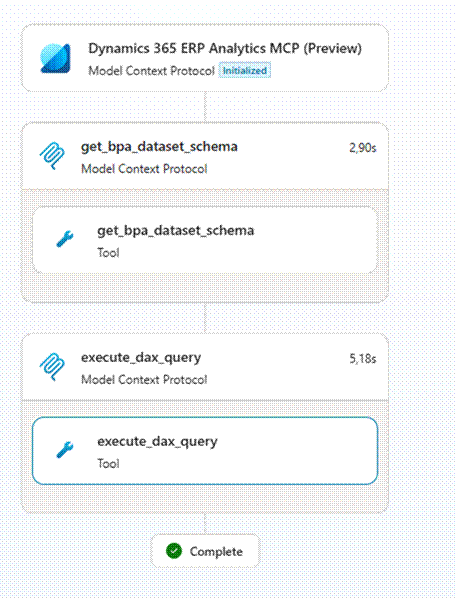
Figure 7 — Agent running a DAX query against BPA.
The result looks like this:
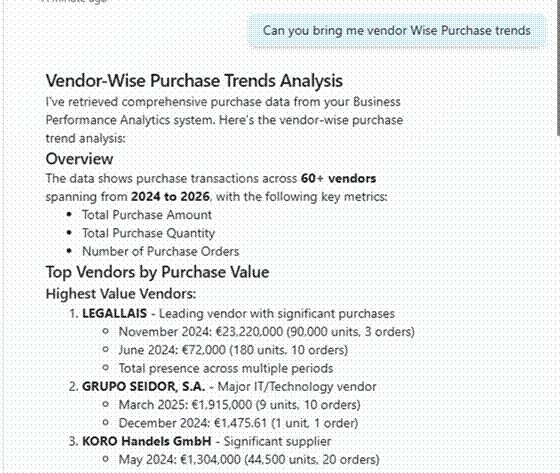
Figure 8 — Results returned by the agent.
You can also visualise vendor performance. The Python code the agent runs for the analysis is surfaced too — rendered and interpreted thanks to the Code Interpreter option we enabled earlier.
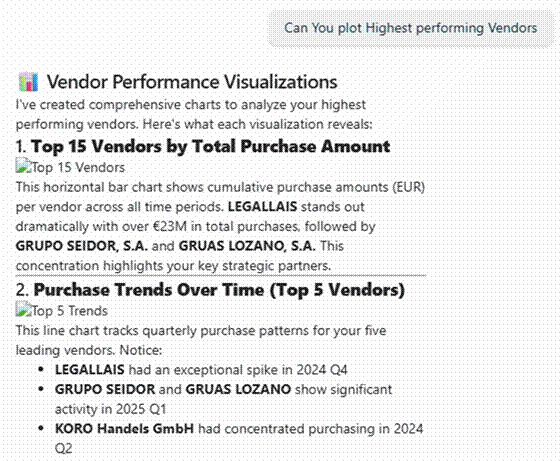
Figure 9 — Vendor performance visualisation.
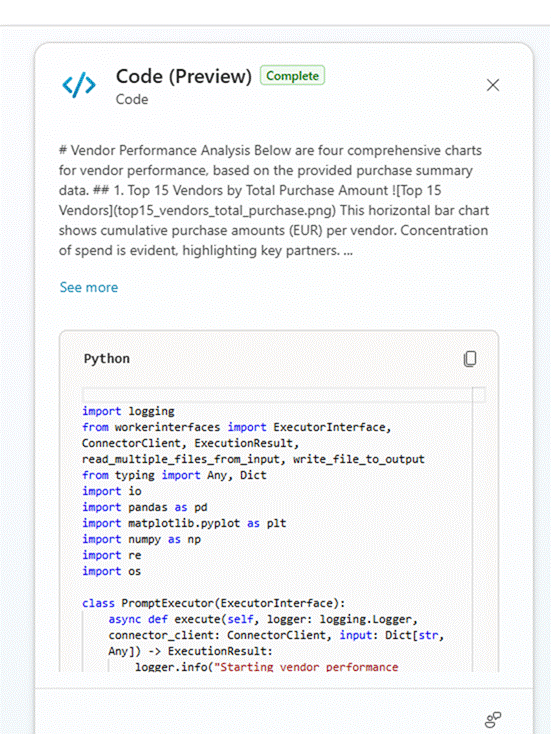
Figure 10 — The generated Python code, shown inline.
The resulting file is available for download.
Using the ERP MCP Server
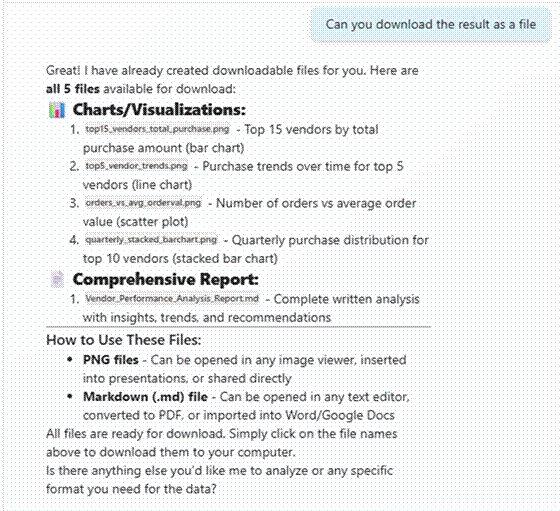
Figure 11 — The ERP MCP server in action.
Imagine the flexibility of agents that not only gather analytical data and trends, but also perform CRUD operations on your ERP. That’s exactly what version 10.0.47 unlocks. Plug your ERP MCP agent and your BPA side by side, publish them (as a Teams agent, for example) to bring them to your users, and you get a massive productivity lift that lets you:
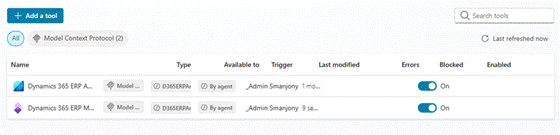
Figure 12 — Combining ERP MCP and BPA in a single agent experience.
- Analyse business performance data to surface operational pain points, then respond by triggering Finance and Operations processes in Dynamics 365 through the ERP MCP server.
- Start from an operational process in Dynamics 365 Finance and Operations, then sharpen your decision-making with Business Performance Analytics. For example, when managing purchase requisitions, use vendor performance analytics to identify the most reliable suppliers and streamline approval and procurement.
Closing thoughts
BPA tells you what is happening in your business. The ERP MCP server lets an AI agent do something about it. Put the two together, and you don’t just get smarter dashboards — you get agents that can reason about performance data and then take action inside your ERP, all under the same role-based security you already trust.
The future of ERP is conversational, contextual, and agentic. If you’re on Dynamics 365 Finance & Operations, the pieces are already there: turn them on, wire them up, and let your agents loose.


Leave a Reply