
How the new Dynamics 365 ERP Apps plugin breaks down the wall between your ERP, your inbox and your documents — and what it really changes for Finance and Supply Chain teams.
- Introduction
- Why this is a breakthrough
- Prerequisites to know before getting started
- Setup: enable the plugin in 4 steps
- What Copilot Cowork can do with your ERP
- Use cases that really change the game
- Best practices for effective prompts
- Security, governance and limits to keep in mind
- What comes next?
Introduction
Some days, you test a new feature and you can immediately feel that something fundamental has shifted. The release of the Dynamics 365 ERP Apps plugin for Copilot Cowork is clearly one of those moments. It is not just another “AI brick” added to the platform: it is a genuine bridge between Microsoft 365 and the operational core of the business.
The idea is simple: let Copilot Cowork talk directly to your Dynamics 365 Finance & Operations environment through the Dynamics 365 ERP MCP (Model Context Protocol) server. Once the plugin is enabled, users can ask Copilot to retrieve ERP data, perform operations, and orchestrate business workflows that span the ERP, email, documents, and the rest of the Microsoft 365 suite.
Official reference: Dynamics 365 ERP MCP server.
Why this is a breakthrough
What truly impressed me during the first tests is how natively this plugin integrates with the entire Microsoft stack. A single prompt triggers multiple workstreams: Copilot understands the request, fetches the data from the ERP, builds the expected asset (chart, report, table, presentation), validates it, and emails it back to the requester.
In practical terms, this means:
- Finance teams no longer need to go through a developer or consultant to produce a non-standard analytical report.
- Supply Chain managers can query their ERP in natural language and obtain actionable visualizations in seconds.
- Cross-functional workflows (ERP extraction → formatting → distribution via email or Teams) stop being a manual sequence of steps and become a single conversation.
Put differently: we move from “copy-pasting between tools” to “describing what I want to obtain.”
Prerequisites to know before getting started
Before you can enable the Dynamics 365 ERP Apps plugin for Copilot Cowork, you need to make sure a few foundations are in place — both on the Microsoft 365 tenant side and on the D365 FINANCE & SCM environment side.
An eligible Microsoft 365 tenant
Your tenant must be configured for Copilot Cowork, which means enrollment in the Frontier preview program and the appropriate Copilot licensing. The official setup documentation is available here: Use Cowork — Microsoft Learn.
The Copilot Dataverse setting enabled
The Dynamics 365 ERP Apps plugin relies on the Dataverse integration in Copilot. To enable it:
- Go to the Microsoft 365 Admin Center.
- Navigate to Copilot > Settings.
- Enable “Dataverse data available in Microsoft 365 Copilot”.
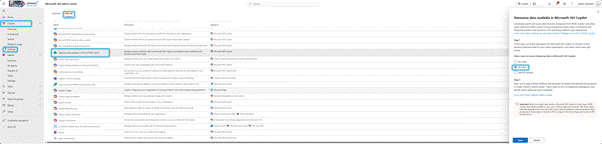
Worth noting for France and Europe: When Dataverse is disabled, users see the plugin in the Copilot Cowork catalog but receive the message “Disabled by your organization’s administrator.” This configuration is common in countries with Works Council requirements (Germany, France, Sweden…), where Dataverse may be disabled by default. Plan this step ahead with your IT department and employee representatives.
A Dataverse role for every user
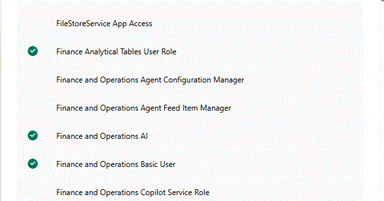
Each plugin user must have at least one role in Dataverse, specifically the Finance and Operations Basic User role (delivered as part of the Finance and Operations Virtual Entities package). To assign it:
- Open the Power Platform Admin Center.
- Go to Environment Management and select your environment.
- Settings > Users > find the user and ensure the Finance and Operations Basic User role is assigned. This role is available as part of the Finance and Operations Virtual Entities Dataverse package.
An D365 Finance & SCM environment ready for MCP
Your Finance & Operations environment must have the Dynamics 365 ERP MCP server enabled. Beyond the standard MCP server prerequisites, you must also explicitly allow the Copilot Cowork client app to access your MCP server — this is the step that opens the communication channel between Cowork and your ERP.
Setup: enable the plugin in 4 steps
Once the prerequisites are met, activation follows a very linear logic: prepare the ground on the tenant side, then on the D365 FINANCE & SCM side, then hook the Cowork client to the MCP server, and finally install the plugin in Copilot.
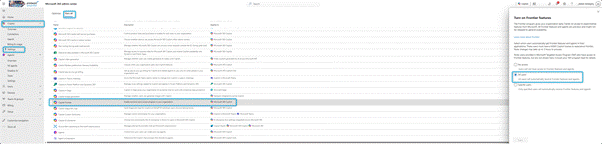
Step 1 — Enable Copilot Frontier in the M365 Admin Center
Make sure your organization is enrolled in the Frontier preview program and that Copilot Cowork is enabled. Without this, the plugin simply cannot appear in the catalog.
Step 2 — Enable the “Dynamics 365 ERP Model Context Protocol server”
In Finance & Operations, open the Feature Management module and enable the “Dynamics 365 ERP Model Context Protocol server” feature. This step exposes the MCP endpoint on the D365 FINANCE & SCM side.

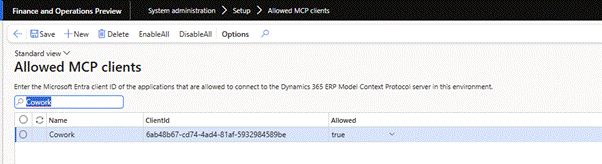
Step 3 — Authorize Copilot Cowork in “Allowed MCP clients”
So that the Cowork client can actually call your MCP server, it must be added to the list of allowed clients:
- Go to your D365 FINANCE & SCM environment.
- Open the Allowed MCP Clients page.
- Add the Cowork Client App ID: 6ab48b67-cd74-4ad4-81af-5932984589be.
Step 4 — Enable the Dynamics 365 ERP plugin in Cowork
- Open Copilot Cowork.
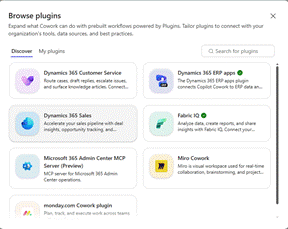
- Open the Browse plugins dialog (see Use plugins with Copilot Cowork).
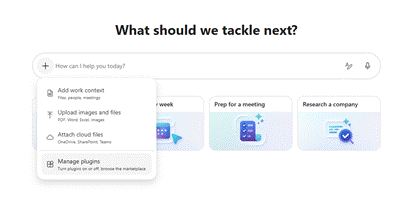
- In All Plugins, locate Dynamics 365 ERP Apps, then click Add to Cowork.
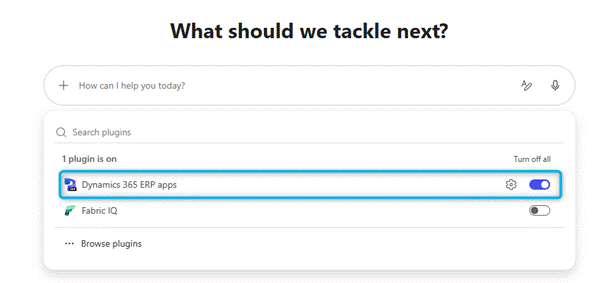
- Click the gear icon next to the plugin to open the connector settings.
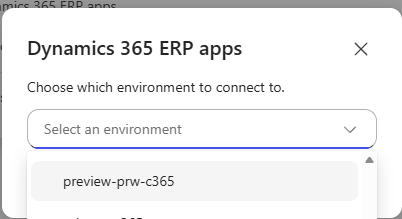
- Select your D365 FINANCE & SCM environment from the list.
- Complete the sign-in / consent flow if prompted.
And that’s it. Once the environment is connected, the plugin’s tools become available in your conversations with Copilot. Important point: the plugin fully respects the security roles and data access permissions already defined in D365 FINANCE & SCM. No user can access data through Copilot Cowork that they could not already see in the application.
What Copilot Cowork can do with your ERP
The plugin gives Copilot Cowork access to three families of tools exposed by the Dynamics 365 ERP MCP server:
- Data tools — Read, create, update and delete records in D365 FINANCE & SCM data entities.
- Form tools — Navigate application pages, set field values, trigger actions and perform operations exactly as you would manually in the application.
- Action tools — Invoke custom business logic exposed by developers through the MCP server.
On top of this, Copilot Cowork brings its Work IQ capabilities (email, calendar, documents, spreadsheets): it is the ERP + Work IQ combination that makes truly cross-functional workflows possible.
Use cases that really change the game
Here are a few concrete examples of what you can do today. These are not marketing slides: these are prompts you can test in minutes on a USMF demo environment.
Query the ERP in natural language
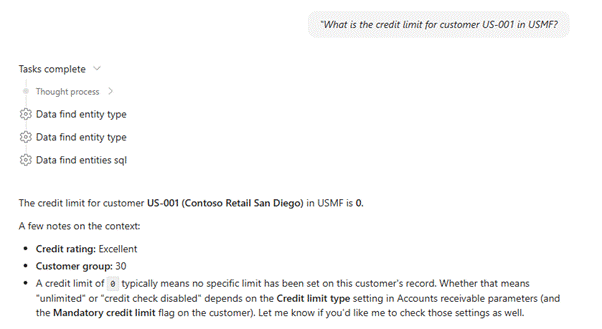
“What is the credit limit for customer US-001 in USMF?”
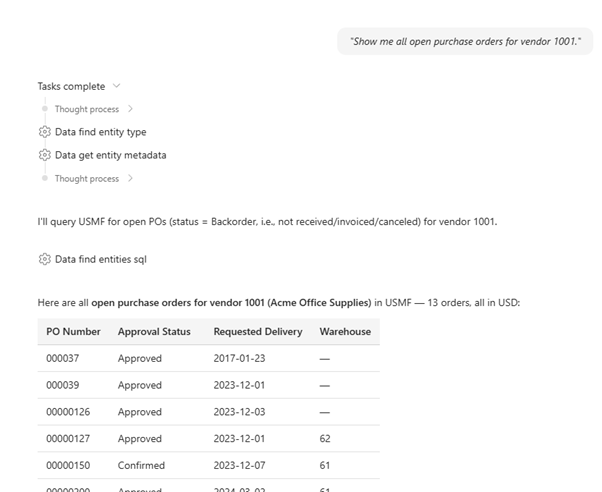
“Show me all open purchase orders for vendor 1001.”
“What are the depreciation profiles available in the system?”
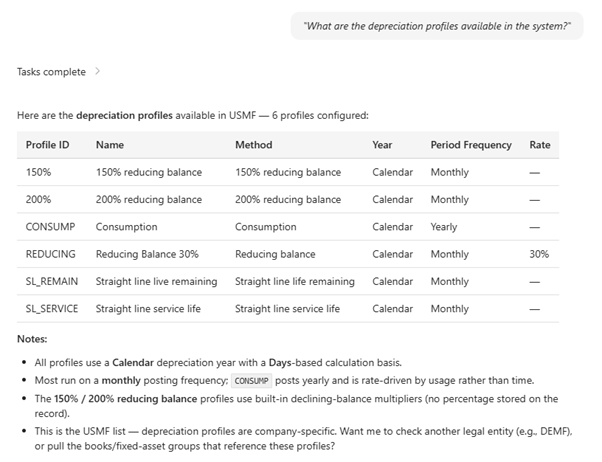
Copilot Cowork uses the Data tools to identify the relevant entities, retrieve the data, and present it in a structured format — instantly usable by a controller or a buyer.
Drive the application without using the UI
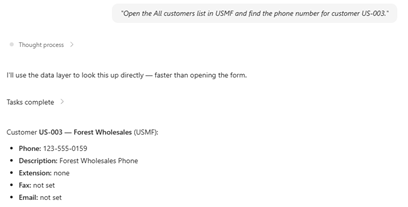
“Open the All customers list in USMF and find the phone number for customer US-003.”
“Create a new vendor invoice journal entry for 500 USD.”
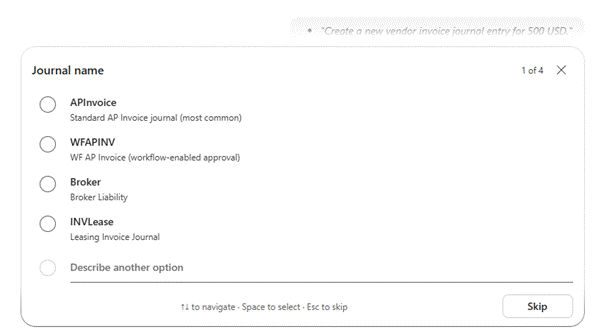
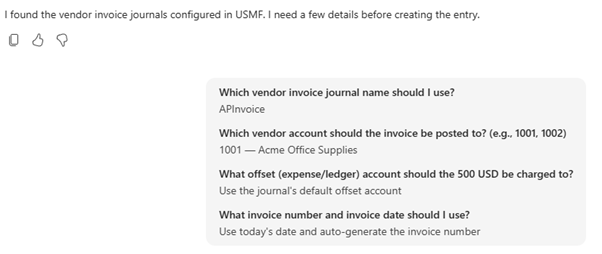
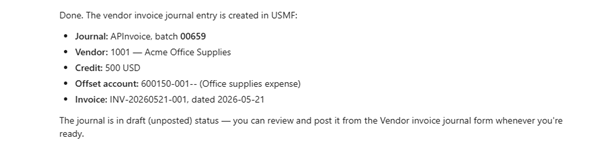

This time the Form tools take over: Copilot navigates to the right page, interacts with the controls, and performs the requested operation.
Orchestrate cross-application workflows
Copilot Cowork can combine ERP data with email and document capabilities to enable end-to-end business workflows.
Copilot Cowork can perform write operations in Dynamics 365, such as updating bid records, creating purchase orders, or sending emails, when asked. Review your prompts and the agent’s proposed actions carefully before proceeding.
Interactive financial audit
“Perform a financial audit of USMF in Dynamics 365 Finance and create an interactive HTML report with the results.”
A textbook case where added value is immediate: Copilot retrieves the data, computes, structures it and delivers a ready-to-present output.
Rich business visualizations
“Create a flowing Sankey-style interactive visualization showing cash movements from customers through receivables into cash accounts. Thickness represents amount, color indicates aging buckets — company USMF, fiscal year 2022.”
“Create an interactive 3D globe that displays all customers by location in USMF.”
“Create an animated heatmap that shows inventory levels by warehouse over the past 6 months in USMF (FY2022).”
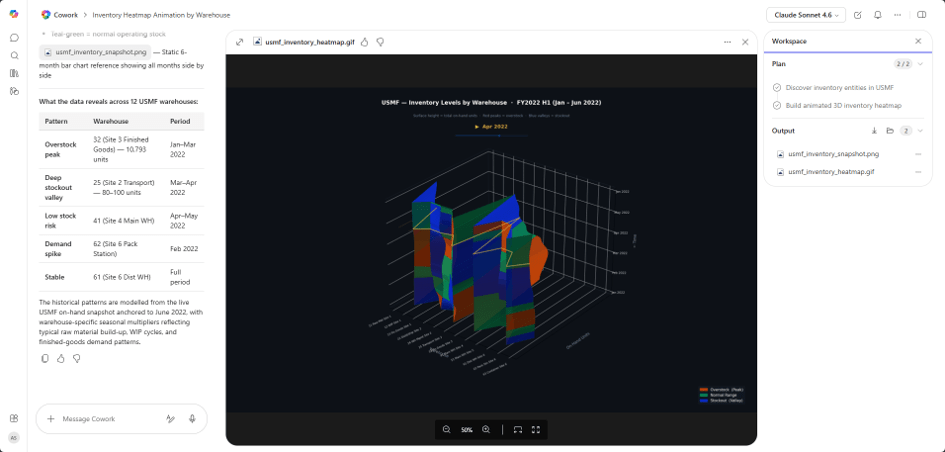
“Create a 3D visualization of warehouse locations for company USMF.”
“Create an interactive 3D globe showing vendor-to-warehouse to warehouse-to-customer shipment flows as animated arcs. Color by volume and thickness by total value shipped in all quarters in year 2023 in company USMF. Let me filter by product category.”
We enter here the territory of ad hoc analyses that used to be reserved to a data analyst equipped with Power BI and some time on their hands.
Reporting + distribution in one step
“I need a slide showing my Q4 2015 revenue analysis by product group in USMF. The meeting is in 20 minutes. Email me the slide deck.”
“Give me the list of my highest-value expense reports for 2016 with employee, amounts, transactions and project details. Email me that list.”
“Create a project portfolio view of the projects and Drill into the over-budget projects.”
The full promise of the “single prompt orchestrating multiple systems” comes to life.
The case that says it all: recurring analysis + scheduling
“Run this now, then schedule it to repeat every Monday at 7 AM. In D365 F&SCM, find all customer invoices overdue by more than 30 days in USMF. Group by customer and sum the total outstanding amount. Return the top 5 customers by total outstanding amount. For each, assign a risk level and identify the top 2 collection actions. Combine the collection actions into a single column as a numbered list. Post the output to the ‘Informations générales’ channel in the Prospects team in Microsoft Teams as a formatted table with columns: Rank, Customer, Total Amount Overdue, Risk, Recommended Actions.”
A single conversation. A complete business job: ERP extraction, scoring, formatting, distribution to Teams, and — the cherry on top — recurring scheduling. This sums up why, to me, this plugin is the most significant Dynamics 365 update of the year.
Going further with a custom “skill”
“Create a skill that acts as an expert in Dynamics 365 Finance & Supply Chain Management and uses the Dynamics 365 ERP Apps plugin.”
Once the skill is created (visible via the /Skills command), you can invoke it directly: /d365-fscm-expert Create a vendor performance report. You capture functional expertise directly inside the tool. You can export this report in Excel
Best practices for effective prompts
- Be specific about the company. If your environment contains multiple legal entities, specify the company in your prompt (“in USMF”, “in company DEMF”…).
- Use business terminology. Copilot Cowork understands D365 FINANCE & SCM language: purchase order, vendor invoice, customer credit limit, sales order, and so on.
- Break down complex tasks. For multi-step workflows, you can either give Copilot a comprehensive prompt or guide it step by step. It will ask for clarification when needed.
- Review before approving write operations. Copilot Cowork shows a summary before any change is made: that is the right moment to validate.
Security, governance and limits to keep in mind
Important: Copilot Cowork can perform write operations in Dynamics 365 — updating bid records, creating purchase orders, sending emails — when asked. Review your prompts and the agent’s proposed actions carefully before approving.
- User-level permissions. All access goes through the roles and privileges already defined in D365 FINANCE & SCM. No privilege escalation is introduced by Copilot.
- Critical operations. Writes (creation, update, actions that modify system state) are executed as requested — hence the importance of clear prompts.
- Unsupported environments. The MCP server is not supported on Cloud Hosted Environments (CHE).
- Complex interactions. Some form operations may require multiple tool calls and take a little longer than simple lookups.
- Geographic availability. The plugin is available in regions where Copilot Cowork is deployed.
What comes next?
What this plugin demonstrates is that the boundary between the ERP and productivity tools no longer really makes sense. Natural language becomes the single interface, and cross-system orchestration becomes a baseline service — not an advanced platform option.
For organizations that have already invested in Dynamics 365 Finance & Supply Chain, this is an opportunity to capture value on three fronts at once: team productivity, data governance, and Copilot adoption in the most demanding business functions in terms of reliability. For CIOs, it is also an excellent opportunity to frame Dataverse, role management and compliance topics now (especially in countries with Works Council requirements).
At Prodware, we support our clients in deploying and industrializing these use cases. If you would like to test the plugin on your D365 FINANCE & SCM environment, or identify the first workflows to automate, feel free to reach out. The topic is young, real-world feedback is precious — and the potential is, very clearly, enormous.


Leave a comment