
- Introduction
- Before you start
- Step 1 — Register the application in Azure AD
- Step 2 — Create a client secret
- Step 3 — Grant the Dynamics ERP permissions
- Step 4 — Collect your four credentials
- Step 5 — Register the app inside Dynamics 365 (don’t skip this!)
- Putting it to the test
- When things go sideways
- Wrapping up
Introduction
If you have ever needed to push sales orders into Dynamics 365, sync customer master data with a third-party system, or feed a reporting pipeline straight from your ERP, you have almost certainly run into the OData REST API. It is one of the cleanest ways to read and write business data in Dynamics 365 Finance & Operations — but there is a catch: nothing talks to it until you have wired up authentication correctly. You authenticate through Microsoft Entra ID (formerly Azure Active Directory) using the OAuth 2.0 client-credentials flow, then register that same identity inside D365. Miss either half and your API calls get rejected.
In this article I will walk through the exact, battle-tested setup we use to get an integration authenticated end to end — from registering an app in Azure, to generating a client secret, to the one step everyone forgets: telling D365 itself to trust the app. Every stage is illustrated with screenshots from a real, working configuration.
Before you start
Gather these three things and the rest of the setup takes about fifteen minutes:
- An Azure subscription — so you can register applications and grant API permissions in your tenant.
- The D365 F&O System Administrator role — required to register the app inside Dynamics on the Microsoft Entra ID applications screen.
- Your D365 instance URL — you will use it as the resource you request tokens for, and as the redirect URI.
Step 1 — Register the application in Azure AD
Everything begins with an App Registration. This gives your integration a unique identity that Azure can authenticate and authorize. In the Azure portal, head to Azure Active Directory → App registrations → New registration, then fill in the form:
- Name: ODataIntegration
- Supported account types: Single tenant — keeps access scoped to your own organization.
- Redirect URI: choose Web and enter your D365 instance URL with /auth appended.
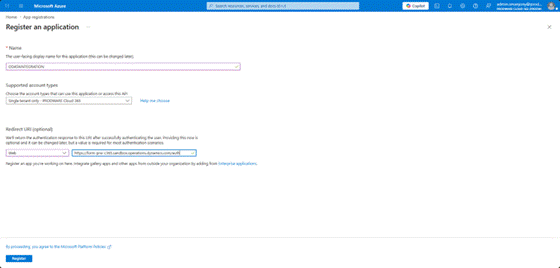
The New registration form — note the single-tenant choice and the /auth redirect URI.
Click Register. Azure drops you straight onto the app’s Overview page, where the identifiers you will lean on for the rest of this setup are waiting.
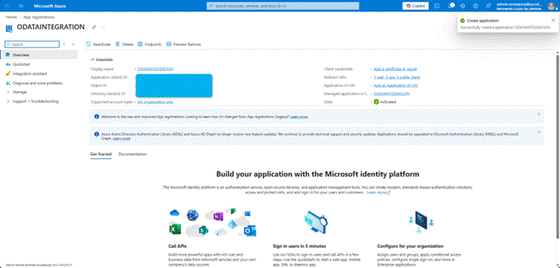
The Overview page exposes the Application (client) ID and Directory (tenant) ID.
Copy these now: Save the Application (client) ID and the Directory (tenant) ID somewhere safe. You will need both to request OAuth tokens and to configure your integration client.
Step 2 — Create a client secret
Your app needs a credential to prove who it is when it asks for a token. In Azure AD that credential is a client secret — effectively a password for your application. Open Certificates & secrets in the left sidebar and click + New client secret.
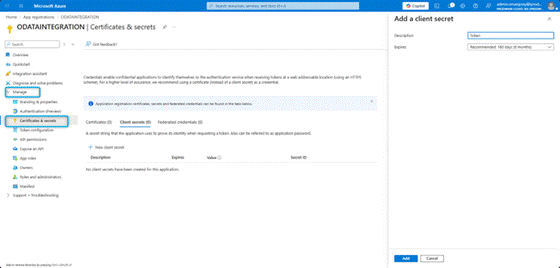
Certificates & secrets — where your application’s credential is born.
Give it a clear description (something like “OData Integration Key”) and pick an expiration window. The recommended default is 180 days. Click Add.
Warning — you only get one look: The secret value is shown exactly once, immediately after creation. Copy it the moment it appears. Navigate away and it is masked forever — your only option then is to generate a new one.
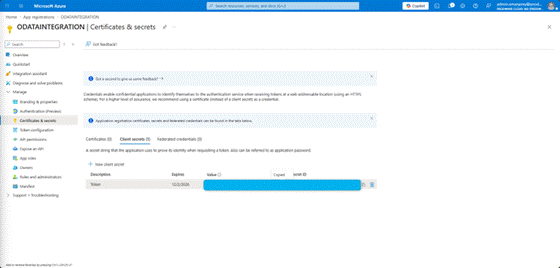
The full secret value is visible only at creation time. Copy it before you click away.
Step 3 — Grant the Dynamics ERP permissions
The app exists and has a credential, but it still cannot call anything. Go to API permissions → Add a permission. The request panel opens with the full catalog of Microsoft APIs.
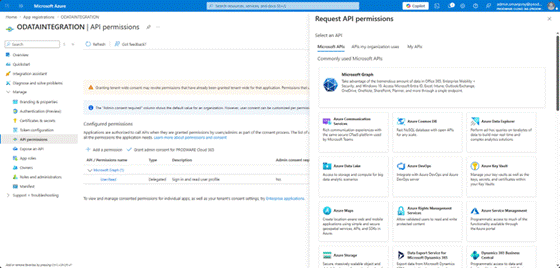
The Request API permissions panel — your gateway to the Microsoft API catalog.
Scroll down and choose Dynamics ERP. Azure then asks which kind of permission you need.
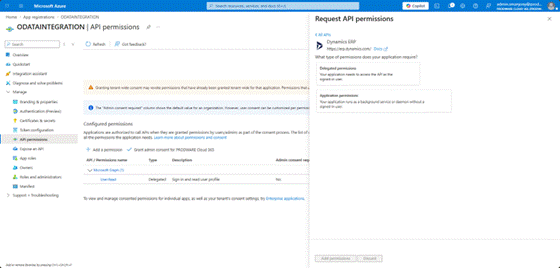
Delegated vs. Application permissions — the choice that defines how your app authenticates.
For server-to-server integrations that run with no human in the loop — scheduled syncs, ETL jobs, integration middleware — pick Application permissions. This lets the app authenticate with just its Client ID and secret, no signed-in user required.
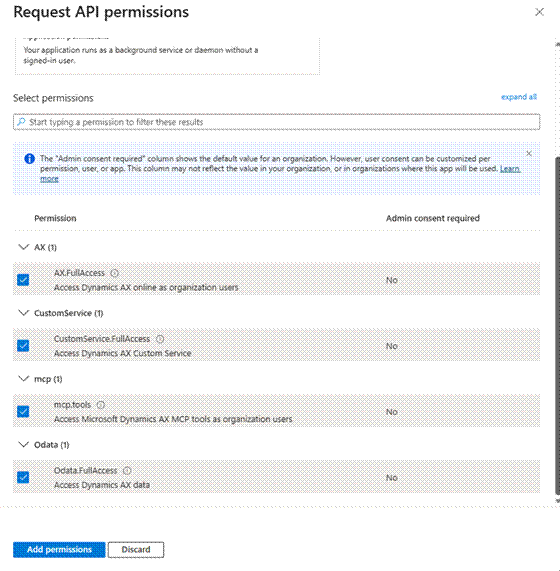
Selecting the required permissions for the integration.
Also add Connector.FullAccess under Application permissions. It grants elevated access to the Dynamics connector APIs without a signed-in user, so it requires admin consent.
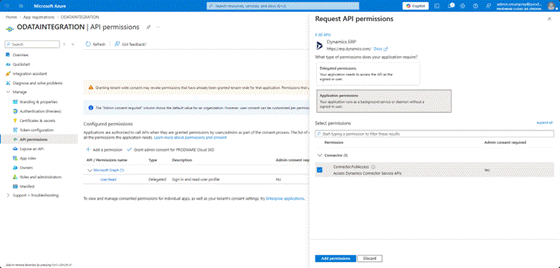
Connector.FullAccess — powerful, and therefore gated behind admin consent.
Once everything is added and consented, your permissions list should look like this:
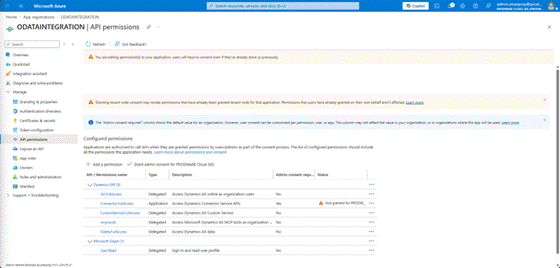
The complete, admin-consented permissions summary.
Step 4 — Collect your four credentials
With the Azure side done, gather the four pieces of information your integration client will use to request tokens and call OData endpoints:
- Client ID
- Tenant ID
- Secret value
- Resource URL (your D365 instance URL)
Step 5 — Register the app inside Dynamics 365 (don’t skip this!)
Here is the step that trips up almost everyone. Even with flawless Azure permissions, D365 keeps its own list of trusted external applications. Skip this and every API call — perfectly authenticated by Azure — gets rejected by D365 with an authorization error.
In your D365 environment, go to System Administration → Setup → Microsoft Entra ID applications, click New, and fill in:
- Client Id: the Application (client) ID from Azure
- Name: ODataIntegration (a friendly display name)
- User ID: Admin, or another D365 user whose security roles this app should inherit
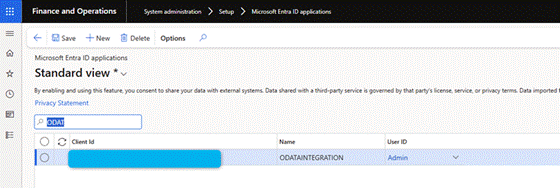
Registering the Azure app inside D365 so the ERP will honor its tokens.
Click Save. The app now appears in the Entra ID applications list and D365 will accept tokens issued to it.
Putting it to the test
With all five steps in place, your integration can authenticate and start querying. A typical round-trip looks like this.
A — Request an OAuth token
POST to the token endpoint with your credentials:

Requesting a bearer token via the client-credentials flow.
B — Call an OData endpoint
Use the access_token from step A as a Bearer token in the Authorization header:

Calling an OData entity with the bearer token attached.
Entities worth exploring
- /data/Customers — customer master data
- /data/VendVendors — vendor records
- /data/SalesOrderHeaders — sales order headers
- /data/InventItems — inventory items
- /data/LedgerJournalTables — general journal tables
When things go sideways
A few issues come up again and again. Most map back to one of the five steps above:
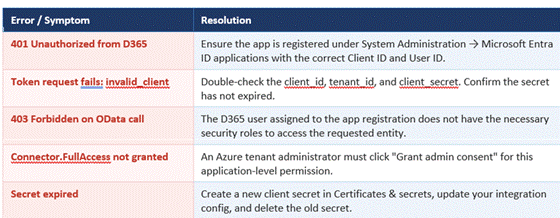
The usual suspects — and how to clear them.
Wrapping up
That is the whole flow: register in Azure, mint a secret, grant the Dynamics ERP permissions, gather your four credentials, and — crucially — register the same identity inside D365. Get those right and your application can authenticate via Azure AD, obtain bearer tokens, and query any OData entity your environment exposes.
One thing to put on the calendar: Client secrets expire. If you used the recommended 180-day window, set a reminder to rotate the secret before it lapses — a silently expired secret is the single most common cause of an integration that “suddenly stopped working.”
Have a question about a specific entity or a tricky permission error? That is usually where the real fun starts — and where this setup pays for itself.


Leave a Reply