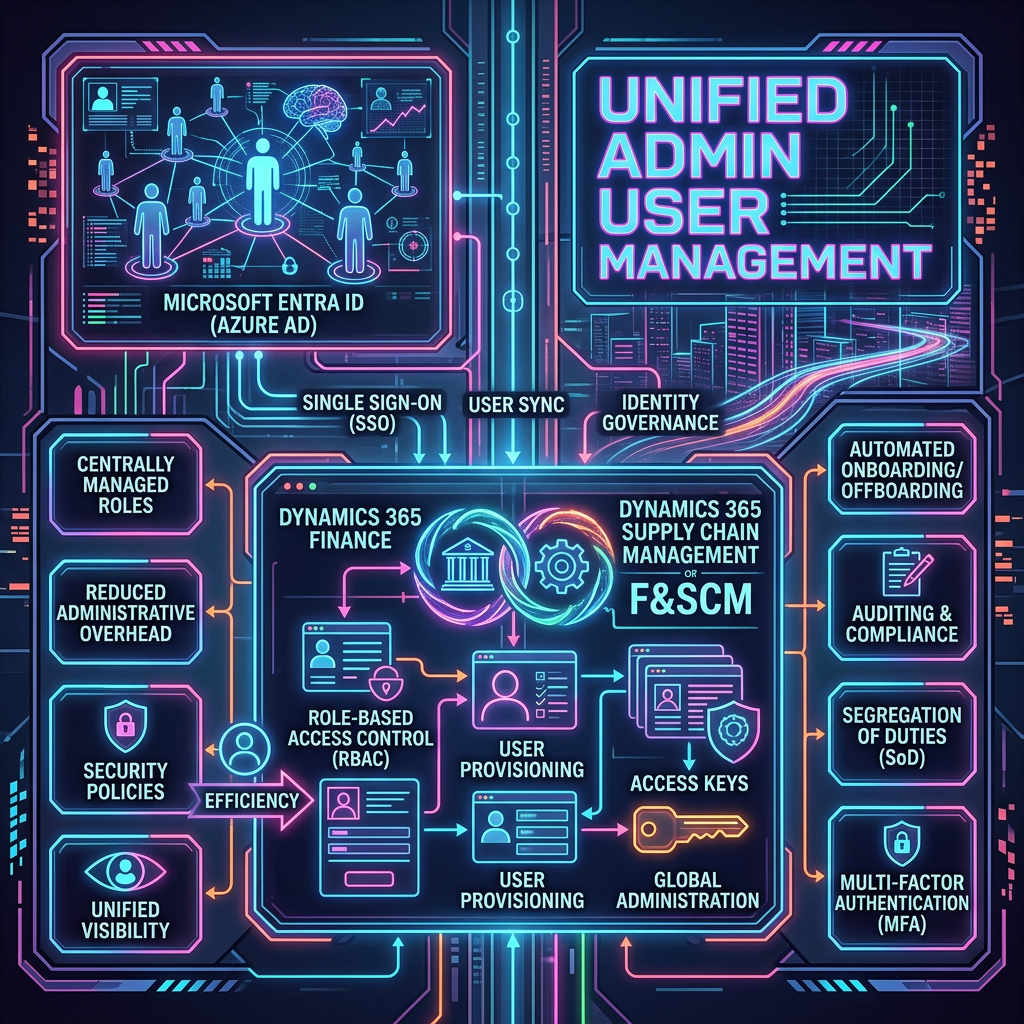
A hands-on walkthrough and governance guide for Dynamics 365 F&SCM

Executive summary
Microsoft’s unified administration direction brings Dynamics 365 Finance and Supply Chain Management closer to the same Power Platform administrative model used for Dataverse and other Dynamics 365 applications. Unified admin user management is a concrete part of that convergence: instead of maintaining the highest-privilege F&SCM role independently inside the ERP, administrators manage the relevant Power Platform security assignment in the Power Platform admin center (PPAC), and the F&SCM environment synchronizes the corresponding system administrator access.
The feature is operationally significant because it changes both the control point and the failure modes. Once enabled, PPAC is intended to become the source of truth for the synchronized System administrator population. A person who still has the role only inside F&SCM can lose it during reconciliation if the equivalent assignment is absent from PPAC. Conversely, a person granted the Power Platform System Administrator role may receive broad authority across other Dynamics 365 applications installed in the same environment—not only the ERP workload.
Treat enablement as a privileged-access migration, not as a cosmetic feature switch. Inventory administrators first, reconcile identities and role assignments, define owners and approvers, validate emergency access, then enable and test in a non-production environment.
What Unified admin user management changes
Historically, F&SCM administrators could manage users and assign the System administrator role within the Finance and Operations application. Power Platform and Dataverse administration were managed through their own security roles and administrative experiences. That separation allowed the privileged populations to drift: a user might be an ERP system administrator but not a Power Platform System Administrator, or the reverse.
Unified admin user management aligns the two control planes for the highest-privilege role. After the feature is enabled PPAC becomes the place where users are added to or removed from the synchronized system administrator population. F&SCM then creates the user if required and assigns the System administrator role. The corresponding role-management actions inside F&SCM are locked or hidden for this role.
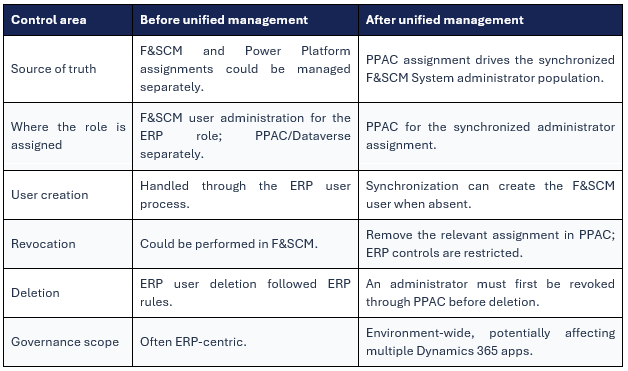
Why this matters beyond convenience
Centralization can reduce contradictory assignments and make the administrative model easier to explain. It also concentrates risk. The team controlling PPAC gains decisive influence over ERP superuser access, so identity governance, role ownership, audit evidence, partner access, and emergency procedures must be redesigned around that control point.
- A PPAC change can become an ERP access change.
- An ERP administrator cannot rely on local role assignment as an independent fallback after synchronization is authoritative.
- The Power Platform System Administrator role may be broader than an ERP-only responsibility.
- Production support procedures must identify who is authorized to grant, revoke, review, and approve the role.
Architecture: PPAC as the source of truth
The unified model is easiest to understand as a chain of authority rather than as a user-interface change. Microsoft Entra ID provides the identity. The Power Platform environment contains Dataverse and installed Dynamics 365 applications. PPAC exposes environment administration and role management. F&SCM consumes the synchronized administrator state and enforces the ERP System administrator role accordingly.
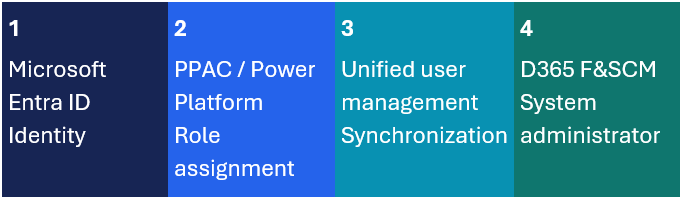
Figure 1 — Logical authority chain for unified administrator management.
What “source of truth” means operationally
A source of truth is the authoritative system whose state is expected to win when systems disagree. In this scenario, if a user is assigned as a System administrator in F&SCM but the corresponding PPAC assignment is missing, synchronization can remove the ERP role. Local assignment is therefore no longer a durable control. Administrators must stop treating F&SCM as the master list for this specific role.
| Before enablement, manually reconcile the list of current F&SCM System administrators with the intended PPAC administrator population. Any mismatch can become a privilege removal when synchronization runs. |
What remains distinct
Unified administrator management does not make every role identical across products. Business roles, duties, privileges, legal-entity access, segregation-of-duties controls, and XDS policies remain F&SCM security concepts. The feature described here targets the top-level administrator relationship. It should not be used as a substitute for designing least-privilege functional or technical roles.
The supplied source also distinguishes the F&SCM environment Admin user from ownership of the Dataverse environment. The “Make environment admin” action changes the administrator association inside F&SCM; it does not, by itself, transfer ownership of the Power Platform environment.
Status and prerequisite verification
Status-sensitive facts need special handling because preview features, minimum builds, and solution dependencies can change. Use it to understand the expected checks, but validate the values displayed in your own tenant and current Microsoft documentation before implementation.
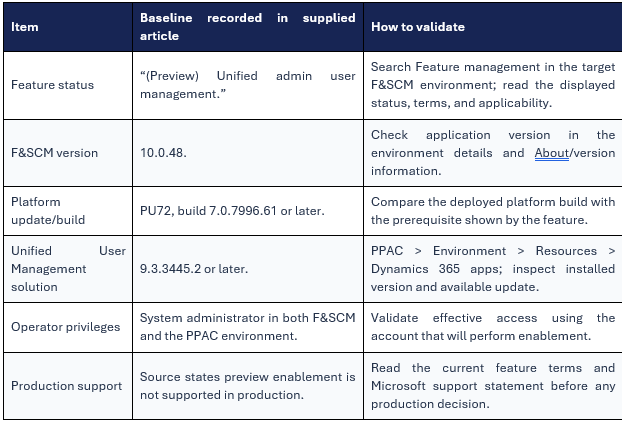
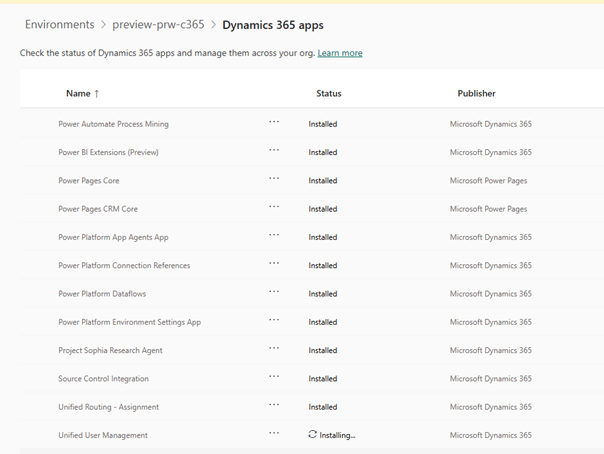
How to check the solution in PPAC
- Open the Power Platform admin center and select the target environment.
- Open Resources, then Dynamics 365 apps.
- Locate the Unified User Management solution or the application component that exposes its installed version.
- Compare the installed version with the prerequisite displayed for the F&SCM feature.
- If an update is available, assess it through the organization’s normal change process before enabling the feature.
Pre-enablement assessment
The safest implementation starts with an access baseline. The goal is to identify every person and technical account that currently has powerful access, determine whether the access is still justified, and decide how that access should be represented after PPAC becomes authoritative.
Build the administrator inventory
- Export or record the current F&SCM users assigned to the System administrator role.
- Record the current Power Platform/Dataverse System Administrator assignments for the same environment.
- Identify named employees, service identities, partner/guest users, emergency accounts, and obsolete accounts separately.
- For each identity, record an owner, business justification, approver, start date, review date, and planned end date where relevant.
- Investigate mismatched UPNs, guest-object identities, disabled accounts, duplicate users, and former employees before enabling synchronization.
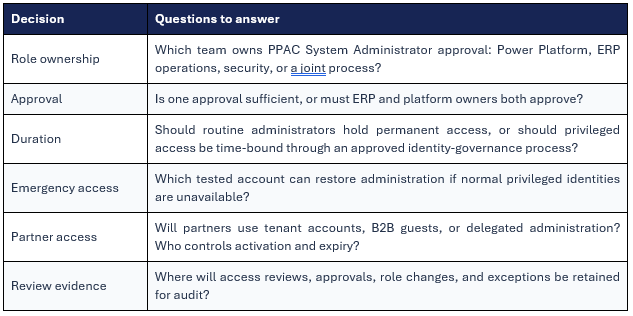
Decide the target privileged-access model
Validate non-production first
For a preview capability, a representative non-production environment is the appropriate place to validate eligibility, synchronization timing, user creation, role assignment, revocation, error handling, and the operational responsibilities of each team. The test should include at least one existing administrator, one user not yet present in F&SCM, one revocation, and—if partner support is in scope—one external-user scenario that follows the organization’s approved model.
| Change-control gate Do not schedule production enablement until the team can demonstrate: a reconciled administrator list, successful non-production tests, current supportability confirmation, an approved rollback/recovery decision, and a named PPAC administrator who remains available during validation. |
Step-by-step enablement walkthrough
The following procedure consolidates the supplied article into an operational sequence. Menu labels can vary with rollout and localization, so the live environment remains authoritative.
Step 1 — Confirm environment eligibility
- Confirm that the environment uses the unified administration architecture required by the feature.
- Verify the F&SCM application and platform build against the prerequisite displayed in Feature management.
- Verify the Unified User Management solution version in PPAC and review any available update.
- Confirm that the enabling user is an administrator in both F&SCM and the Power Platform environment.
- Record the environment, version values, date, operator, and change reference in the implementation log.
Step 2 — Reconcile administrators before enabling
Compare the F&SCM System administrator list with the intended PPAC System Administrator list. Add the required administrators in PPAC before enablement so that legitimate ERP administrators are not removed merely because the two systems were previously maintained independently.
| Users with the F&SCM System administrator role can have that role revoked if they are not assigned appropriately in PPAC when the feature is enabled. |
Step 3 — Open Feature management
- Sign in to the target F&SCM environment with the approved enabling account.
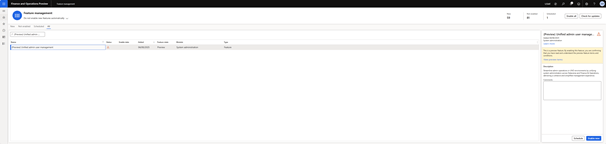
- Open the Feature management workspace.
- Search for “Unified admin user management.” It appears as “(Preview) Unified admin user management.”
- Inspect the feature details and status. If the status shows a prerequisite error, stop and correct the stated condition rather than attempting to bypass it.
Step 4 — Accept applicable terms and enable
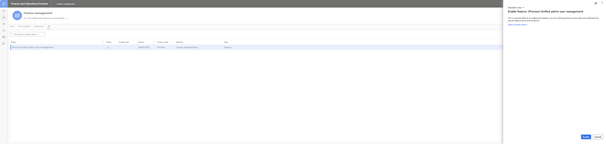
Select Enable now only after the change gate has been passed. If the feature is still Preview, review and accept the preview terms presented by the product.
Step 5 — Observe synchronization
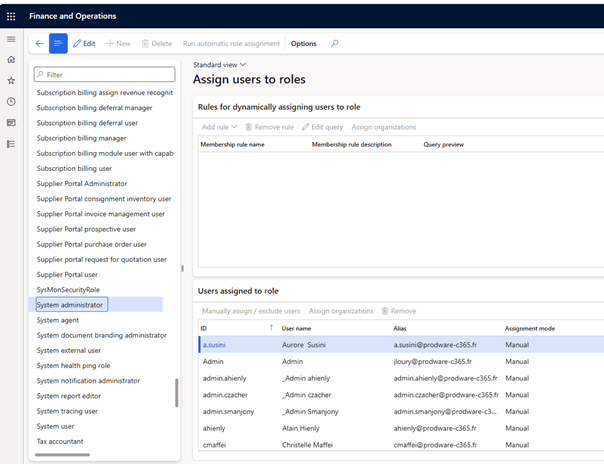
After enablement, the synchronization process aligns the F&SCM System administrator population with PPAC. The process creates the F&SCM user if it does not already exist and assigns the System administrator role. Additional users granted the relevant administrator assignment in PPAC are then synchronized to F&SCM.
Step 6 — Validate the result
- Confirm that every intended administrator can sign in and perform an agreed harmless validation action.
- Confirm that no unintended user received the System administrator role.
- Confirm that legacy or test administrators were not retained accidentally.
- Verify that assign/revoke controls for the System administrator role are disabled or hidden in F&SCM as expected.
- Attempt no destructive test. Validate through read-only inspection and controlled role changes in PPAC.
- Capture the final administrator list and close the change only after reconciliation.
Day-two administrator operations
Once PPAC is authoritative, operating procedures must follow the new direction of control. The F&SCM user page remains useful for inspection, but it is no longer the place to make durable changes to the synchronized System administrator role.
Adding an administrator
- Confirm the request, business need, scope, approver, and duration.
- Confirm that a broad environment-level System Administrator role is necessary; prefer a narrower role if it is sufficient.
- Assign the approved role in PPAC using the organization’s controlled administrator account.
- Allow synchronization to complete, then validate the F&SCM user and role.
- Record the outcome and next review or expiry date.
Removing an administrator
- Remove or revoke the authoritative assignment in PPAC.
- Validate that synchronization removed the F&SCM System administrator role.
- If the user must be deleted from F&SCM, do so only after the administrator role has been revoked through PPAC.
- Review other roles and application access separately; removal of this one role does not prove that all access has been removed.
Why local role controls are disabled
Locking the role inside F&SCM prevents a local change from contradicting PPAC. The System administrator role is hidden from role assignment and that actions for assigning or revoking it are disabled. Attempts to delete a user who still holds the synchronized role can produce an error instructing the operator to contact the System Administrator. The correct response is to update the authoritative assignment first—not to search for a database-level workaround.
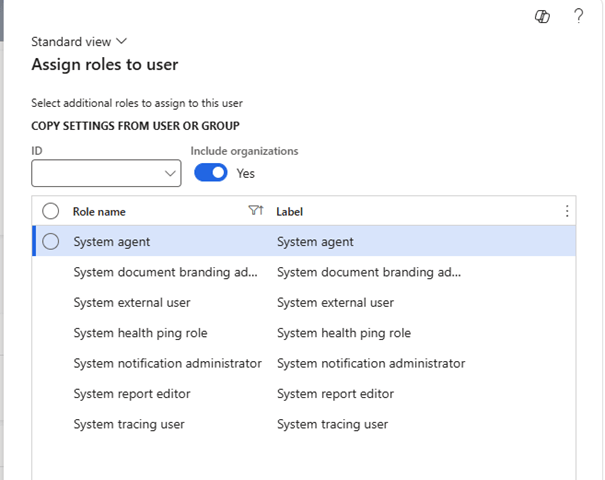
“Make environment admin”
Aan additional action that changes the primary Admin association within the F&SCM environment. This can be useful when an environment was provisioned using a normal named account and the organization later wants a dedicated administrator identity to hold the special Admin user association.
Prerequisites and behavior
- The target user must already be assigned the System administrator role.
- Open the target user’s details and select Make environment admin.
- The action has no additional confirmation prompt and acts immediately.
- The target identity becomes associated with the F&SCM Admin user; the former administrator is recreated or represented with a new user ID according to the observed behavior described in the source.
- The change applies to the F&SCM Admin user and does not transfer ownership of the Dataverse environment.
| Treat Make environment admin as a controlled ownership change. Capture the before-state, verify the target identity and role, ensure another authorized administrator is present, schedule the action in a change window, and validate both the new and former user records immediately afterward. |

Recommended validation after the switch
- Confirm which identity is linked to the F&SCM Admin user.
- Confirm that the former Admin identity still has only the access that was intentionally retained.
- Validate sign-in and required administrative functions with the new identity.
- Verify that Dataverse environment ownership and PPAC administrative assignments remain as intended.
- Update operational documentation, support contacts, and emergency procedures.
Security and governance design
The feature reduces one form of inconsistency, but it does not automatically implement good governance. The System Administrator role is highly privileged. Assignments should be exceptional, reviewable, attributable to a named owner, and proportionate to the work performed.
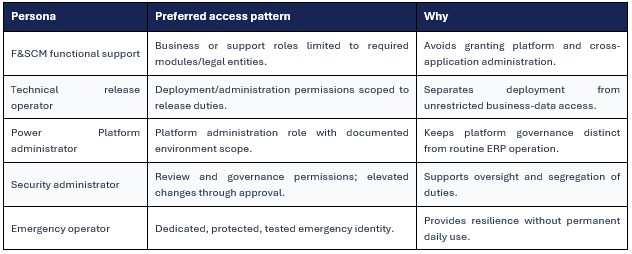
Least privilege and role segmentation
Do not use System Administrator as a default support role. Functional consultants, data-migration teams, integration operators, release managers, and help-desk staff usually require different combinations of privileges. Design specific F&SCM roles and Power Platform roles for their responsibilities. Reserve the environment-wide administrator role for tasks that genuinely require it.
Separation of duties
At minimum, separate the ability to request privileged access, approve it, implement it, and review it. A small organization may combine some roles, but the compensating control should be explicit—for example, independent periodic review of PPAC role assignments and F&SCM synchronization results.
- Requester: explains the operational need and duration.
- Approver: validates scope and risk.
- Administrator: performs the PPAC change.
- Reviewer: confirms that assignments remain justified and that removals completed correctly.
Privileged access lifecycle
A mature process covers joiners, movers, leavers, temporary elevation, emergency access, partner access, and periodic recertification. Where the tenant uses Microsoft Entra privileged identity capabilities, organizations can consider time-bound activation for eligible administrative roles. This is a governance recommendation; the exact applicability depends on the role type, tenant licensing, and the organization’s approved identity architecture.
Audit evidence
- Approved request and business justification.
- Identity, role, environment, approver, implementer, and timestamps.
- Before-and-after administrator lists.
- Evidence that synchronization completed and the intended F&SCM state was reached.
- Evidence of expiry or revocation for temporary access.
- Exception record when broad access is retained rather than replaced by a narrower role.
Cross-application impact
A user added as a System Administrator in PPAC may obtain administrative privileges for other Dynamics 365 applications deployed in the same environment, such as Sales or Field Service. This makes an ERP-only approval insufficient. The approver must understand the complete application footprint of the Power Platform environment.
| Before granting System Administrator, inventory the applications installed in the environment and assess the effective scope. If the user should administer only F&SCM, design a narrower role model instead of accepting broad access by convenience. |
External users and partner administration
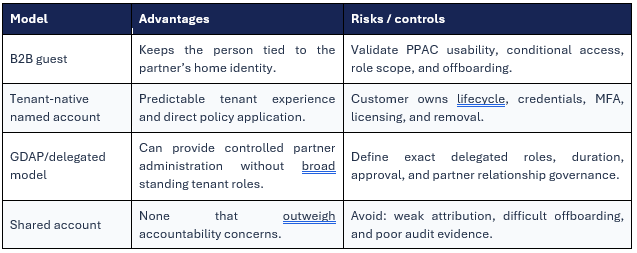
Partner support introduces additional identity and governance questions. An external guest can be configured as a system administrator, but an external user cannot open PPAC without appropriate delegated administrative arrangements such as Granular Delegated Admin Privileges (GDAP). Tenant-native accounts can be easier to administer technically, but they also become identities owned by the customer and must be governed accordingly.
Partner access decision matrix
Minimum controls for external administrators
- Named, individual identity—never a shared partner login.
- Strong authentication and customer-approved conditional access.
- Documented sponsor, scope, start date, and expiry date.
- Time-bound access where the approved platform supports it.
- Quarterly or more frequent review according to organizational risk policy.
- Immediate revocation when the engagement or individual assignment ends.
- Validation of access across every Dynamics 365 application in the environment.
Troubleshooting and safe recovery
Troubleshooting should preserve the authority model. Avoid unsupported database changes, direct manipulation of security tables, or attempts to bypass synchronization. Start with versions, identity, assignments, and logs or product status information available through supported administration experiences.
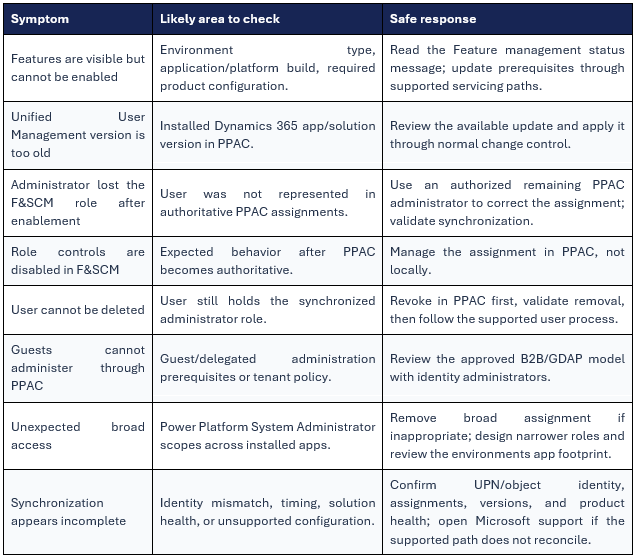
Access-loss scenario
If an intended administrator is removed during initial synchronization, do not attempt to reassign the role inside F&SCM if the controls are locked. Use another authorized administrator in PPAC to restore the correct authoritative assignment. If no authorized administrator remains, follow the organization’s emergency-access process and Microsoft-supported support route. The precise recovery path depends on the tenant’s retained administrative roles; it should be tested before production adoption rather than invented during an incident.
Operational runbook
The following runbook is designed for repeatable use by a joint ERP, Power Platform, and security team.
Pre-change checklist
- ☐ Target environment and change record identified.
- ☐ Current feature status and supportability verified.
- ☐ Application/platform build verified.
- ☐ Unified User Management solution version verified.
- ☐ Current F&SCM System administrators exported.
- ☐ Current PPAC administrators exported.
- ☐ Target list approved and mismatches resolved.
- ☐ At least two independent authorized administrators available.
- ☐ Emergency-access procedure validated.
- ☐ Non-production test completed and documented.
Enablement checklist
- ☐ Open Feature management and confirm eligibility.
- ☐ Review preview/production terms shown by the product.
- ☐ Enable the feature through the supported action.
- ☐ Monitor reconciliation without making parallel role changes.
- ☐ Validate intended additions, removals, and user creation.
- ☐ Confirm F&SCM role actions are locked as expected.
- ☐ Capture evidence and final administrator list.
Day-two checklist
- ☐ Route all synchronized System administrator changes through PPAC.
- ☐ Require approval and justification for additions.
- ☐ Verify removals in both PPAC and F&SCM.
- ☐ Review external users and partner assignments.
- ☐ Review the complete application scope of each broad role.
- ☐ Recertify privileged access on the organization’s defined schedule.
- ☐ Retest emergency access after material identity or tenant changes.
- ☐ Revalidate status and documentation after product updates.
Recommendations and conclusion
Unified admin user management is a meaningful step toward a single administrative model for Dynamics 365 and the Power Platform. Its value is not simply that administrators use one screen. The real benefit is a clearer authority chain: identity in Microsoft Entra ID, environment-level administration in PPAC, and synchronized high-privilege access in F&SCM.
That clarity comes with a corresponding obligation. PPAC assignments must be governed as enterprise privileged access. Enabling the feature without first reconciling administrators can remove legitimate ERP access. Granting the broad role without reviewing the environment can expose other Dynamics 365 applications. Using the Make environment admin action without preparation can change a special ERP administrator association immediately.
| Recommended position Adopt the model through a controlled non-production pilot, treat PPAC as the authoritative control plane, reserve System Administrator for exceptional use, and require joint ERP–Power Platform–Security governance. Do not assume preview status, prerequisite versions, or production supportability; verify them in the target environment and current Microsoft documentation at the time of change. |


Leave a Reply